

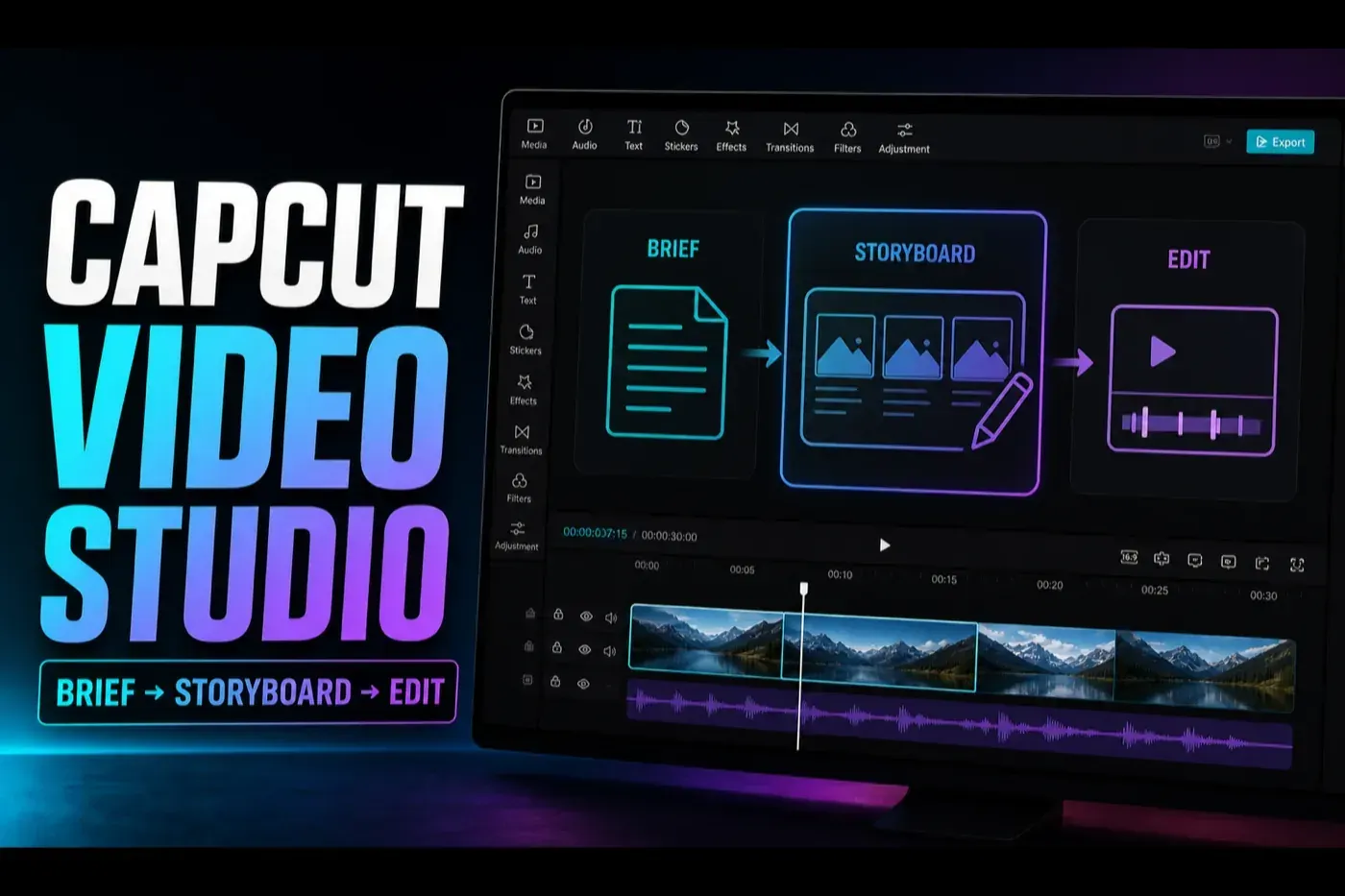
Checked August 13, 2026: CapCut currently presents Video Studio as a brief-to-storyboard AI workspace on the web and in supported Desktop builds. Access, models and voices can still vary by version, account and region.
CapCut Video Studio is useful when you need a structured first draft, not a finished video you can publish without checking. Give it a clear brief and it can help shape the idea, storyboard scenes, generate visuals, add a voice and move the result toward CapCut's normal editor. Give it a vague prompt and it will make confident decisions you may spend more time undoing.
My practical verdict is simple: use Video Studio to shorten the blank-page stage. Keep facts, rights, pacing and final polish under human control. The safest route is brief → storyboard review → live credit check → generation → scene QA → Edit More → test export.
It removes the empty-project problem and gets a reviewable sequence on screen.
Generated claims, faces, text, pronunciation and licensed assets still need checking.
Desktop is advertised, but the entry can be absent from a particular build or account.
Don't rely on a fixed credit number copied from a tutorial or another account.
We checked the current official workflow, live product entry points, CapCut's credit documentation and recent user reports. We didn't press Generate because the web workspace hit a browser-session gate during inspection, and running a model could spend account credits. This is a sourced workflow review, not a speed or quality benchmark.
What CapCut Video Studio does
CapCut's Video Studio page describes two related paths. On the web, you can start with a prompt or script, add reference images, choose a model when offered, then review and export the generated result. The advertised Desktop flow adds controls such as style, voice, avatar, duration and aspect ratio, generates a video brief, and lets you refine that brief in chat before producing the full video. If the job is one speaking presenter rather than a multi-scene draft, use the separate CapCut AI Avatar guide.
The product is broader than a text-to-video box. CapCut's short-form workflow frames it as a canvas that keeps the idea, storyboard, generated scenes, captions, music, effects and later editing close together. The official launch video calls it a timeline-free production workspace. “Timeline-free” describes where the work begins; it doesn't mean the timeline is no longer useful.
In practical terms, it is an AI video generator attached to a planning and editing chain. The value is not one model demo; it is keeping the brief, scenes and correction path in the same workspace. If the script is already finished and you want automatic scene assembly rather than brief-and-storyboard planning, use the CapCut Script to Video workflow. If you need one model-generated shot, use the separate CapCut AI video clip guide for current model controls, live credit quotes and result QA.
What it can prepare
- a video brief and scene order;
- generated or reference-led visuals;
- voiceover, music and subtitles;
- a draft that can continue into the editor.
What it can't decide for you
- whether a claim is true;
- whether you cleared every asset and voice;
- whether the pacing feels right for your audience;
- whether the final export is publishable.
If you're comparing this with captions, background removal, voice tools or other separate features, use the CapCut AI Tools hub. This page stays focused on the Video Studio production chain.
Where to find Video Studio
Start on the web if you want the route CapCut documents most clearly. Sign in, open AI Studio and look for Video Studio. CapCut also says supported Desktop versions can show Video Studio on the Home screen.
That doesn't make the button universal. CapCut's own Desktop rollout note says the related AI Video Maker can be missing even on the latest version and points affected users to Web. In a read-only check of the English Desktop app on August 9, the installed build showed Create project and several AI shortcuts but no Video Studio entry; it also showed an available update. I didn't update the owner's app or touch any project. No official Mobile Video Studio route appeared in the workflow documentation.
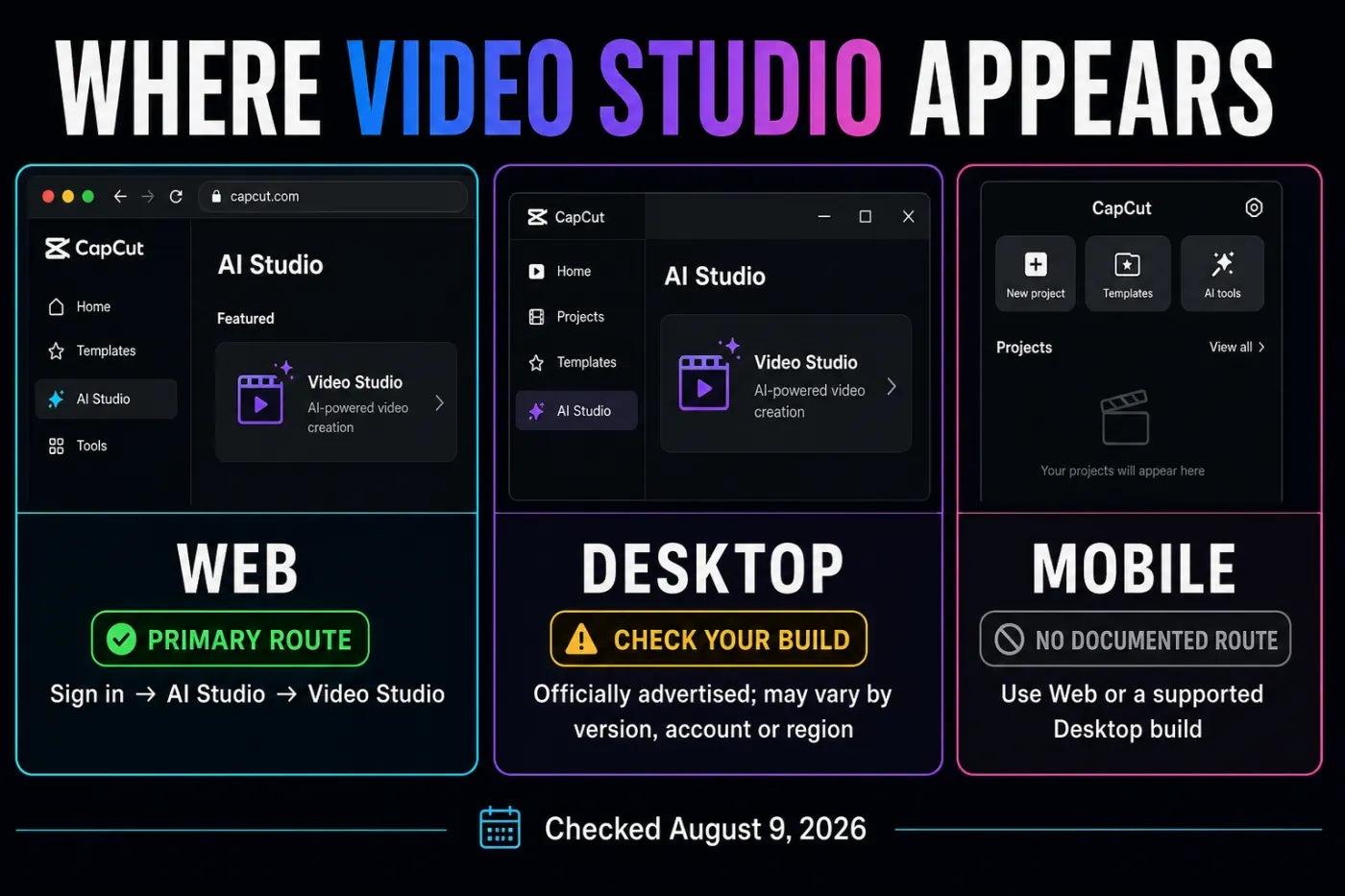
Check the web route, confirm the correct account, note the app version and compare the current CapCut platform availability matrix. An absent rollout is not repaired by putting a local project at risk.
Write the brief before the prompt
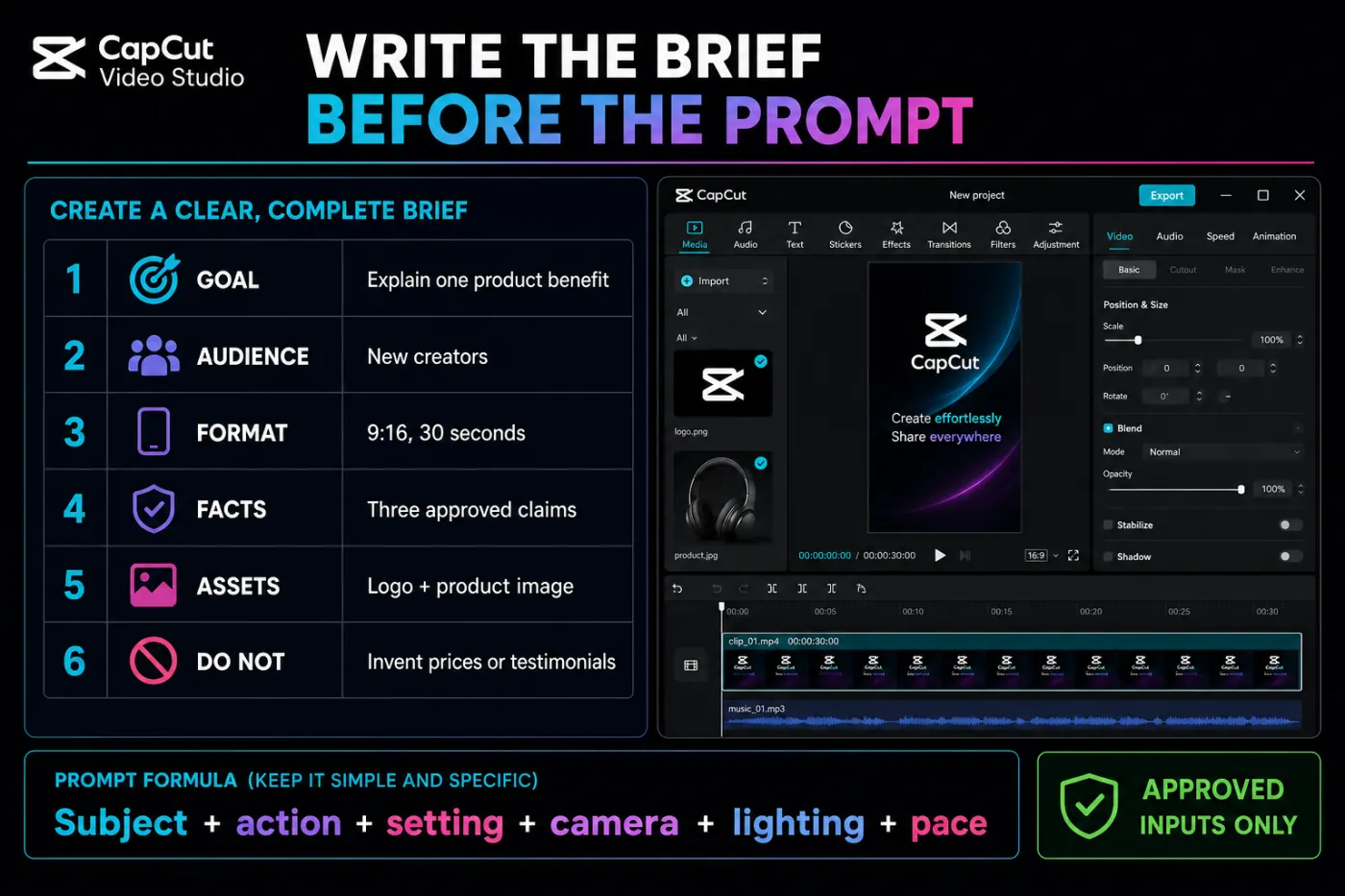
A useful Video Studio brief is a small production plan. It tells the system what the video must accomplish and, just as importantly, what it must not invent. Before opening the generator, write down:
- Goal: the one thing a viewer should understand or do.
- Audience: who the video is for and what they already know.
- Format: aspect ratio, approximate duration and destination.
- Approved facts: exact claims, names, numbers and pronunciations.
- Approved assets: reference images, logo, product shots and music rules.
- Do-not list: no invented prices, testimonials, UI screens or people.
A prompt template that stays specific
Create a [duration] [aspect ratio] video for [audience]. The goal is [one outcome]. Use only these approved facts: [facts]. Structure it as [hook → explanation → proof → next step]. For each scene specify the subject, action, setting, camera, lighting and pace. Use the attached references only for [approved purpose]. Don't invent prices, testimonials, interfaces or additional claims.One clear sentence per scene is easier to review than a paragraph packed with adjectives. If the subject must remain consistent, name the same clothing, colors, proportions and reference in every scene. If text matters, plan to retype it in the editor rather than trusting letters baked into generated footage.
Review the storyboard, then check the cost
The storyboard is the cheapest place to catch a bad idea. Read the scenes as a viewer: does the hook lead to the promised answer, does each shot add something, and is the next step earned? Remove repeated scenes and reject any claim that didn't come from the brief.
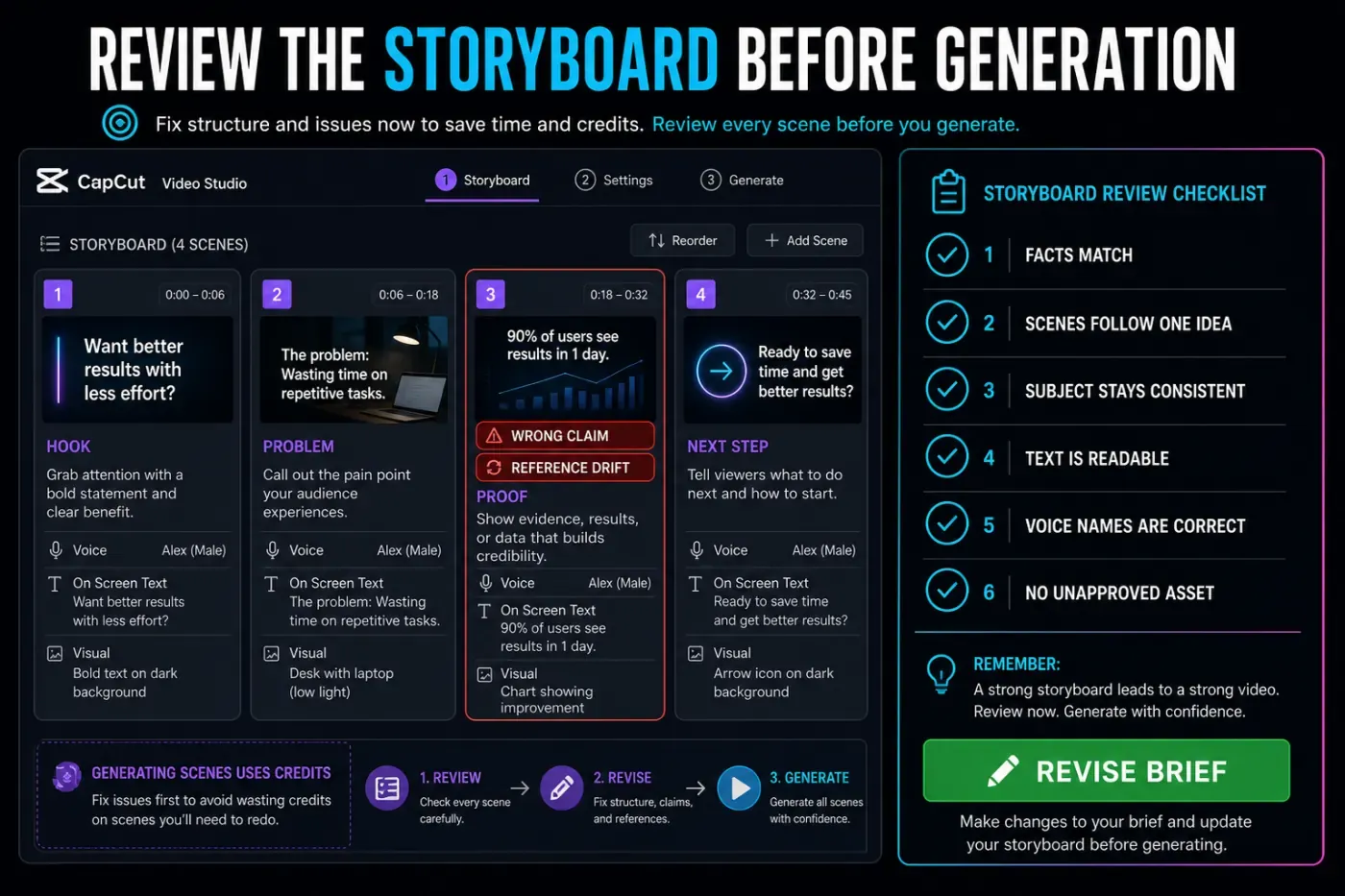
Then stop at the pre-run confirmation. CapCut's current credit instructions say a Web confirmation can show the required credits and available balance before Generate or Apply. Model, duration, account, plan and rollout can change what you see, so there is no honest universal price for “one Video Studio video.”
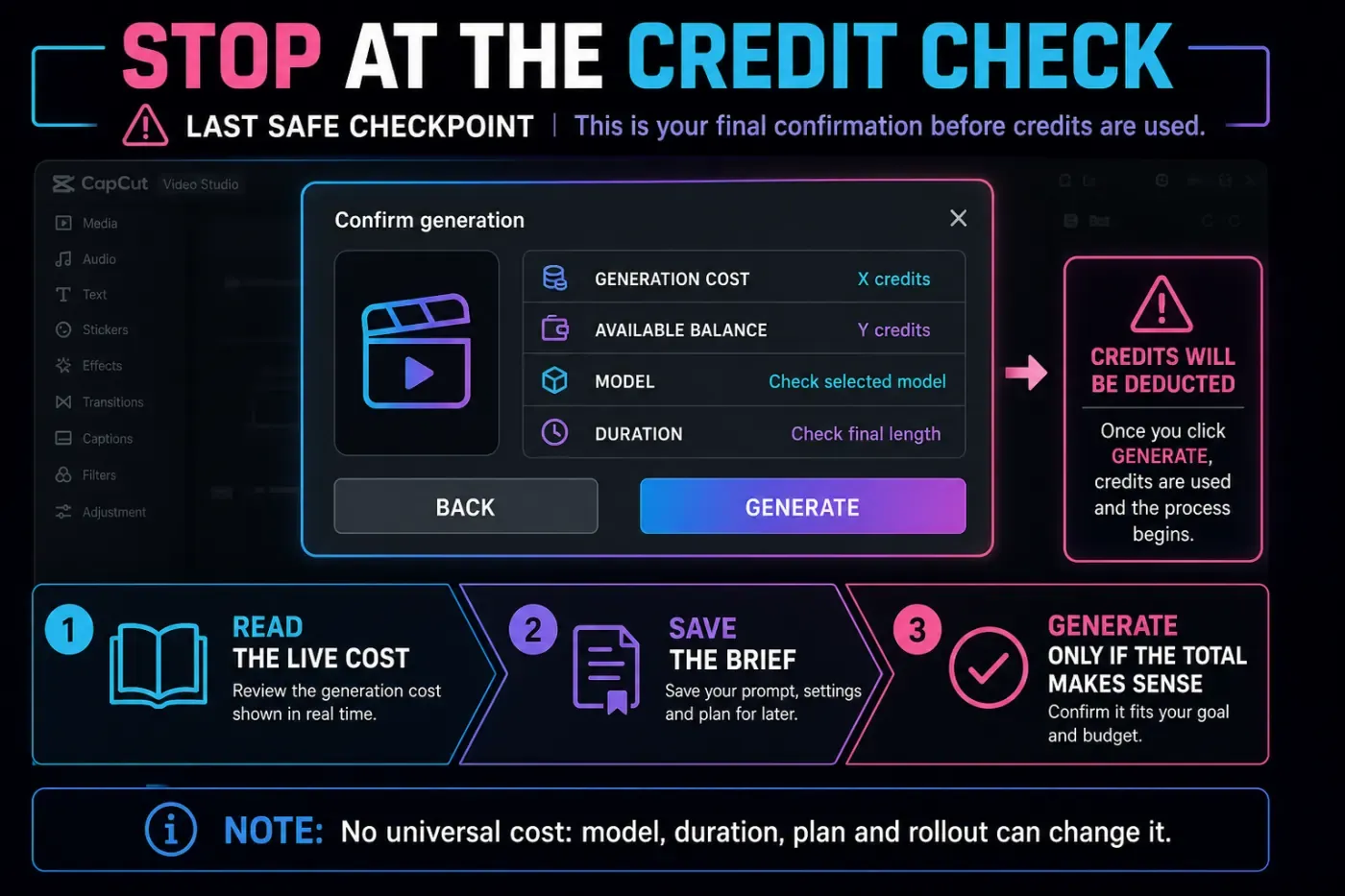
CapCut's product page says core access can be free, while the Help Center says credit-based AI actions deduct credits when you confirm them. Those statements can both be true: opening the workspace is not the same as receiving unlimited generation. Our CapCut AI credits guide tracks the wider credit system and its contradictory platform documentation.
Check the generated video scene by scene
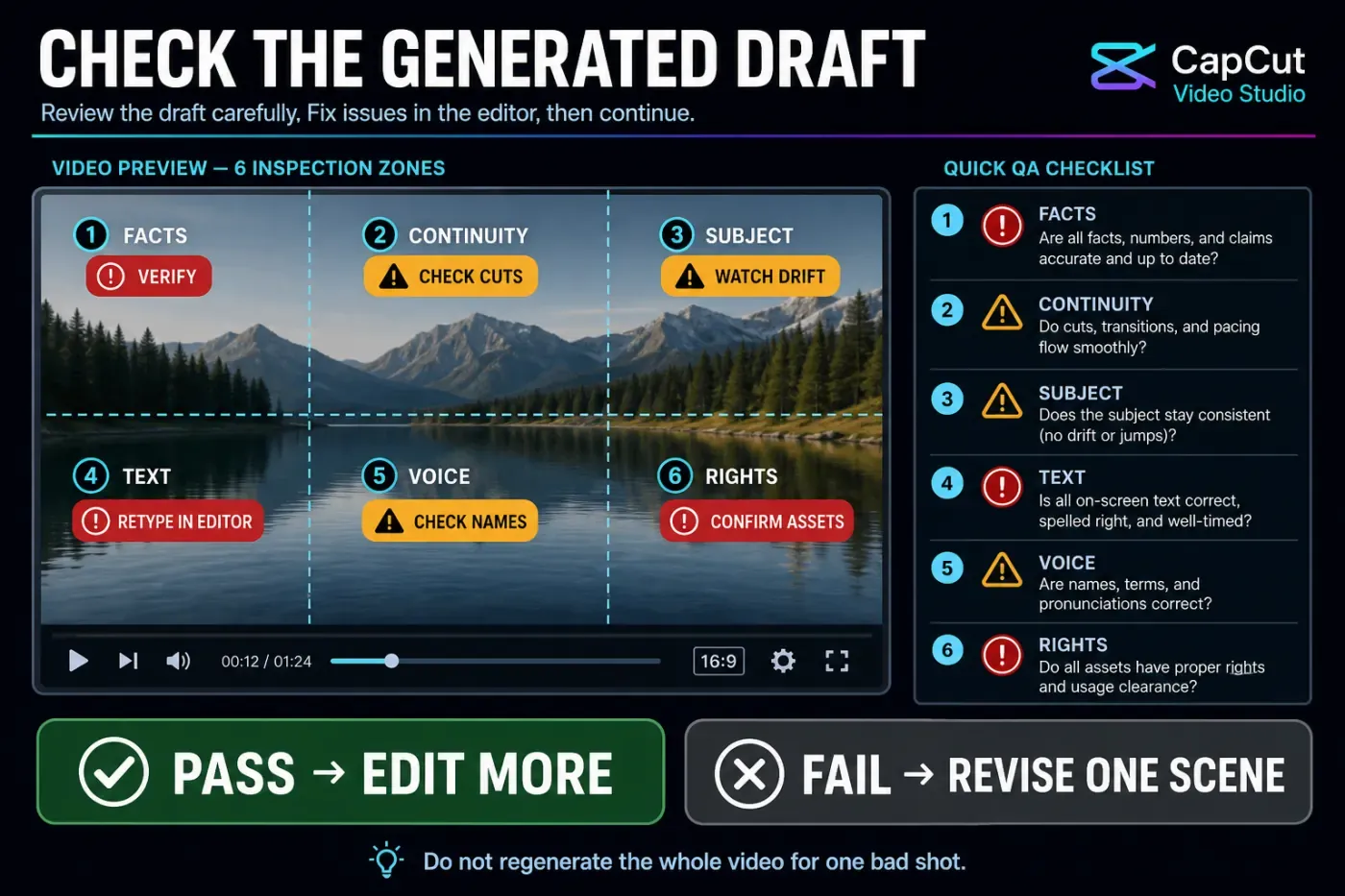
Don't watch the draft once and decide that it “looks good.” Pause on every scene and check six separate things:
- Facts: every number, product detail, name and implied result matches an approved source.
- Continuity: location, weather, props, direction of movement and time of day don't jump without reason.
- Subject consistency: a person, product or object doesn't change shape, color or identity between shots.
- Text: spelling is correct, captions fit the safe area and generated imagery doesn't contain nonsense lettering.
- Voice and audio: names are pronounced correctly, pauses sound natural and music doesn't cover the message.
- Rights and consent: references, likenesses, voices, music and brand material are cleared for this use.
A recent CapCut community discussion describes the same trade-off: faster ideas and assembly, followed by more review and cleanup than expected. That's one user's experience, not a benchmark, but it matches the practical reason to keep a scene-level QA pass.
CapCut's Trust Center says creators retain ownership of their work and tells commercial creators to use materials explicitly labeled for Commercial Use. Its current terms also grant CapCut a broad licence to operate the service and require you to own or clear rights to anything you upload. “The AI made it” is not a substitute for permission or a factual review.
Use Edit More for the part AI should not finish
If the structure works, move the draft into CapCut's regular editor with Edit More. Don't regenerate the whole video because one shot is weak. Replace that scene, retype important text, tighten cuts, correct pronunciation, lower the music under speech and inspect the last frame.
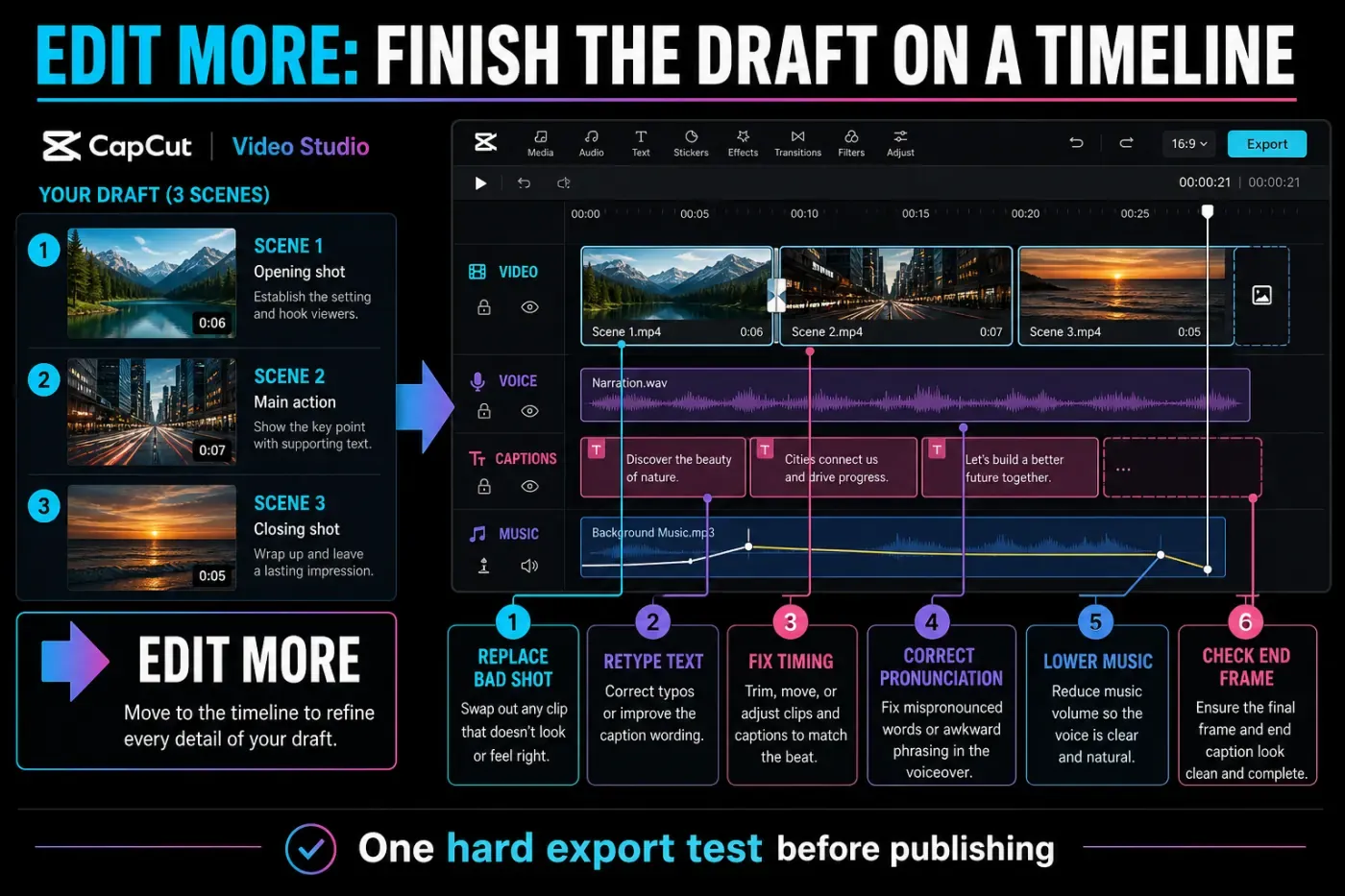
Finish with one hard export test. Export the intended aspect ratio and resolution, then watch the actual file outside CapCut with sound on. Look for clipped captions, a frozen final frame, missing audio, unexpected branding and soft generated text. Use our CapCut export settings guide for the delivery side; if the render stalls or fails, move to the export troubleshooting guide rather than rebuilding the idea.
Who should use Video Studio and who should skip it
Good fit
- short explainers with approved facts;
- storyboards and visual concept tests;
- social variants built from one clear brief;
- rough cuts where a human editor finishes the details.
Poor fit
- news, medical, legal or financial claims without expert review;
- exact product UI demonstrations that must be real;
- unapproved celebrity, customer or employee likenesses;
- projects that can't tolerate scene drift or uncertain rights.
Video Studio earns its place when it makes the first review arrive sooner. If you still have to invent the brief, verify every claim and rebuild the entire edit, the automation has not saved the right part of the job.
If Video Studio is missing, blocked or too expensive
Check the correct account, version and region. Preserve local projects.
Refresh, test a clean window and disable only conflicting extensions.
CapCut says voice options can disappear during updates or staged releases.
Go back to the brief and compare only the options and cost shown at the live checkpoint.
Keep the working storyboard and avoid spending on a full replacement.
Open Edit More and test a short, ordinary local export.
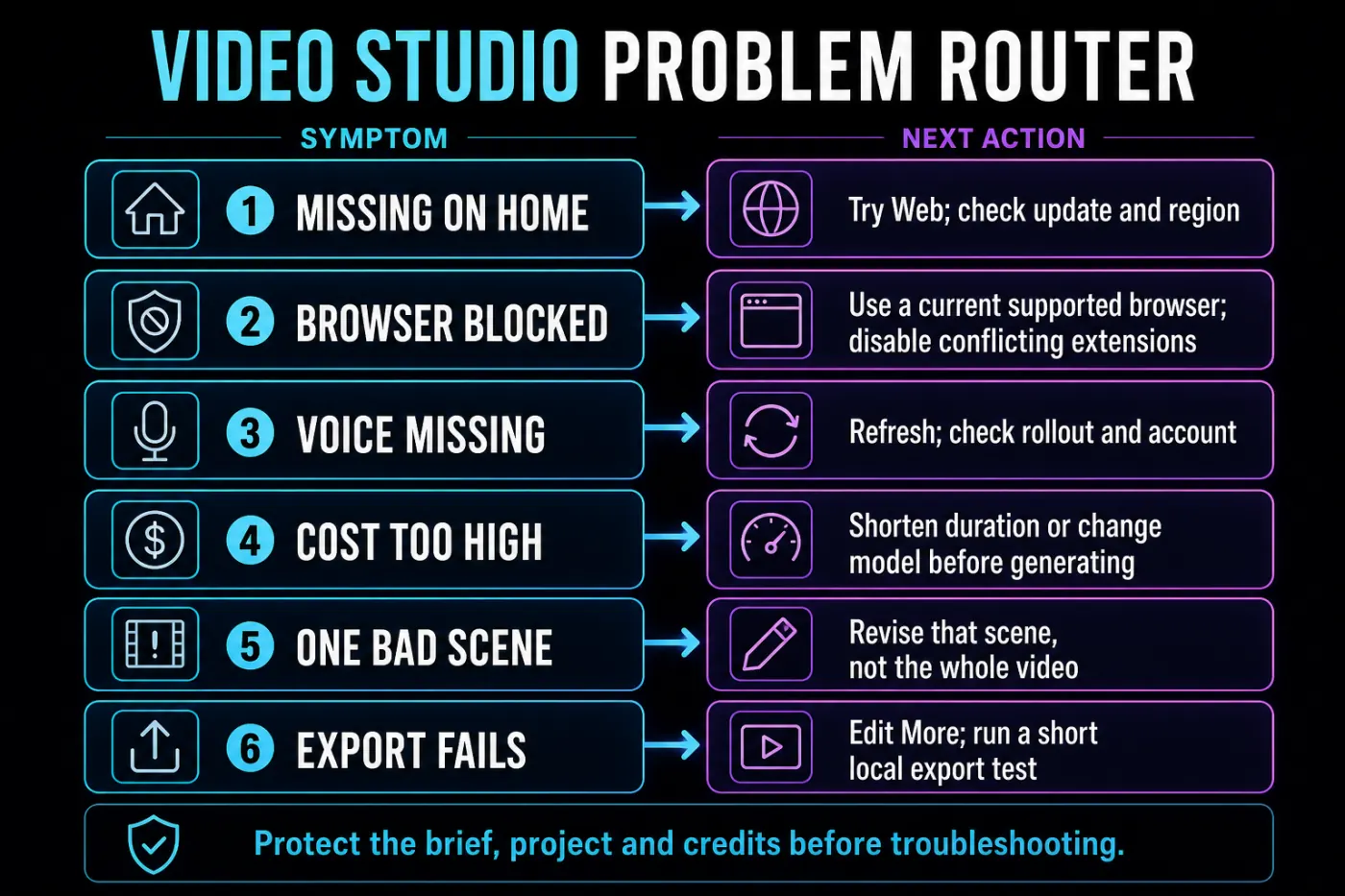
If Web and Desktop open different accounts, fix the identity first with the CapCut account and login guide. A feature rollout, a credit problem and a wrong account can look similar from the Home screen, but they need different fixes.
CapCut Video Studio FAQ
What is CapCut Video Studio?
It's CapCut's AI production workspace for moving from an idea or reference to a brief, storyboard, generated scenes, voice, captions and a video draft that can continue into the regular editor.
Is CapCut Video Studio free?
CapCut advertises free core access, but AI generation can consume credits. Read the live confirmation for the selected model, duration and account before pressing Generate.
Where can I find Video Studio in CapCut?
CapCut documents it on Web under AI Studio and advertises it on the Home screen of supported Desktop builds. Availability can vary by account, version, region and rollout. A dedicated Mobile route is not documented in the current workflow pages.
Does Video Studio make a complete video from a prompt?
It can assemble a brief, storyboard, visuals, voice, music, subtitles and a draft. Complete doesn't mean verified or publishable: facts, continuity, text, rights, audio and export still need a human pass.
Can I edit a Video Studio video after it is generated?
Yes. CapCut documents an Edit More handoff to its regular editor, where you can replace clips, adjust timing, retype text, edit captions, fix audio and choose export settings.
Why is Video Studio missing from CapCut Desktop?
The entry can depend on the installed version, account, region or staged rollout. Check the Web route and record the current build before updating. Don't reinstall first when local projects are at risk.
How do I stop Video Studio from wasting credits?
Write and save the brief, review every storyboard scene, remove unsupported claims, then read the live cost before confirming. If one generated scene fails, revise that scene instead of replacing the entire video.
The useful promise is not “one click to finished video.” It is a shorter path to a draft you can judge. Bring a real brief, stop at the credit check, review every scene and use Edit More for the decisions that still need an editor.