

Rechecked August 28, 2026: current official AI video, Seedance 2.5, credit-rule, watermark and terms pages. The live Web and Desktop model-picker screenshots and credit quotes below remain explicitly dated August 10, 2026.
CapCut uses “AI video generator,” “AI video maker” and “Video Studio” for tools that can sound alike. That is the first trap. One makes a short clip from a prompt or reference image. Another builds a multi-scene video from a longer brief. They don't expose the same models, limits or credit check.
This guide is about the single video clip workflow. It shows what the live Web and Desktop panels offered, where to read the cost before spending credits, and how to inspect a result without talking yourself into accepting a broken shot.
On August 10 I opened both live generators, changed models and settings, and recorded the estimates shown before generation. The account had zero credits, so I didn't buy credits or press Generate. On August 28 I rechecked the current official product pages, rules and terms; I didn't relabel the older picker snapshot as a new generation test.
Use it when you need one shot, cutaway, product beat or transition—not a whole narrated video.
Model, duration and motion settings can change the estimate. Don't budget from an old screenshot.
Product pages and rollout announcements don't always match the controls visible in every account.
A clean opening frame doesn't rescue hands, text or continuity that break later in the shot.
Start with the right CapCut generator
In the Web AI Creator, choosing Video opened two tabs: Video clip and Full video. The names look close; the jobs are different.
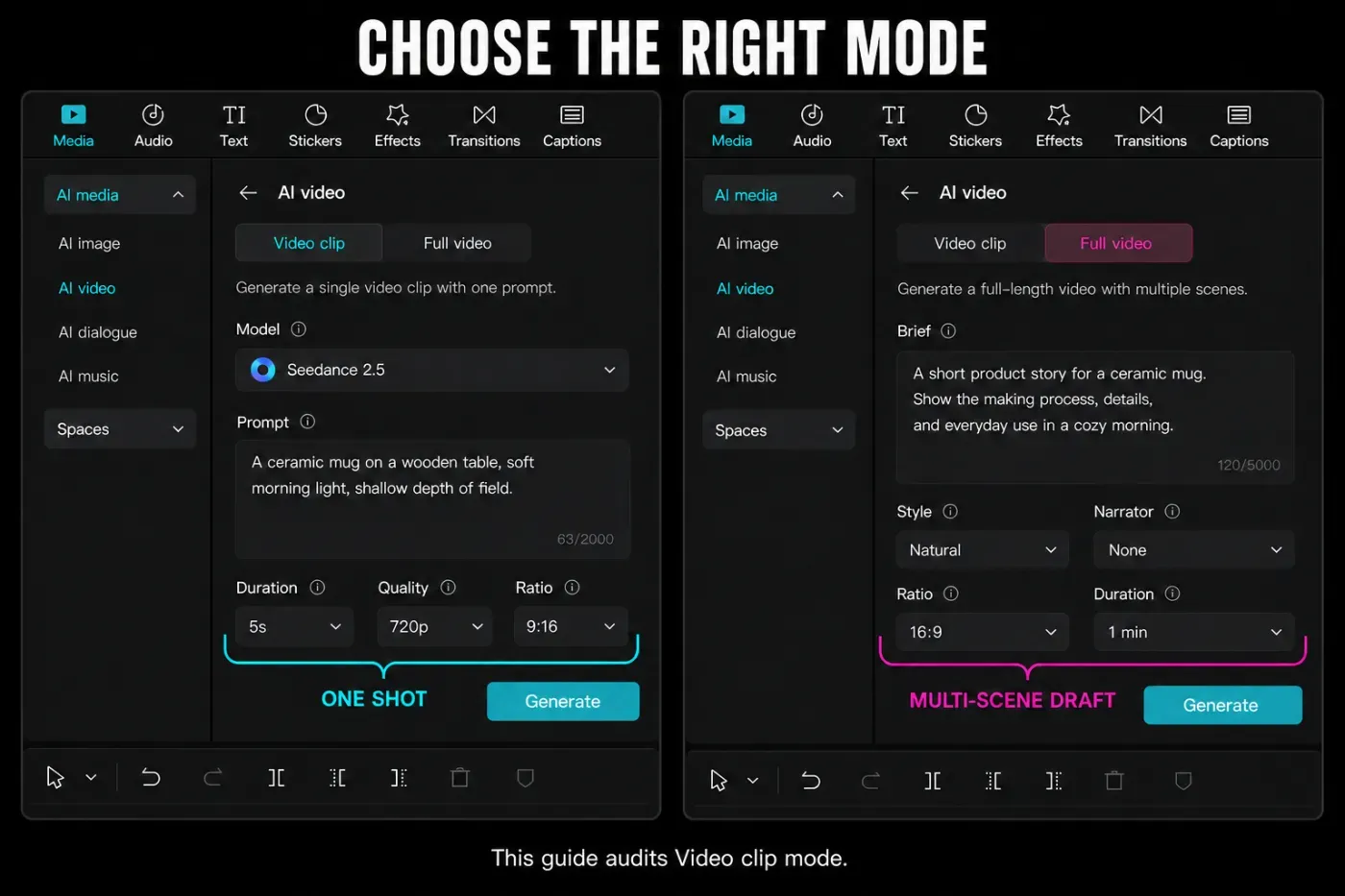
Video clip
- One prompt or reference-driven shot
- Model-specific duration, quality and ratio controls
- A better fit for B-roll, a hook or a single visual beat
- The workflow audited on this page
Full video
- A multi-scene draft built from a broader brief
- Style, narrator and longer duration controls
- Best treated as a storyboard-to-draft workflow
- Covered in our CapCut Video Studio guide
CapCut’s own naming moves around. The AI Creator start page calls the broader experience Video Studio, while other product pages use AI video generator for both short clips and complete videos. Pick by the output you need, not by the largest heading on the landing page. Our AI workflow map separates the neighboring routes by input and output.
How to generate one AI video clip in CapCut Desktop
CapCut's current Desktop instructions route a single generated shot through AI media. Treat the labels in your installed build as the final authority: rollouts can change the model list without changing the basic job.
- Open AI media. Launch CapCut Desktop, enter an editing workspace and choose AI media from the left panel.
- Choose the input. Pick Text to video for a written shot or Image to video when you have an authorized reference frame.
- Define one shot. Enter one subject, one visible action, the setting, one camera move and anything that must stay stable. A multi-scene script belongs in the separate CapCut Script to Video workflow.
- Set the live controls. Choose from the models, durations and aspect ratios shown in your account. Read the displayed credit estimate again after every setting change.
- Generate and inspect the saved clip. Check the full motion, identity, geometry, text, logos and audio. Count the usable seconds rather than approving the thumbnail.
- Finish in the editor. Add only the clean result to the timeline, make the needed trim, caption or audio changes, then export a proof before the final render.
Models and limits recorded in CapCut Web on August 10
This dated Web picker was broader than the current landing page's VEO 3.1 and Sora 2 headline. It also included Seedance 2.0 variants, Seedance 1.x variants and Dreamontage 1.0 Pro Fast. The comparison below records what those controls showed on August 10; it is not a claim that the same menu appears in every account today.
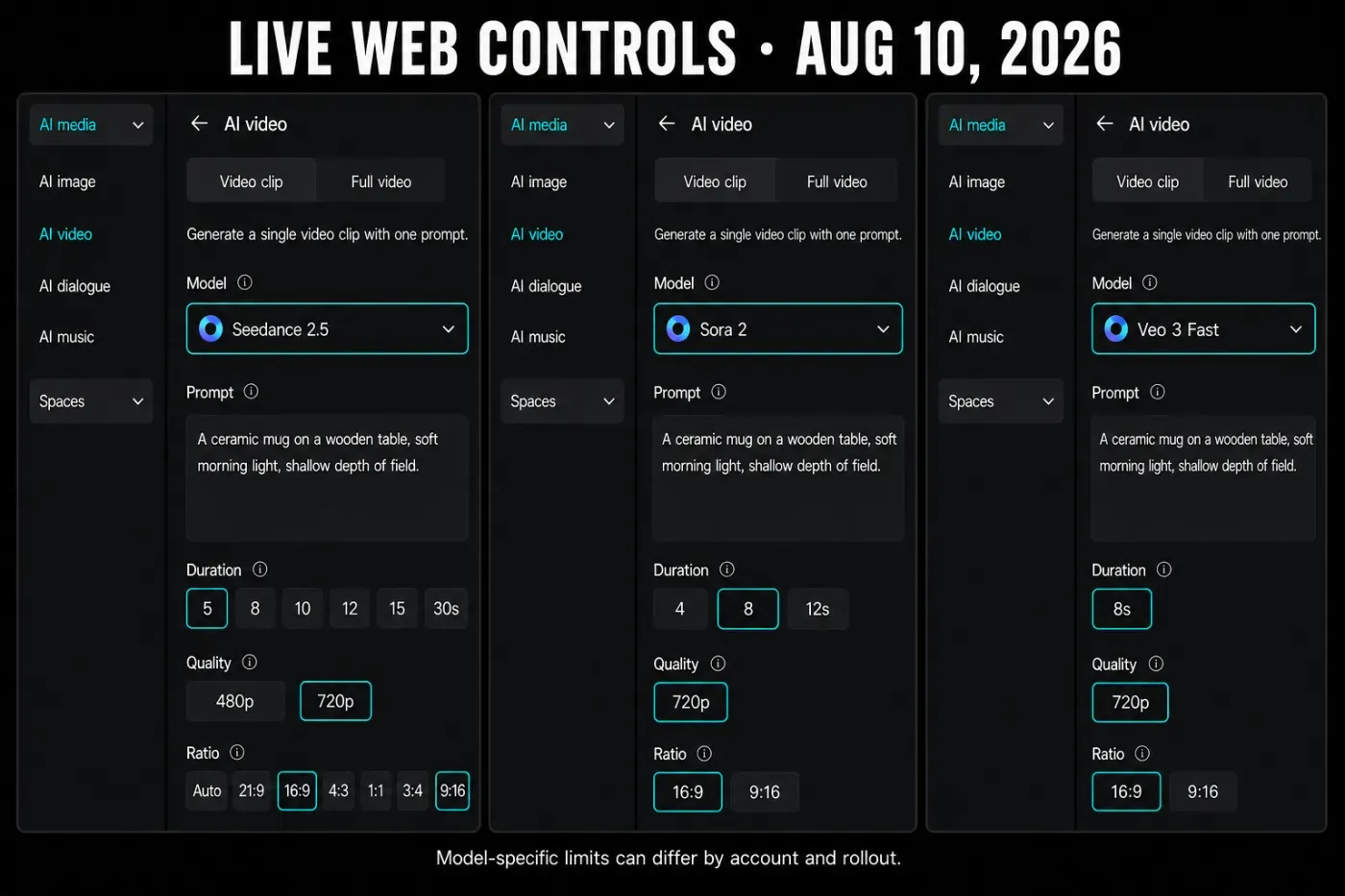
| Model | Duration shown | Generation quality | Aspect ratios |
|---|---|---|---|
| Seedance 2.5 | 5, 8, 10, 12, 15, 30 sec | 480p or 720p | Auto, 21:9, 16:9, 4:3, 1:1, 3:4, 9:16 |
| Sora 2 | 4, 8, 12 sec | 720p | 16:9 or 9:16 |
| Veo 3 Fast | 8 sec | 720p | 16:9 or 9:16 |
There is a small contradiction inside the interface: the Video clip helper described clips as shorter than 15 seconds, yet Seedance 2.5 offered 30 seconds. For a real job, the model-specific duration selector is the control that matters. If 30 seconds is missing in your account, don't assume you can force it from a prompt.
CapCut’s Seedance 2.5 page also promotes reference images and timed prompting. Availability can still vary by surface. Desktop showed a different model list and didn't mirror every Web label exactly.
What the live credit quote showed
CapCut Desktop displayed an estimate before generation. With a five-second, 9:16 clip and Normal motion selected, Dreamina Seedance 2.0 Fast showed 60 credits. Switching only to Dreamina Seedance 2.0 showed 75 credits.
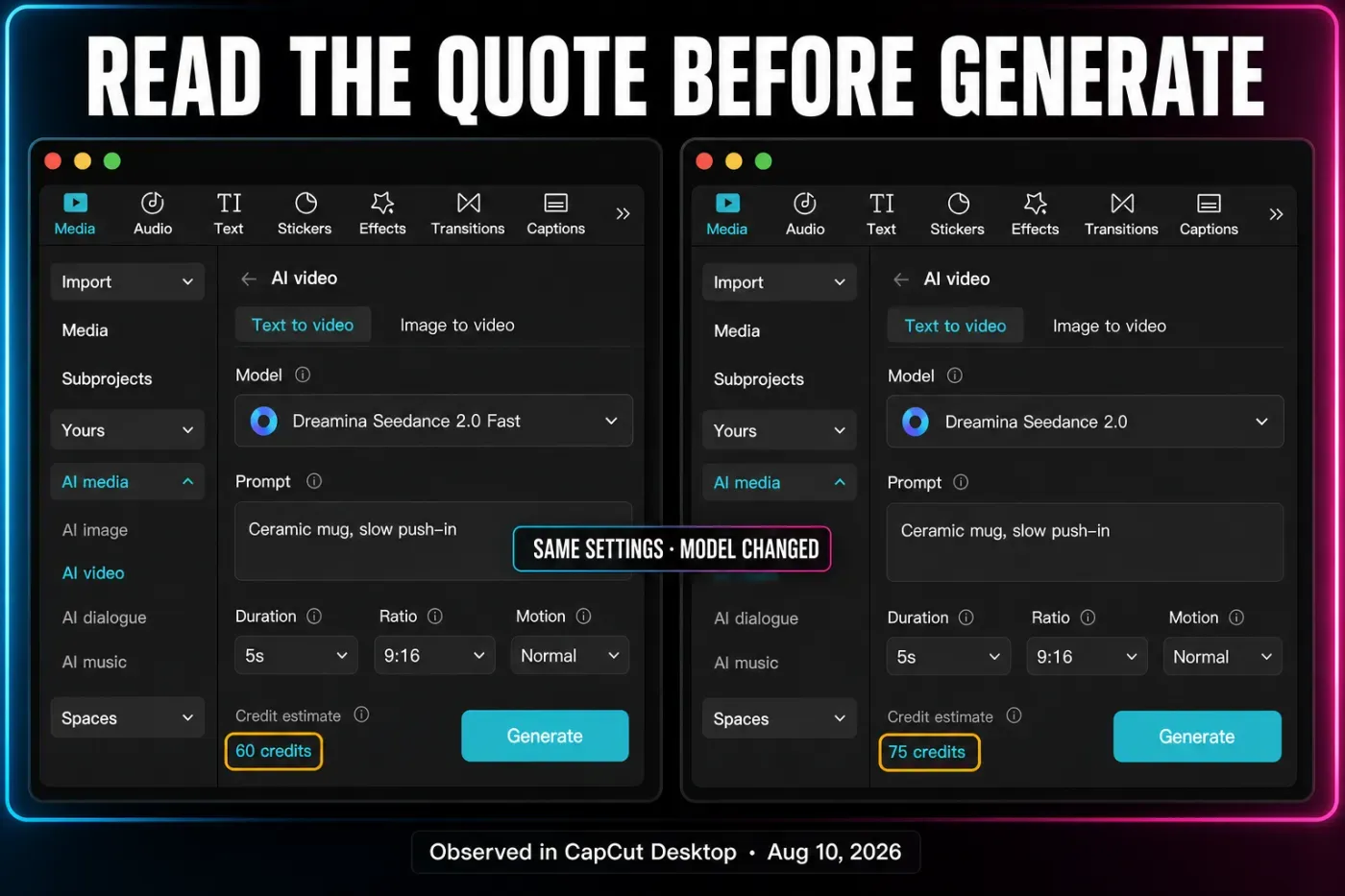
I'm not converting those credits into dollars. CapCut’s help pages disagree: one assigns a dollar value to each credit, another uses a package example with a different effective value, and separate pages conflict over purchased-credit expiry and platform coverage. The formal CapCut Credits Rules are useful for credit types and deduction order, but they don't turn an old generation estimate into a safe budget.
Set the model, duration, ratio and motion first. Then read the current estimate and balance. If CapCut changes either after you alter a setting, that new quote is the one to approve. Our CapCut AI credits guide handles subscription, activity and purchased-credit mechanics without duplicating them here.
How to choose a model without inventing a winner
A model name is not a quality result. CapCut’s picker described strengths for each option, but I didn't render a controlled set of matching prompts. So this is a routing guide, not a podium.
It exposed the widest duration and aspect-ratio range in the inspected Web panel, including 30 seconds and seven ratio choices.
The panel offered 4, 8 and 12 seconds at 720p. Use a small prompt trial before committing a campaign budget.
The inspected control was fixed at eight seconds and 720p. CapCut’s label emphasized fast generation and audio-capable video.
Desktop quoted fewer credits for Seedance 2.0 Fast than Seedance 2.0 in the same selected setup. Recheck before every run.
For a paid comparison, keep the prompt, references, ratio, duration and motion setting identical. Change one model at a time. Otherwise you're comparing different assignments, not different models.
Write the shot before you spend
“Make a cinematic product video” leaves almost every decision to the model. A stronger prompt gives it one clear shot to solve: subject, action, setting, camera movement and hard constraints.
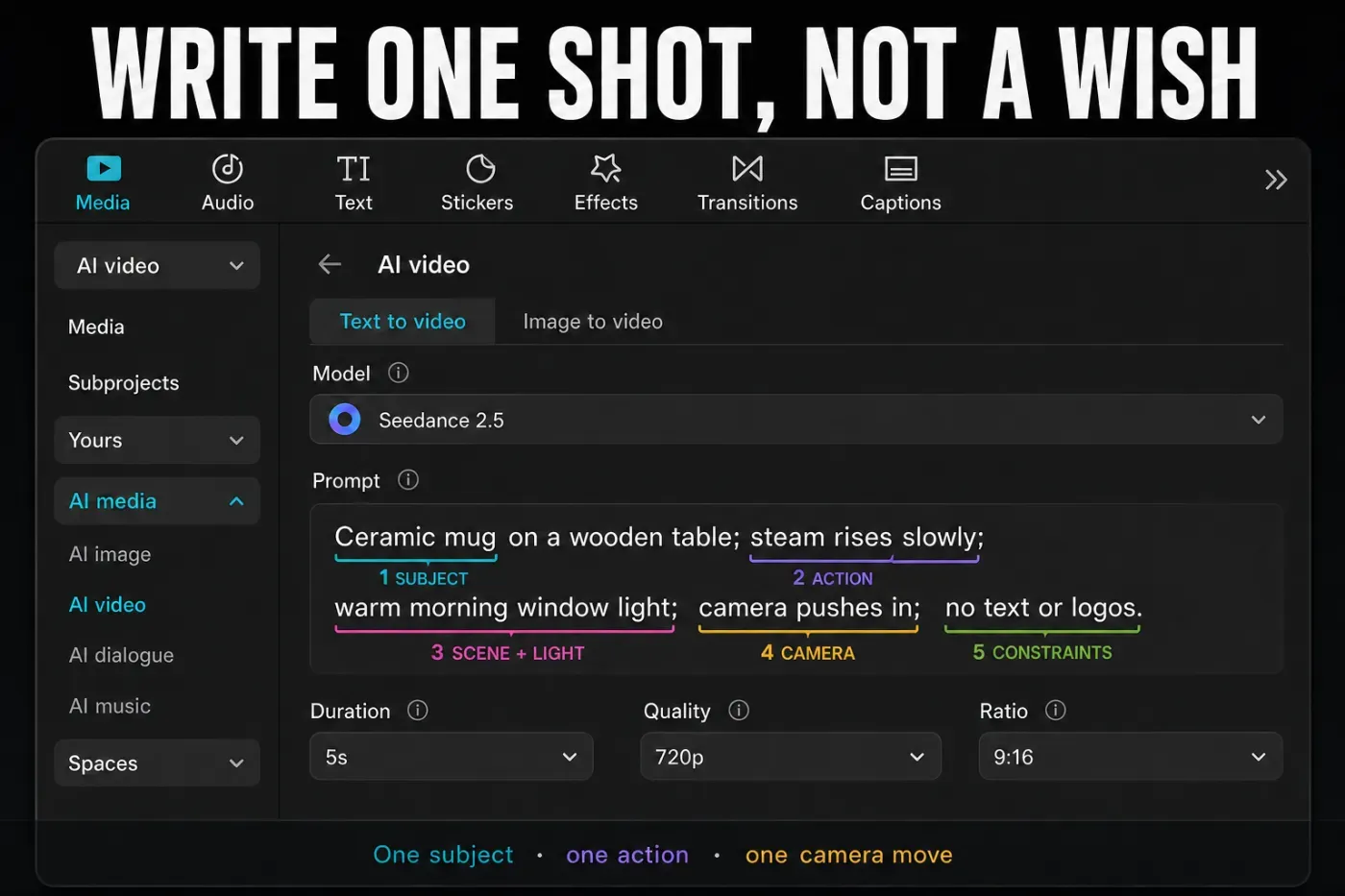
[Subject] [does one visible action] in [specific setting and light]. Camera: [framing and one movement]. Keep [identity, product shape or composition] consistent. No [unwanted text, logos, extra limbs or abrupt cuts].
- Choose the destination first. A vertical Reel and a 16:9 YouTube insert need different framing before generation.
- Ask for one camera move. “Slow push-in” is easier to judge than a prompt requesting orbit, crane, zoom and handheld motion at once.
- Name what must stay stable. For a product, that may be label shape and color. For a character, it may be clothing, hairstyle and facial identity.
- Avoid generated on-screen copy when spelling matters. Leave clean composition space and add final text in the editor.
- Use reference media only when you hold the rights. A clearer reference may improve control, but it also becomes uploaded input governed by the service terms.
How to review a generated clip
Watch once at normal speed, once muted and once frame by frame. The muted pass exposes motion and continuity problems that music can hide. The frame-by-frame pass catches a logo, hand or face that changes for only a fraction of a second.
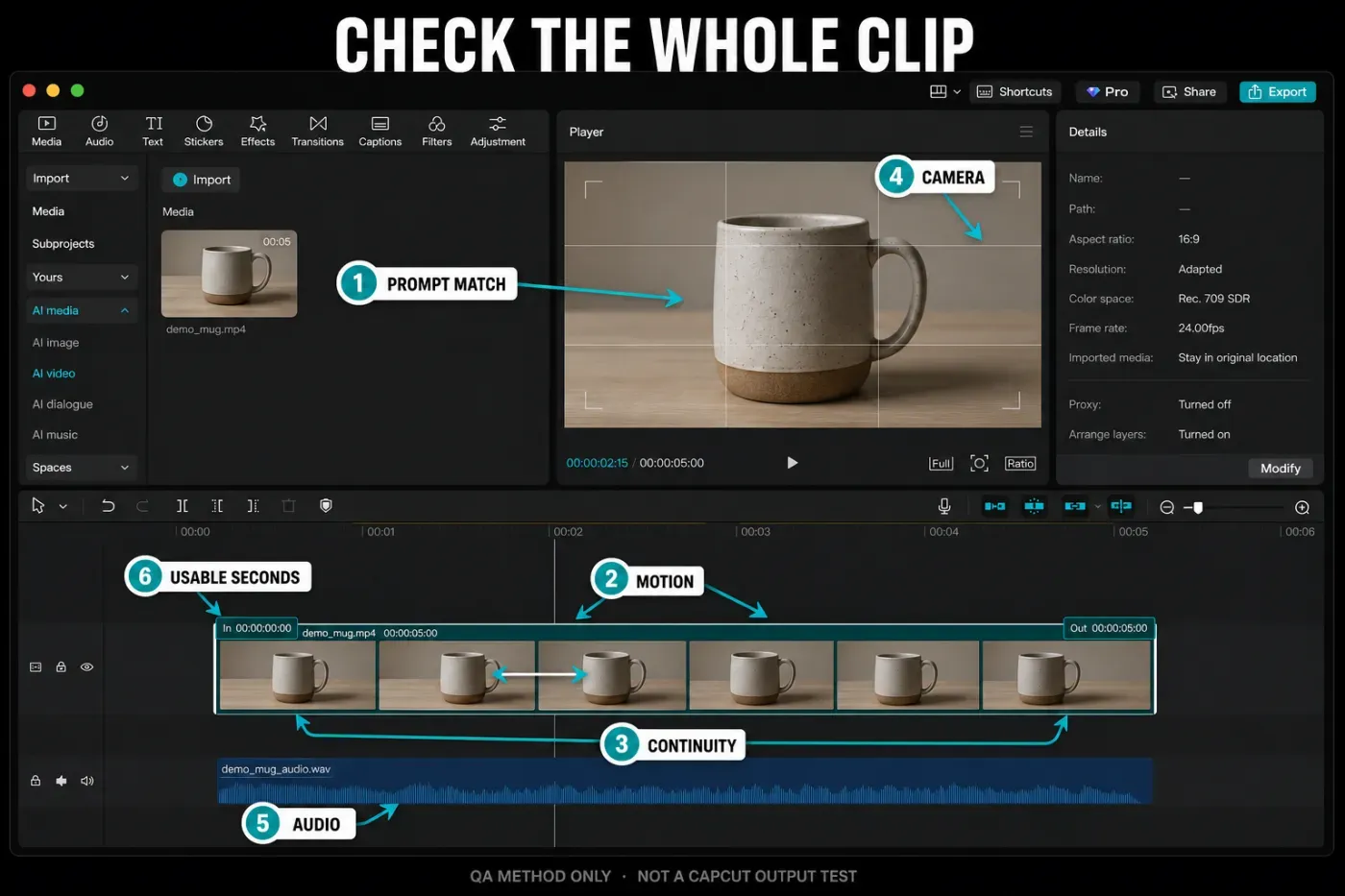
- Prompt adherence: did the requested subject, action and setting appear, or did the model quietly replace part of the brief?
- Motion coherence: do limbs, wheels, fabric, reflections and background objects move in a physically readable way?
- Temporal continuity: do identity, clothing, product shape, lighting and object count stay stable from first frame to last?
- Camera behavior: is the movement the one you requested, without an unexplained cut, zoom or drift?
- Audio: when a model returns sound, check speech sync, noise, clipping and whether the track is usable—not merely present.
- Usable seconds: mark the clean in and out points. A nominal eight-second clip may contain fewer seconds you would publish.
If one local defect can be hidden by trimming, masking or replacing audio, edit it. If identity, geometry or the requested action fails across the shot, rerunning with a narrower prompt is usually cleaner than building a repair stack around unstable frames.
Why CapCut’s product page may not match your panel
The official AI video page, rechecked August 28, promoted VEO 3.1 and Sora 2, mentioned clips up to eight seconds and described editor export up to 8K. A separate Seedance 2.5 page promoted 30-second generation, timestamped prompting and revision tools. The live Web panel recorded on August 10 offered Seedance 2.5, Sora 2 and Veo 3 Fast with 480p or 720p generation controls.
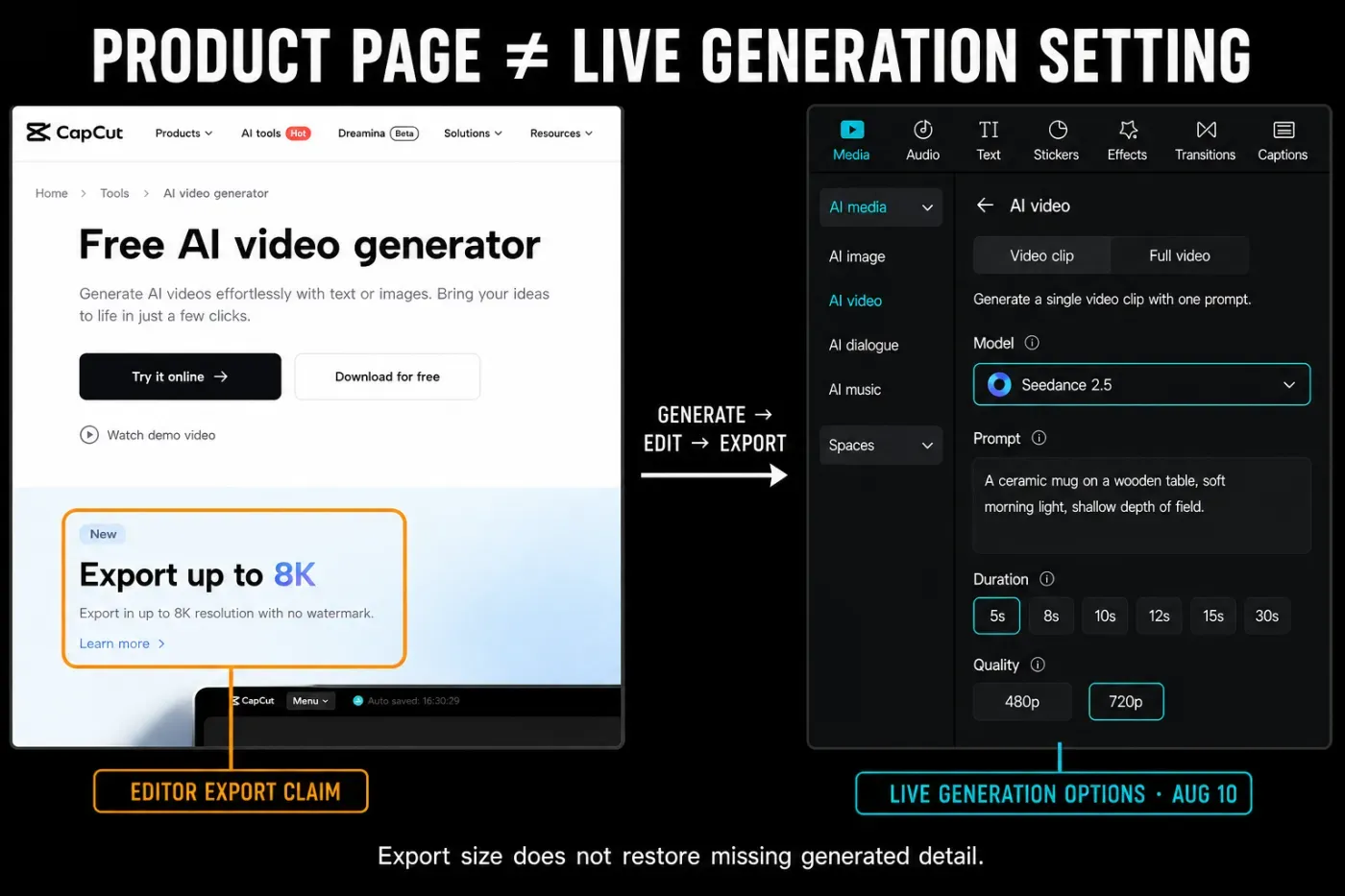
These statements can describe different stages of the workflow. The generated resolution may be 720p even when the editor later exports the clip on a larger canvas. That doesn't create native missing detail. Check the resolution beside the selected model, then inspect the exported file’s properties. Don't use an “up to 8K” export headline as proof that the generated frames came from an 8K model output.
Free use, watermarks and commercial rights
There's no honest universal answer to “How many CapCut AI videos are free?” Credits, daily activity rewards, plans and regional offers can change. The inspected Desktop setup had a visible quote but no available balance. Check your balance and confirmation screen instead of assuming a fixed free clip count.
CapCut’s watermark help says many standard exports can be watermark-free, while templates, stock elements or an ending clip may introduce marks. AI workflows and model providers can add another variable. Inspect the generated clip and the final export; don't promise a client “no watermark” before viewing the file.
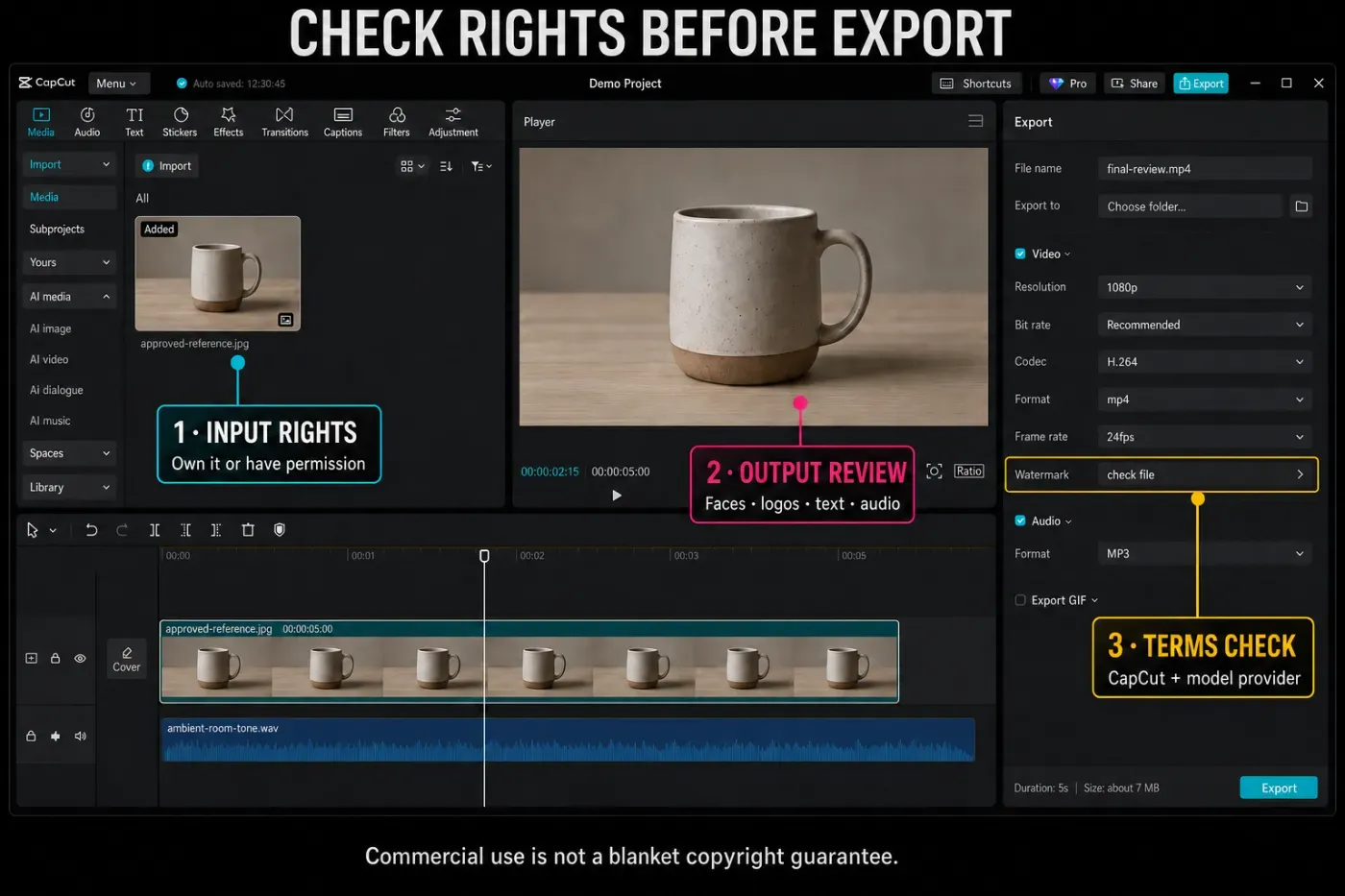
The current CapCut Terms of Service put responsibility for input permissions and output use on the user. They also allow third-party AI provider terms to apply. Use media you own or can license, obtain consent for identifiable people, and keep confidential client footage out unless your agreement permits the upload. Check generated faces, trademarks, music and text before commercial use.
Fix the problem before paying for another reroll
Check the prompt, required reference, selected model, connection and credit balance. A zero balance blocked the inspected Desktop run.
Compare Web and Desktop, update the app and check the current region or account. Don't follow a tutorial whose picker is from an older rollout.
Duration is model-specific. Select another available model or generate a shorter shot and build the sequence on the timeline.
Recheck model, seconds, resolution, ratio and motion. CapCut shows the action estimate after the settings, not as a permanent public tariff.
Shorten the assignment, remove competing camera instructions and make the stability constraint explicit before spending again.
Use our CapCut not working checks for sign-in, cache, network and app-build problems.
CapCut AI video generator FAQ
Is the CapCut AI video generator free?
CapCut may provide plan credits, activity credits or regional offers, but there is no reliable universal free clip count. Set the model and duration, then read the current credit estimate and balance before generating.
Which AI video models are in CapCut?
The Web panel checked on August 10, 2026 included Seedance 2.5 and 2.0 variants, Seedance 1.x variants, Sora 2, Veo 3 Fast and Dreamontage 1.0 Pro Fast. Desktop showed a different list. Your account picker is the current source of truth.
How many credits does one CapCut AI video cost?
There's no single cost. In one Desktop setup, a five-second 9:16 Normal-motion clip showed 60 credits for Seedance 2.0 Fast and 75 for Seedance 2.0. Treat those as dated observations and approve only the live quote shown for your settings.
What is the maximum CapCut AI video length?
It depends on the model and mode. The inspected Web Video clip panel offered up to 30 seconds with Seedance 2.5, 12 seconds with Sora 2 and eight seconds with Veo 3 Fast. Full video is a separate multi-scene workflow.
Can CapCut generate AI video in 4K or 8K?
Official pages make 4K model and up-to-8K editor export claims, but the live Web generation controls checked here offered 480p or 720p for the selected models. Generator resolution and later editor export resolution are not the same thing.
Does CapCut AI video have a watermark?
Don't rely on a blanket promise. Standard CapCut exports can be watermark-free, while templates, stock elements, ending clips or an AI provider may change the result. Inspect both the generated asset and the final exported file.
Can I use a CapCut AI video commercially?
Commercial use depends on the input, CapCut terms, any third-party model terms and the content in the output. Use media you have rights to, obtain needed consent and check generated people, logos, music and text. This is a rights check, not legal advice.
Verdict: approve the shot, not the product-page promise
Use Video clip when
- You need one specific visual beat
- The model exposes the ratio and duration you need
- You can afford at least one controlled rerun
- You will inspect the full clip before publishing
Use another workflow when
- You need a narrated, multi-scene draft
- Exact typography or product geometry must survive untouched
- Rights prevent uploading the reference media
- The live quote doesn't justify a speculative result
CapCut’s AI video generator is easiest to use when you keep the assignment small: one shot, one camera idea, one destination and a cost you have read before clicking. Save the output, count the usable seconds, and move only the clean part into the edit. That's slower than believing the demo reel—and much cheaper than building a project around a clip you never properly checked.