

To make a logo in CapCut, start with AI Design for a symbol idea or a blank image canvas for a design you can control. Add the name separately, test the result at its smallest real size, then save a PNG and check its background. Before using it as a business logo, check the artwork and font permissions. For an editable master that scales to large print, you may need to finish the design in a vector editor.
Use AI Design for directions
Ask for a symbol concept without finished lettering. Choose one direction, then rebuild the name and spacing yourself.
Use a blank canvas
Arrange your own artwork with separately licensed type and a small palette. Check that the font permission covers your intended logo use.
Export a transparent PNG
Check the live transparency control, pixel dimensions, edges and saved alpha channel on both light and dark backgrounds.
Keep a vector master elsewhere
PNG is made of pixels. If the current exporter doesn't offer a real vector file, don't rename a PNG to SVG and call the job finished.
Choose the Logo Route Before You Design
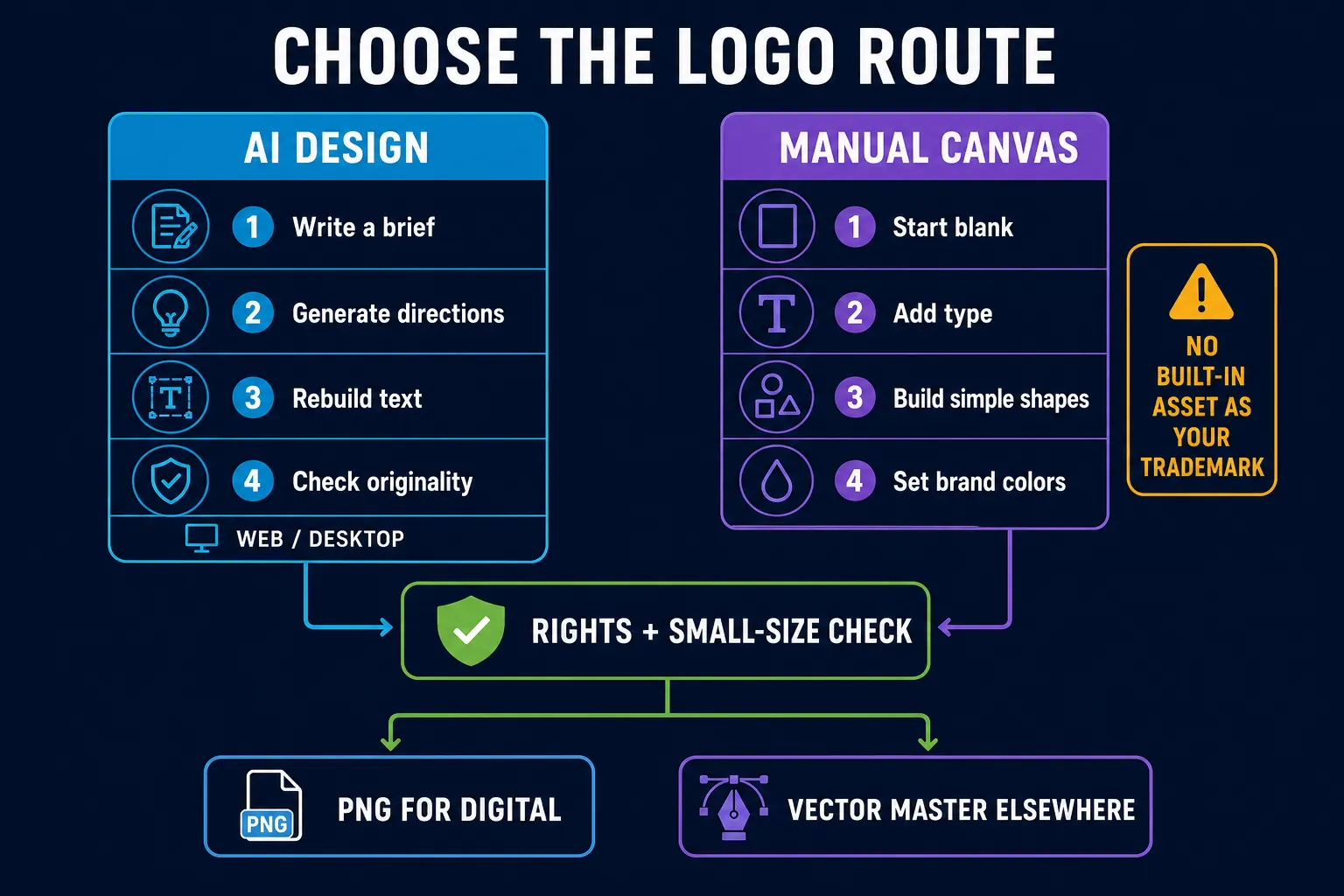
CapCut's logo-creation guide describes AI-assisted design, while its AI Design help gives Web and Desktop steps. Use generation to explore a symbol, not to assume the result is original or ready to register. For other still-image tasks, our CapCut design guides cover photos and thumbnails as well as logos.
Choose AI Design when
- You need several visual directions quickly.
- You can describe the audience, shape and mood clearly.
- You are willing to redraw text and inspect every detail.
- The first output is a concept, not the final legal identity.
Choose a blank canvas when
- The brand name and spacing matter more than an illustrative icon.
- You already have an original sketch or simple geometry.
- You want editable type, a small palette and predictable alignment.
- You want to know exactly which parts entered the mark.
Already have the finished file? Follow the logo overlay steps to place it above footage, or use intro templates for a reveal. You do not need to design the logo again for each video.
Write the Brief Before Opening CapCut
“Make me a cool logo” gives the tool permission to guess at everything. A short brand brief removes most of that guessing. Write the exact name, who should recognize it, the one personality it should carry, two main colors and where it must work. A café sign, a tiny browser icon and a lower-corner video mark need different amounts of detail.
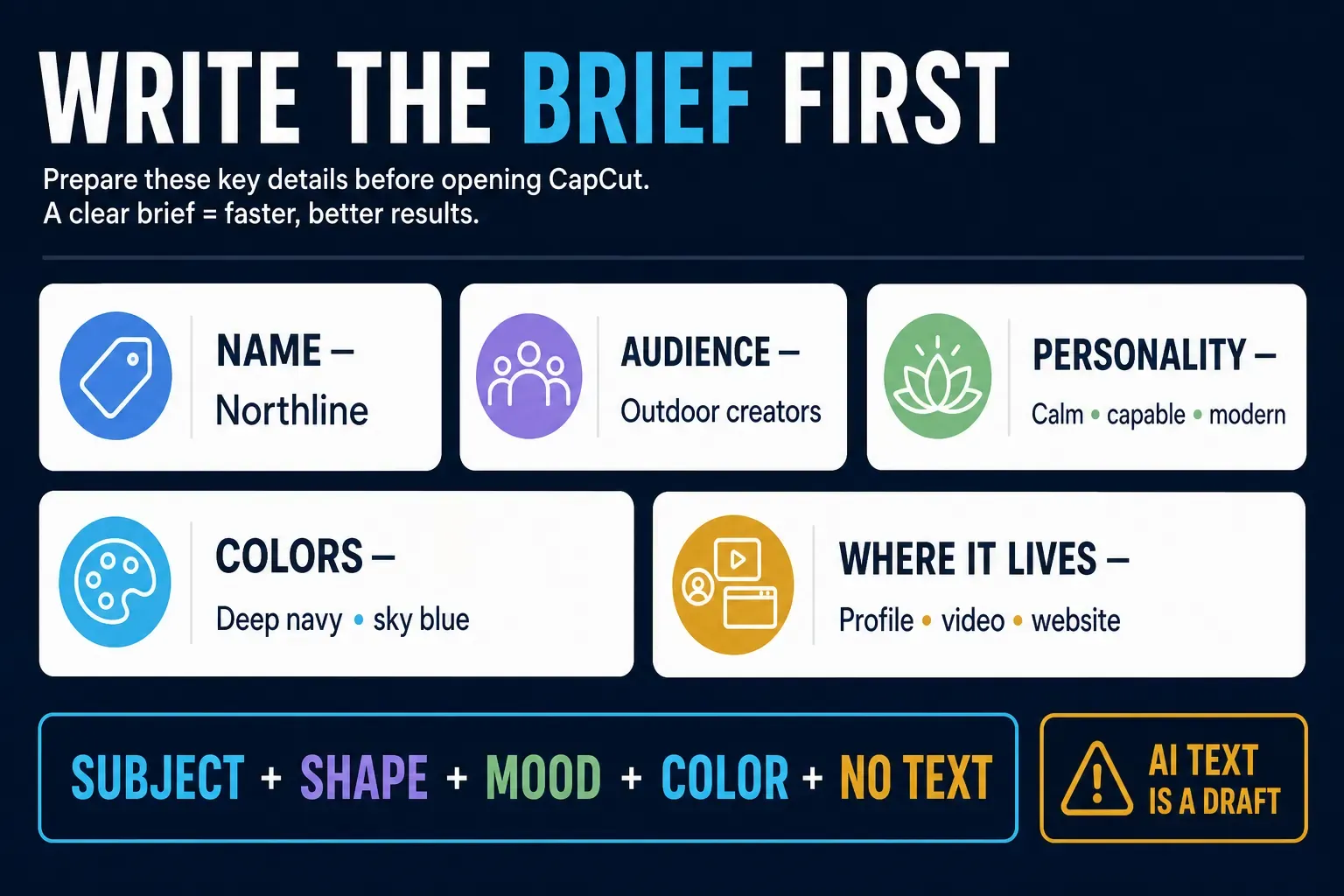
- Name: write the final spelling and capitalization; decide whether a tagline is really necessary.
- Audience: name the people who need to recognize the mark, not a vague demographic slogan.
- Personality: choose two or three qualities that can shape the form, such as quiet, rugged, precise or playful, rather than “professional and unique.”
- Color: begin with one dark, one light and one optional accent. More colors are not more identity.
- Placements: list the smallest and largest real uses before choosing line thickness or a tagline.
For an AI symbol draft, try a prompt such as: “A simple two-color trail symbol for a hiking newsletter, bold silhouette, no letters, no tagline, plain background.” This is a starting idea, not a guarantee of a unique result. Avoid asking for another company's logo style. Keep the name separate so spelling and spacing can be corrected without regenerating the symbol.
Make the Logo: AI Design or a Manual Canvas
The steps follow CapCut's own documentation. CapCut moves entry points between versions, so if a menu sits somewhere else in your account, follow the route it shows you.
Check your materials first. Do not build a business identity from CapCut's supplied icons, stickers or text templates. Its logo-use restriction also requires care with supplied fonts. Use artwork you have permission to use as a logo and a separately licensed font that allows that use. If you cannot use that font in the workspace, finish the lettering in another editor and import the cleared design.
AI Design on Web or Desktop
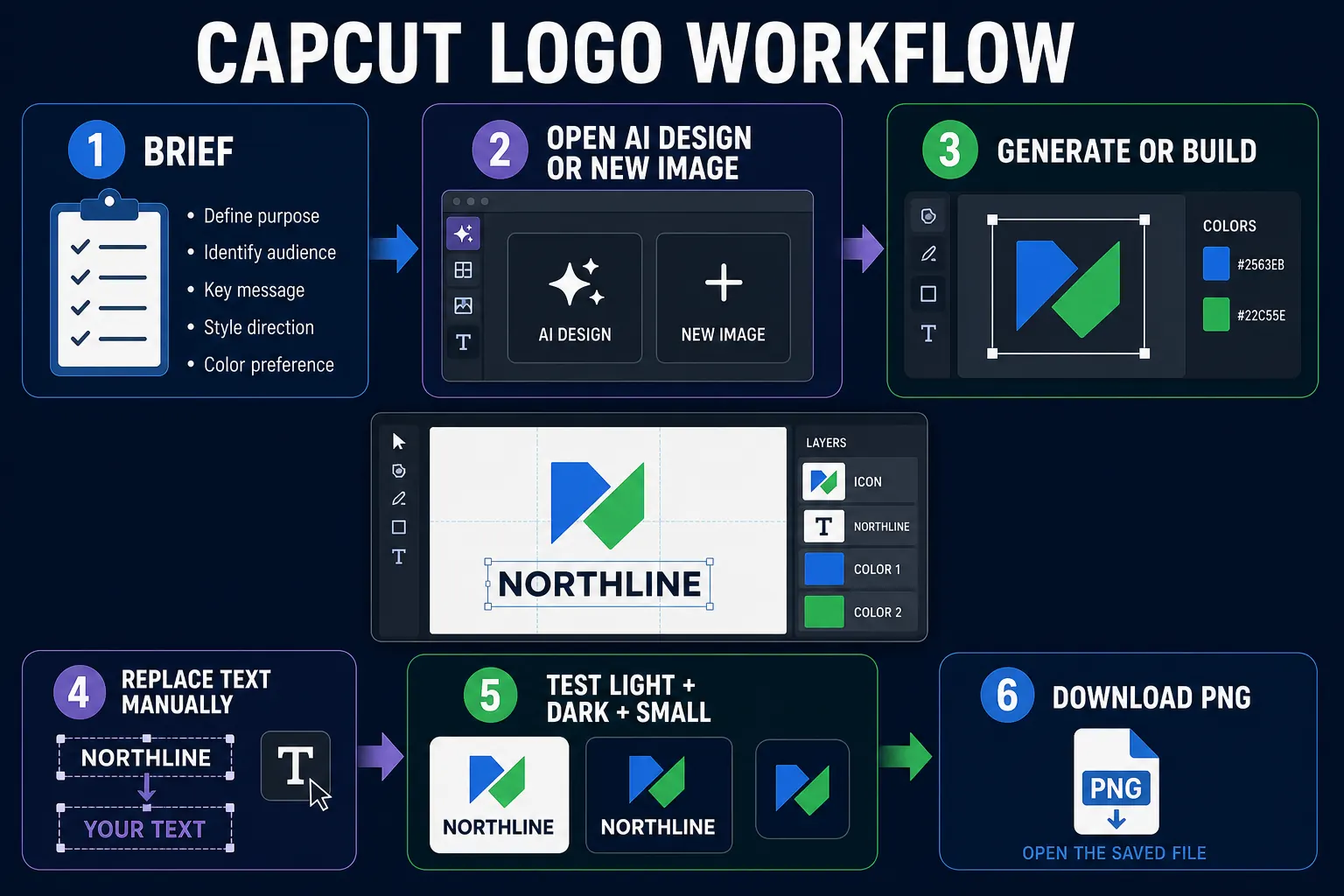
Sign in to CapCut Online and look for AI Design, or open that tab from the Desktop home screen if it is available. Enter your symbol prompt, inspect any credit or plan notice, then choose Send. Open a promising result in the editor and check the controls offered for changing it. Keep a copy before editing. Download a JPG or PNG draft; PNG output alone does not prove the background is transparent.
If a logo-maker page sends you to dreamina.capcut.com, you have entered Dreamina. The current PNG-maker and text-logo landing pages do this. Their buttons are not a dependable shortcut to the manual CapCut canvas below. Check the destination's own controls, credits and terms before generating.
Build a logo without AI
Use a still-image canvas, not a normal video project. CapCut's documented image-editing route uses Image editing → New image on Desktop. Web design layouts may start with New image instead. These labels are conditional: if your app does not offer that workspace, use an available image editor rather than hunting through video-export controls.
- Open a blank image canvas. Choose New image in the available still-image workspace. Start without a supplied logo template.
- Choose the working size. Use a square for a symbol or profile image, or a wider canvas for a wordmark. Set dimensions for the intended destination when the size control is available.
- Add a symbol if you need one. Use Upload for your original artwork or commissioned design and leave room around its edges. For a text-only wordmark, skip the symbol and go straight to Text.
- Add the name with Text. Use a font whose licence allows your logo use. Correct the spelling and spacing; if the needed font is unavailable, prepare the lettering in another editor.
- Check light, dark and small versions. Test the symbol and name at the size people will see. Keep separate light and dark copies rather than stretching or recoloring the only master.
- Download and inspect a PNG. Open Download or the available export panel, choose PNG and enable transparency if offered. Check the saved file outside CapCut before using it.
On a phone, CapCut's Mobile image-editing instructions start with New image on Home: select a photo, edit it and choose Export. If that workspace is present, you can use it to arrange a cleared logo image. Check the actual dimensions and background of the saved file; those instructions do not guarantee transparent PNG on every phone.
If AI Design is missing or refuses to generate, CapCut's AI troubleshooting help points to account, region, network, plan and credit restrictions. Check the current message before buying anything. A Pro subscription is not a promise of unlimited AI. For more generation controls, see the AI image generator guide; for source-image cleanup, use the photo editor guide.
Fix the Type, Spacing and Color Manually
A misspelled name ruins an otherwise usable design. Add the correct name in a separate text layer with an appropriately licensed font; if the generated image already contains lettering, obtain a clean symbol version before adding new type. Check every letter and the spaces between them. Thin strokes that look elegant on a large canvas may disappear in a profile image.
Test one-color black and white versions before polishing a gradient. If the outline disappears without a glow or shadow, simplify it for small placements. You can keep a richer version for larger use. The CapCut text guide covers video text styling, but its controls are not a guaranteed map of every still-image editor.
Test the Logo at the Size People Will See
Export a test and shrink it to its smallest planned placement. As an example, try a roughly 24-pixel symbol, a social profile preview and a corner mark in a 1080p frame. Those are design tests, not universal upload requirements. Check the actual destination's size rules. On white, near-black and a photograph, the name should remain readable wherever you intend to show it.
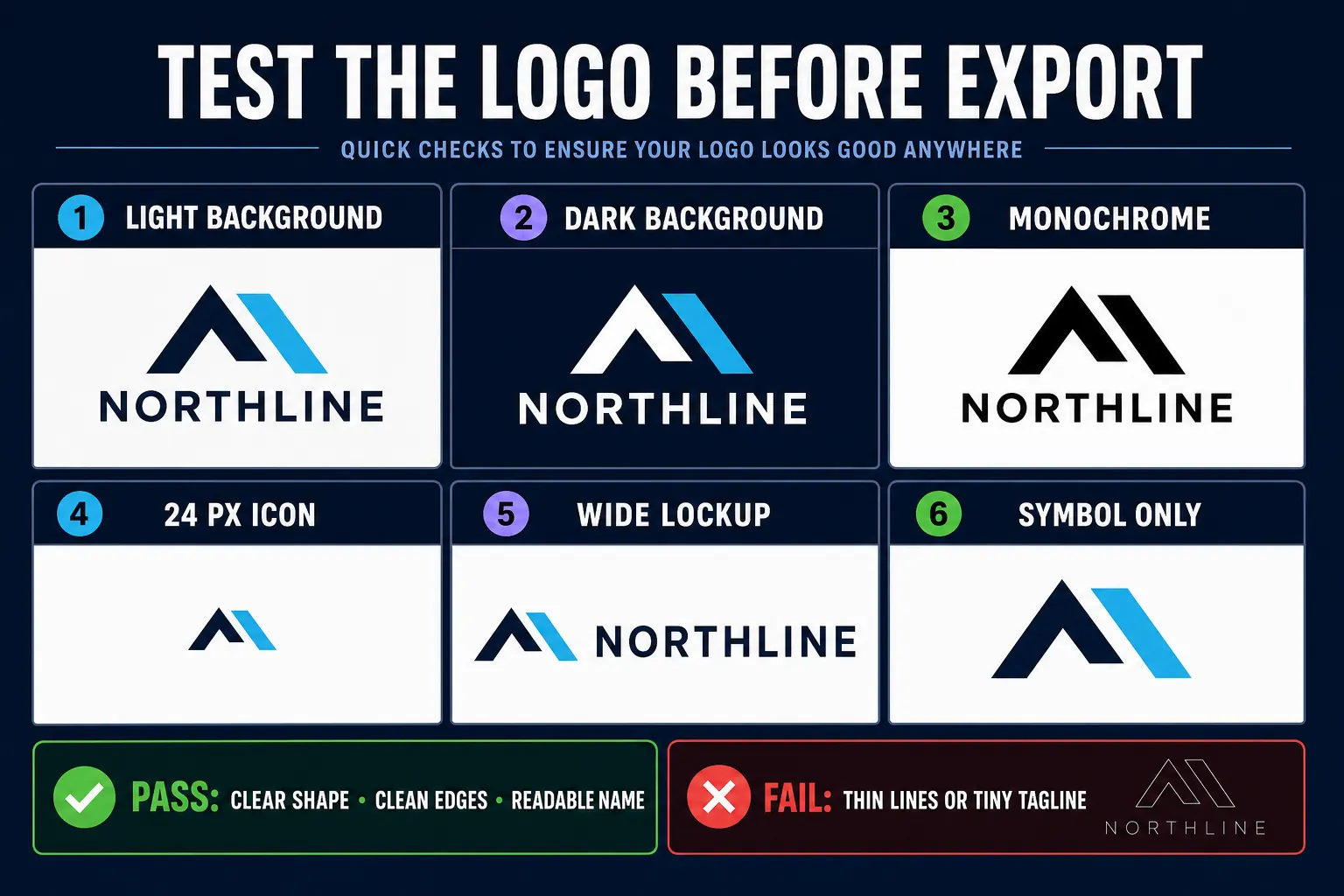
- Remove a tagline that becomes dust at small size.
- Thicken a line that breaks on a dark background.
- Give the symbol breathing room instead of exporting a crop tight to its edges.
- Keep a wide wordmark and a square symbol variant; don't stretch one into the other.
- Ask a person who has not seen the brief what the shape and name appear to be.
Check Rights Before the Logo Becomes a Brand
CapCut's Materials License Agreement prohibits using supplied Platform Materials as a logo or part of one. That category covers fonts and text templates as well as stock icons. Read the version applicable to your region and the terms for each element. The Commercial Use label concerns commercial content; it does not override the separate logo restriction.
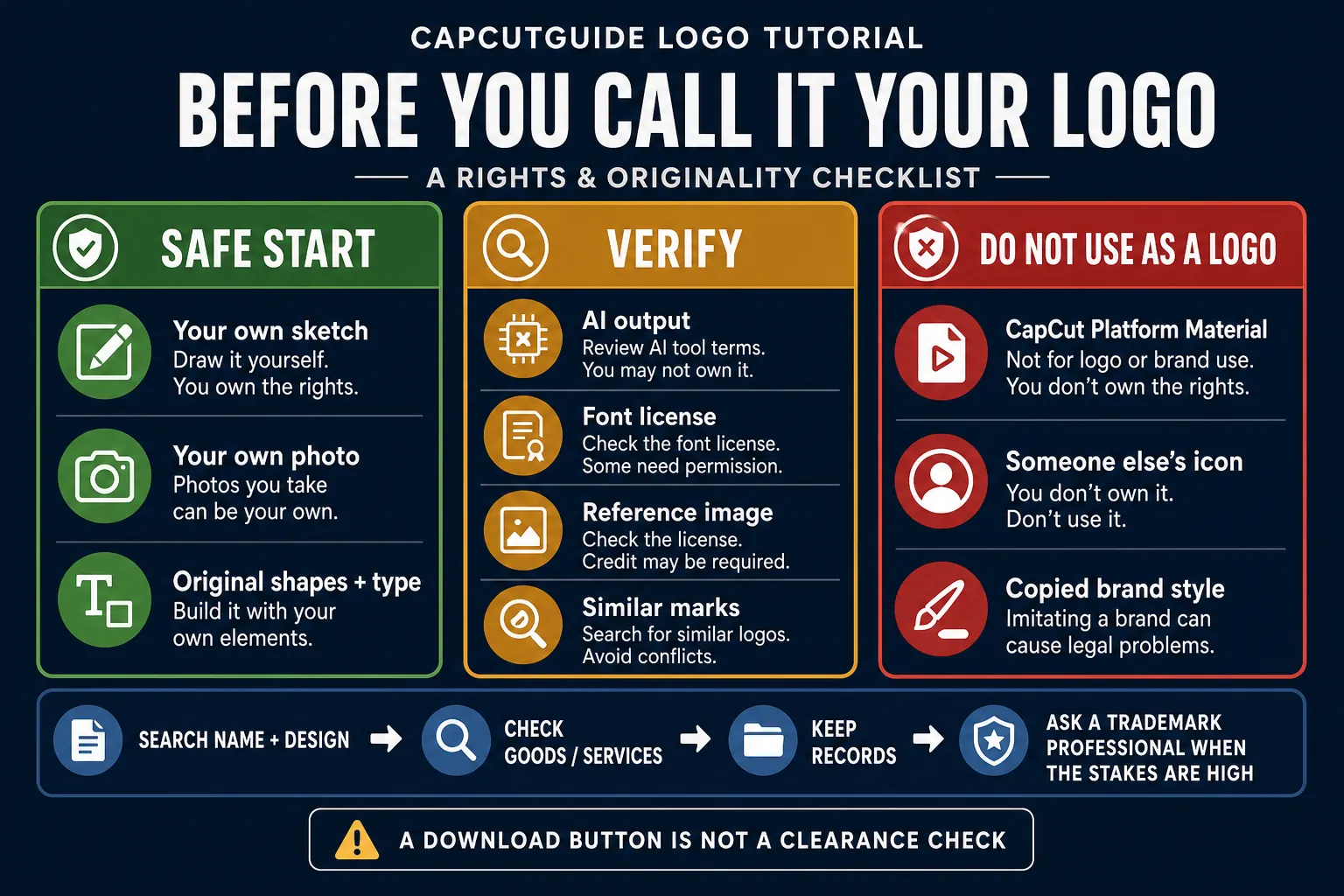
Keep the artwork permission, font licence and original files. Drawing a symbol yourself does not clear a copied name or shape. Search for similar marks as well as the exact spelling: the USPTO search guide includes similar designs and related goods or services. Its database is one part of clearance, not a guarantee. For a business launch or registration, consider professional advice in the relevant market.
Check the specific AI tool's output terms too; permission to download is not a promise of exclusivity. In the United States, the Copyright Office's January 2025 AI copyright report says prompts alone are insufficient for copyright in generated output. Human expressive contributions may qualify case by case, but a small edit does not automatically settle ownership. Copyright and trademark clearance are separate questions.
Export PNG Without Confusing It with a Vector
CapCut's PNG logo page describes a Transparent background option, although its current start button leads to Dreamina. The Desktop image-editing guide linked above describes Download all → PNG → Transparent background. Use those settings only where your live workspace offers them, then open the saved file over both white and black.
If the white area belongs to the uploaded picture, making the canvas transparent will not remove those pixels. Select the picture and try Remove background → Auto removal if offered, then inspect the cutout for missing details. If there is no suitable cutout or transparent export, finish that step in another image editor. A grey checkerboard baked into a picture is not transparency.
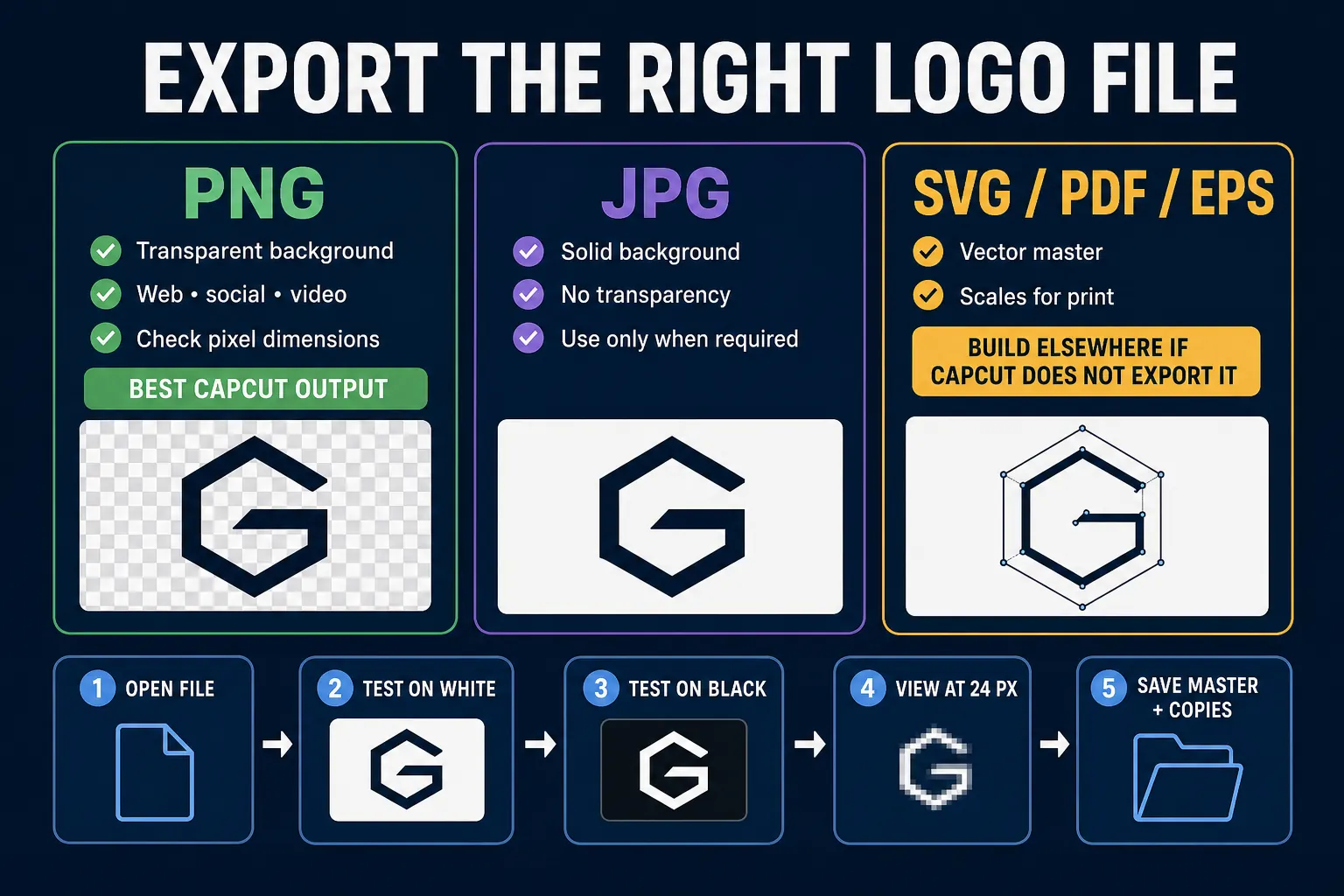
Use JPG when you want a solid background; it cannot preserve transparency. PNG can preserve transparent pixels but still has fixed dimensions. CapCut's text-logo page also advertises PDF download. That is not evidence of an editable vector master: Adobe explains that PDFs can contain raster images.
We did not find dependable documentation for editable SVG or EPS export in these CapCut routes. Open the actual file instead of trusting its extension: a scalable master needs editable paths, not a bitmap placed inside a PDF or SVG. If necessary, redraw the approved geometry in a vector editor. Ask the printer or production supplier which format they need; a vector file alone is not a finished embroidery file.
Use the Approved Logo in Video
Once the standalone file passes, import a transparent PNG above the main video track and check its size and position in the final aspect ratio. The overlay tutorial explains layer order, duration and opacity. Keep the clean logo master separate from the video project.
Animate a copy for a reveal so the approved still file remains untouched. For repeated projects, the Brand Kit setup guide explains how to organize finished logo variants. Keep an offline copy of the masters and their permissions even if you store working files in CapCut.
Fix Common CapCut Logo Problems
The generated name is wrong
Remove lettering baked into the image and type the name in an editable text layer. Don't patch one broken letter with another generated image.
The logo disappears when small
Delete the tagline, reduce interior detail and thicken the main silhouette. Recheck at the smallest intended display size instead of zooming in.
PNG has a white box
Check whether the white area is in the uploaded picture or the canvas. Remove the source background if needed, save PNG with transparency when offered and test over a dark color.
Edges look soft or jagged
Export from the cleanest master at the required dimensions and inspect at 100%. Enlarging a tiny bitmap alone will not restore its geometry; redraw it as vector paths when needed.
The AI or logo tool is missing
Check the account, region, plan or credit notice and available Web/Desktop tools. Use a manual image workspace if offered; reinstalling is not the first fix for an access restriction.
You used a built-in icon
Don't launch it as the brand mark. Replace it with original geometry or properly commissioned artwork and repeat the similarity and licence checks.
Frequently Asked Questions
Can I make a logo in CapCut?
Yes. Use AI Design for a symbol draft or an available blank image canvas to arrange your cleared artwork and type. Check permissions, spelling, small-size legibility and the downloaded file before using it as a brand.
Can CapCut export a logo with a transparent background?
CapCut documents PNG export with a Transparent background option in certain image workflows. Check your actual workspace and the saved file: a PNG can still contain an opaque white background. Some logo landing-page buttons now lead to Dreamina.
Does CapCut export SVG logos?
We did not find dependable documentation for editable SVG export in these CapCut workflows. Inspect the current exporter and the file itself. If you need scalable, editable paths, finish the approved logo in a vector editor.
Can I use CapCut stickers or templates as my business logo?
No. CapCut's Materials License Agreement prohibits using supplied Platform Materials as a logo or part of one. A Commercial Use label does not cancel that restriction. Use original or separately cleared artwork and check font permissions too.
Can I use an AI-generated CapCut logo commercially?
An AI download is not automatic copyright or trademark clearance. Review the current tool terms, keep source records, replace questionable assets, search for confusingly similar marks and get professional advice when the business stakes justify it.
What is the best CapCut logo format?
PNG is useful for digital placements that need transparency, provided the exported file keeps it. For an editable, scalable master, use vector paths in the format your designer or supplier requests. A PDF or SVG containing only a bitmap is not that master.
How do I add my finished logo to a CapCut video?
Import the approved transparent PNG as an overlay above the main clip, then set its size, position, duration and opacity. Check it in the exported video and keep the original logo file unchanged for the next project.