

Start with the photos you most want to share, then choose a birthday template that fits. Below are 12 official examples, from a one-photo greeting to a many-photo montage, plus the checks to make before exporting. To compare birthday edits with collages, slideshows, intros and other designed formats, continue with our guide to CapCut design tools.
Keep the message simple
Use a clear portrait and a wish in your own words. With two or three photos, try a then-and-now pair or a short sequence; you do not need a photo dump.
Make a small montage
A trip, an ordinary afternoon and an inside joke can say more than ten similar party photos. Choose a layout that gives each memory room.
Watch the pace
A fast photo dump suits quick impressions. If a face or message disappears before you can recognize it, choose fewer images or a slower manual edit.
Make the details readable
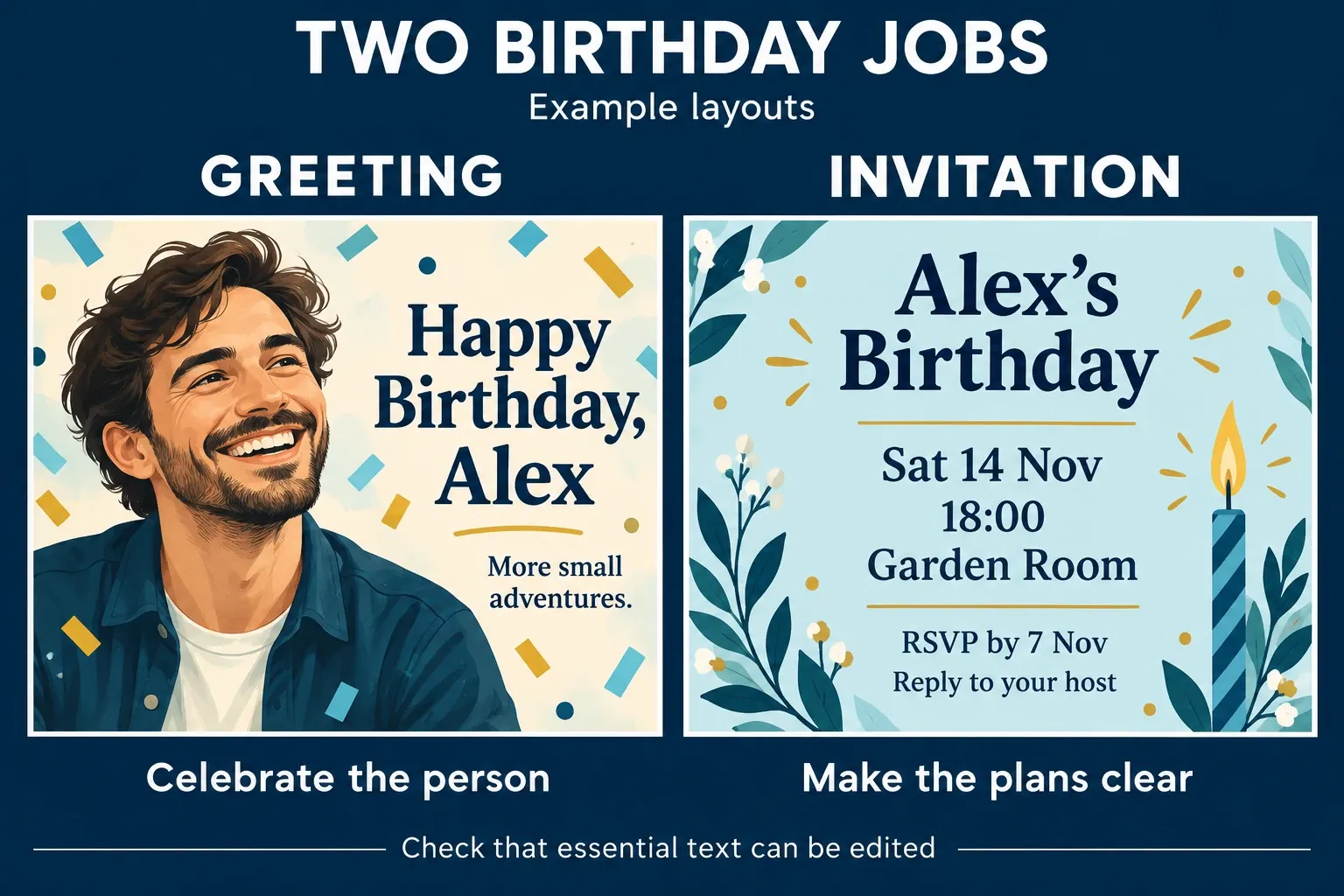
An invitation has a different job from a birthday tribute. Check that you can change the date, time, venue and RSVP details as well as the photo.
These are editing suggestions, not CapCut limits. The same goes for the decision board below: it's an editorial aid, and its photo-count groups aren't requirements built into the app.
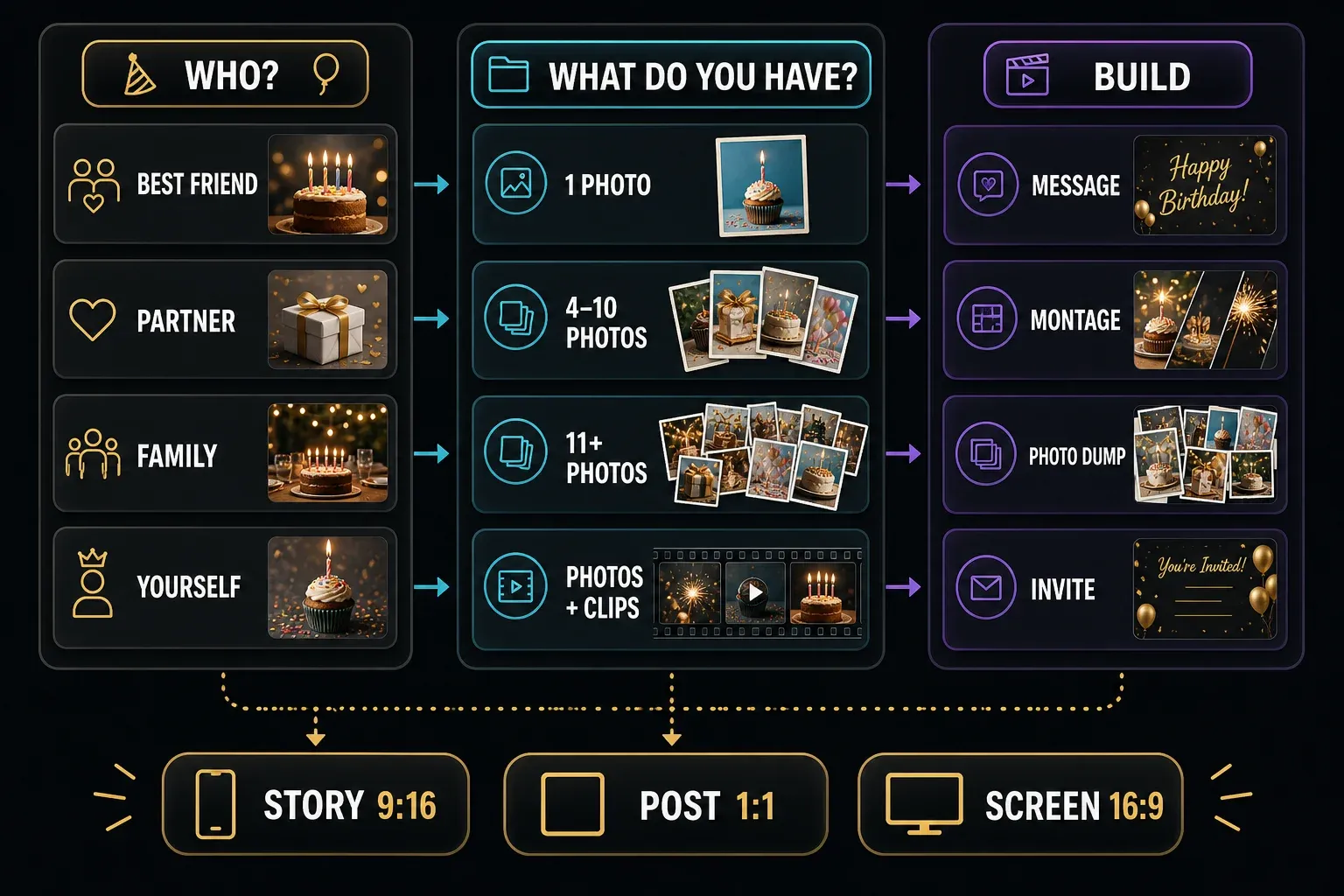
Choose by recipient, media and format
For a best friend, try a shared joke. With a parent, a family memory may matter more than any trend. For a first birthday, pick a few moments from the year and check who'll see the finished video. Whoever it's for, the person matters more than the template title.
Collect usable photos in an album first, skipping blurred duplicates and images that show private notifications. I'd start with a template close to your photo count. CapCut supports flexible clip numbers when the creator enables them, so some layouts let you add or remove media, while others still require their specified slots.
Pick the shape based on where people will watch: vertical 9:16 for a phone-first greeting, 1:1 for a square post, or landscape 16:9 for a television. These are starting points, not platform requirements. Then check the destination preview for cropped faces and text hidden behind buttons.
12 official birthday template examples
Start with CapCut's birthday collection or one of these examples. Counts and ratios come from each template's public detail page. Runtimes are approximate, rounded from the listing data, and creators can change them later. A listed count doesn't prove that every slot needs a different photo, and total runtime won't tell you how long each image stays on screen.
Before you pick one: each detail page offers a sign-in route to use the template. Availability, accepted media and any charge can depend on your account and region, so confirm them in your own editor.
One to ten media slots
One-photo square message
A one-photo option to inspect when the greeting matters more than a montage. Check whether its words can be personalized.
Open the one-photo templateTwo-part vertical message
Try a portrait and a shared memory. Watch the preview: two media slots do not necessarily mean two uninterrupted shots.
Open the two-slot templateShort four-memory edit
A smaller option to compare when you have only a few good photos. Check each crop before filling the whole edit.
Open the four-slot templateBest-friend mini montage
The creator tags this for a best friend. Try recognizable moments and check the actual pace rather than judging by the title.
Open the eight-slot best-friend templateLonger eight-slot option
Compare this longer runtime with the previous option. Check whether individual slots accept photos, video or both.
Open the longer eight-slot templateVertical birthday invitation
Choose it only if the event information can be changed and read comfortably. A replaceable photo alone is not enough.
Open the birthday invitationFourteen to forty-one media slots
Baby birthday montage
A baby-themed example to preview with simple, clear photos. Check close-ups and group shots separately.
Open the baby birthday templateShort many-photo message
Many media slots in a short video warrant a careful preview. Do not assume there is time to read a caption on every image.
Open the 22-slot templateBirthday photo dump
Consider casual memories such as places, meals and small details. Check how the template arranges them before choosing the opener.
Open the birthday photo dumpDense birthday edit
Check the media requirements before assembling 30 files. If the count is fixed and you lack good material, choose a smaller layout.
Open the shorter 30-slot templateLonger 30-slot montage
This has a longer total runtime, not necessarily longer holds for every photo. Compare both previews with your intended message.
Open the longer 30-slot templateBFF photo-heavy edit
A large-count option for a best-friend tribute. Decide whether the pace suits your memories before committing to all those selections.
Open the 41-slot BFF templateThink of these as examples. They aren't ranked by popularity. For other occasions and ways to find templates, see the CapCut template hub.
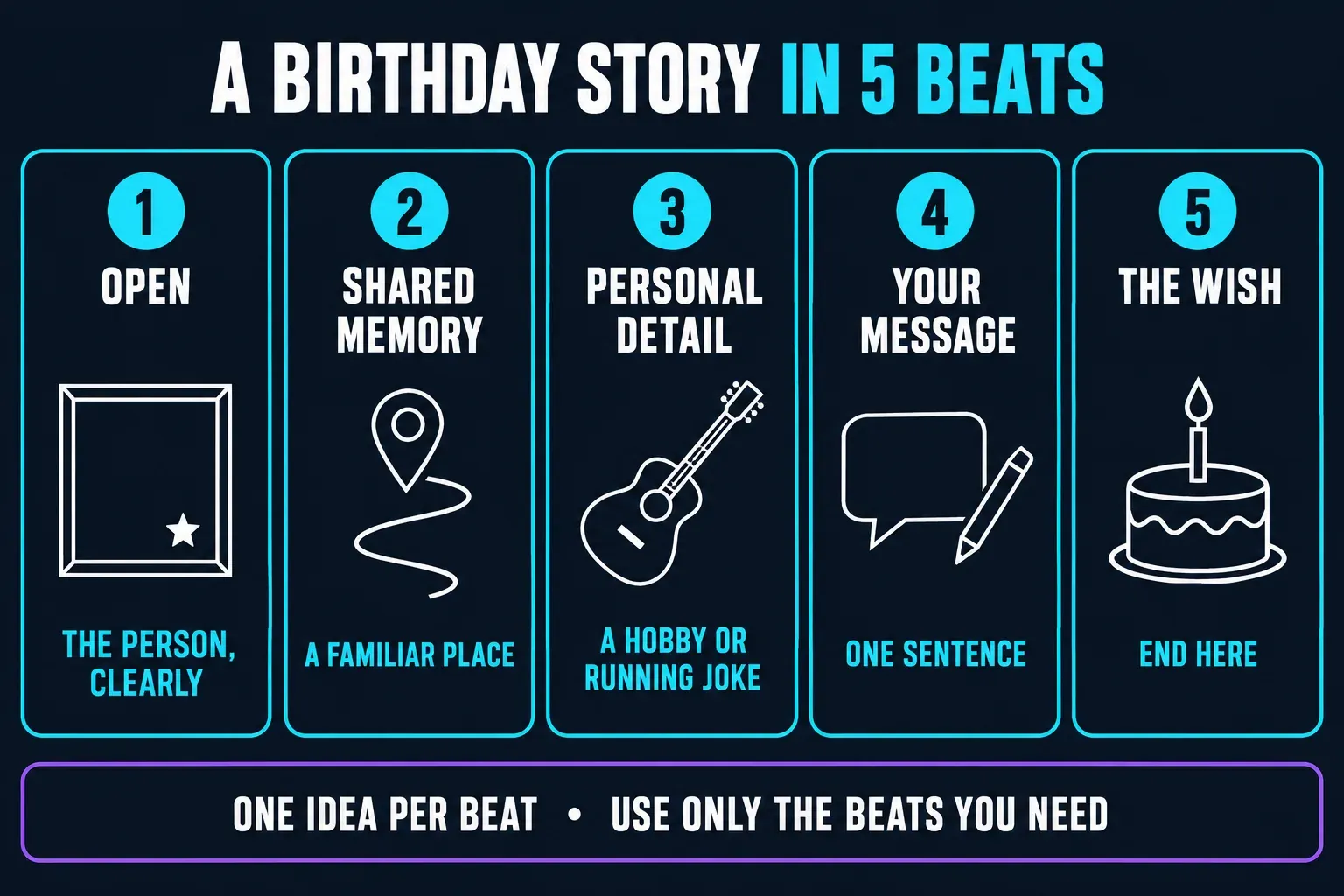
Turn the photos into a birthday story
Borrow only the parts you need from this sequence. A one-photo greeting doesn't need five separate scenes. The storyboard sets an order; it doesn't set a duration for each beat:
- Open with the person. Choose a frame where they are easy to recognize.
- Add a shared memory. A familiar place can mean more than a polished portrait.
- Include a personal detail. A hobby or running joke makes it theirs.
- Write one sentence yourself. “Still laughing about this” can work better than a long greeting.
- End on the wish. Remove an unnecessary trailing scene if the editor allows it.
Check the template before personalizing it
Watch the public preview first. Then open the template with non-private test media so you can inspect the controls that only appear inside the editor. CapCut lets creators restrict which clips and elements can be replaced, and the media count depends on the template you choose.
- Media: confirm the current count and whether each slot accepts your photo or video.
- Crop: check faces through zooms, masks and split screens.
- Text: try changing the name; for invitations, also check every event detail.
- Sound: replacing music may change how well the cuts match its beat.
- Cost and ending: inspect paid indicators, export restrictions and any unwanted final card.
Having access to music isn't permission for every use. CapCut's general, non-US music and materials license separates personal-use Sounds from Commercial Sounds. It limits videos with Commercial Sounds to CapCut, TikTok and TikTok for Business unless you obtain separate permission. US users have separate terms. Check the agreement and track terms that apply to your location and destination, especially for a business post. Imported music needs the appropriate rights too.
Use a birthday template in CapCut
These steps follow the Mobile route described in CapCut's template instructions, though labels and exposed controls can vary. CapCut also documents a Web template workflow, but don't assume every mobile layout appears there.
- Open the template. Use its official page or find it in CapCut's Templates section. Follow the available Use template button and check any sign-in or payment request.
- Select your media. Fill the required slots in the order shown. Change the count only if that template offers the option.
- Play the whole preview. Watch at normal speed for hurried messages, awkward crops and gaps.
- Adjust available controls. Replace or crop exposed segments and personalize editable text. Choose another layout if essential information is locked.
- Export one complete test video. Watch the saved file outside CapCut, then inspect the destination preview before sharing.
Photos missing from the selector?
A photo you can see in Google Photos may still need a local copy. For Android and iPhone/iPad, Google's instructions are: open the item, choose More, then Download. If it's already on the device, that option may not be there. Download only the items you need, then reopen CapCut's picker and check their order.
If the template itself is missing, CapCut lists account, region, version and connection checks. Work through our CapCut template troubleshooting steps, and don't start by deleting local projects.
When another route is better
Go with a slideshow when photo order and reading time matter most, or a collage when several images should stay visible together. A recap covers the party after it happens, while a greeting celebrates the person. If you're making an invitation, browse the official invitation collection and check the editable details.
Birthday template export check
Before you send it, check the whole saved file. Faces should stay in frame, messages should be readable, the sound should be there, and the ending shouldn't contain a surprise logo or blank section. Remove private details you didn't mean to include, such as addresses, school names or notifications, and agree on who can see other people's photos.
For resolution and compression choices, see our walkthrough of CapCut export settings. Even after a successful export, give the file a final watch.
CapCut birthday templates FAQ
How many photos do I need for a CapCut birthday template?
The examples here list one to 41 media slots. Some templates support flexible clip counts; others have fixed requirements. Check the picker rather than assuming every listed slot requires a different photo.
Which birthday template should I use for one photo?
Try the one-photo square example above, or make a simple manual greeting. Choose a readable message and check whether the template lets you change its text.
What is the best CapCut birthday template for a best friend?
Choose one that fits your shared memories and message. A short montage suits a few good photos; a larger photo dump only works if its pace lets viewers recognize them.
Are CapCut birthday templates free?
Not all templates are free. Check the current paid badge, access conditions and export or checkout screen. Do not assume a subscription includes every template or every use.
Can I change the text and music in a birthday template?
Only if the template exposes those controls. Open it in the editor and check. If a required name, date or soundtrack cannot be changed, choose another template or a manual project.
Why will a CapCut birthday template not open?
Availability can differ by account, region, version and platform; connection problems may also interfere. Try the official collection and the template troubleshooting guide if several layouts fail.
Should I use a birthday template or make the video manually?
Use a template when its media requirements, crop, editable text and pace fit. Build manually when you need exact photo order, longer messages or precise invitation details.