

Yes. CapCut is a good video editor for short social videos, straightforward YouTube edits and learning the basics of a timeline. I’d choose it when the main job is turning footage into a clear finished video with cuts, captions, music and a few well-placed effects. I’d look more closely at other editors when detailed color work, a demanding sound mix or an editable handoff to another team determines the whole project.
That’s a decision about the work you’re doing, not about whether the software looks “professional.” A clean talking-head video can need fewer tools than a short advertisement with several versions and a complex soundtrack. Here’s how I’d decide where CapCut fits.
What CapCut is good at
CapCut is more than a collection of templates: it has the building blocks of a video editor. Its developer description on the App Store lists trimming, splitting and merging clips, a multi-track timeline, text, keyframe animation and automatic captions. Those capabilities are useful, but the listing does not promise that every tool is free or available in every editor.
That combination suits a footage-led social video. You can pick the shots to keep, put them in order, add supporting text and give the soundtrack room to breathe. Templates can help with a recognizable trend, but they should serve the footage instead of dictating every cut.
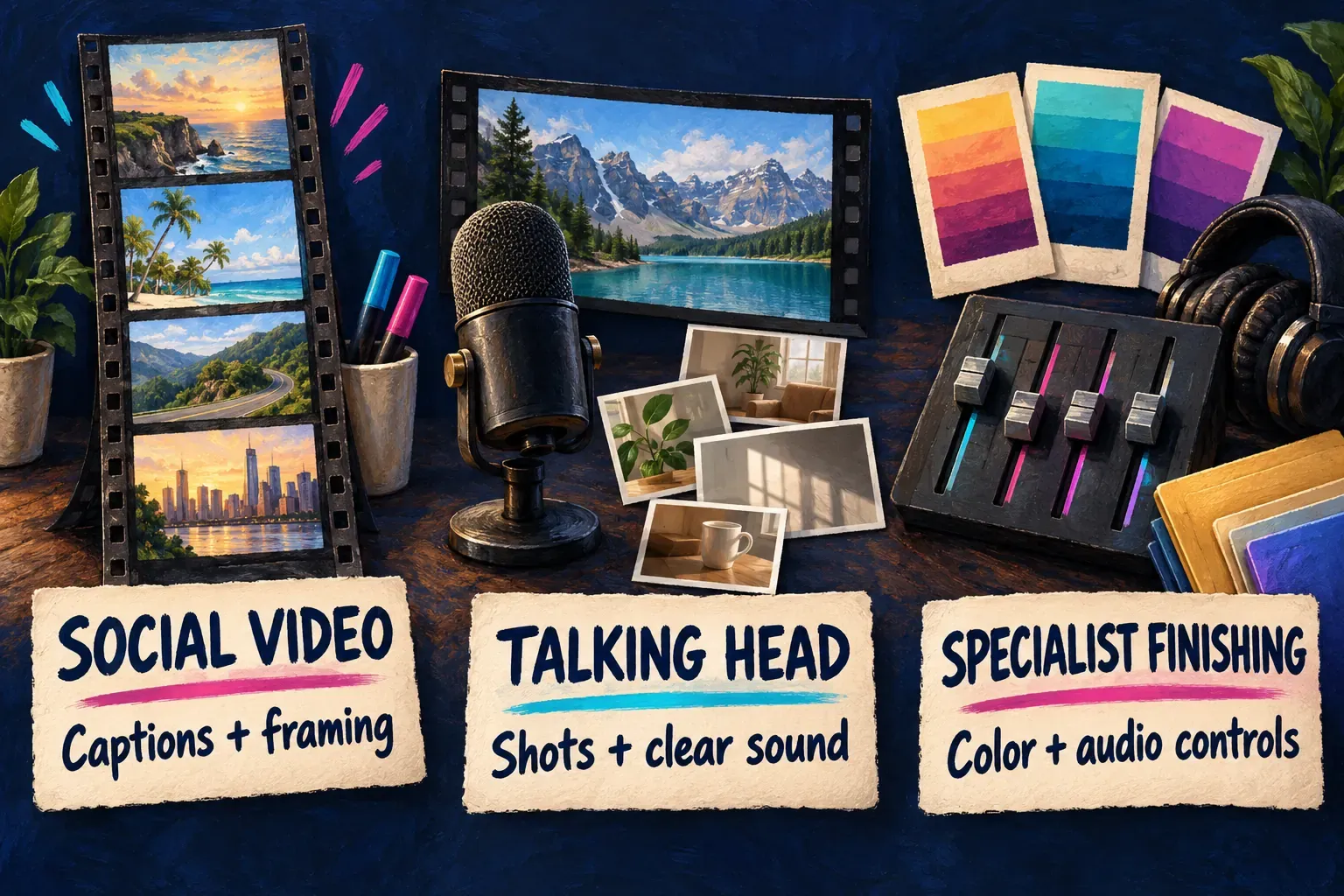
| Your main job | My verdict | What to establish before committing |
|---|---|---|
| Reels, TikToks or YouTube Shorts from your own footage | A strong fit for cuts, captions and a focused visual style | Caption access, vertical framing and the destination’s safe zones |
| A talking-head YouTube video, tutorial or simple interview | A sensible option when the edit is mostly selection, supporting shots and sound balance | Media organization, caption review and the export you need |
| Learning video editing | A useful starting point if you edit the timeline yourself | Practice timing, sound and shot order instead of relying entirely on templates |
| A longer project with many revisions or another editor taking over | Decide from the working requirements | Project access, media dependencies, versions and the recipient’s editor |
| Detailed grading or a soundtrack with complex routing and automation | Compare a specialist finishing workflow | The exact color, audio and delivery controls the job requires |
Mobile, Desktop and Web are separate choices within CapCut. I’d favor Mobile for footage that’s already on a phone, and Desktop for an edit where a keyboard, a larger timeline and local media organization matter. Web is worth a look when you need a browser workflow, provided its current tools and upload arrangements suit the material. Those are practical preferences, not performance rankings.
Check the Mobile, Desktop and Web availability matrix before you follow a tutorial. The name “CapCut” alone does not establish the same controls, account access or paid features everywhere.
Is it good for beginners and YouTube videos?
Yes, provided you learn editing decisions along with the buttons. Start with footage you understand and finish a small, complete edit. Keep the shots that move the point forward, cut pauses that distract, make speech easy to hear and use text where it adds information. Our beginner tutorial path follows that same order, from the first cut to export.
I’d hold off on elaborate transitions until the sequence works with ordinary cuts. Spotting that a reaction shot lands too late teaches you more than putting another effect over an uncertain edit. Those lessons carry into other timeline editors if you switch later.
For YouTube, a regular video and a Short are different jobs. A horizontal tutorial may need supporting shots and clear labels. A Short also needs deliberate vertical framing and room for the platform’s overlays. The YouTube Shorts guide covers that narrower layout and delivery work.
Automatic captions can save some transcription work, but they still need an editorial pass. CapCut’s caption-correction instructions explain that noise, accents, fast speech and low-quality audio can cause recognition errors. Read names, technical terms and numbers carefully, then check the timing of each line. A wrong word stands out in a short caption.
Caption generation also depends on something that cutting local footage doesn’t: CapCut’s auto-caption troubleshooting page describes speech recognition and cloud processing. If captions are central to the job, plan for the connection and account access they need. Don’t assume every AI tool will work offline just because the timeline is available.
Longer videos: complexity matters more than minutes
I wouldn’t reject CapCut just because a video passes an arbitrary five-, ten- or fifteen-minute mark. Duration tells you little about how much work sits inside the timeline. A long single-camera explanation and a short multi-layer promotional edit place different demands on the editor.
For a longer interview or lesson, think about which parts you’ll need to revise. Are there several cameras or separate audio recordings? Will you change captions throughout? Do multiple versions need different graphics, music or endings? And who needs the editable project after delivery?
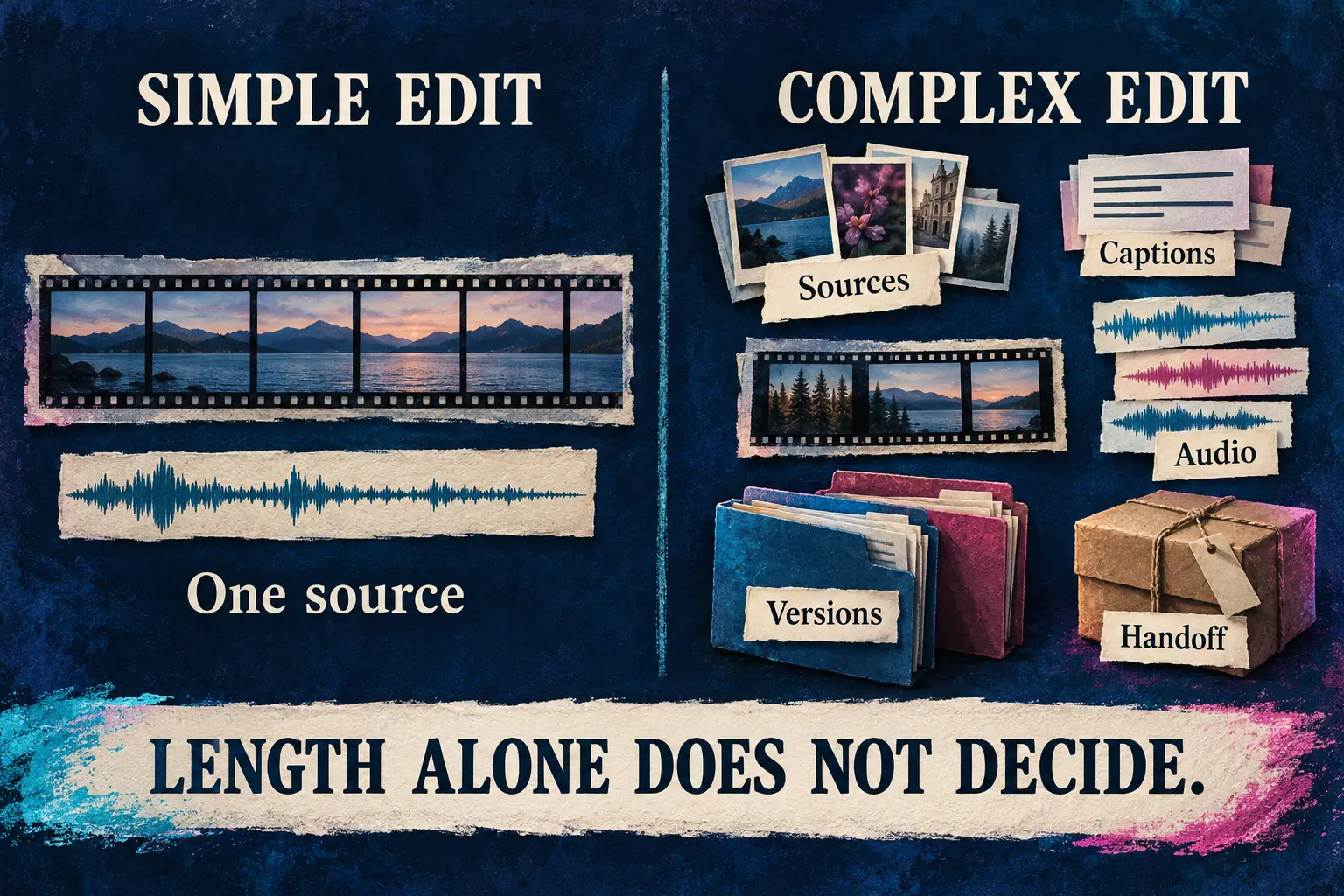
Keep the original recordings, the editable project and the exported delivery file separate. The export preserves the finished picture and sound, but it doesn’t replace the working arrangement of clips, text and media. The project backup and transfer guide explains the dependencies worth keeping together.
If you’re handing off to another editor, agree on the working format before production starts. Ask which application they use, what has to stay editable and how they’ll get the source media. A finished MP4 is enough for some delivery jobs, but it’s a poor substitute when the recipient needs to adjust individual titles or cuts. Check how sharing currently works in your specific CapCut setup instead of promising that signing into the same account will solve every handoff.
When I’d compare a more specialized editor
CapCut does have color and animation tools. Its Desktop feature page describes a color wheel, keyframes and graphs. The useful question isn’t whether CapCut can change a color at all, but whether the controls available to you meet the brief.
If your work depends on structured shot matching and a managed color pipeline, compare an editor built around that task. Blackmagic documents node-based grading and color management in DaVinci Resolve. For a sound mix that needs buses, detailed automation and dedicated finishing tools, DaVinci Resolve’s Fairlight audio workspace documents those capabilities too. Before you choose a specialized editor, check the relevant edition and requirements. A longer feature list does not guarantee an easier project.
For ordinary speech over music, I’d first make sure the edit makes good use of the tools already there. Intelligible dialogue and deliberately placed music often matter more than moving to another application. The CapCut audio-mixing guide covers that focused task.
If a client or collaborator already requires a particular editor, that requirement can settle the choice. Don’t build a whole production around a handoff nobody has agreed to accept. Our CapCut alternatives compare the other options when you have a specific reason to switch.
Check cost, rights and delivery before you commit
“Free to download” is too broad a basis for choosing an editor. CapCut’s Standard and Pro explanation describes subscription options, while its credit rules treat AI credits as a separate resource. Don’t mistake a plan name or an unlocked effect for unlimited access to everything.
Check the exact editor and account you plan to use. Look for paid badges on the assets or tools you pick, confirm the export options your destination requires, and read any access or credit notice before a paid feature becomes essential to the edit. If the question turns into whether a subscription is worth the cost, use the separate CapCut Pro value guide.
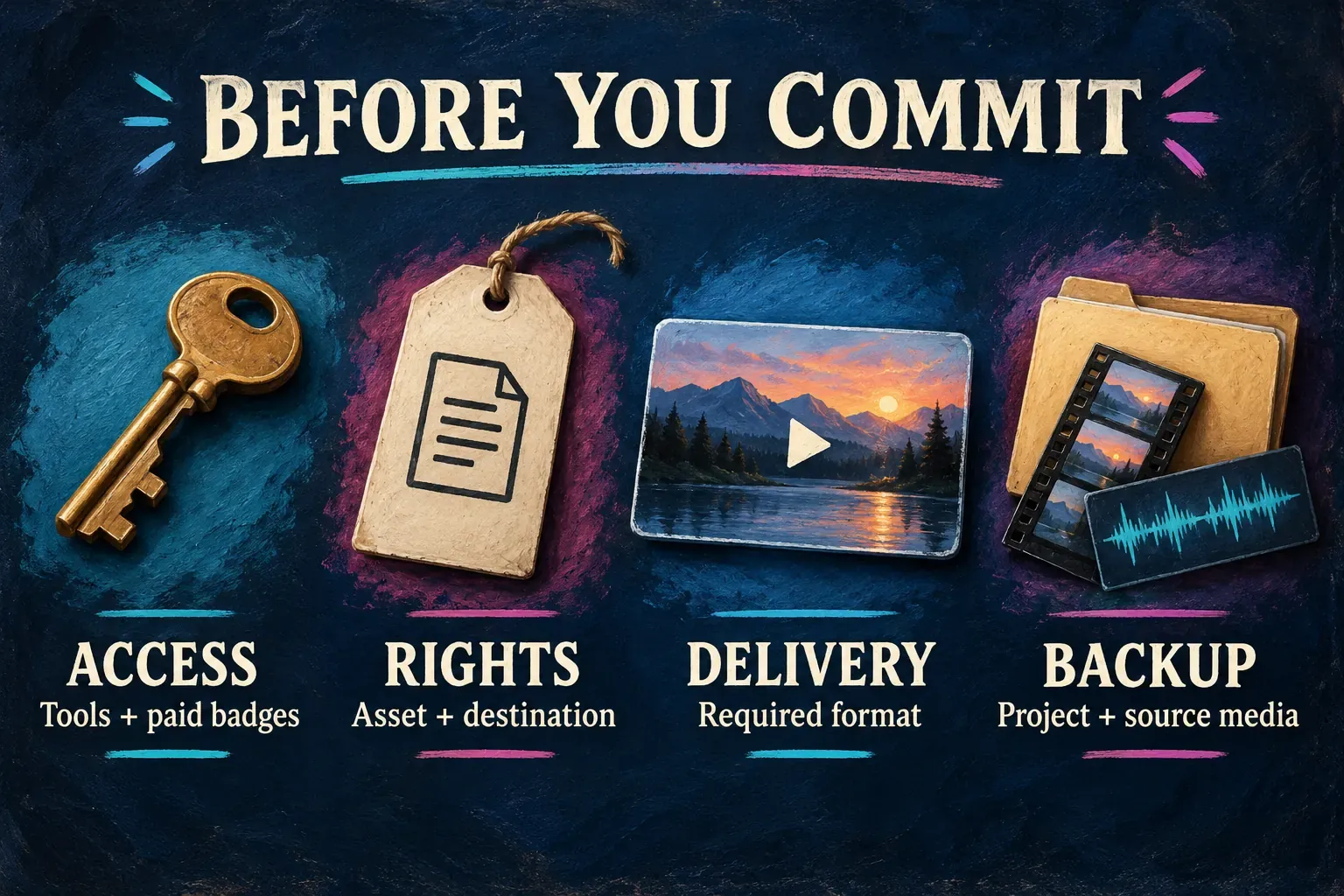
For business work, check the assets as well as the app. CapCut’s materials agreement distinguishes permitted uses and says a separate US agreement governs US users. Read the terms for your region and for the exact music, font or effect you choose. Finding an asset in a library, or paying for access, isn’t enough to establish permission for your intended advertisement or destination. The commercial-use rights checklist covers that wider decision.
With confidential footage, find out whether the upload or cloud feature you have in mind is allowed before you send the material. Keep a protected copy of the source files and the project. Before delivery, review the saved video for caption mistakes, cropped text, missing media and speech buried under music.
My recommendation: choose CapCut when its current tools cover the work and you want to focus on clear cuts, readable captions and a watchable video. Learn those decisions properly. Compare another editor when a specific finishing or collaboration requirement demands it, not because you’ve hit a particular video length or want a more impressive application name.