

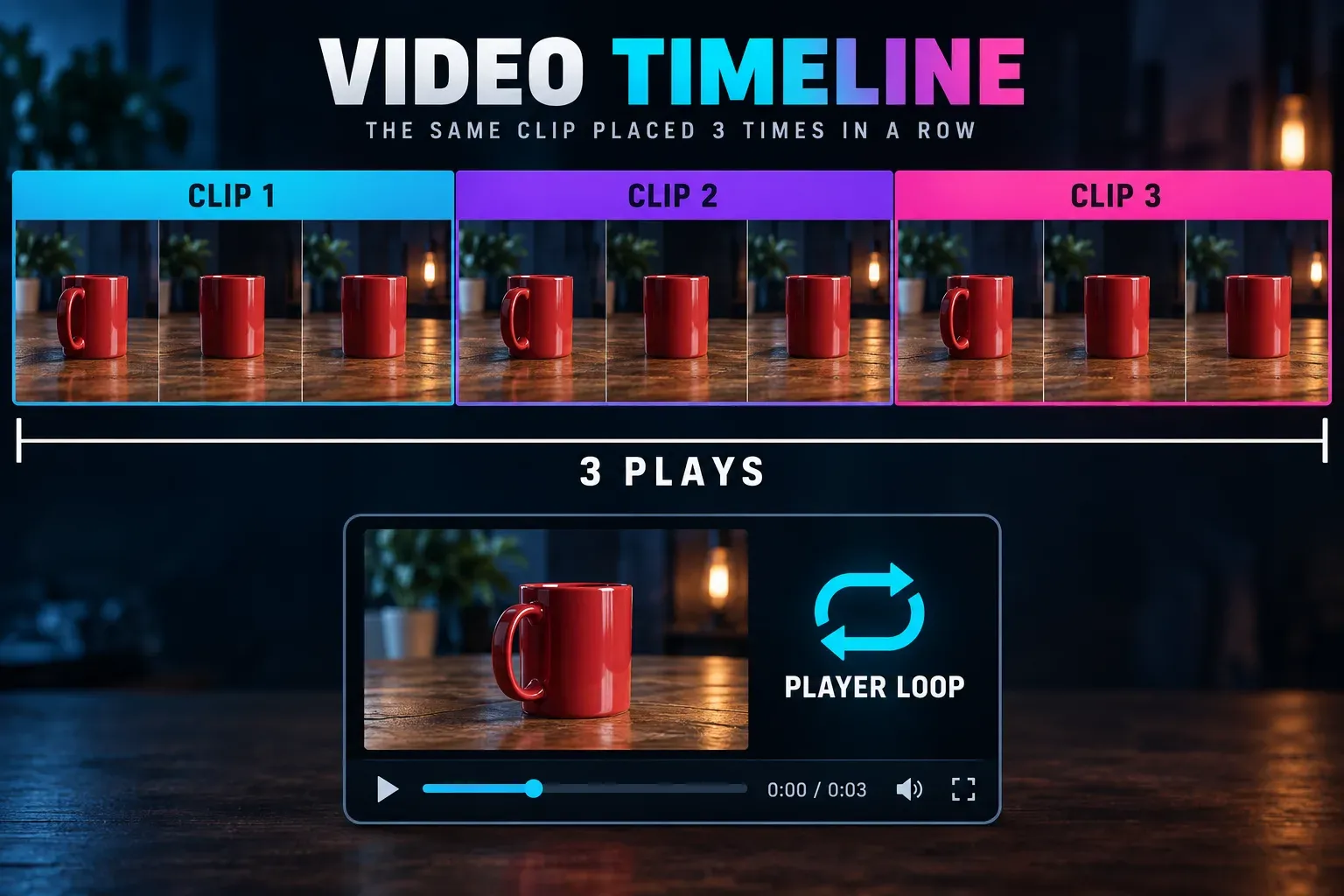
For a video that repeats inside the saved file, trim the segment you want, duplicate it and place the copies directly next to each other. CapCut documents this approach on Mobile and in its Desktop and Web loop instructions. Exporting those copies gives you a fixed number of repeats. If you want one file to play forever, the app or platform showing the video needs its own Loop setting.
I would check the join before duplicating the clip ten times. Repeating a visible jump only makes it more obvious.
Pick the part worth repeating
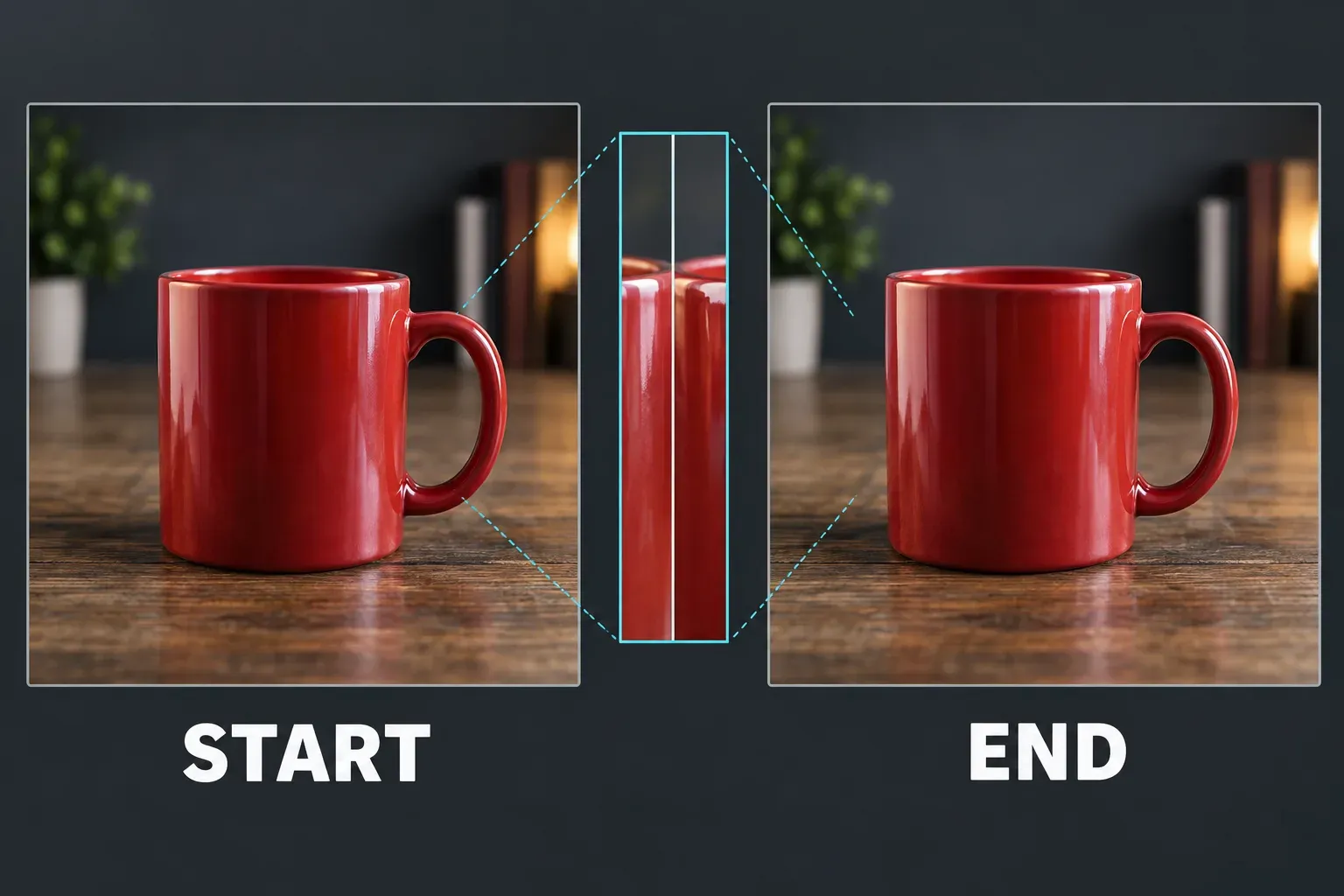
Find a short action with a natural return: a turn, a wave, a product rotating back toward its start position, or a camera move that settles near its opening view. Trim away the setup and the stop. Compare the last frame with the first: similar framing, position and light make the join easier to hide. A clip can repeat perfectly on the timeline and still look like a restart if the subject teleports across the frame.
Our CapCut trim and split guide covers isolating the range without deleting the only editable source. Keep the original project and media until the final sequence is checked.
Repeat the selected clip on Mobile, Desktop or Web
On Mobile, select the trimmed video segment and use Duplicate. CapCut's iPhone loop instructions place each new copy next to the original. If your build puts Duplicate farther along the clip toolbar, make sure the video segment, not the text or audio track, is selected before scrolling for it. Add only enough copies for the duration you actually need.
On Desktop, copy the chosen segment and paste it after its end. On Web, CapCut's multi-platform instructions describe selecting the clip and using Duplicate. In either editor, inspect the timeline for a one-frame gap or accidental overlap. Dragging a video's right edge normally adjusts the selected source range; do not assume it creates new repetitions. Duplicating a clean trimmed segment makes the intended result visible.
Make the join less noticeable
Play through one copy's end into the next. If the finished file will repeat in a player, enable that player's loop control and also watch the last frame return to the first. Look for a position jump, a sudden brightness change, or a camera motion that reverses abruptly.
A short crossfade can hide a mild change in a static scene, but it can also make a moving person appear twice. For strong motion, trim to a cut point where a passing object covers the frame or where the subject returns to a similar pose. Another option is a forward-then-reverse cycle when the action makes sense backward; the CapCut reverse guide covers that different edit. Neither technique guarantees an invisible loop for every shot.
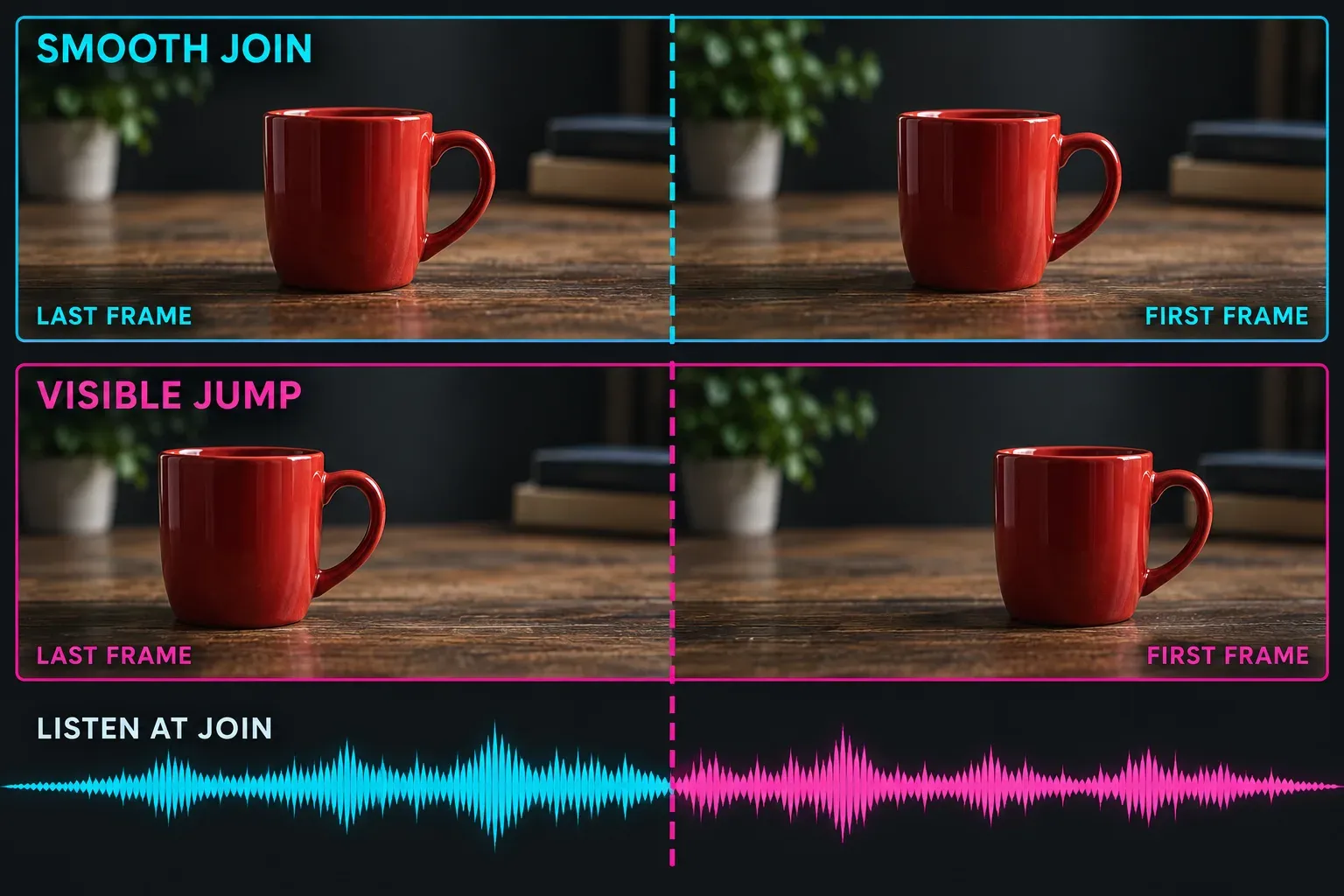
Listen across the join as well. Repeating the camera audio can make a breath, word or drum hit restart unnaturally. Where appropriate, mute that source audio and place one continuous licensed music or ambience track underneath the repeated picture; trim or fade its ends deliberately. The CapCut audio-mixing guide covers those separate-track choices.
Know what the exported file can repeat
If you place four copies of a five-second clip back to back, the exported sequence is about 20 seconds before other edits. It ends there. No ordinary export setting tells every player to restart it indefinitely. For example, YouTube Help's Loop setting is a playback control on YouTube, independent of how the file was edited in CapCut. Other destinations have their own behavior; check the actual platform rather than assuming CapCut controls it.
Before sharing, watch the saved file across every internal join and, in a player with repeat enabled, across the final-to-first boundary. Check the final duration and file quality using the CapCut export guide. If the destination only needs a short repeating animation, several clean copies are more useful than an enormous render made by pasting the clip for hours.