

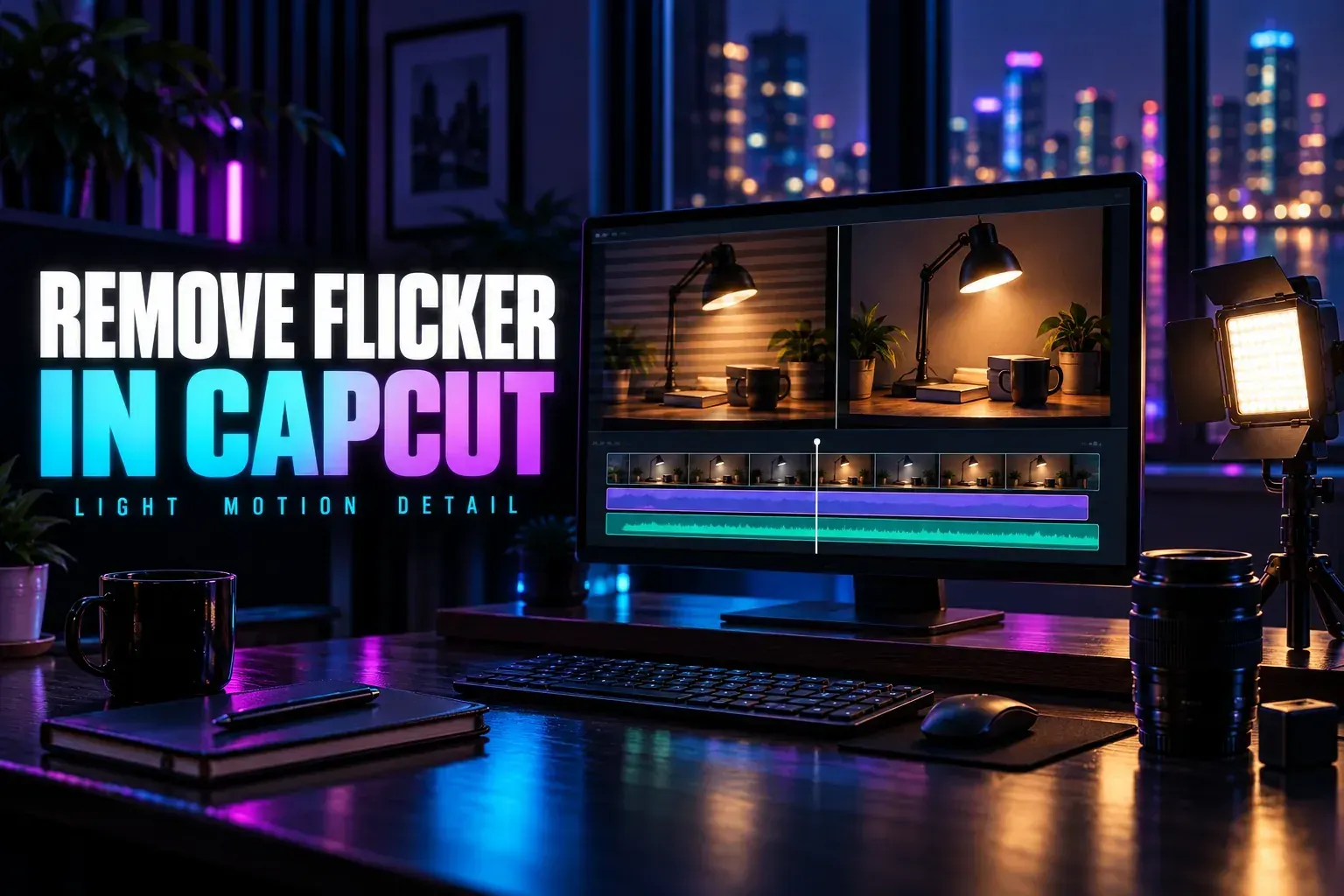
To reduce unwanted light flicker in CapCut Desktop, select the clip and open Video > Basic > Remove flickers. CapCut's flicker-removal instructions document Mode and Level controls and suggest Flashlight with Recommended as a starting point. Compare the result with the source before you apply a stronger correction.
You may also see the name as Removing video flickers. Go by the controls and access notice in your version. The tool targets changing light or exposure in the recorded picture; it isn't a general repair for skipped frames, camera shake or every visual glitch.
I'd rather keep a small leftover brightness variation than replace it with smeared movement or a flattened scene. A useful result is a steadier image that still looks like the shot you recorded.
Identify the flicker before changing the clip
Open the original outside CapCut and replay the same moment. If the problem shows up in the editor, compare a short local export next. Note whether brightness pulses across the scene, dark bands move through the frame, or an object just stutters as it moves.
- Whole-frame brightness pulses: a stationary wall or object becomes lighter and darker between nearby frames. This is a sensible deflicker candidate.
- Moving dark bands: stripes travel across a scene or screen. Inspect the source and compare the tool's result carefully; do not assume one strength setting can repair every band.
- A motion hitch: movement freezes or jumps while brightness stays steady. Start with the lag-after-export diagnostic, not a light-correction tool.
- A fault introduced by the edit: the source is stable, but an effect, transition or completed export flashes. Isolate that stage before processing an otherwise good source.

That sequence shows the distinction to look for, not a measured CapCut result. Judge the clip in motion too. A few balanced stills can't tell you whether a hand, a passing car or a fine edge got blurred during correction.
Keep intentional changes separate. A stage strobe, a lightning strike, a camera flash or a light switched on within the scene may belong to the story. If you smooth every change, you can remove the effect you meant to keep. When the unwanted pulse covers only part of the shot, work on a duplicate and narrow the affected section.
Use the Desktop controls on a representative section
Keep the untouched original within reach. Import the clip, place it on the timeline and select the clip before you go looking for the right editing panel. CapCut's Desktop deflicker procedure puts the checkbox under Video > Basic and lists Flashlight, Time-lapse and the available strength levels.
Where those controls appear in your build:
- Open Video, then Basic for the selected clip.
- Enable Remove flickers or Removing video flickers.
- Read any Pro or access notice before proceeding. An advertised download being free does not settle this operation's entitlement.
- Start with Flashlight and Recommended, if offered. For time-lapse footage, compare the named Time-lapse mode where available rather than assuming the first mode suits it.
- Let processing finish, then replay the same section. Compare with correction off using the offered controls or your untouched working copy.
- Change one mode or level at a time. Export a short representative sample when the result looks useful.
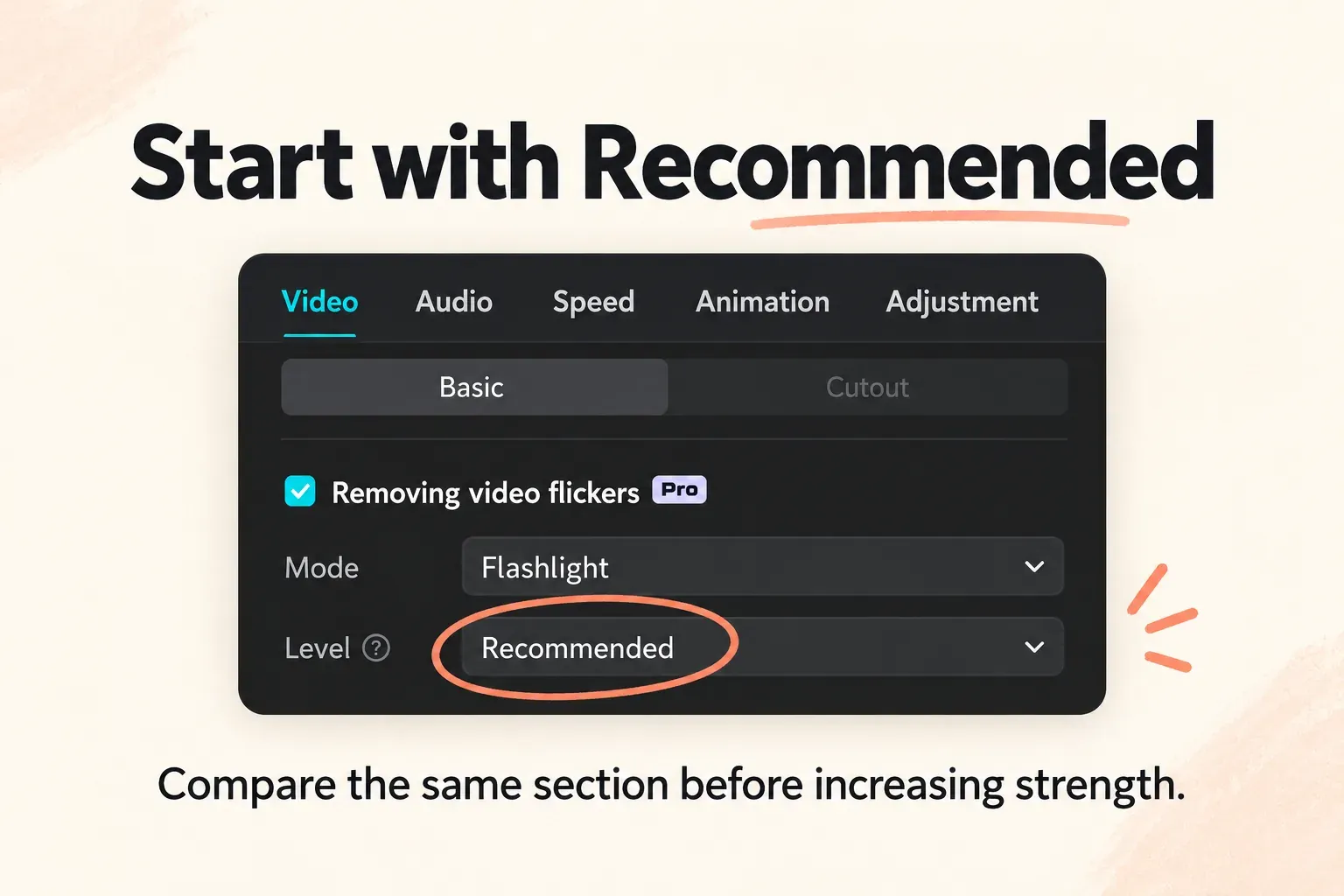
The strongest setting isn't automatically the best one. Compare whatever weaker or stronger option is available against Recommended. Watch for the light pulse you wanted to remove, and watch just as closely for new problems in movement or texture.
On Mobile, look for the option in the clip's own editing controls, if your version has it. The Desktop panel isn't a map of your phone toolbar. If the option isn't there, make sure a video clip is selected and check which features are offered to your account. Don't keep hunting for a label from an older tutorial.
If an export notice identifies a paid operation you don't want to use, turn that operation off on the affected clip and check the notice again. Keep legitimate access and the edit separate. Our watermark and Pro-export guide explains how to identify retained paid materials without bypassing access.
Reject a smoother result when it loses useful detail
Compare the same normal-speed movement with correction on and off, then pause near the trouble spots. Follow lettering, a subject's edges, moving fingers, hair and repeating textures. Don't skip the beginning and end of the processed section, where problems may be less obvious than in the section's best frame.
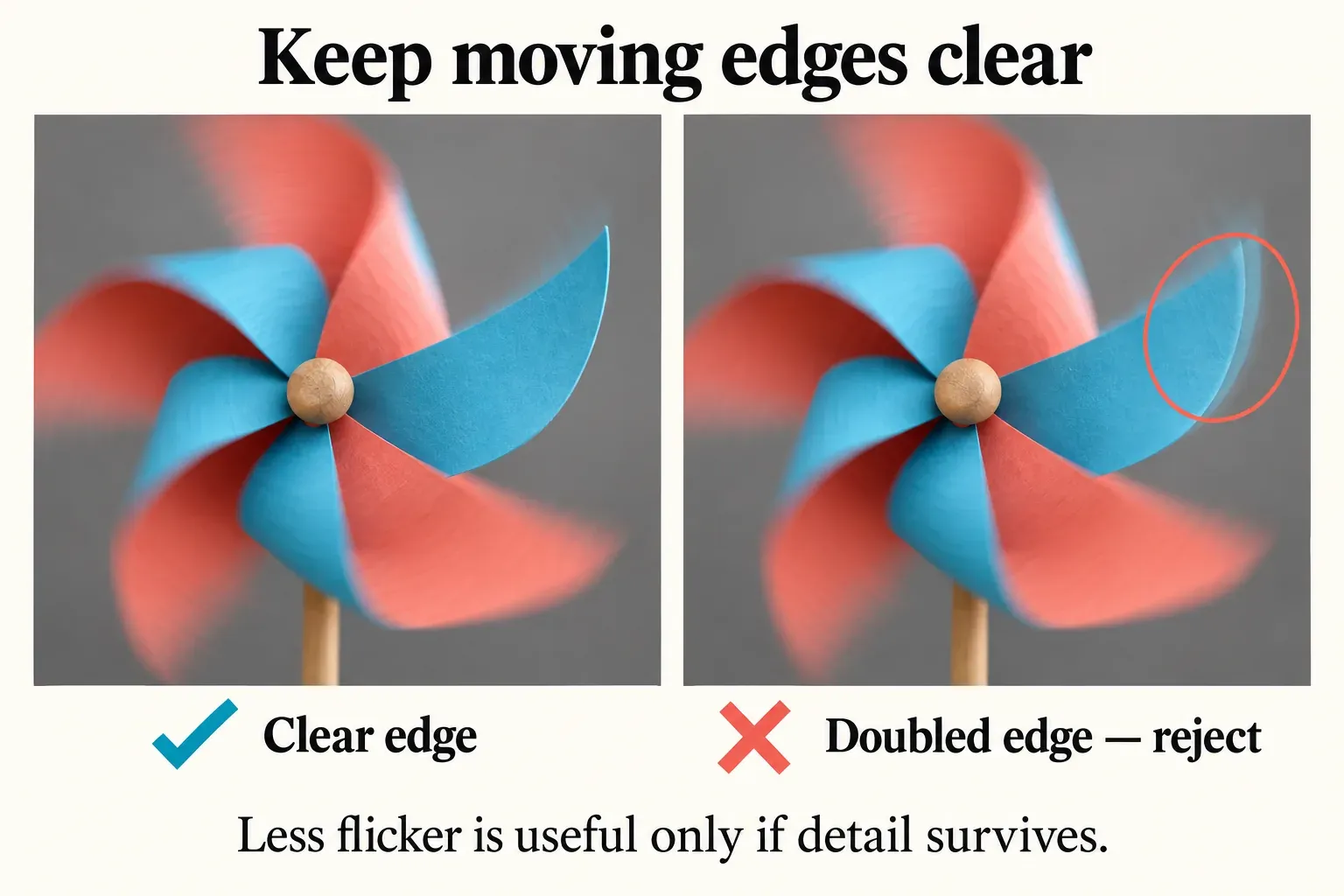
If the brightness is steadier but motion picks up a ghost outline or texture goes soft, compare a lighter correction or a shorter affected range. Don't add sharpening just to hide the new artifact. If none of the offered settings improves the shot enough, keep the original and consider another take or a dedicated tool suited to that source.
Check the scene's intended lighting as well. Someone walking from shadow into sunlight should still step into brighter light. You're trying to reduce an unwanted pulse, not force every moment to the same exposure.
For a shot that's consistently dark or oddly colored, use manual color correction. For camera shake, use stabilization. Those operations handle different problems. Changing tone or repositioning frames doesn't remove recorded light flicker by itself.
Verify the export and prevent the next recording problem
Open the saved sample outside CapCut and compare it with the original at a similar display size. Check the flicker, subject detail, motion and sound. While you judge the correction, keep the export choices comparable. If you change frame rate, resolution and several effects at once, the result gets hard to explain.
If the original is stable but the export flickers, keep that original safe and inspect the edit in a duplicate. Temporarily pull the suspect effect or transition from the affected range, then compare that one change. For delivery problems, use the export-quality guide. A recorded-light tool won't tell you what caused an export artifact.
When you can record again, check the real lighting and camera settings before a long take. Sony's comparison of camera anti-flicker and variable-shutter controls distinguishes a still-photo anti-flicker function from a shutter adjustment that can also apply to movies on that camera. Follow your camera's movie-compatible controls, and review the recorded clip as well as the live monitor.
Don't expect one shutter-speed recipe to cure every LED fixture, screen and camera. Compare a short recording under the lighting you'll use, and change the source conditions if you need to. A cleaner recording leaves more room for a restrained correction and less need to rescue damaged detail later.