


To stabilize shaky video in CapCut, select the clip and open Video > Basic > Stabilize on Desktop or Web. On Mobile, select the clip and use Edit > Stabilize. Compare the same difficult section at Recommended, Minimum cut and Most stable, then keep the lightest correction that makes the shake less distracting without ruining the frame. For the edit before and after stabilization, our CapCut tutorial for beginners connects trimming, framing, audio, motion and export.
Stabilization is a tradeoff, not a simple quality switch. Stronger correction can tighten the composition or bend local details around buildings, faces and foreground objects. The useful result is the one that balances remaining shake, lost framing and distortion in the exported file.
Checked August 16, 2026. The routes and product images below were compared with current official English CapCut material. Control placement, access and plan badges can vary by platform, build, device, account and region.
Choose a CapCut Stabilization Level
Minimum cut
Try it when edge content matters and the source is already close to steady.
Recommended
Use it as the first comparison, then judge motion, crop and local warping together.
Most stable
Try it when shake still distracts and the composition has room for stronger correction.
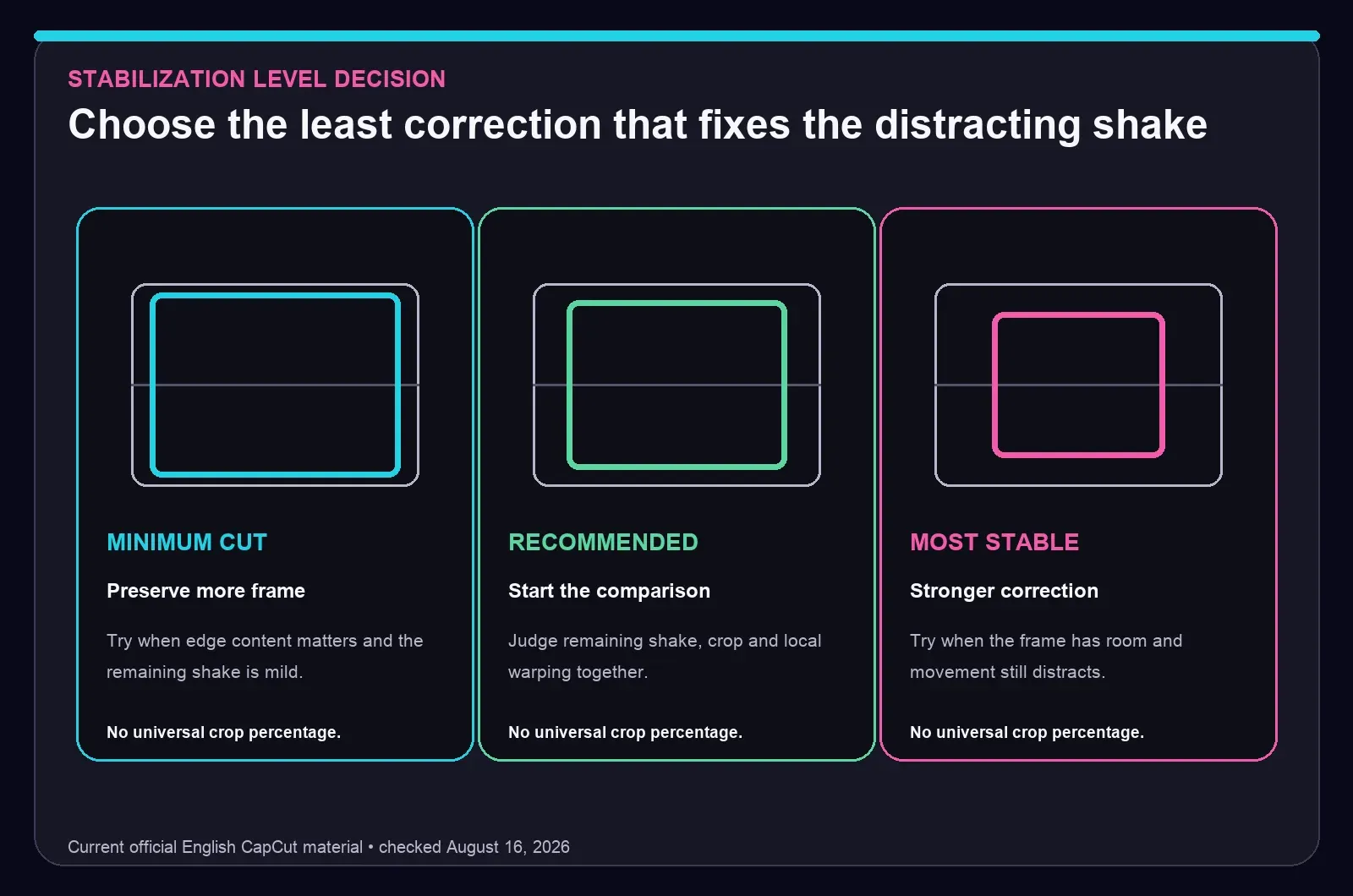
CapCut's official stabilizer guide names all three levels on Desktop, Mobile and Web. The names describe a direction, not a guaranteed crop percentage or result. A wide landscape, walking shot and close-up with a face at the edge can react very differently.
Recommended is a practical first comparison because it gives you a middle reference. Move to Minimum cut when important content disappears near an edge. Try Most stable when the remaining shake is worse than the tighter framing or distortion. The strongest label never removes the need to watch the whole problem section.
Run a Representative Test Before the Full Clip
Find the hardest passage first: a footstep bounce, fast pan, foreground object crossing the frame or sudden change in camera direction. Stabilize and export that passage before processing a long timeline. The test should represent the real difficulty, rather than follow a fixed number of seconds.
Compare the same frames with Stabilize off, Recommended and the one alternative you're considering. Watch the horizon, vertical lines, faces, subtitles and anything near the boundary. A steadier centre means little if a face slips out of frame or a wall begins to pulse.
Set the final canvas before making the last decision. A crop that feels harmless in a wide source can become too tight after conversion to 9:16. The CapCut Reels workflow and TikTok workflow cover their vertical canvases separately.
Prepare the Source Before Stabilizing
Make the structural edit first. Remove unusable starts and stops, separate camera angles and keep a deliberate pan or reveal apart from accidental jitter. If a clip also needs a speed ramp, settle the useful source range before judging stabilization. The CapCut velocity-edit guide handles the curve itself. A later timing change can move the difficult frames and force another analysis.
- Use the cleanest source: repeated exports contain fewer reliable details and can make compression artifacts more visible after reframing.
- Keep an untouched copy: duplicate the project or preserve the source before a long repair pass.
- Check the intended canvas: leave enough room around faces, subtitles and products before choosing a stronger level.
- Remove creative camera shake for the test: judge the recorded movement before adding a shake effect or animated crop.
- Watch the source at normal speed: preview lag can resemble camera jitter even when the underlying frames are fine.
Stabilizing earlier in the edit makes the result easier to read, but it still belongs after the rough cut has identified the real shot. A clip that will be replaced, heavily cropped or reduced to a brief insert rarely needs a long full-source analysis.
Capture choices matter as well. A wider lens, shorter focal length, steadier grip, controlled footsteps, optical stabilization, tripod or gimbal can preserve more of the frame than a heavy repair later. Once the footage exists, the practical goal is a watchable shot, not a fake tripod look at any cost.
Why Stabilization Crops the Frame
A stabilizer estimates movement between frames, then shifts, rotates or scales the picture in the opposite direction. That correction can expose empty borders. Cropping or scaling hides those moving edges, which is why a smoother result may show less of the original frame.
Apple's current Final Cut Pro stabilization guidance describes motion analysis followed by compensating transforms and names cropping as one way to hide exposed borders. Adobe's Warp Stabilizer documentation makes the crop-versus-smoothing tradeoff explicit. These sources explain the underlying edit, not CapCut's interface.
CapCut gives level names rather than a universal crop number. Check the beginning, middle and end, then inspect a face, title safe area, horizon, doorway or product near each edge. Minimum cut may preserve more of the frame, but it can also leave movement that viewers still notice.
Know What Stabilization Can Repair
Camera shake
Small handheld jitter and repeated walking bounce are the main repair target.
Rolling shutter
Wobbly or skewed geometry is a separate sensor distortion and may need a dedicated tool.
Motion blur
Recorded smear stays in the frame even after its position becomes steadier.
Parallax
Near and far objects moving differently can make a warped correction more visible.
Stabilization works best when the unwanted movement belongs to the camera. A runner, passing car or leaves close to the lens can create competing motion. The background may become steadier while the foreground bends or pulses. A lighter level or shorter segment often looks more natural than forcing the strongest correction across the whole shot.
Captured motion blur, missed focus, exposure flicker, digital zoom jumps and compression damage are separate problems. Repositioning frames can't rebuild clean detail that the camera never recorded. Apple's iMovie guidance also treats rolling-shutter wobble as a distinct correction from ordinary stabilization.
How to Stabilize Video on CapCut Desktop
Current official Desktop material shows the clip selected on the timeline and Stabilize under Video > Basic. It also shows the three current levels and an analysis progress state.
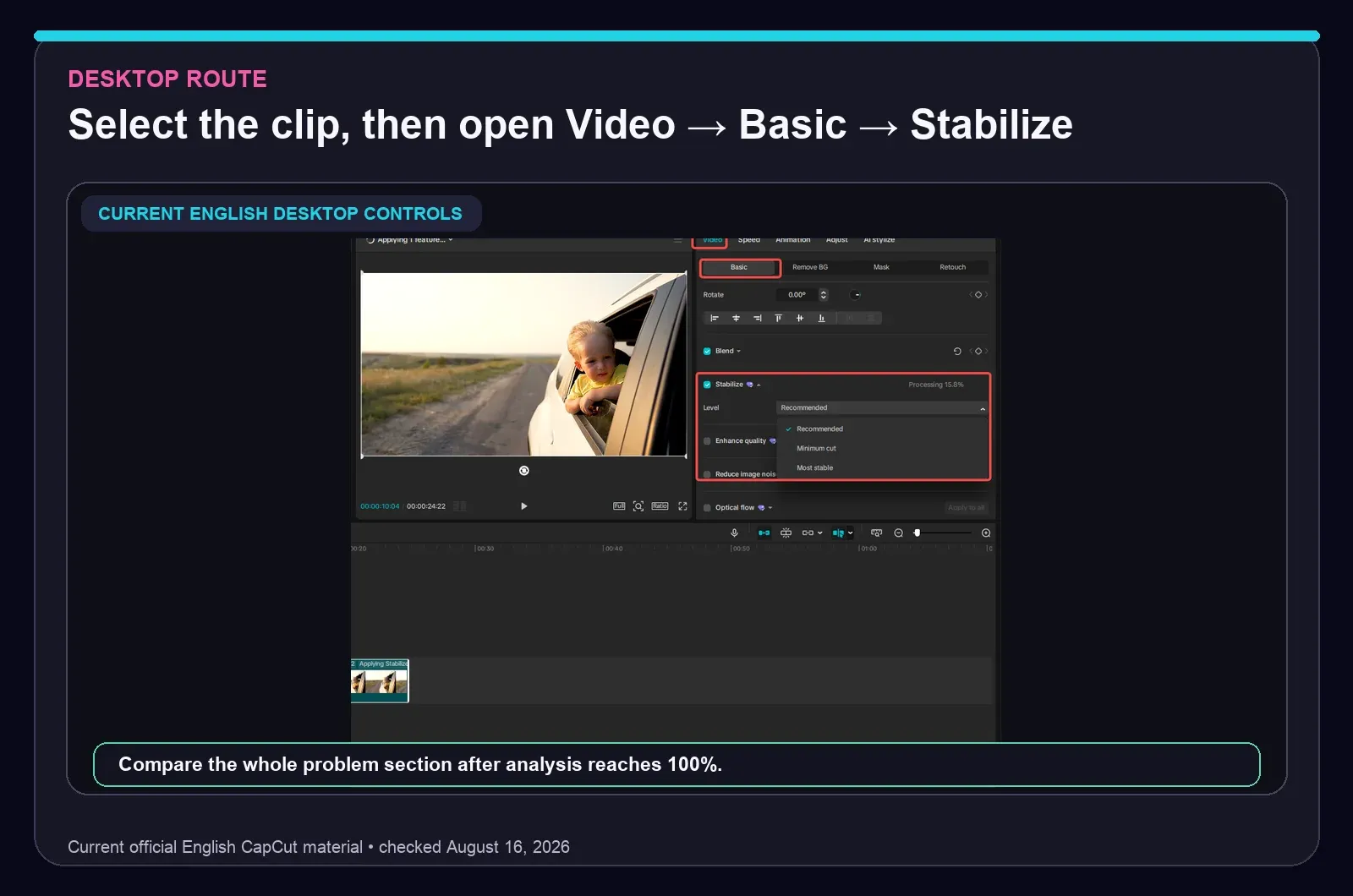
- Import the source and drag it to the timeline.
- Split out the section where the unwanted shake begins and ends.
- Select that media clip so the right inspector shows its video controls.
- Open Video > Basic, find Stabilize and enable it.
- Choose Recommended for the first comparison and wait for analysis to finish.
- Play the whole segment. Check edges, horizon, faces, straight lines and foreground objects.
- Compare Minimum cut or Most stable only when the first pass leaves a clear problem.
- Export a representative sample at the intended resolution and frame rate.
If the control seems missing, confirm that the media clip is selected rather than the canvas, audio, text or effect layer. Update and restart the app, then test a short clip before reinstalling or changing the project. The CapCut for PC guide and CapCut for Mac guide cover installation separately.
How to Stabilize Video on CapCut Mobile and Web
Current Mobile material places Stabilize in the selected clip's editing toolbar. Current Web material shows the selected timeline clip with Stabilize under Basic. Both current examples expose Recommended, Minimum cut and Most stable.
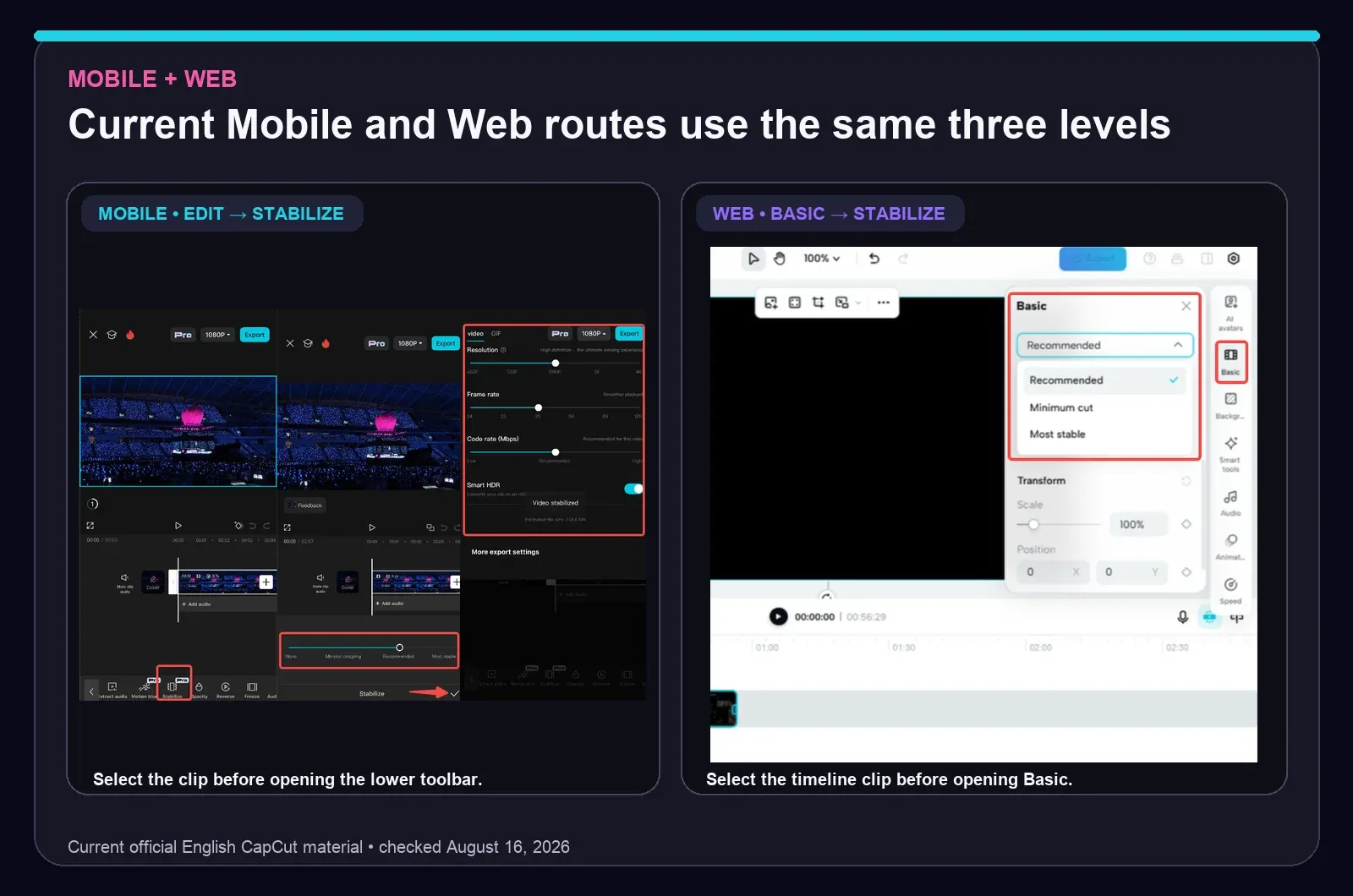
Mobile
- Tap New project, choose the source and add it to the timeline.
- Tap the video clip so its editing controls appear.
- Open Edit > Stabilize. Swipe the clip toolbar if the control sits off-screen.
- Run Recommended, then check the shakiest moment and every important edge.
- Try Minimum cut for a frame that feels too tight, or Most stable when movement still distracts and the shot has room.
- Export a sample and view it in the device gallery.
Web
- Upload the source and add it to the timeline.
- Select the timeline clip and open the right-side Basic controls.
- Enable Stabilize, choose a level and wait for processing.
- Compare the full problem passage, then download a representative sample.
CapCut's Web stabilization guide confirms the Basic route. Web adds upload, browser-resource and server conditions to the job, so keep a local source copy and avoid making a cloud project the only copy of important footage.
Stabilize Only the Shaky Part
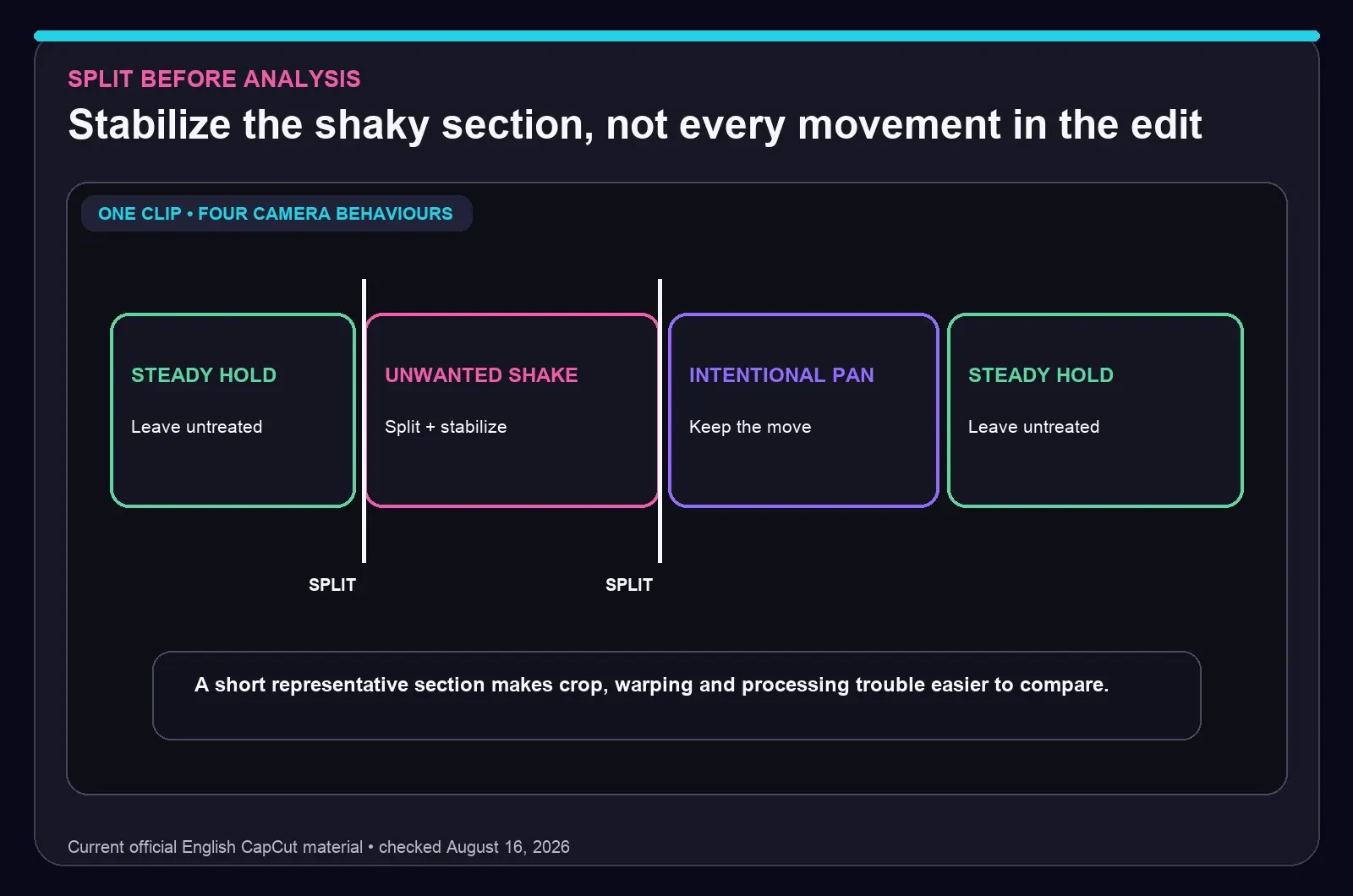
One clip may contain a steady hold, a walking section, a deliberate pan and another steady hold. One setting across all four makes the stabilizer solve conflicting movement. Split around the unwanted shake and apply correction only there.
- Place the playhead immediately before the distracting movement and split.
- Split again where that movement ends.
- Select the isolated middle segment and run Recommended.
- Check the split points for a sudden scale or framing jump.
- Try Minimum cut or move the cut to a natural visual change if the jump remains obvious.
This route shortens analysis and protects deliberate pans. It also makes a failed pass easier to remove and retry. Apple gives the same general editing advice in its stabilization documentation: isolate the problem section before applying correction.
Fix Crop, Warping, Wobble and Softness
- The subject is cropped: compare Minimum cut, shorten the section or choose a canvas with more room around the subject.
- Buildings or faces bend: try a lighter level and split around the strongest parallax or foreground movement.
- The picture pulses or looks gelatinous: compare the original for rolling-shutter wobble. CapCut's current public stabilizer route doesn't document a dedicated rolling-shutter switch.
- The video stays blurry: check the source frame. Stabilization can steady the camera path, but it can't reconstruct detail already smeared by motion.
- An intentional pan fights the frame: exclude the pan or isolate only the jitter riding on top of it.
- The preview stutters: judge a short local export before lowering quality or changing the stabilization level.
Watch real picture detail rather than the level name. Straight architecture, a horizon, a face near the boundary and objects passing close to the camera reveal different failure modes. One preview frame can't show the pulse that appears between it and the next.
Fix CapCut Stuck on Stabilizing
CapCut's help page for an export stuck on Stabilizing recommends limiting stabilization to clips that need it, splitting long clips, simplifying the timeline, checking resources and retrying. It also advises removing compound clips during troubleshooting because they may interfere with processing.
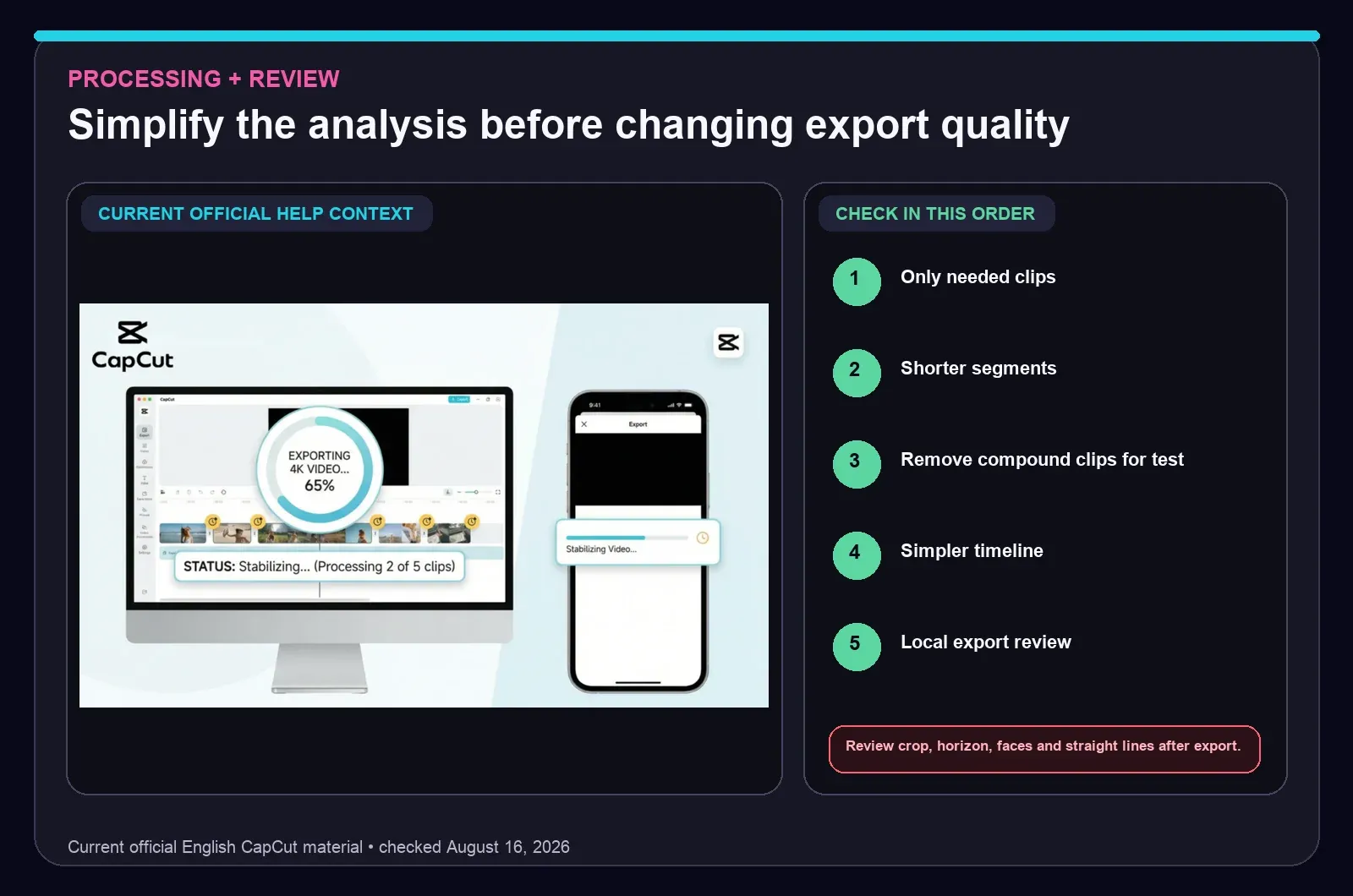
- Check every clip and disable Stabilize where the footage is already steady.
- Split a long stabilized section into smaller problem segments.
- Test the same source in a simple project without compound clips.
- Close unnecessary work, confirm free storage and restart CapCut.
- Retry a short local clip before changing the original source or whole project.
If one source file fails while another succeeds, play that file outside CapCut and test a short section from it. Preserve the original before creating an intermediate copy. When the stabilization pass finishes but export fails elsewhere, move to the narrower CapCut export-stuck checks.
Check Free vs Pro Access in the Live Editor
Stabilization access can vary across platform, build, plan, account and region. A control visible without a badge in one editor may be gated during analysis or export elsewhere. A community post can warn that gating exists, but it can't define a stable price table for every current account.
Process a representative sample and open the current export route before committing a deadline to the workflow. That reveals the live badge, upgrade prompt and deliverable resolution for the account in front of you. The CapCut Free vs Pro guide explains the broader live-account check.
Export and Compare the Final Result
- Export the same difficult passage with Stabilize off, Recommended and one serious alternative.
- View all versions outside CapCut at normal speed.
- Check frame edges, horizon, faces, straight architecture and foreground crossings.
- Inspect split points for a crop or scale jump.
- Step through the worst movement frame by frame and look for local bending or pulses.
- Keep the version where the reduction in shake is worth the framing and distortion cost.
Match the export to the source and delivery target rather than upscaling by habit. Our CapCut export settings walkthrough covers resolution, frame rate, bitrate, format and codec without mixing them into the stabilization-level decision.
CapCut Video Stabilization FAQ
How do I stabilize a video in CapCut?
Select the timeline clip, open Video, Basic, Stabilize on Desktop or Web, or Edit, Stabilize on Mobile. Use Recommended as the first comparison, wait for analysis to finish, then preview the full problem section and compare Minimum cut or Most stable when the crop or remaining shake needs a different tradeoff.
Which CapCut stabilization level should I use?
Recommended is a useful first comparison. Try Minimum cut when keeping more of the original frame matters, or Most stable when shake still distracts and the composition has room for stronger correction. Choose by comparing motion, crop and local warping in the same section.
Does CapCut stabilization crop the video?
Stabilization can crop or scale the picture to hide borders created while frames are repositioned. Minimum cut is intended to preserve more of the frame, while stronger correction may use a tighter composition. The exact crop depends on the source movement, so inspect every important edge.
Can I stabilize only part of a clip in CapCut?
Yes. Split before and after the unwanted shake, then apply Stabilize to the isolated segment. This protects intentional pans and steady sections, shortens analysis and makes crop or warping easier to compare. Check the split points for a visible scale jump.
Why is CapCut stuck on Stabilizing?
Current CapCut help recommends checking which clips use stabilization, shortening long sections, simplifying the timeline, testing without compound clips, checking available resources and retrying. Preserve the original and test one short local clip before changing the whole project.
Why does stabilized video look warped or wobbly?
Strong parallax, moving foreground objects, fast pans, rolling-shutter distortion or aggressive correction can bend straight lines or make the picture pulse. Compare a lighter level, isolate the difficult movement and inspect a local export. Rolling shutter may need a dedicated repair tool.
Is CapCut video stabilization free?
Access can vary by platform, build, plan, account and region. A control visible without a badge in one editor may be gated at analysis or export elsewhere. Process a short sample and open the current export route before relying on free access for a deadline.
How long does CapCut take to stabilize a video?
There's no reliable universal time. Clip length, resolution, frame rate, codec, motion complexity, level, device resources, free storage and Web upload or server conditions can all affect processing. A representative sample from the same source gives a better estimate than a fixed minutes-per-clip claim.