


In CapCut Desktop, position the playhead at the moment you want to remember, then use Add marker above the timeline. CapCut documents that control in its Desktop editing walkthrough. A marker helps you find a moment again. Adding one doesn’t split the footage, animate a layer or export a clip.
I’d use markers for decisions I still need to make: a pause to tighten, a close-up to insert or a caption to correct. Marking every few seconds makes the timeline busier without making the next edit clearer.
This guide focuses on Desktop timeline and clip cues. For music-driven edits on a phone or in the browser, the beat-sync guide covers the separate audio-marker route.
Add a marker at the right moment
Open the working project and find the passage you need to revisit. Stop playback near the event, zoom the timeline and set the playhead precisely. Watch the preview as you move. A waveform peak alone doesn’t tell you where a visible action or spoken phrase starts.
Then pick the cue’s scope before you add it. A note about one source shot belongs with that shot. A reminder about the overall edit belongs at a point in the sequence. Check whether a clip is selected, then look at where the marker lands once you’ve added it.
For a concrete Desktop layout, Mr. Devotor’s marker tutorial describes adding a clip marker with the clip selected, and a timeline marker when you click the timeline without selecting a clip. The same tutorial covers right-clicking a marker to edit its name or color. If the layout in your build looks different, follow the controls you can see.
- Put the playhead on the intended frame or phrase.
- Select the clip for a clip cue, or clear clip selection for a timeline cue in layouts that use that distinction.
- Use Add marker, then check the cue’s position and scope.
- Open the marker’s edit control if available and give it a useful note.
- Move away from the moment, return to the marker and check the preview again.
If precise placement is the difficult part, start with the playhead and frame-positioning guide. A misplaced cue will send you back to the wrong frame every time.
Timeline markers and clip markers serve different notes
A timeline cue is about the sequence: “Check the first product reveal,” for instance. A clip cue is about the source content: “Use this clean detail shot.” That difference matters once you start rearranging the edit.
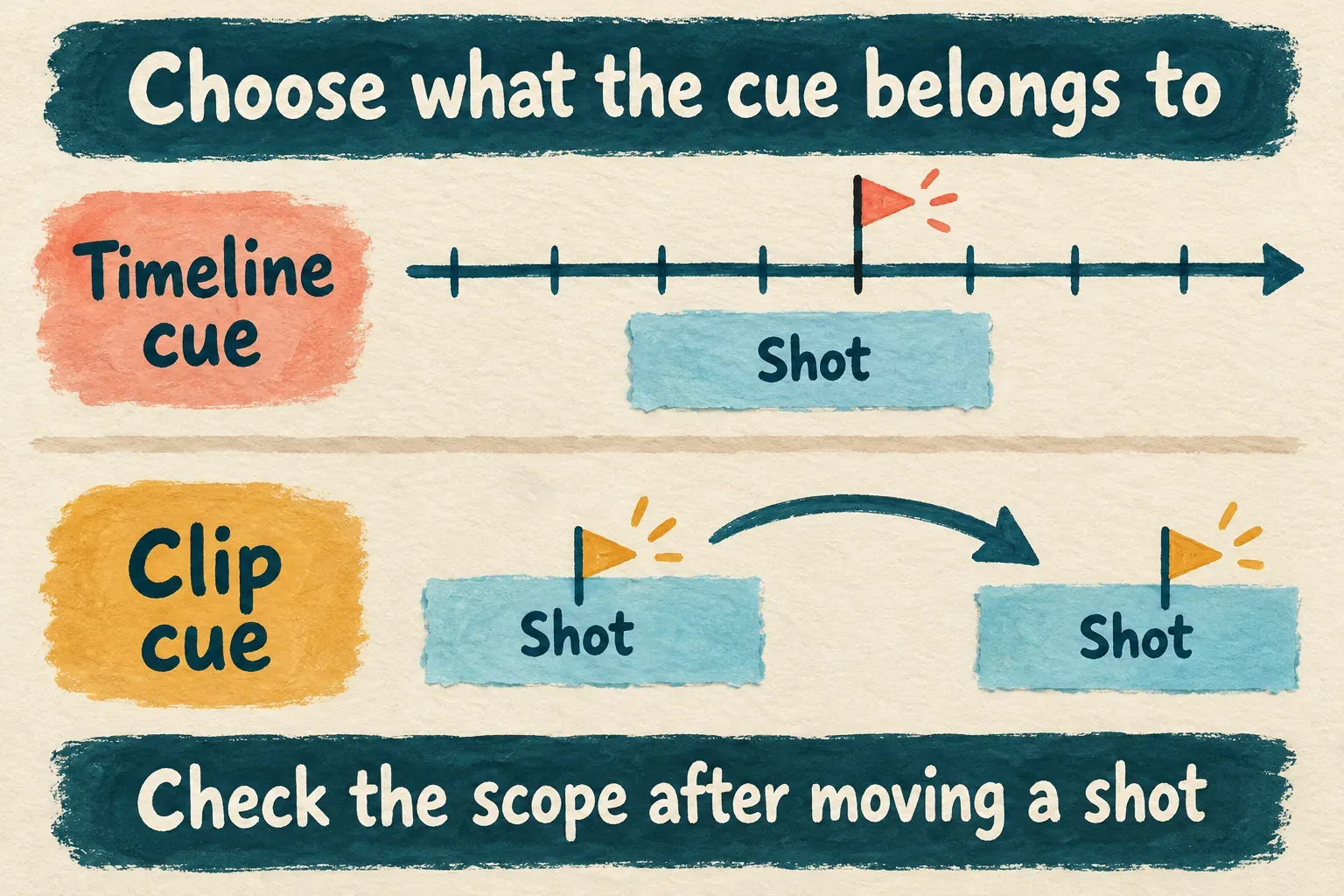
Don’t assume a note still points to the right content after a trim, move or speed change. Check both the cue and the preview. If the clip moved but a sequence cue stayed at its old time, that cue may now mark a different shot. A source cue that sits outside the part of the clip you kept may no longer help the current cut.
For a rough assembly, I’d keep source-selection notes with clips and reserve sequence cues for review decisions. Once the story is settled, clear out notes that no longer lead to an action. The distinction helps even in an editor layout that shows only one kind of cue: keep the intended scope clear in your wording, then review those notes after structural changes.
Name, color and remove cues without losing the task
Put the action in the note. “Check spelling of product name” tells you more than “Marker 03.” “Add close-up before reveal” beats “B-roll.” A good note means you won’t have to rebuild the whole decision later.
When the marker editor offers color, use it as a scanning aid. You might pick one color for picture changes and another for text corrections. Those are your own editorial categories, not color meanings CapCut requires. Two or three consistent categories are easier to scan than a different color for every note.
Once a task is done, remove its cue with whatever marker-delete command is available. Read any bulk-delete command carefully: deleting all markers in a clip does more than remove the one note you finished. Don’t press the ordinary clip-delete shortcut while you’re guessing which item has focus.
Keep comments short enough to read at a glance. If a review instruction runs long, put the essential action in the marker and keep the detailed timecode note in your own document. Don’t rely on an undocumented marker-duration or shared-comments feature to preserve a handoff.
Markers, keyframes and In/Out points are separate tools
These controls can all sit near a time position, but they answer different questions.
| Tool | What it does | Use it when |
|---|---|---|
| Ordinary marker | Keeps a cue or note at a moment | You need to return to an edit decision. |
| Playhead | Chooses the current preview time | You need to inspect or act at a particular frame. |
| Keyframe | Stores a property value at a time | You want a layer to move, scale, fade or otherwise change. |
| In/Out points | Define a timeline range for export | You want a delivery file from one section. |
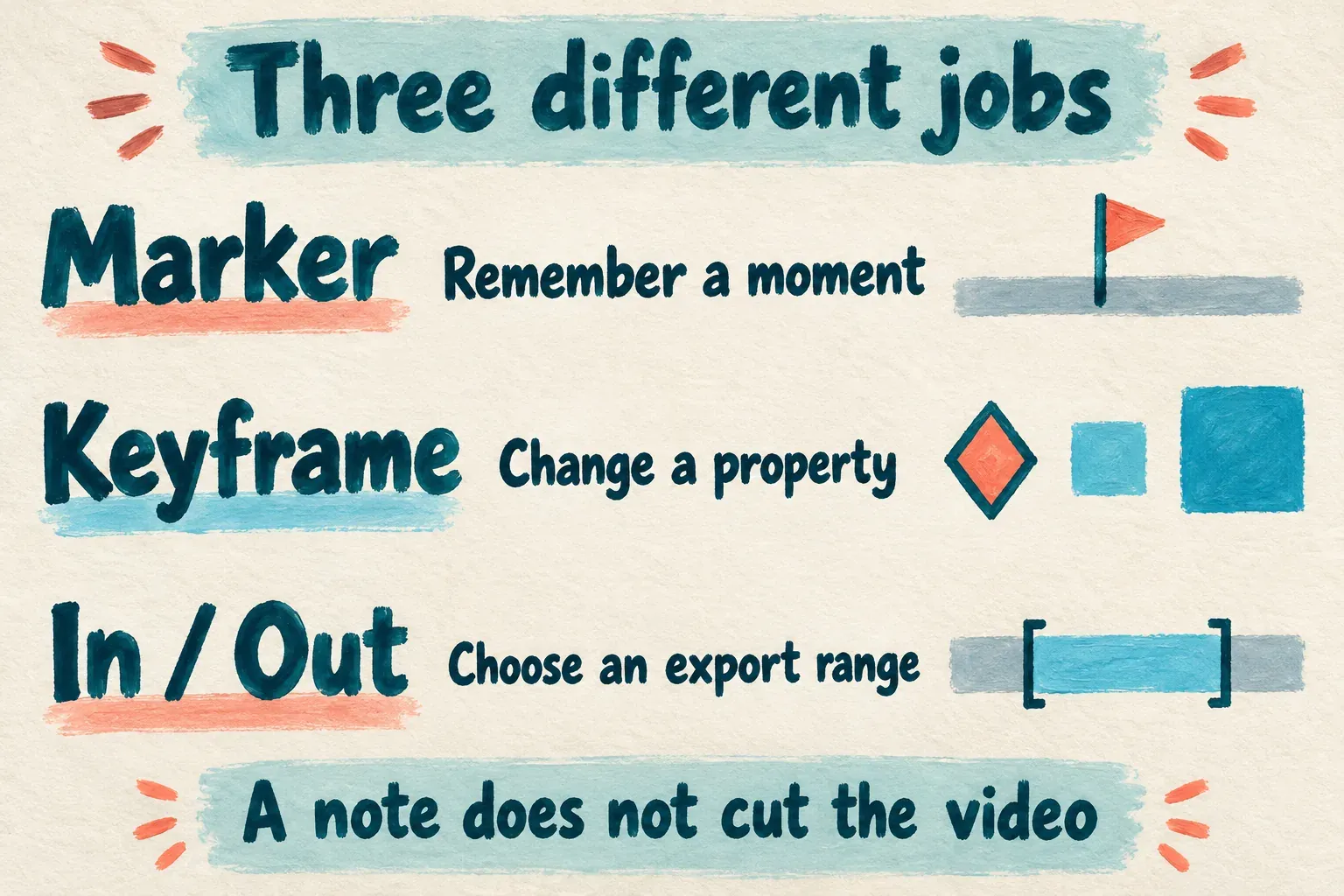
For animation, follow the CapCut keyframes guide. Adding a marker where a zoom should begin doesn’t create that zoom. You still need to set the relevant property and its keyframes.
For a delivery excerpt, CapCut’s selected-range export instructions document I for the In point and O for the Out point. Ordinary notes can help you find those boundaries, but don’t assume a row of markers turns into an automatic batch of separate files. Use the selected-section export guide to check the range, picture, audio and captions for each delivery.
Use a few cues to finish a review pass
Say an instructional clip needs three changes: shorten the lead-in, add a detail view before the demonstration and fix a term in the captions. Mark those moments, make one change at a time, then play through every passage you touched.
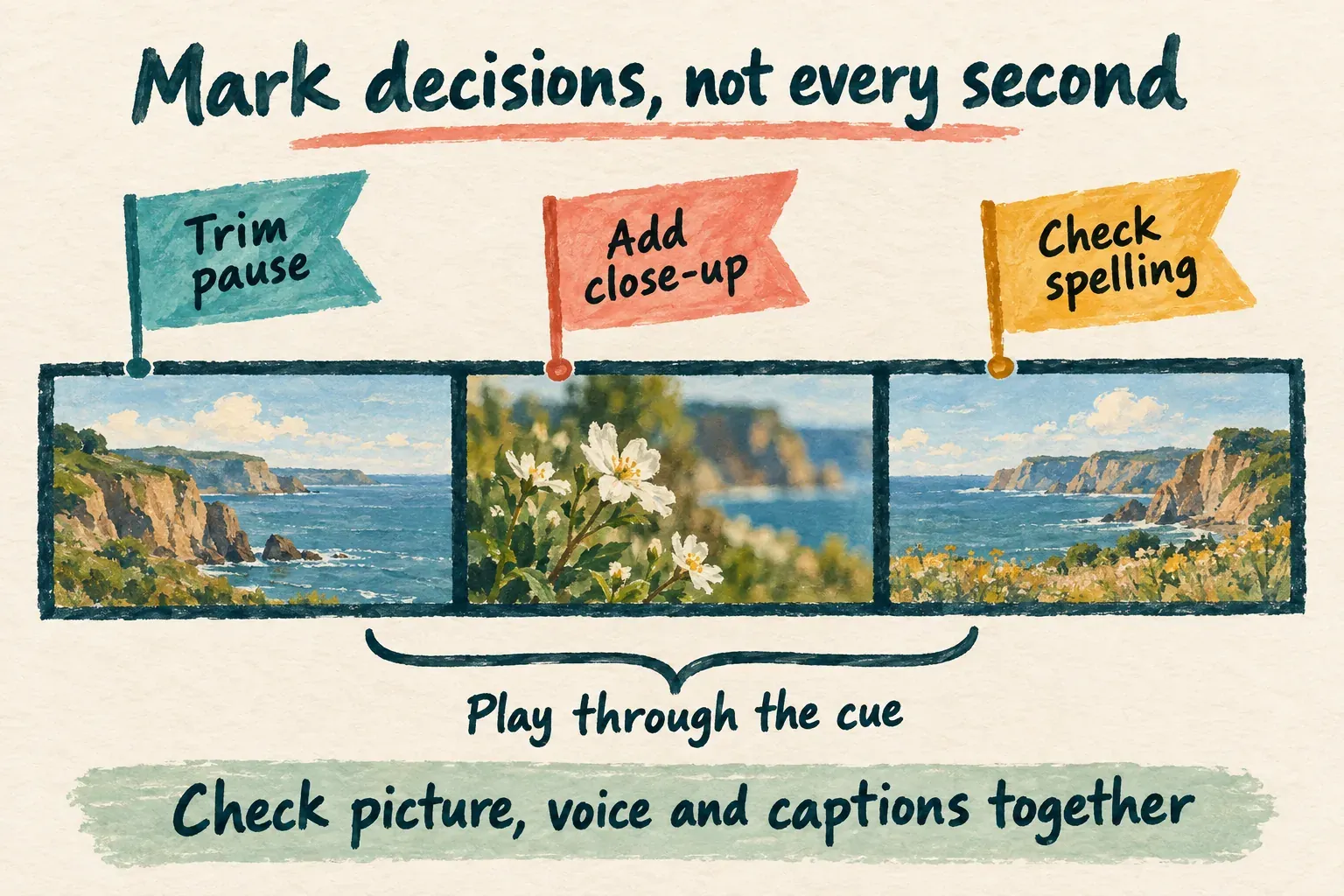
A note marks where to start reviewing; the cut won’t necessarily belong on that exact frame. Start listening before the cue and keep going past it. A pause can be useful, a close-up can arrive too early, and a caption can be spelled correctly and still show up late.
Once you’ve rearranged shots, go back to any nearby audio, overlay and caption layers. A cue won’t keep those layers in sync for you. Check the finished file as well as the timeline, and keep private working notes out of any text layer the audience will see.
If M does nothing, or markers are missing
M is the Add marker mapping listed in Tutorial Tactic’s CapCut shortcut reference. It’s a common mapping worth trying, though your installation may not use it. Your current shortcut settings and visible command take priority.
First, leave any text-entry field and give the timeline focus. Stop playback, put the playhead over the content you mean to mark and try the visible Add marker control. If the control works but the key doesn’t, check the assigned shortcut and your keyboard layout. If the cue is there but hard to see, enlarge the timeline and look at the clip and the ruler separately before you add duplicates.
If the command isn’t there at all, check which platform and editing screen you’re on. Desktop timeline cues, Mobile audio beats and Web controls don’t necessarily share an identical toolbar. Don’t try to bring back a missing button by deleting app data or installing an unofficial older build. Keep the editable project safe and ask through CapCut’s support route with the platform, version and missing command.
When all you need is a reminder, a short timecode note kept outside the video can keep the review moving. That note doesn’t attach to a clip automatically, so recheck the timecode after you change the edit. The point is to find the unfinished decision fast and settle it.