

Select the edited source clip, right-click and choose Copy Attributes. Select the destination clip, choose Paste Attributes, and select the settings you want to transfer where the dialog offers that choice. This is the Desktop route described in Kim Klassen’s CapCut tips. If the wording differs, use the equivalent commands your current build shows.
CapCut’s current batch-grading instructions confirm copying color and visual adjustments from one clip to selected destination clips. The transfer is the useful part. You keep the destination footage and reuse the settings that footage needs.
I’d begin with one destination, even when the final job involves twenty clips. An unwanted crop or changed color is quicker to catch on one shot than halfway through a finished sequence.
Copying attributes is different from copying a clip
Copying a clip the ordinary way creates another timeline item containing that clip’s media. Copying attributes applies settings to other footage. When you want to reuse a look on the next shot, duplicating the source shot hands you the wrong underlying picture.
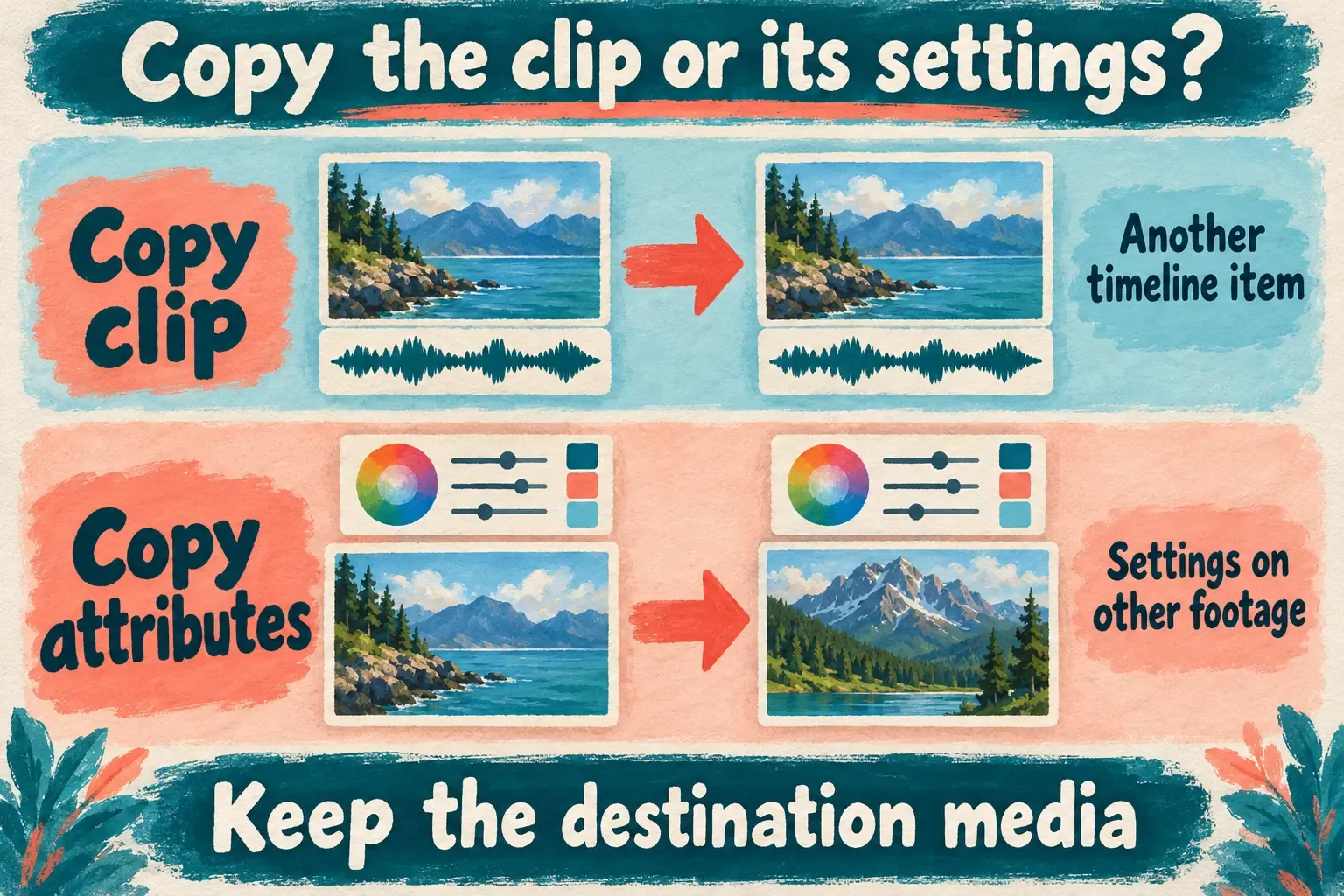
Attributes aren’t a portable package of everything visible in the preview. A title, detached audio track or upper video layer may be a separate timeline item. Seeing such an item over the source shot doesn’t mean a clip-settings command will recreate it over the destination.
For another visual layer, use the overlay guide. Keep a color correction on the intended clip. Before you copy anything, work out which item owns the change.
Copy from a clear source and paste to the intended targets
Before a batch change, protect the editable project. Then look at the source and one destination at representative moments. Be clear about what you want to carry over and what has to stay as it is.
- Select the source clip on the timeline. Choose the clip that contains the relevant settings, rather than an empty area or a separate effect layer.
- Open its context menu and choose Copy Attributes. Use that settings command instead of the ordinary Copy command when both are offered.
- Select one destination clip. Check the selection before opening its context menu.
- Choose Paste Attributes. Read the categories offered in the dialog, if your build provides one.
- Select the required categories and apply the paste. Leave unrelated categories out of the transfer where the controls allow it.
- Review that destination before selecting more clips. If the result is right, select only the intended destinations and repeat the paste.
Selecting several clips at once helps when shots need the same treatment, even if those shots aren’t next to each other. On a compressed timeline, an unrelated clip can slip into the selection too. Enlarge the view and check the selection before you apply a broad change.
If you work from the keyboard, check the commands currently assigned to Copy attributes and Paste attributes in your installation. Don’t confuse them with ordinary clipboard copying. A shortcut quoted in a Mac tutorial or older forum thread won’t tell you your Windows mapping, selected-object behavior or keyboard focus.
Decide what should transfer and what should stay
Say two shots need the same creative color look, but the destination already has a deliberate crop and a carefully balanced voice. You want to share the look while protecting those other decisions.
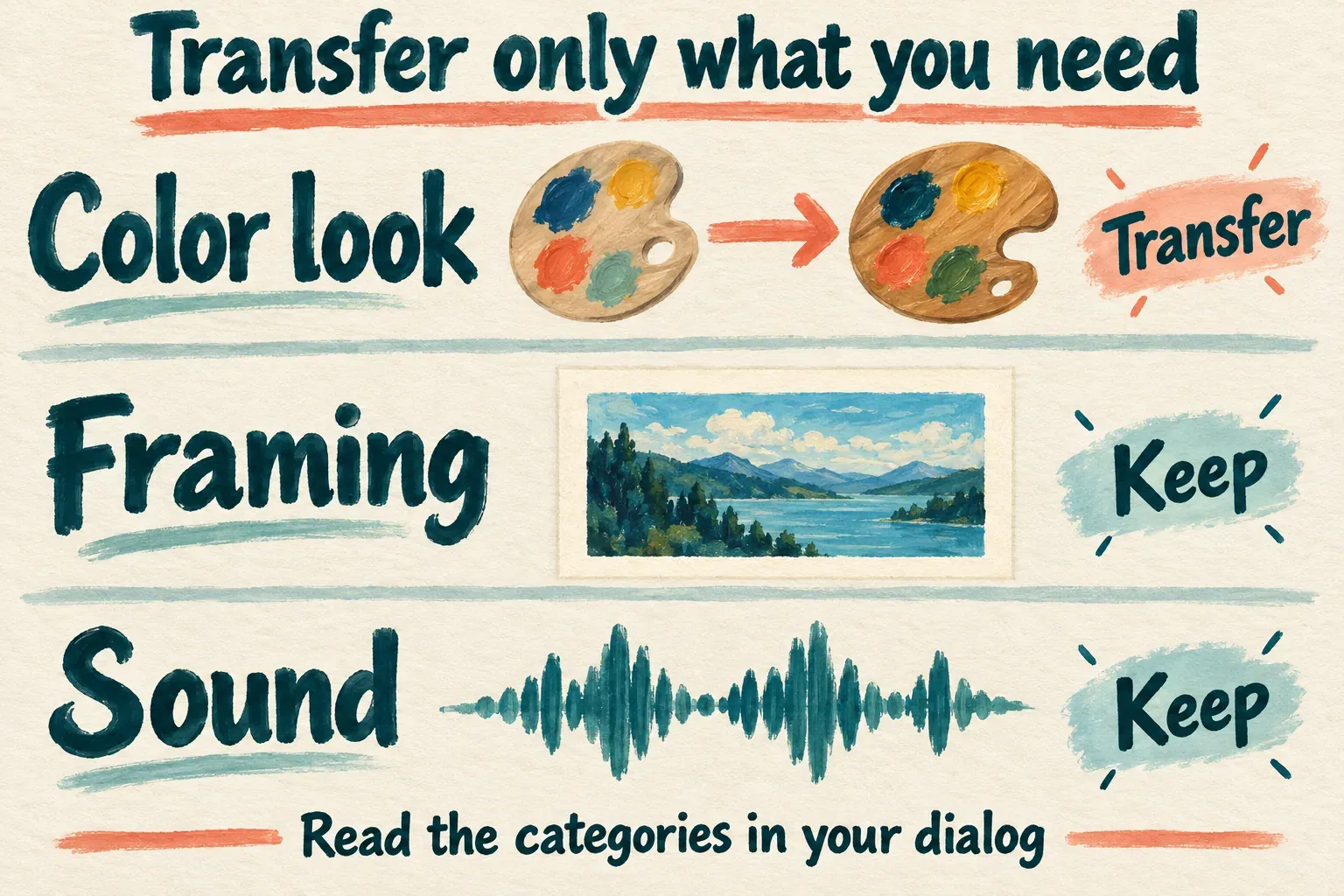
Don’t accept every checked item out of habit. Read the available categories, whose names and groups depend on the current dialog and selected clip type. A category that sounds convenient can include settings you didn’t intend to replace. If the command doesn’t offer the exclusion you need, use a more limited route or apply that setting manually.
CapCut warns that pasting attributes can overwrite existing color settings. With that warning in mind, a source clip with a pleasing look is a reference to inspect, rather than permission to paste its entire treatment onto every shot.
Keep correction and style apart. One clip may need a cooler white balance, another a brighter subject, before the same creative look suits both. Identical settings don’t make different source lighting identical. Our color-correction guide walks through comparing exposure, neutral objects and neighboring shots.
With motion or other time-dependent settings offered by your dialog, check the whole destination interval. A destination can be shorter, longer or framed differently from the source. Don’t assume that copying a setting produces the same visual result or retimes the movement to the new clip’s duration. When the animation needs its own start and end states, use the keyframe guide.
Check one pasted shot, then the sequence
Play the destination from before its entrance through its exit. Watch the subject, listen to the soundtrack and compare the neighboring cut. A still frame can hide unwanted movement, or a change that shows up only later in the clip.
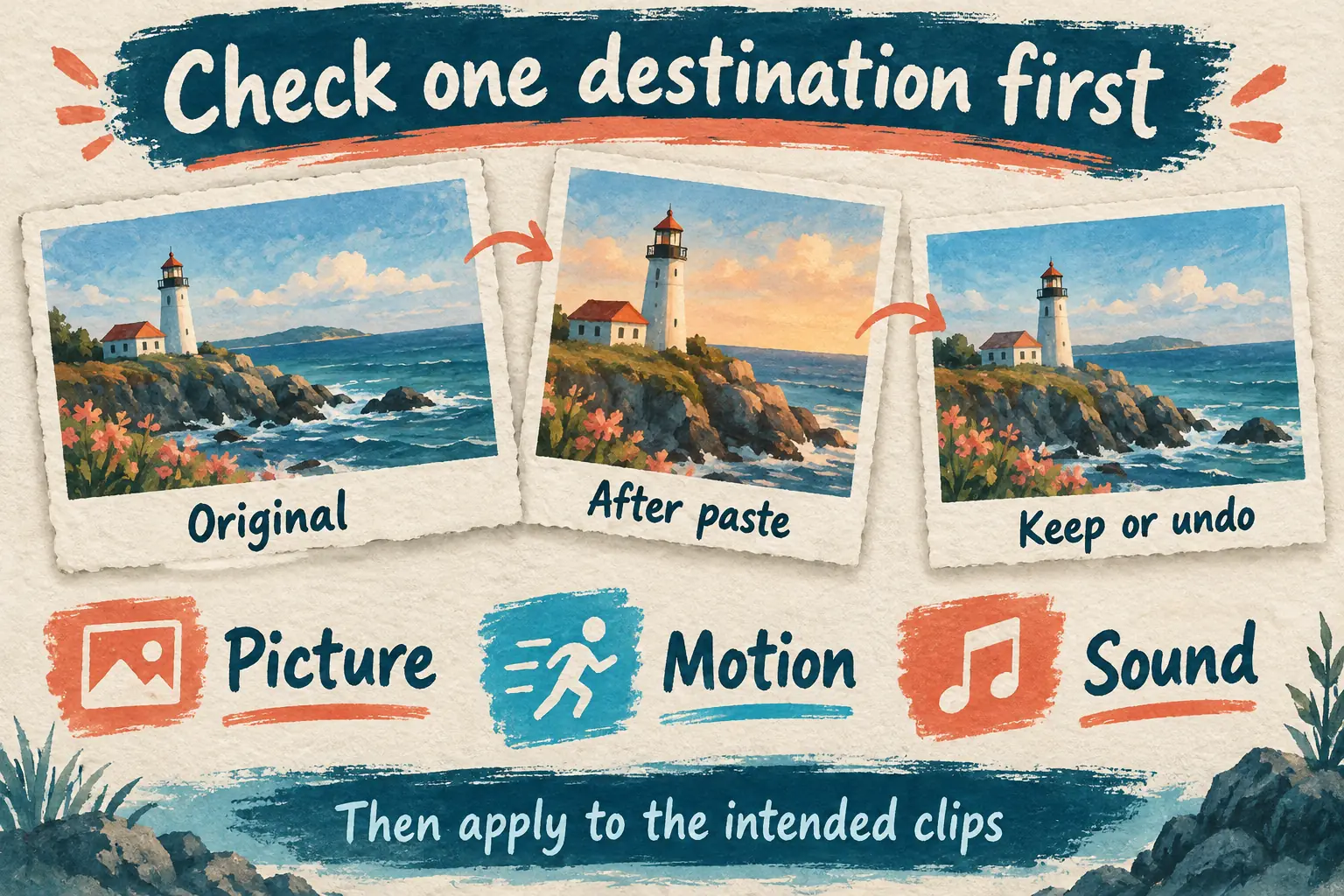
Check the parts most likely to be affected:
- Picture: composition, scale, position, crop, exposure and color. Did a shared look improve the sequence without hiding important details?
- Motion: any animated property or timing change you intended to transfer. Does it fit this shot’s content and duration?
- Sound: the clip’s own audio and its relationship with other tracks. Do not assume that an attribute selection protected the mix; listen.
- Neighboring layers: titles, captions and overlays that cross the destination. They remain part of the finished composition even when you are editing one clip.
If the paste made an unwanted change, undo the paste right away and try again with a narrower selection. Avoid compensating for a copied crop by changing the project’s aspect ratio, or for a bad shared grade by altering every other shot. Fix the transferred setting that caused the problem.
Copied clip settings and a shared adjustment layer carry different maintenance costs. Individual copies belong to the selected clips. A later change to the source isn’t a reason to assume those earlier copies have become a live link. When a continuous section needs one editable grade, consider the shared-layer method described by the manufacturer. Then check the layer’s timeline coverage so it doesn’t reach footage outside that section.
Once the batch is done, check the delivered file as well as the editor preview. Keep the project and source files. A flattened export can’t restore the individual attribute decisions.
If the commands are absent, or the paste seems wrong
First check the selected item and the platform. This guide describes a Desktop clip-settings workflow. A Mobile menu, Web editor, template slot, caption group or separate effect item may show different controls. A missing Desktop command in another environment doesn’t mean the whole project is damaged.
When the keyboard command does nothing, step out of any text-entry field and try the visible context-menu command on a selected clip. If the menu works, inspect the assigned shortcut next. If neither command is available, preserve the project and ask through CapCut’s support route, including the platform, version and selected item type.
If the target changed unexpectedly, undo and check which categories were pasted. When the target seems unchanged, confirm that you copied from the right source, selected the intended target and included the category that holds the adjustment. Look at the relevant property values and the preview. A subtle correction need not produce a dramatic visual jump.
On Mobile, use the specific reuse control your tool offers. For example, the color guide linked above covers Apply all for adjustments. Don’t infer a universal three-dot Copy Effects menu from this Desktop method. Nor does this workflow promise a clipboard transfer of every asset between projects: imported files, separate layers and fonts need their own reusable source and handoff checks.
A sensible place to stop is a set of clips that share the intended treatment and keep their own necessary differences. Copying is a starting point for that result, not a substitute for looking at each shot.