

Checked September 4, 2026: a CapCut “lyrics template” still means two different things. You can open a ready-made video template and replace its media, or add your own song to a project and ask Auto Lyrics to recognize the words. CapCut's current Help article documents Mobile as the reliable Auto Lyrics baseline, while current Desktop evidence conflicts; choose the output first and trust the controls in your live build. If you need another designed format rather than timed lyrics, our overview of CapCut design tools covers intros, recaps, collages and more.
Use a ready-made lyric-video template
Choose this when the animation, framing and soundtrack are already close to what you want. Open the official page, check the number of required clips, replace the editable media and preview the text before export.
See the live template choicesUse Auto Lyrics in your own project
Choose this when you already have the song and footage. On the current mobile route, CapCut recognizes the vocals, creates timed text blocks and lets you correct the words before styling.
Go to the mobile workflow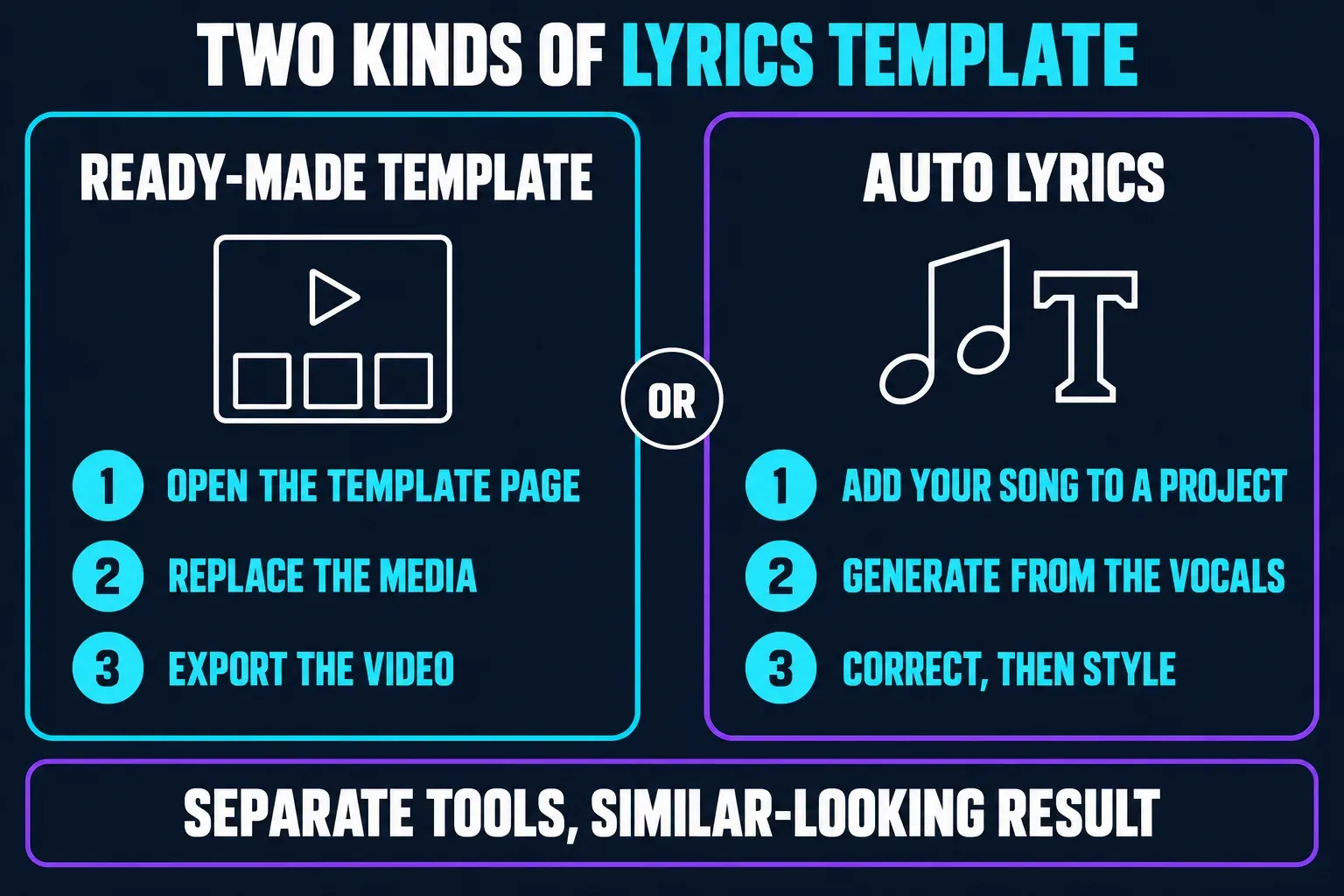
What “CapCut lyrics template” means
The phrase is confusing because CapCut uses templates at two levels. Its public template pages are complete short-video layouts: they can carry a soundtrack, transitions, effects, text animation and one or more replaceable media slots. CapCut's current template instructions describe opening these layouts on Mobile, Desktop or Web, although the available library and controls vary by platform.
Auto Lyrics is different. It lives inside a normal editing project and tries to recognize sung words from an audio track. CapCut then places the result on the timeline as timed text. You are choosing a lyric style after recognition, not replacing media in somebody else's complete edit.
That distinction answers most “where did my template go?” problems. A public template may still open even when the Auto Lyrics button is absent. Auto Lyrics may generate text even when a particular community template has expired. Treat the two routes as separate tools that can produce a similar-looking result.
CapCut lyrics templates checked September 4, 2026
Start with CapCut's official lyrics collection if you want to browse. All four examples below were reachable when rechecked on September 4, 2026. Names and use counts move quickly, so the useful details are the required clips, aspect ratio and whether the preview fits your footage.
Two-photo portrait lyrics edit
A short two-slot option when you want a change of image without building a long montage.
Open the official LYRICS templateSingle-photo lyrics edit
The simplest starting point for one image or one short clip with animated text. Check the live preview against your intended frame before opening it.
Open the official one-clip Lyrics templateFast montage with lyrics
Use this only when you already have enough short shots; forcing one clip into fifteen slots creates repetition.
Open the official 15-clip Lyrics templateSquare lyrics post
A better fit for a square feed post than a 9:16 template that would need to be reframed after editing.
Open the official square lyrics templateThese are examples, not a permanent ranking. If one disappears, return to the official collection and search by the job: one photo lyrics, 15 clip lyrics, lyric overlay or square lyrics. The broader CapCut templates guide explains the current search routes and the difference between an official page and a mirror.
Choose the template before opening CapCut
A high use count doesn't tell you whether the template fits your material. Watch the complete preview and make four checks first:
- Media count: collect the required number of clips or photos before tapping Use template.
- Shape: choose 9:16 for Reels, TikTok or Shorts; choose 1:1 only when the destination really needs a square frame.
- Text behavior: see whether the words are fixed in the design, replaceable, or generated from your audio after the template opens.
- Soundtrack: confirm that the preview still has audio and that you're allowed to use the track for the intended account and destination.
Also look for locked or paid elements before replacing ten clips. CapCut says a template can protect the creator's original media, and the exact editable elements can vary by template, device, language and jurisdiction. If the opening screen doesn't expose the text or media you need, back out and choose another layout rather than rebuilding a locked design.
How to use a ready-made lyrics template
- Open the official template page. Use a capcut.com collection or detail page, then choose Use template. On Mobile, a legitimate shared link may hand the template into the CapCut app.
- Read the slot count. Prepare the photos or clips in the intended order before selecting them.
- Replace the media. Check every crop. Portrait templates often enlarge a landscape clip enough to cut off faces or text near the edge.
- Inspect the lyric text. Don't assume every word in the creator's design becomes editable. If your own song replaces the original, the existing words won't automatically change unless the workflow explicitly generates lyrics.
- Check audio and paid assets. Replace a missing, restricted or unsuitable song before export.
- Export one short version. Watch the saved file outside the editor before committing the final version.
In this context, “download a CapCut lyrics template” usually means open the layout, replace its media and export a finished video. It doesn't promise a portable project file that can be stored and reopened in any editor.
How to use Auto Lyrics on Mobile
CapCut's Help Center says Auto Lyrics is actively maintained on the iOS and Android app. The documented route is to open a project, tap Text, then look for Auto Lyrics or Auto Captions; the label can vary by region. Use a clean vocal section first instead of processing a full song before you know recognition works.
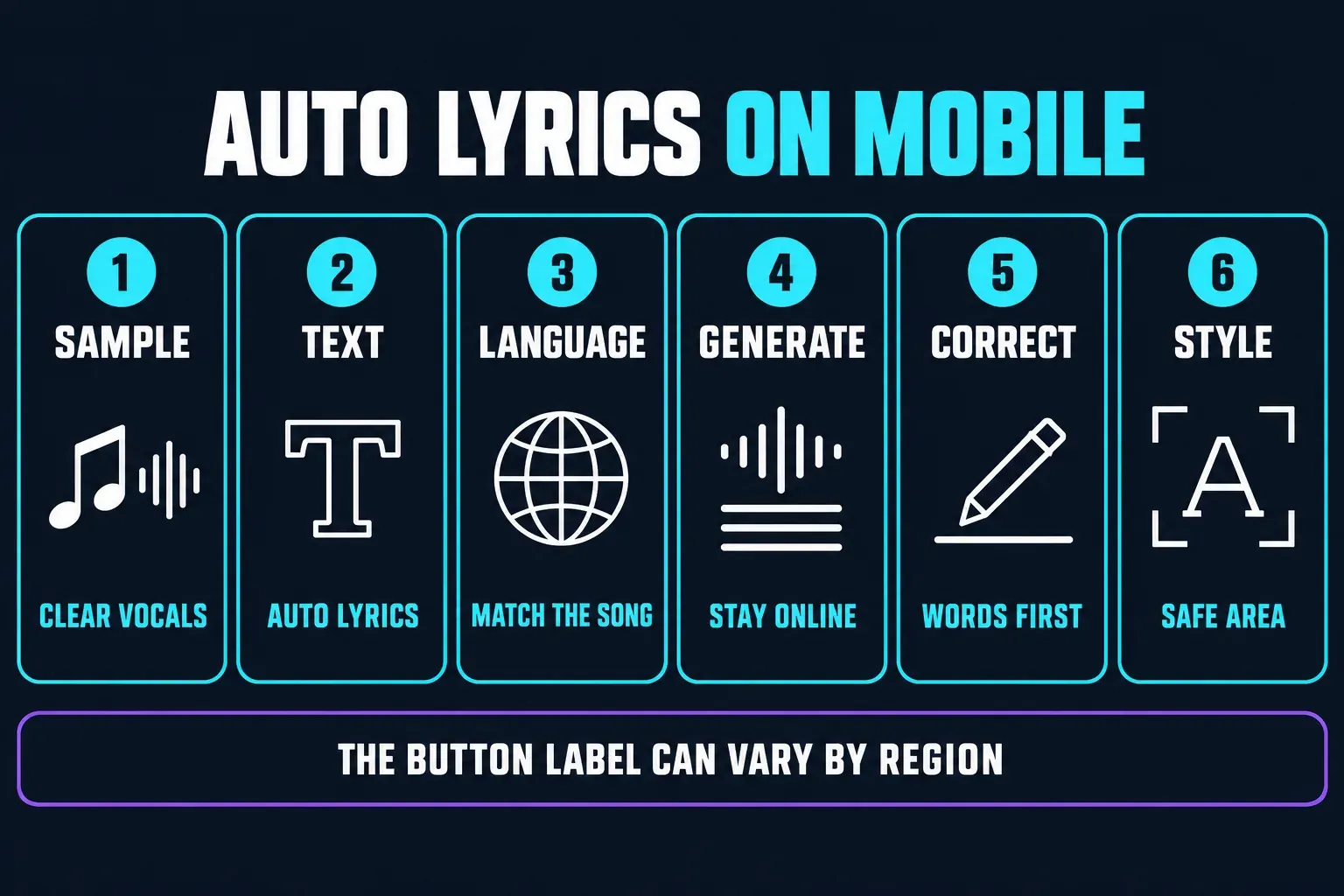
- Create a small sample project. Add one video and a short section of the song with clear vocals.
- Open Text. Look for Auto Lyrics. In some regions or builds, the entry may appear beside or under Auto Captions.
- Select the song language. Choosing a related but wrong language can create plausible-looking nonsense.
- Generate the lyrics. Keep the app online and let processing finish before changing the audio track.
- Correct the text first. Fix misheard words, names and line breaks before applying an animated style.
- Apply the visual treatment. Choose a readable lyric template, then adjust size and position so the text stays inside the platform's safe area.
CapCut's promotional pages still show broader Captions > Auto Lyric workflows, including online-looking editor screens. That conflicts with the current Auto Lyrics support page, which says generation is unavailable on Web and Desktop as of January 2026. Current experience is messier: in August 2026, one user identifying CapCut 9.2.0 on a desktop system said in a Reddit thread about Auto Lyrics that the feature generated one unbroken text bar. One report cannot overturn official Help, but it does show why an absolute platform promise would be misleading. Use Mobile as the documented baseline; if the control appears elsewhere, test a short clip and treat that route as build- and account-specific.
CapCut documents Auto Captions for speech recognition across Mobile, Desktop and Web. Auto Lyrics is the song-specific route with a narrower current support boundary. If you're subtitling speech, use the CapCut Auto Captions guide instead.
Why Auto Lyrics is missing
A missing button is not automatically a broken installation. Check the conditions in this order:
- Platform: move the test to the current Mobile app. Don't keep hunting for a guaranteed Desktop or Web button that current Help says is unavailable.
- Version: update from the official App Store or Google Play listing, then reopen the project.
- Audio: test a short section with an audible lead vocal. Silence, instrumental passages, heavy noise or a buried voice can prevent recognition.
- Region and account: feature rollout and licensing can change what appears. A tutorial recorded in another country is not proof that your account should have the same menu.
- Fresh project: re-import the audio into a blank test project. That separates a feature-availability problem from damage or complexity in one live edit.
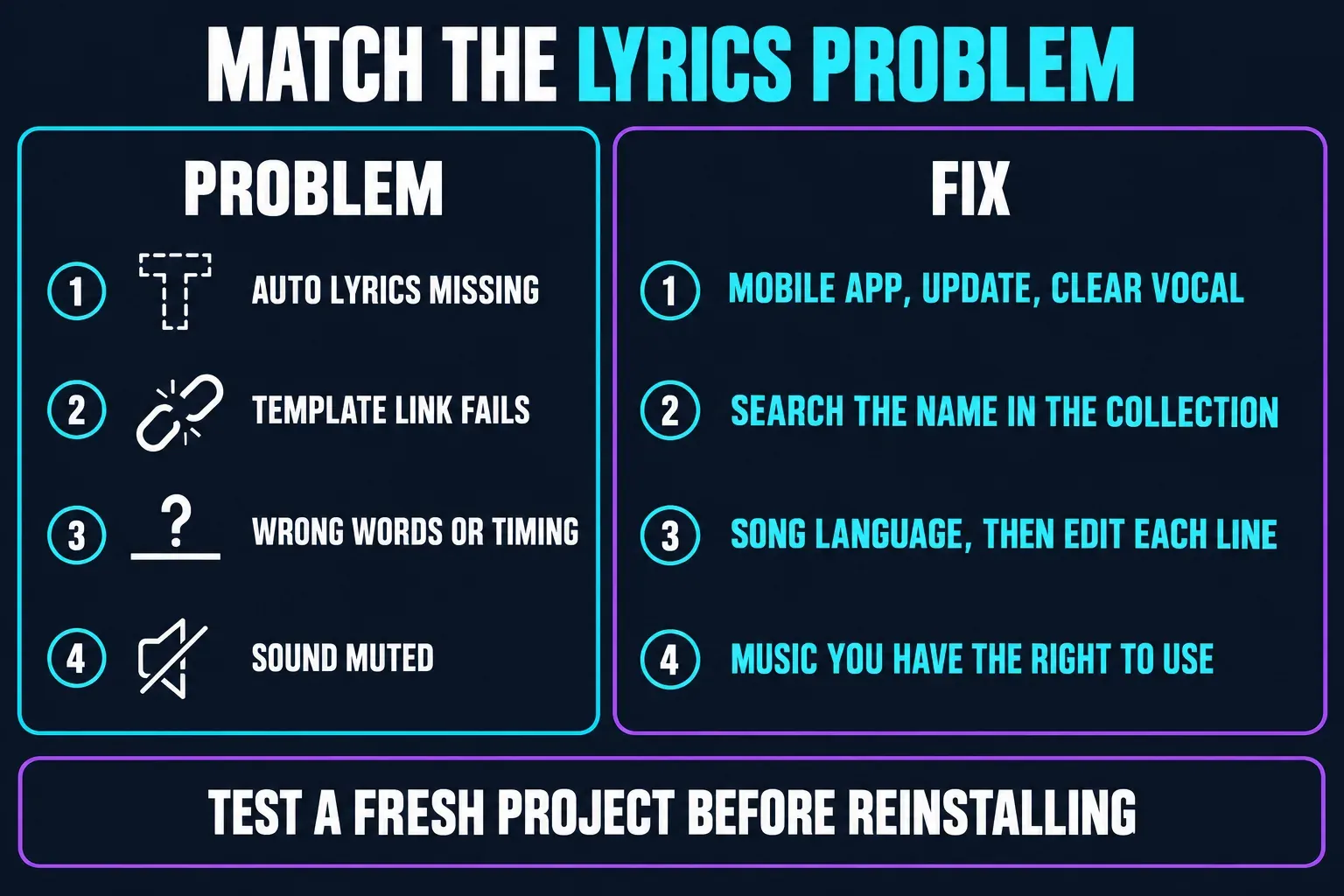
If a ready-made template link fails instead, open the corresponding official collection page and search the template name there. A creator may delete a template, CapCut may restrict it in a region, or a social deep link may stop handing off correctly. Our CapCut template troubleshooting steps cover link, platform and replacement failures without mixing them with lyric recognition.
Correct words and timing before style
Recognition is a draft, not approval. Listen from the beginning and stop at every line. Fix the spelling while the text is still plain; animated templates can make an incorrect word harder to find and can reflow the entire line after you edit it.
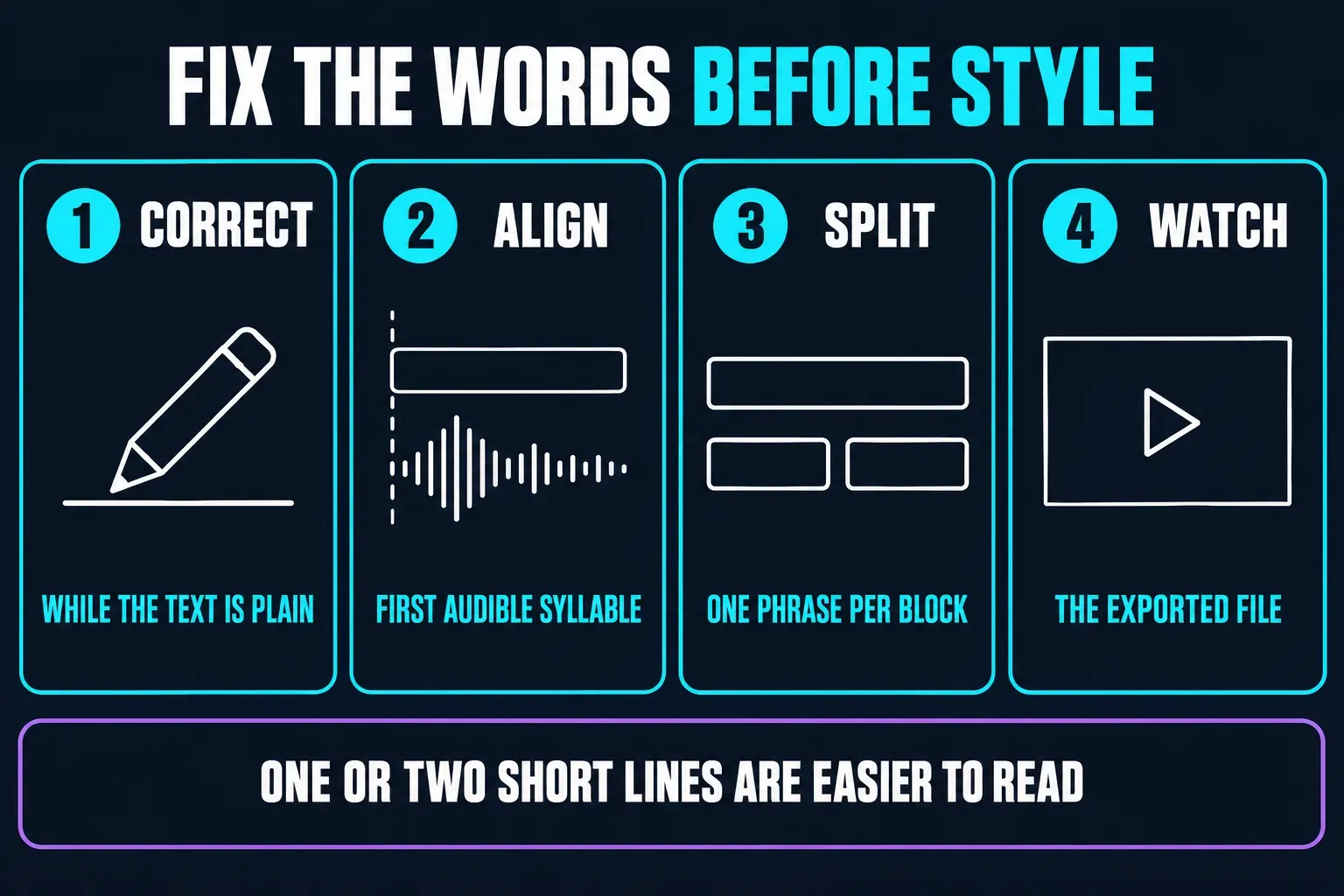
For timing, compare the beginning of each text block with the first audible syllable. Drag a block when the whole line is early or late. Split it when a long sentence stays on screen across two musical phrases. If one line needs a completely different rhythm, rebuilding that line manually is often faster than forcing a complex preset to behave.
Keep the text readable over the actual footage. One or two short lines are easier to scan than a paragraph. Use a contrasting fill, shadow or background only when the video needs it; a fashionable thin font over a bright clip fails as soon as the background changes.
When a template opens but won't edit the way you expect
First confirm what you selected. Tapping a media placeholder edits the replacement clip; tapping a text block edits text only when that element was exposed by the template creator. Some layouts protect the original media or restrict deeper editing. CapCut's paid “Edit More” or template-unlock flow is not the same as a normal free replacement slot.
If your objective is to use the visual rhythm but replace every lyric, choose a layout with editable text or recreate the treatment in a normal project. Don't spend time trying to turn a locked community template into a reusable source project. CapCut's terms for unlockable templates say the elements available for editing can vary case by case and may change with jurisdiction, device and language.
Music rights and muted template audio
A live preview is not a blanket music license. CapCut's template-audio guidance explains that a published template may lose its soundtrack when rights are unavailable, and recommends replacing muted music with a track you have the right to use or with suitable licensed material. That matters most for brand, client and monetized work.
If the template is silent, don't repeatedly export hoping the sound returns. Open the audio track, identify whether it is missing or restricted, and replace it. If you're publishing your own community template, CapCut's creator instructions also require soundtrack copyright compliance; only accounts with Creator Center access can publish templates.
Export check for lyric videos
Don't approve the result only inside the editor. Export the exact resolution and frame shape you plan to post, then watch the saved file from beginning to end on another screen. Check:
- the first word doesn't appear late after encoding;
- no line is cut off by the top, bottom or side safe area;
- fast animation remains readable at normal playback speed;
- the soundtrack is present and the vocal stays in sync;
- no paid asset, template ending or watermark appears unexpectedly;
- the final frame doesn't hold a stray lyric after the audio ends.
Use our CapCut export settings breakdown when resolution, frame rate or compression is still undecided. The lyric workflow is finished only when the exported file works where the viewer will see it.
CapCut lyrics templates FAQ
Are CapCut lyrics templates free?
Many templates can be opened without payment, but a specific layout can contain paid assets or offer a paid deeper-editing option. Check the live template screen before replacing all your media.
Can I use Auto Lyrics on CapCut Desktop or Web?
CapCut's January 2026 Help article says new Auto Lyrics generation is supported on Mobile, not Desktop or Web. A current Desktop 9.2.0 user report appears to conflict, so use Mobile as the documented baseline and trust another live route only after a short test.
Why is Auto Lyrics not showing in CapCut?
Common boundaries are platform, app version, region and the audio itself. Test the current Mobile app with a short, clear vocal section in a blank project before reinstalling anything.
Do ready-made lyric templates generate words from my song?
Not necessarily. Many are complete edits with existing text and replaceable media. Use Auto Lyrics in your own project when you need CapCut to recognize your song, or confirm that the chosen template explicitly includes a generation step.
Can I change every word in a CapCut lyrics template?
Only if the creator exposed that text for editing or the layout opens into a deeper editable draft. Original media and other elements may be protected, so inspect the available controls before committing to the template.
Why did a CapCut lyrics template lose its sound?
CapCut says published template audio can be muted because of music-rights restrictions. Replace it with original or appropriately licensed music instead of assuming the preview track is cleared for every use.
Does downloading a lyrics template save a reusable project file?
Usually no. The normal route opens the template in CapCut, lets you replace permitted elements and exports a finished video. Don't promise yourself a portable project package unless the live screen explicitly offers one.