

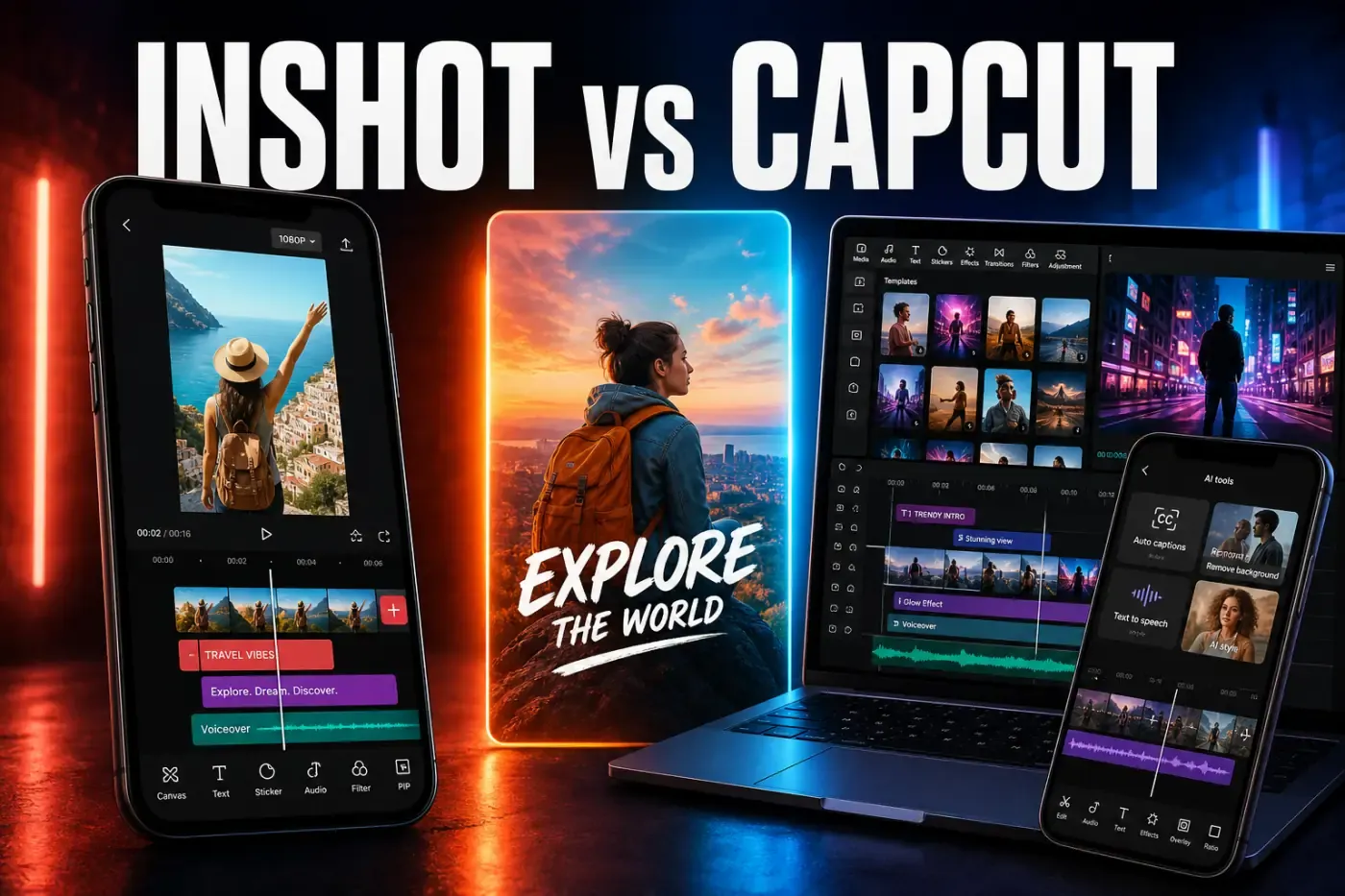
InShot is the better choice for someone who wants to cut, caption and format social video on a phone without learning CapCut's larger editing system. It is quick to understand, has grown well beyond basic trimming, and now includes keyframes, speed curves, chroma key, Picture-in-Picture, automatic captions, tracking and 4K/60 fps export. CapCut remains better when desktop or browser editing, cloud handoff, trend templates and a broader AI tool set matter more than simplicity.
This InShot review was rechecked on August 27, 2026 against the live US App Store and Google Play listings, InShot's privacy documentation, current release notes and dated support or community reports. Store features and prices can vary by platform, region, device and build, so the checkout screen and export panel on your phone remain the final authority.
InShot Review Facts at a Glance
| Review fact | Current answer |
|---|---|
| Price | Free download with advertising and in-app purchases. The US iOS store currently lists monthly, yearly, lifetime and separate ad-removal purchases; Android and regional prices can differ. |
| Platforms | iPhone, iPad and Android. The iOS/iPadOS app is also compatible with Apple-silicon Macs, and Google Play lists Chromebook support. There's no native Windows editor or full browser version. |
| Maximum advertised export | Up to 4K at 60 fps on the current iOS and Android listings, subject to source media and device capability. |
| Watermark | InShot Pro explicitly removes the InShot watermark and ads. A free export may retain the mark, so check the final export screen on the current build. |
| Best fit | Fast phone-first Reels, TikTok, Shorts, family videos, photo slideshows and simple branded social content. |
| Biggest trade-off | Local drafts, no mature Windows/web workflow, less template and AI depth than CapCut, and storage pressure on long or layered projects. |
Quick Verdict: InShot Is Easy Without Being Basic
Older reviews often describe InShot as a trim-and-filter app. That is no longer accurate. The current Apple listing and Google Play listing name automatic captions, AI speech, background removal, tracking, smooth slow motion, speed ramping, keyframes, chroma key and multi-layer Picture-in-Picture. Both stores advertise export up to 4K/60 fps.
InShot gets you from imported clip to finished vertical video with very little setup. The main toolbar stays close to the footage, canvas ratios are easy to find, and a simple cut doesn't send you through a template marketplace or desktop-style panel system. CapCut can do more; InShot is often faster when the job itself is uncomplicated.
What InShot does well
- clean phone and tablet interface with a shallow learning curve;
- fast trim, split, reorder, canvas, crop, text, music and voice-over workflow;
- keyframes, PiP layers, chroma key, tracking and speed curves for more deliberate edits;
- automatic captions, text-to-speech and focused AI tools;
- photo editing, collages and video in one app;
- current 4K/60 fps export support on capable devices;
- a lifetime Pro purchase is still listed in the US iOS store.
Where InShot falls short
- no native Windows or browser editor;
- Apple-silicon Mac compatibility is still a mobile-app experience, not a purpose-built desktop timeline;
- drafts depend on local source files and don't become recoverable cloud projects merely because you sign in;
- long exports and copied drafts can consume substantial internal storage;
- CapCut offers more trend templates, effects and AI tools;
- free watermark and advertising behavior is less simple than a universal “no watermark” promise;
- automatic captions and other online tools can depend on server availability.
What InShot Is in 2026
InShot is a mobile video editor, photo editor and collage maker from Shantanu Pte. Ltd. Google Play lists more than 500 million downloads and labels the app Editors' Choice. Those numbers show reach, not editing quality. The interface is still designed around ordinary phone editing rather than a professional desktop workspace.
Updates are frequent. As of September 26, 2026, the US App Store version history lists iOS version 2.0.1 with keyframes for filters and effects, volume balancing, and a new effects pack. The Google Play listing is dated September 21 and names audio stickers, group editing for tracks, hair glow and fixes. Release lines differ, so do not assume that a feature in the iPhone history reached Android on the same date.
Mac and Chromebook support needs qualification. Apple's compatibility panel allows the iPhone/iPad app to run on an M1-or-newer Mac, and Google Play exposes phone, tablet and Chromebook device categories. That doesn't make InShot equivalent to CapCut Desktop or CapCut Web. The design, project storage and interaction model remain mobile-first. If a computer is central to your workflow, start with our CapCut platform guide before choosing a phone editor.
Editing Workflow and Learning Curve
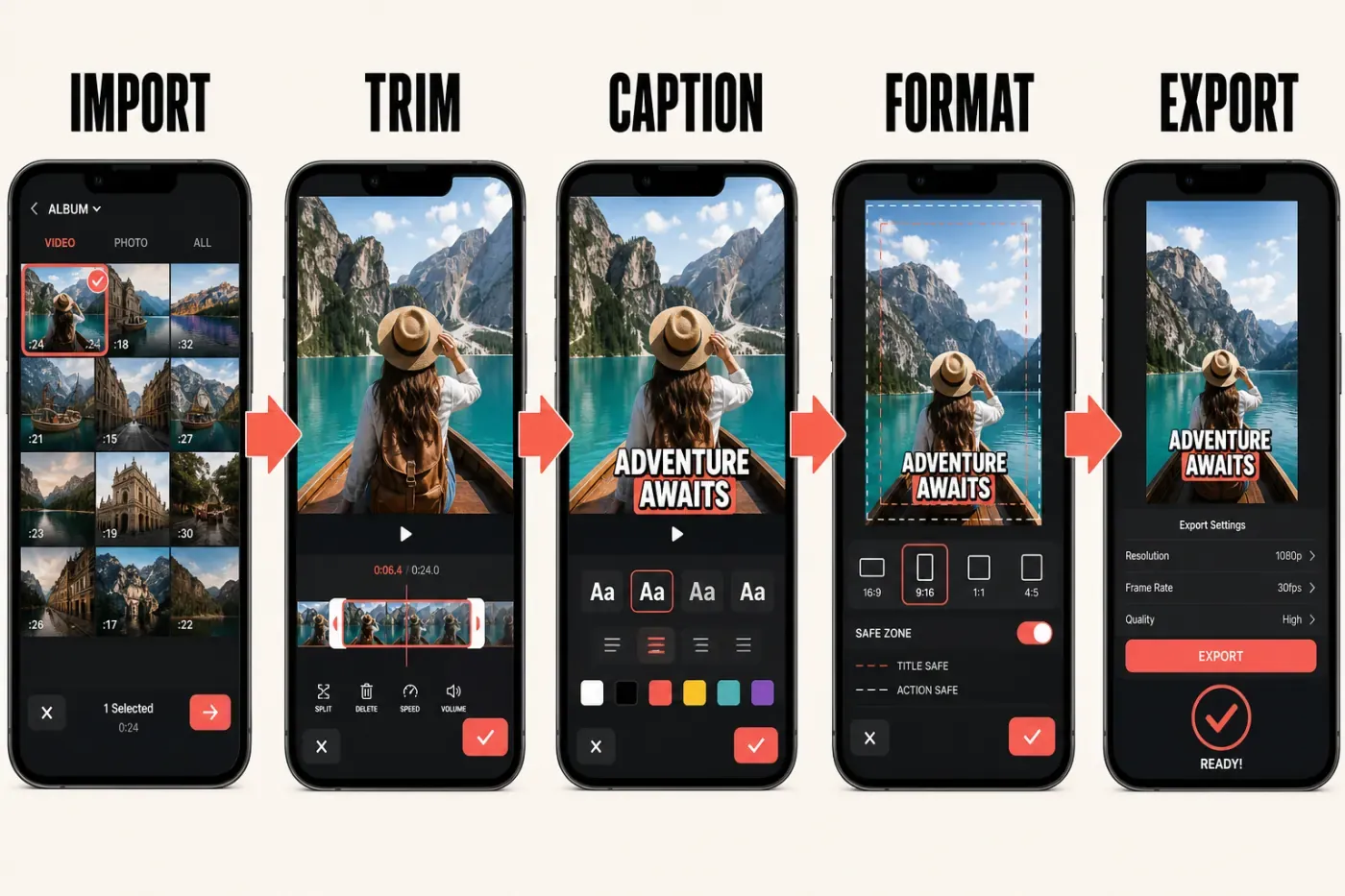
A typical InShot project begins with a video, photo or collage choice. For video, you select clips, choose the destination ratio, trim the rough edges, reorder scenes and then add text, music, effects or overlays. The controls remain in a horizontal toolbar below the preview, while the main timeline stays visually simple.
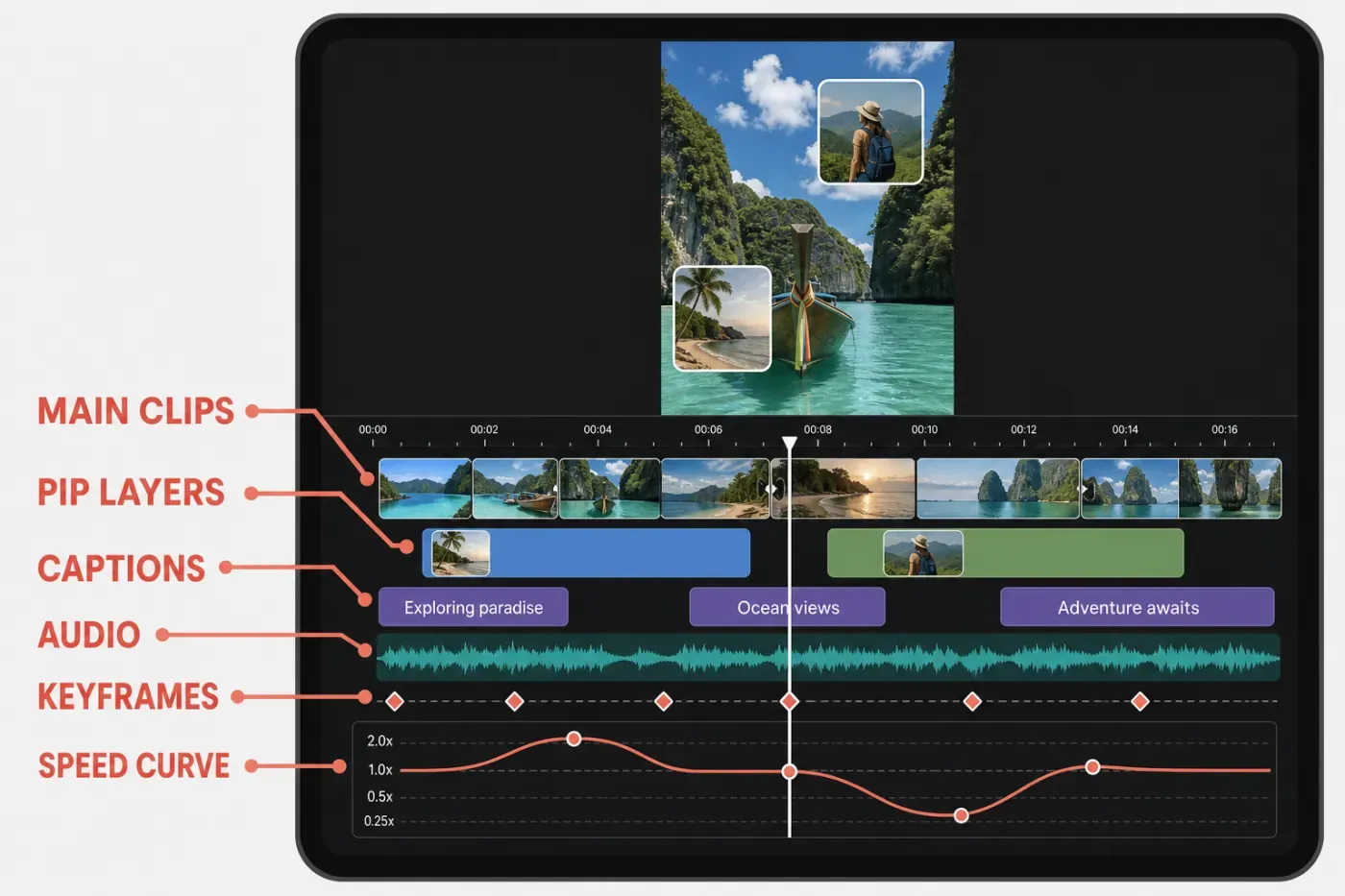
A first project is easier to read than CapCut's denser workspace. The cost appears when the edit grows. InShot uses a clear main clip sequence plus PiP overlays instead of keeping every element open as a desktop-style track. That works well for a short Reel; a long composition with many overlays, captions and sound layers needs more tapping and more memory of where things are.
For a 20-to-60-second social edit, the efficient order is: choose the final aspect ratio, make the structural cut, balance speech and music, add captions, animate only the elements that need movement, then export a short proof before rendering the final file. Adding effects before you settle the story cut usually creates more work.
Timeline, Keyframes, PiP and Green Screen
InShot's current tool set is deeper than several high-ranking comparisons claim. The stores explicitly list keyframe animation, Picture-in-Picture layers, chroma key, blend modes, smart tracking and speed ramping. That is enough to build controlled zooms, moving text, screen replacements, reaction layouts and simple green-screen composites.
The important distinction is not whether these features exist. It is how far the timeline lets you push them. InShot is strongest when one main video sequence carries the story and a few overlays support it. CapCut is more comfortable when multiple video, audio, effect and caption tracks must remain visible and editable together, especially on desktop.
Keyframes still require discipline in either app. Set a deliberate start state and end state, preview the complete movement, and avoid placing extra points simply because the control is available. Our CapCut keyframes tutorial explains the same motion principles: readable distance, useful easing and enough time for the viewer to understand the change.
Captions, Text, Audio and AI Tools
InShot has automatic captions. Any comparison saying it only supports manually typed text is stale. The Android app description lists speech-to-text and multilingual AI voices, while the iOS version history records bilingual caption support in March 2026 and text templates and AI voice speed and emotion controls in August. Check the controls on your own build, since feature rollouts can differ by platform.
Automatic doesn't mean finished. Names, slang, punctuation, timing and line breaks still need a human pass. Use our automatic-caption QA workflow in either editor: correct the transcript, keep lines inside safe zones, inspect every cut and watch the exported file with audio on and off.
Auto captions use a different data path. InShot’s privacy policy says audio used for auto captions is uploaded to its server for conversion and automatically deleted after processing. It does not establish that the entire video is uploaded for this feature. That is different from a purely local trim. Don’t send confidential client, employer, school or regulated recordings to an online caption or AI feature until the applicable policy and contract allow it. Apple also reports that the developer declares Larger Text, Dark Interface and Differentiate Without Color Alone; those declarations help with access, but they don’t replace checking the caption and control workflow you need.
For audio, the current stores list music, sound effects, voice-over and voice effects. Those tools cover narration and short social clips, but a built-in song is not blanket permission for every commercial destination. InShot's official community FAQ says font licenses differ and some fonts are personal-use only. Check the license attached to each font, music track and effect before using it in paid client work or advertising.
Canvas Ratios and Social-First Editing
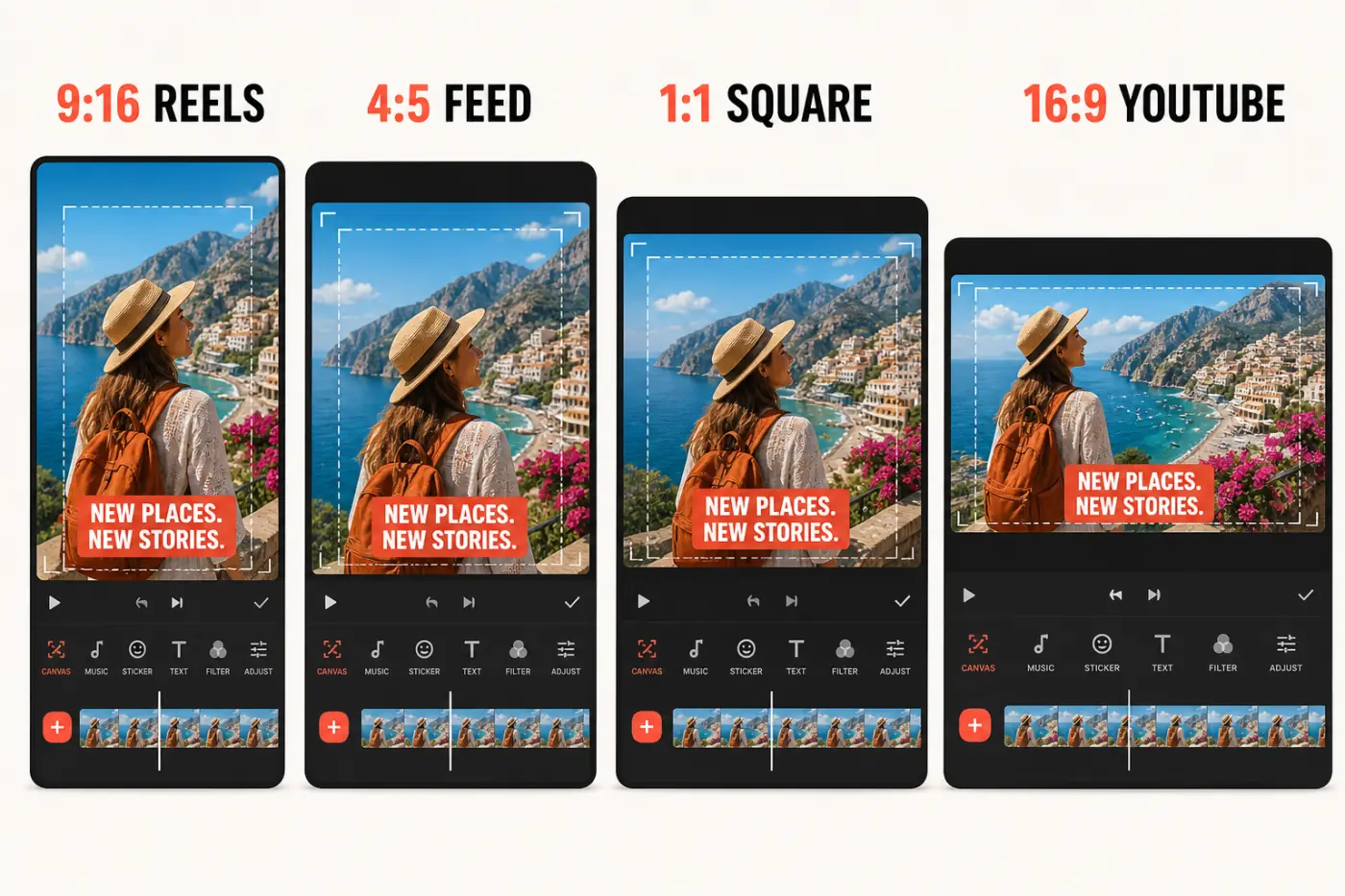
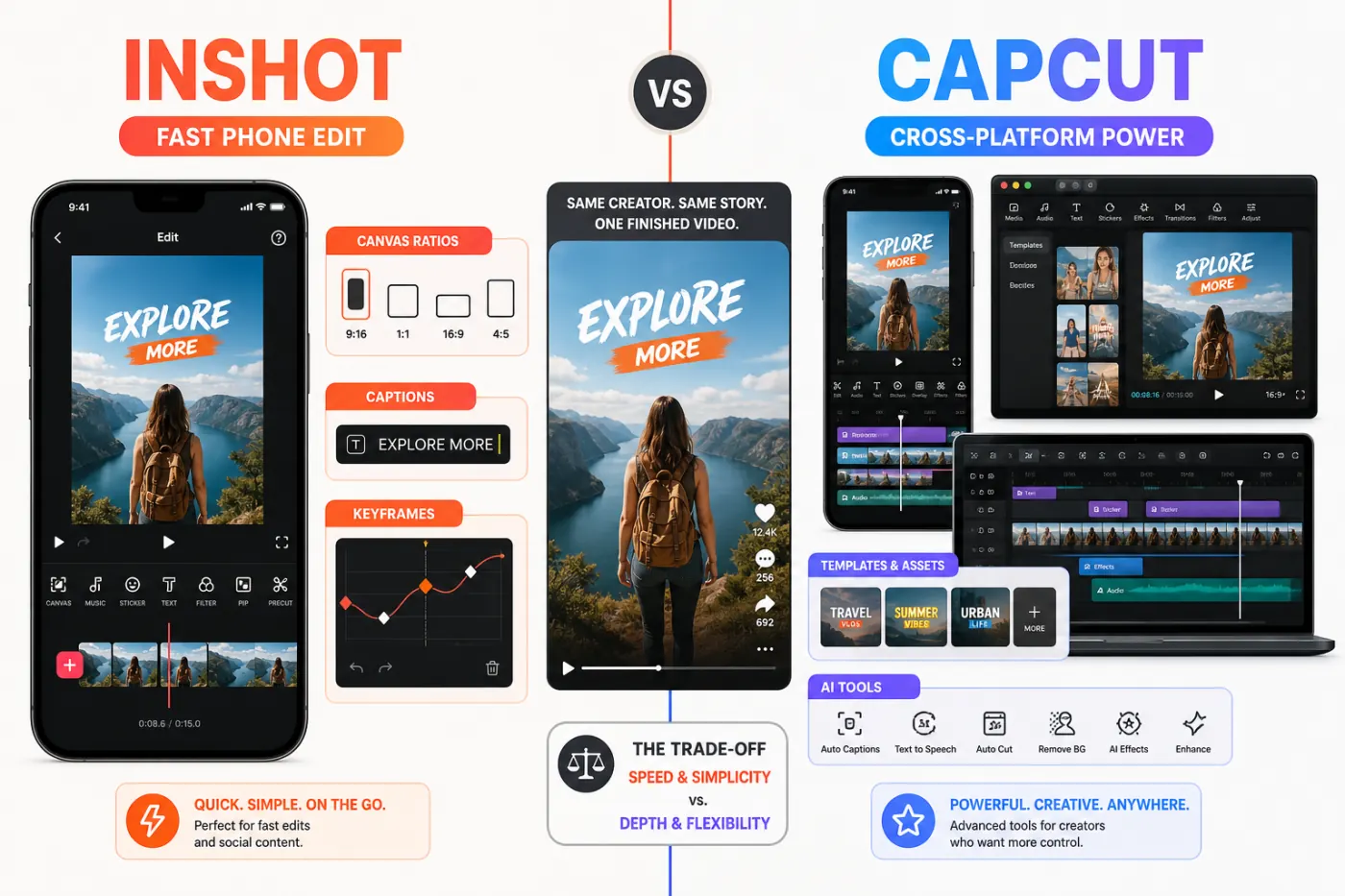
Canvas control is one of InShot's best everyday features. You can switch between 9:16 vertical video, 1:1 square, 4:5 feed posts and 16:9 horizontal output, then fill unused space with color, blur or a background image. That makes it useful when the same source clips must become a Reel, Short, TikTok post or landscape upload.
Changing the canvas is not the same as creating a good reframing. A face, product or caption can still sit outside the destination platform's safe area. Build around the most restrictive crop first, keep important text away from interface overlays, and make a separate version when the composition genuinely needs different framing.
For Instagram work, our Reels workflow and safe-zone guide applies regardless of editor. InShot makes ratio changes easy; the editor still has to check subtitle placement, cover crop, audio rights and the final upload preview.
Export Quality, Watermark and InShot Pro Pricing
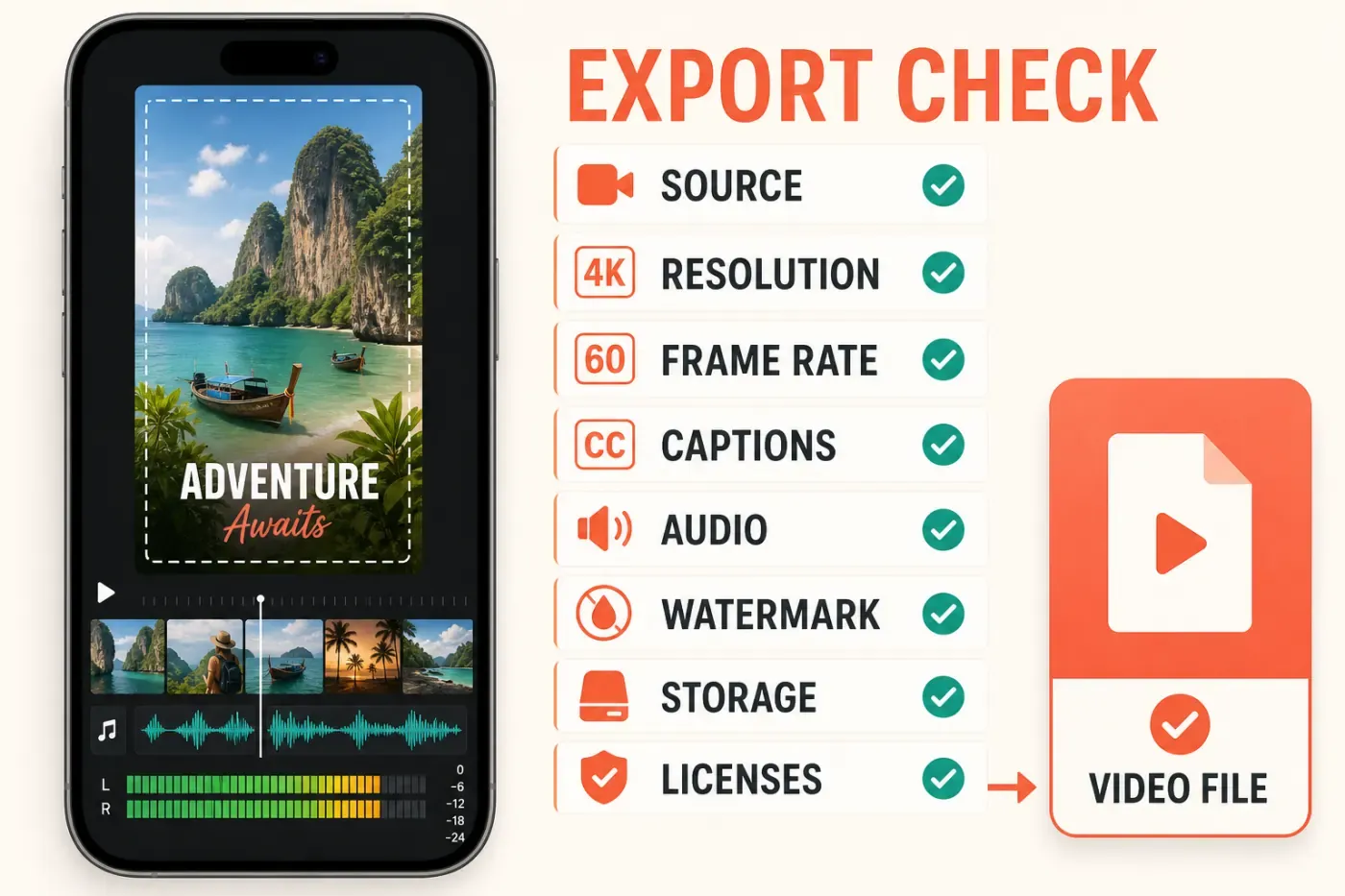
The current mobile stores advertise custom export settings up to 4K at 60 fps. That is a ceiling, not a reason to upscale every project. Export at the source resolution and frame-rate family whenever possible. Turning a 1080p/30 source into a 4K/60 file creates more pixels and frames, not more captured detail.
A recent community report about choppy motion described a 29.97 fps source being converted to a nominal 30 fps export. One report can't establish a general defect, but the workflow lesson is sound: match source and export frame rates, preview motion-heavy sections and keep a short proof file before the final render. Our video export settings guide covers resolution, frame rate and bitrate decisions that apply to InShot too.
Watermark advice online is inconsistent because free-build behaviour can differ by platform and build. The official Apple listing promises that InShot Pro removes the watermark and ads; it doesn't make the same universal promise for every free export. Check the actual export screen before promising a watermark-free free workflow to a client.
On August 27, 2026, the US iOS store listed InShot Pro at $4.99 monthly, $19.99 yearly and $49.99 lifetime, plus a separate $3.99 remove-ads purchase and individual effect packs. Those are US Apple purchase points, not a global price list. Android, taxes, promotions and local currencies can change the total. The public listing doesn't promise that a lifetime purchase includes every future AI service, so verify the checkout terms before paying.
Drafts, Storage and Reliability
InShot's local-draft model is both a privacy benefit and a reliability constraint. In an official InShot community FAQ, the support team explains that deleting an original gallery file can make its related draft inaccessible and deleted drafts cannot be restored. In a reply in the same thread, support advises leaving at least three times the target video size free in internal storage for intermediate export files. Treat that as troubleshooting guidance, not a guaranteed requirement for every export.
That detail changes how you should work. Don't clean the source folder midway through a project. Keep original clips in place, duplicate an important draft before a large revision, export checkpoints and preserve the finished file somewhere outside the app. Signing into InShot doesn't turn every draft into a recoverable cloud project.
Community reports describe copied drafts and cache consuming many gigabytes, along with isolated exports failing at repeatable percentages. These reports are warning signals, not controlled prevalence data. Use the practical lesson: check internal storage, restart before a long render, export a short range, reduce one setting at a time and preserve original media before clearing app data.
Automatic captions also depend on a network service. A February 2026 support thread documented a short Android and iOS caption outage that users later reported as fixed server-side. That doesn't make the feature unreliable by default; it means a deadline workflow needs a fallback when an online tool stops responding.
Privacy and Asset Licensing
Apple's current privacy panel says identifiers may be used to track users across apps and websites, while identifiers, usage data and diagnostics may be collected without being linked to identity. Google Play's Data safety panel says device or other IDs may be shared with third parties and that personal information, photos and videos and three other data types may be collected; it also says data is encrypted in transit and deletion can be requested. These are developer-supplied disclosures, not an independent audit.
Local editing doesn't require every clip to leave the phone. Online captions, AI processing, downloaded assets, feedback attachments and advertising involve different data paths. Grant only the media access the job requires, avoid uploading sensitive footage to online tools without authorization, and remove unused drafts when the project is safely archived elsewhere.
Licensing deserves the same caution. A track being available inside an editor or accepted on one social platform doesn't guarantee use in paid advertising, client campaigns or every region. Keep a record of the asset source and license, and replace uncertain music or fonts before commercial delivery.
InShot vs CapCut: Feature Comparison
InShot and CapCut overlap heavily on mobile: both trim, layer, caption, animate, remove backgrounds, change speed, use chroma key and export high-resolution social video. The useful difference is workflow breadth. InShot removes friction from a straightforward phone edit. CapCut gives a growing project more room across phone, desktop and web.
| Decision factor | InShot | CapCut |
|---|---|---|
| Best fit | Fast manual social edits, family videos, photo/video posts and creators who value simplicity | Trend-driven editing, deeper projects, templates, AI automation and device switching |
| Platforms | iPhone, iPad, Android; mobile app compatibility on Apple-silicon Mac and Chromebook | iPhone, iPad, Android, Windows, macOS and browser |
| Learning curve | Lower; main tools stay close to a simple phone timeline | Moderate; more panels, assets, templates and platform variation |
| Timeline | Main sequence plus PiP layers, keyframes, tracking, chroma key and speed curves | Deeper multi-track work, especially on desktop and web |
| Captions and text | Auto captions, bilingual support, text templates and AI speech | Auto captions and broader caption styling, translation and platform workflows |
| Templates and effects | Useful packs and effects, but a smaller trend-led library | Larger template, effect and creator-trend library |
| AI | Focused tools for captions, speech, background removal, one-tap adjustments and effects | Broader catalogue including generation, tracking, avatars and other plan-dependent tools |
| Export | Advertised up to 4K/60 fps; Pro explicitly removes watermark and ads | High-resolution export across more platforms; paid assets and plan rules can affect a project |
| Project continuity | Local drafts depend on source files; no comparable Windows/web cloud environment | More mature phone, desktop, browser and cloud workflow |
| Pricing shape | Monthly, yearly and lifetime options listed on US iOS | Free, Standard and Pro access varies by platform, region and billing source |
Choose InShot If...
- you edit almost entirely on a phone or tablet;
- you want a clean interface for Reels, TikTok, Shorts, photo videos or family clips;
- trim, text, music, captions, ratios, keyframes and a few overlays cover most projects;
- a currently listed lifetime purchase is more attractive than another ongoing subscription;
- you're comfortable managing local source files and draft backups yourself;
- you prefer deliberate manual editing over browsing a large template marketplace.
Stay With CapCut If...
- you edit on Windows, macOS or in a browser;
- you move projects between phone and computer regularly;
- trend templates, animated assets and a larger effects catalogue remove enough repetitive work to matter;
- AI generation, advanced tracking or automation is central to the workflow;
- you build track-heavy projects that are easier to manage on a larger timeline;
- your existing CapCut assets and projects already support a reliable production process.
InShot Review FAQ
Is InShot free?
InShot is free to download and provides a useful editing workflow without requiring a subscription. The stores list advertising and in-app purchases, and some tools or assets are paid. A free export may retain the watermark; InShot Pro explicitly removes the watermark and ads.
Does InShot add a watermark?
A free video export may include the InShot watermark, so check the export preview on the current device and build. The official Apple description says InShot Pro removes the watermark and advertising automatically.
Can InShot export 4K at 60 fps?
Yes. The current iOS and Android listings advertise export up to 4K at 60 fps. Availability and render stability still depend on the device, source footage, storage and project complexity. Match the source settings instead of upscaling by default.
Does InShot have automatic captions?
Yes. InShot offers automatic captions, with bilingual support recorded in its iOS release history. Its privacy policy says audio used for auto captions is uploaded to its server for processing and deleted automatically afterward. Treat it as an online feature; the policy does not establish that the entire video is uploaded for captions.
Can I use InShot on a PC or Mac?
There's no native Windows InShot editor or full browser version. Apple's store says the iPhone/iPad app can run on an M1-or-newer Mac with macOS 13 or later, but this remains a mobile-app experience rather than a CapCut-style desktop workspace.
Is InShot better than CapCut?
InShot is better for a fast, uncomplicated phone workflow and creators who need strong core tools without CapCut's larger editing system. CapCut is better for desktop or browser editing, cross-device projects, trend templates, deeper timelines and a broader AI catalogue.
Verdict
InShot is one of the easiest serious mobile editors to recommend. It keeps basic social editing fast while providing enough depth to outgrow the “beginner-only” label: keyframes, PiP, chroma key, tracking, speed curves, automatic captions and 4K/60 fps export.
Its limits are concrete: local drafts, heavy storage use, no real Windows or web editor, inconsistent free-watermark expectations and less template and AI breadth than CapCut. Choose it when the work begins and ends on a phone. Choose CapCut when the editor must follow you across devices or carry a more complex production system. The wider CapCut alternatives comparison covers the other mobile, browser and desktop options.