

CapCut Proxy editing uses lower-resolution working copies to make a heavy Desktop timeline easier to edit. CapCut's PC editing guide says the export returns to the original files. Keep those originals available. The lightweight editing copy isn't your finished video or your backup.
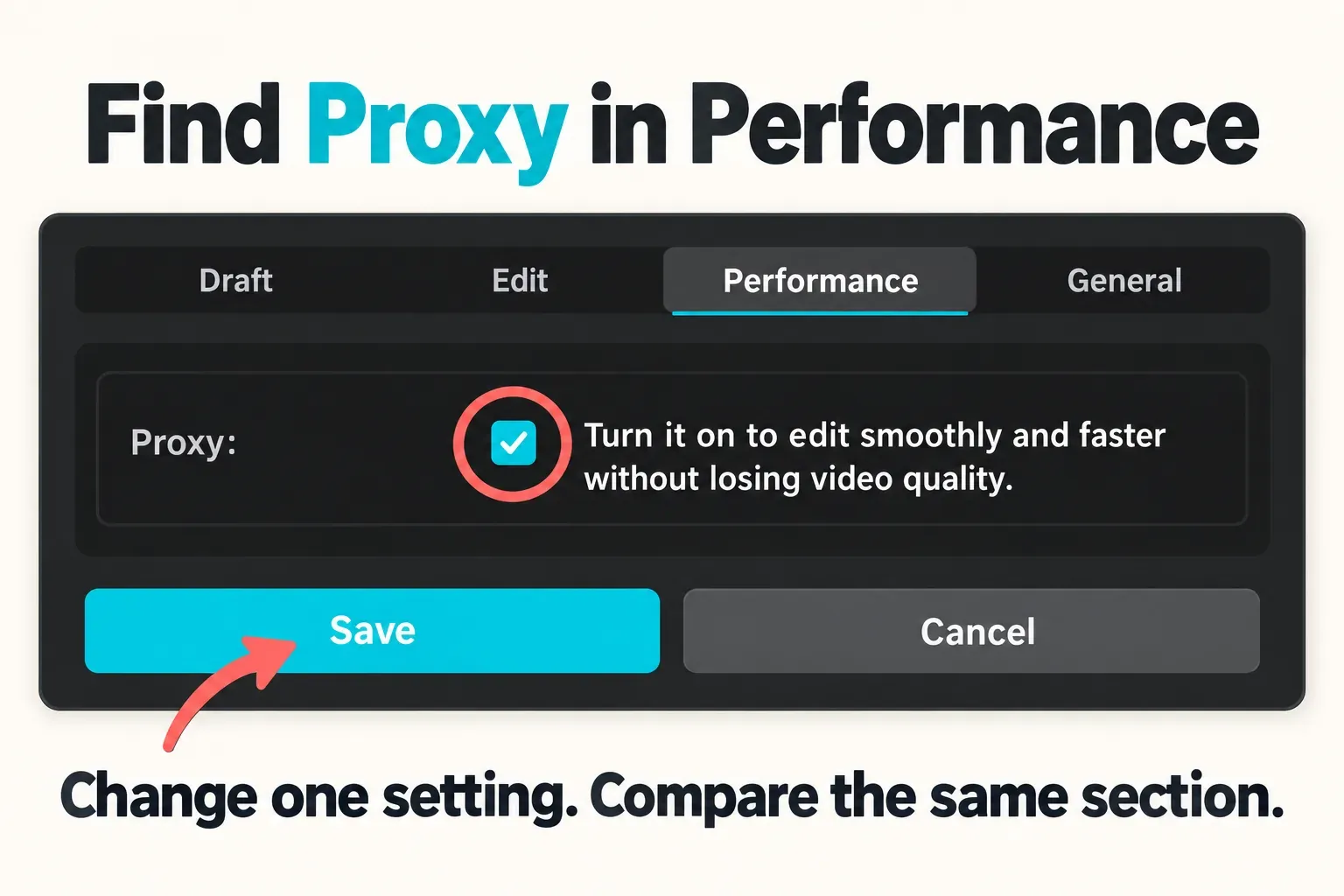
Start with Menu > Settings > Performance > Proxy where that route appears in your PC build. Turn Proxy on for editing, save the setting, then compare the same section of your timeline. Expect a possible trade-off in preview clarity, not a promise that every effect or long recording will play smoothly.
In CapCut, Proxy is a media-editing feature. It doesn't mean a network proxy, VPN or server that changes your internet connection. If your problem is a completed file that stutters outside CapCut, use the lag-after-export guide instead.
Turn on Proxy and make a fair playback comparison
Before you change anything, save your project and note whether Proxy is currently on or off. Leave the original media where it is. Then pick a repeatable section with the movement or edit that's hard to preview.
CapCut's Proxy setting instructions document the Menu > Settings > Performance route. Where your version shows those controls:
- Open Menu, choose Settings and select Performance.
- Find Proxy. Enable its checkbox for the editing comparison.
- Click Save. If your workspace displays preparation progress for the working copies, let that finish before deciding whether playback improved.
- Replay and scrub the same section. Keep the preview size, effects and other performance settings unchanged during this comparison.
- Keep Proxy on if editing is more usable. If it does not help, return to the original state before trying another change.
CapCut's preview troubleshooting page puts proxy control in Project Settings. Go with the controls your installed build offers instead of hunting for a menu from a different version. Don't assume a PC checkbox has an identical Mobile or Web equivalent.
If proxy-resolution choices appear, pick a working size that lets you judge the edit while reducing the playback load. A smaller proxy can hide fine detail. A larger one may be easier to inspect. Proxy size is an editing choice, not the resolution of your delivery file, and there's no universal proxy size that's best for every source, computer and project.
Keep three things separate: source, preview and export
The source is your original video file. Proxy gives you lighter working media for the edit. The export is a new finished file, built from the project at the output settings you pick. Keeping those three apart, as files and as decisions, stops an editing shortcut from turning into an accidental quality downgrade.
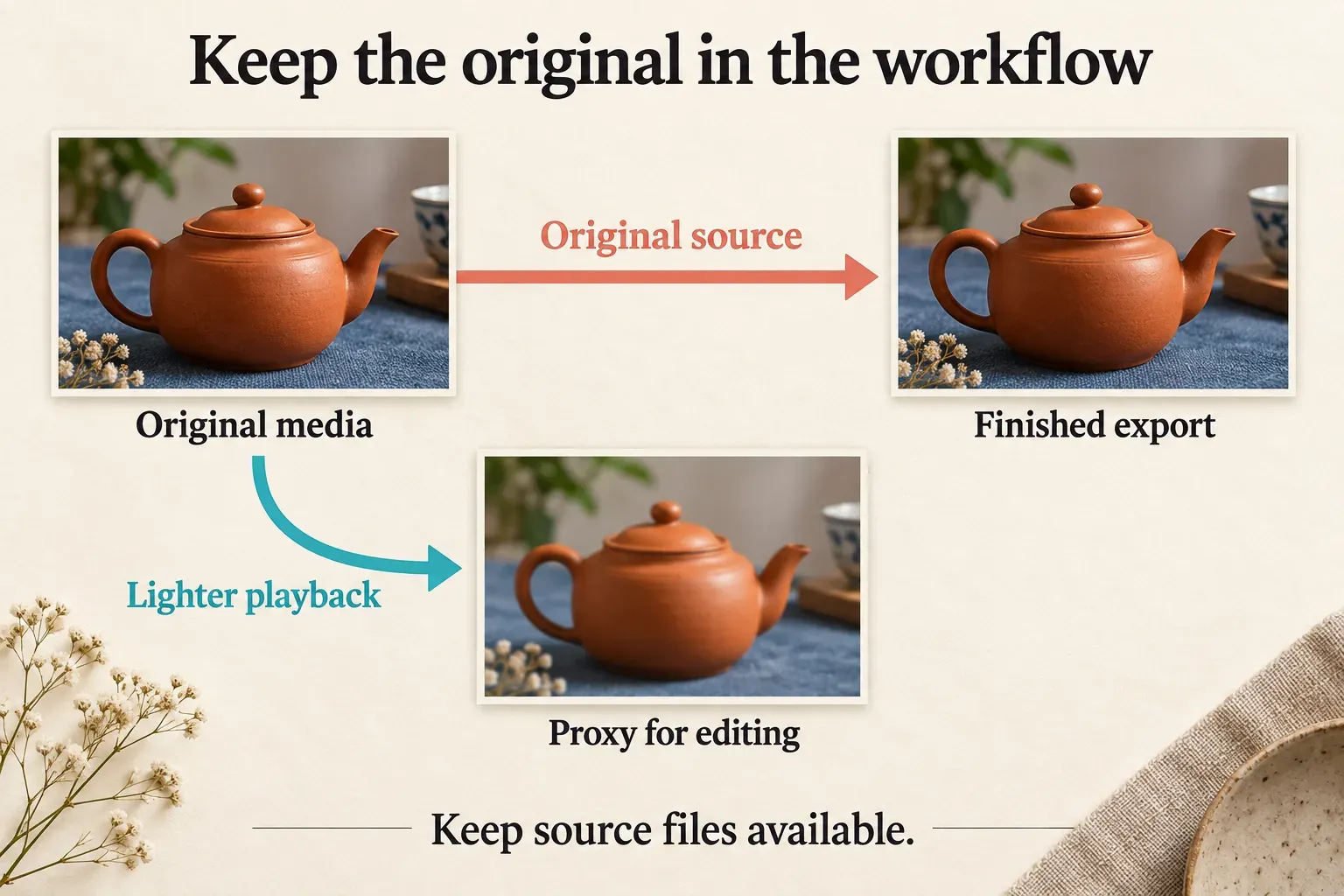
Use the lighter preview to decide where a shot begins, where a cut lands and whether the sequence flows. Before you accept fine masks, small lettering, sharp edges or blur strength, compare them with the source or a suitable full-quality view. CapCut's preview-mismatch guidance warns that proxy media can misrepresent scaling or blur effects.
Turning Proxy off for a quality comparison can make a demanding timeline less responsive again. That doesn't by itself mean the setting damaged your footage. Inspect the same frame and a short saved export before you add sharpening or rebuild the edit. The blurry-after-import guide covers that diagnosis in detail.
Preview resolution is another performance choice. It controls the view you see while editing, and changing preview resolution isn't the same as changing the output resolution in Export. Change one control at a time so you can tell which adjustment helped.
Allow for preparation and protect the media
Creating working copies takes extra processing and storage. With a long recording, build that preparation into your editing time instead of expecting an instant improvement the moment you check a box. Judge the benefit by the kind of work you have to do. Repeated scrubbing through a long source is a different job from dropping in one short cutaway.
I'd start with a representative section before reorganizing a large project around Proxy. A useful comparison keeps the same source and the same timeline edits, then changes only the Proxy setting. If you can't see a preparation status, don't invent an expected completion time, and don't assume the app is finished just because the option is enabled.
Hold on to the original clips, the editable project and any assets the edit needs. A smaller working copy shouldn't become the only surviving version of a camera file. Before you move a project between computers, use the project backup and transfer guide to protect both the edit and its dependencies.
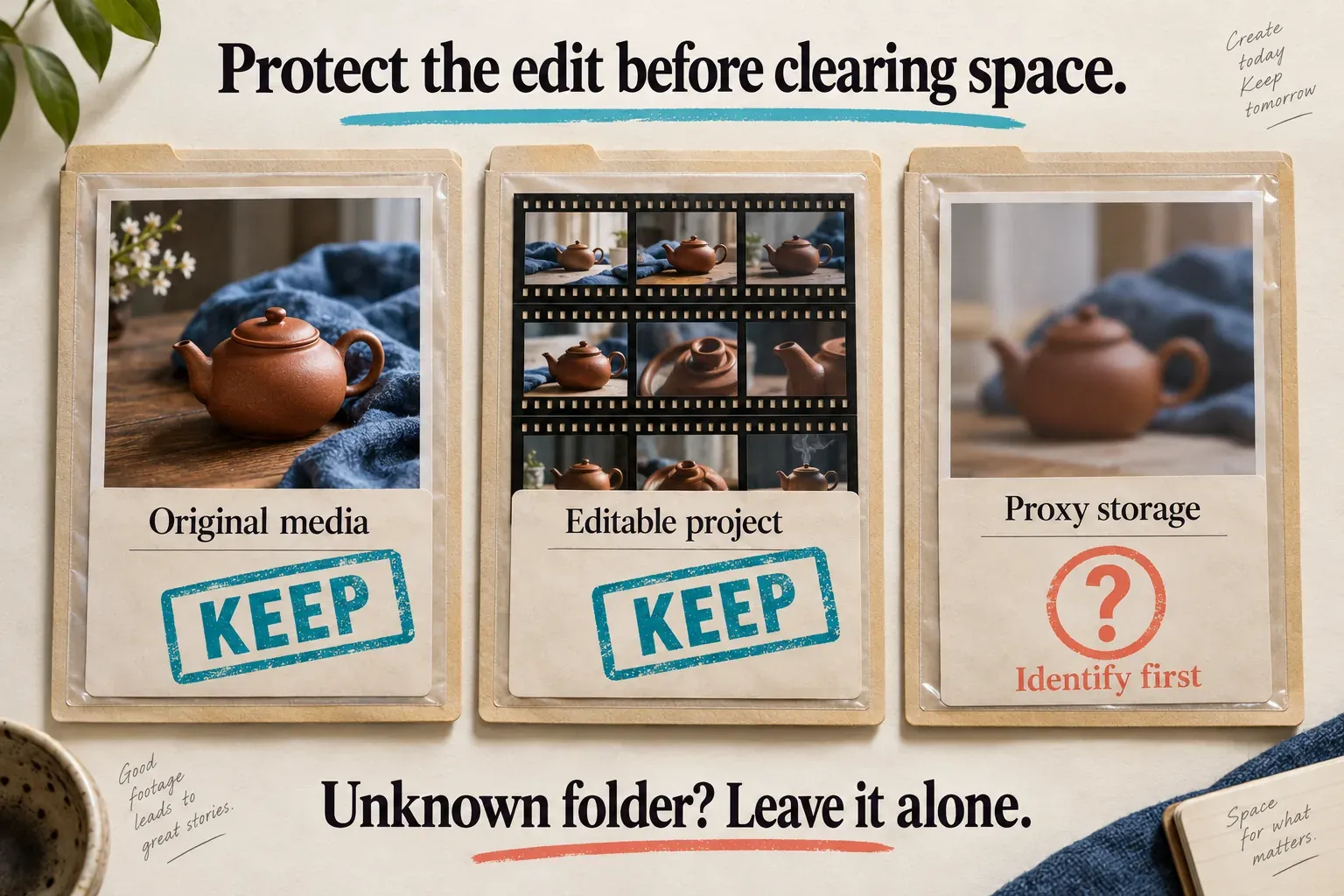
If storage fills up, tell the named proxy storage apart from the rendering cache, downloads and local project data. Similar-looking folders aren't a safe deletion boundary. Protect the project first, then use only a clearly identified control in your version. Avoid deleting the entire CapCut data folder to reclaim working-copy space.
Turning the Proxy checkbox off and deleting stored files are two separate actions. Don't assume the toggle freed up space, and don't assume an unknown cache folder holds only disposable copies. If you can't identify the files, leave them where they are until you can.
Check the delivered file and know when to move on
Set the final resolution, frame rate and any other available output controls for the destination. Keep the original media accessible, and export a short representative range or a duplicate-project sample before you commit to a long delivery. Our export settings guide covers those choices.
Open the completed file outside CapCut and check the movement, detail, sound, captions and intended crop. A smooth editor preview doesn't certify the finished file. A soft preview doesn't prove a soft export, either.
If the timeline is still hard to use with Proxy, compare a simpler section and temporarily dial back expensive effects in a working duplicate. Proxy lightens the load of working with source media, but it doesn't guarantee that every layered effect becomes easy to render. Keep each comparison small enough that you can spot a useful change.
If CapCut closes, hangs before loading the project or fails while exporting, switch to the crash and performance checklist. Protect the project before clearing data or reinstalling. Proxy is worth keeping when it makes the edit easier and the finished file meets your needs, but it isn't a reason to ignore a separate source, render or storage problem.