

Checked September 24, 2026. Pinterest's upload steps and file limits can change; the linked help pages are the final reference before an important post.
The reliable route is CapCut → saved video file → Pinterest video Pin. Finish the edit, export a file you can actually find and play, then create a Pin in Pinterest and upload that file. You do not need a special “Pinterest export” button in CapCut. On a phone, the Pinterest share option may appear in a device's share sheet, but saving the file first gives you a copy to inspect and an upload path that does not depend on a particular share integration.
The Pinterest video Pin instructions cover both computer and app uploads. This guide connects those steps to the decisions you make in CapCut: the frame, the export, the cover and the information attached to the Pin.
Choose a video Pinterest can use
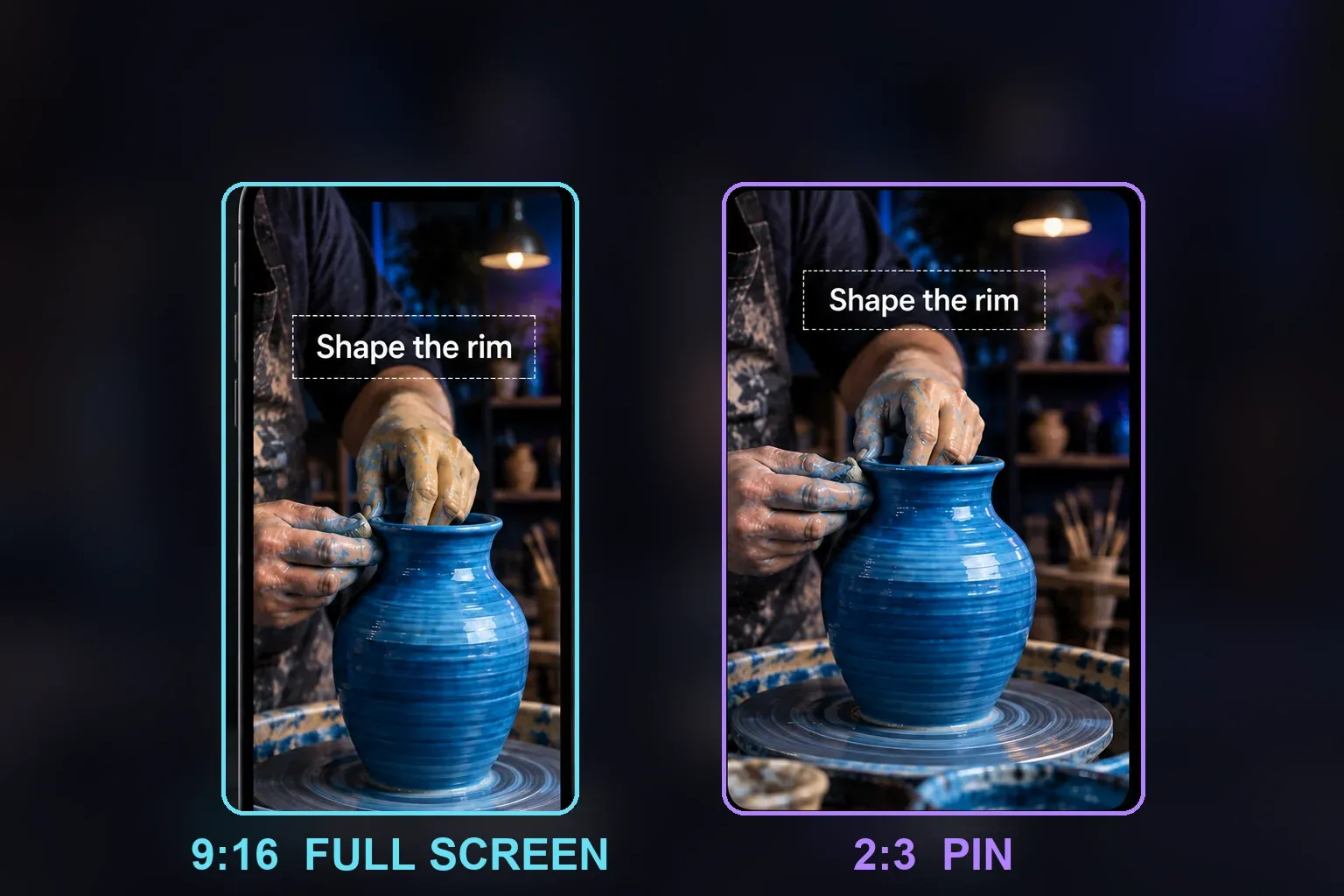
For a video that fills the phone screen, start with a 9:16 frame. Pinterest's current video Pin specs recommend 9:16 or 1080×1920 for full-screen video; they also list 1:2, 2:3, 3:4, 4:5 and 1:1 as other accepted ratios. That is why a blanket “every Pinterest video must be 2:3” rule is misleading. Choose the frame for the actual footage and the way you want it viewed.
| Check before export | Pinterest video Pin requirement | Practical decision |
|---|---|---|
| Duration | 4 seconds to 5 minutes | Trim empty seconds at either end and check the saved file's real length. |
| File type | Web: MP4 or M4V; iOS and Android: MP4, MOV or M4V | MP4 is a sensible common route when CapCut offers it; compare the file you saved with the destination device's list. |
| Encoding | H.264 or H.265 | If a file is rejected, inspect its actual codec instead of changing only its filename. |
| Full-screen frame | 9:16 or 1080×1920 recommended | Leave essential subject matter and captions away from interface-covered edges. |
These are Pinterest's video Pin specifications, not a promise that every CapCut version exposes the same controls. CapCut's Pinterest video maker page also describes a vertical 9:16 workflow, but Pinterest is the authority for Pinterest's upload limits.
Export the finished video from CapCut
- Open the finished project and inspect the first frame, the last frame and the moments where captions or graphics come near an edge. If your source is wide, reposition or redesign the edit for a vertical version rather than blindly cropping out its subject.
- Open CapCut's Export or save/share control. Choose an available video output that meets the Pinterest file requirements; use MP4 when that is the compatible option. CapCut controls differ between mobile, desktop and web builds, so treat the saved result as the test of what you selected.
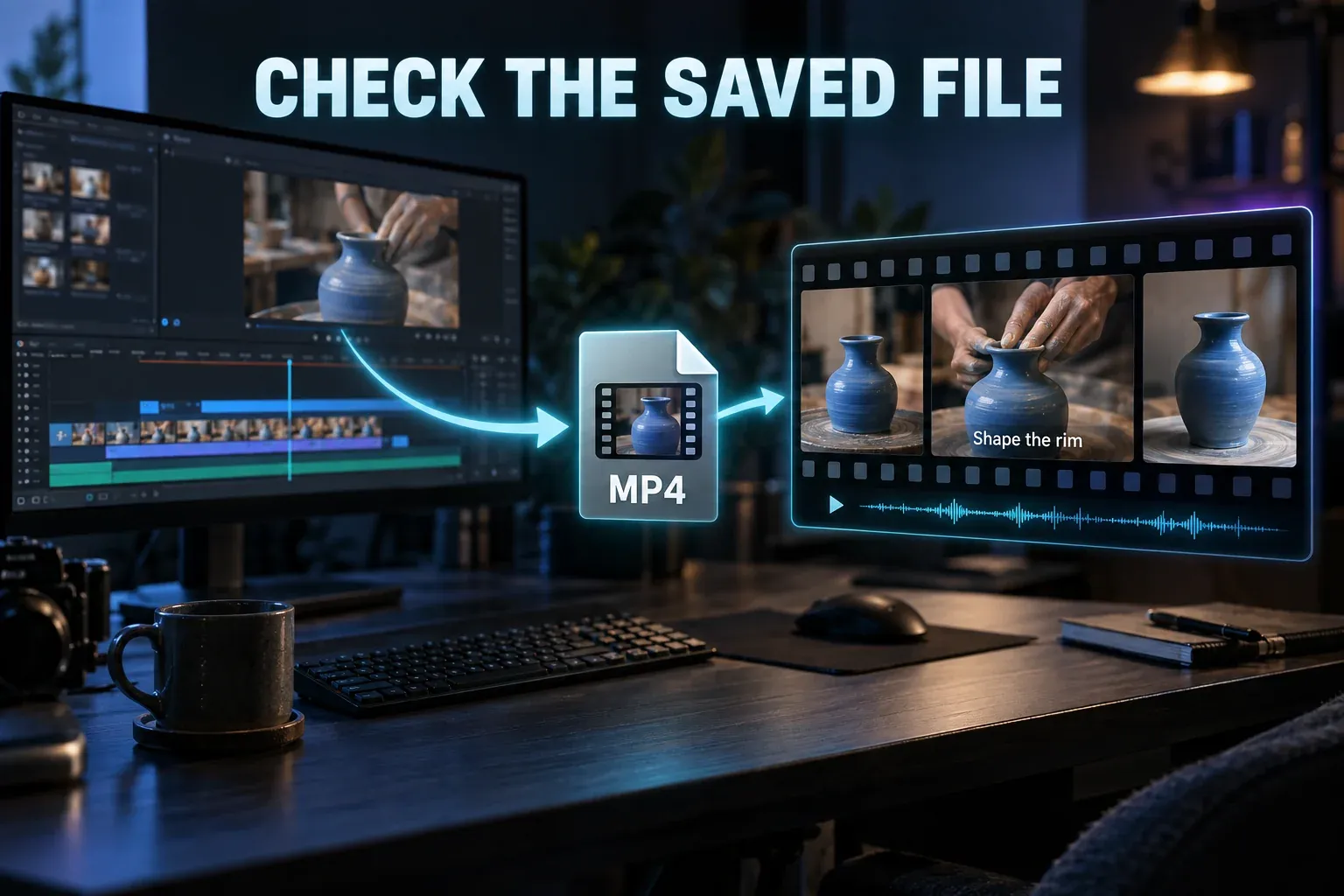
- Save the export to Photos or a known folder. Play that saved file outside the editor. Check that the image is sharp enough to read, the audio is the intended track, text is not clipped and no stray black ending remains.
- Note the file's duration, format and orientation. If it looks poor before upload, fix the project or export first. The site's CapCut export quality guide helps diagnose a soft or inconsistent saved video.
I would make a separate Pinterest version when the original edit depends on a wide screen recording, tiny labels or text at the bottom. Reframing for a reader is more useful than chasing a higher resolution number that cannot restore cut-off information.
Upload it in the Pinterest app
The current Pinterest app instructions for a video Pin say to sign in, tap the add icon at the bottom, tap Pin, select a video from the device and grant media permission if prompted. Tap Next, use Pinterest's optional edit tools if needed, then tap Next again. Add the Pin details and tap Create.
Before that last tap, choose a cover frame that tells someone what the video will teach or show. Enter a specific title and a useful description; choose a relevant board if you use boards, and add a link when there is a genuine destination for the viewer. Pinterest's instructions also offer related topics and, for eligible business accounts, scheduling. These controls are optional to the basic upload and may vary with account or app view.
Selecting more than one image or video in the app can make a single stitched video Pin, according to Pinterest. If your intended result is one edited CapCut video, select just its exported file so Pinterest does not combine it with unrelated media.
Upload it from a computer
On the web, Pinterest's video Pin workflow begins with Create at the top left. A business account may show a menu where you choose Create Pin. Choose the video with the upload control or drag it into the upload window. Pinterest says each of up to ten selected videos becomes a separate Pin, unlike the app's multiple-media stitching behavior.
Set the cover, title, description, optional link and board. Review the visible Pin preview, finish any edits with Done, then click Publish. If the web uploader refuses a MOV file that worked on your phone, check the web-specific format list: MP4 and M4V are listed there; MOV appears in the mobile app list.

Check the published Pin, not just the upload preview
Open the published Pin on the account you meant to use. Confirm the correct video plays, its opening and cover communicate the topic, captions are visible and the description and destination link match the content. If text is burned into the video and hidden by the player, move it in CapCut and upload a fresh export; changing the Pin description cannot move video text.
A link is useful when the video introduces a recipe, tutorial or product page and the destination actually continues that task. If there is no relevant destination, leave the link out. Write the title for a person scanning Pinterest, not a string of repeated keywords. Pinterest's Pin specs allow a title up to 100 characters and a description up to 800 characters, but the description is not displayed in every feed view. Let the cover and opening seconds carry the point on their own.
If the upload or framing goes wrong
Pinterest cannot see the video on your phone. Check that CapCut finished saving it and that the Pinterest app has access to the relevant photos or files. Find and play the saved file first, then retry from the app's Pin creator.
The file is rejected. Compare its actual type, codec and duration with the current video Pin specs. Re-export a compatible file; renaming an incompatible file to “.mp4” does not change its encoding. On the web, use MP4 or M4V rather than assuming the phone's MOV allowance applies there.
The video looks cramped or clipped. Return to the edit, move captions inward and adjust the crop around the meaningful action. Pinterest lists numeric safe zones in its spec guide, but those figures apply to its specified layout; check the actual Pin preview rather than treating one measurement as universal across every screen.
The wrong cover, board or link appears. Stop and review these Pin fields before publication. After publishing, inspect the live Pin and make the needed correction through Pinterest's available edit controls; if the video content itself is wrong, prepare a corrected export.
For another destination, use the separate Facebook upload guide or LinkedIn upload guide. The social video hub connects those platform workflows, while this page stays focused on a Pinterest video Pin.