

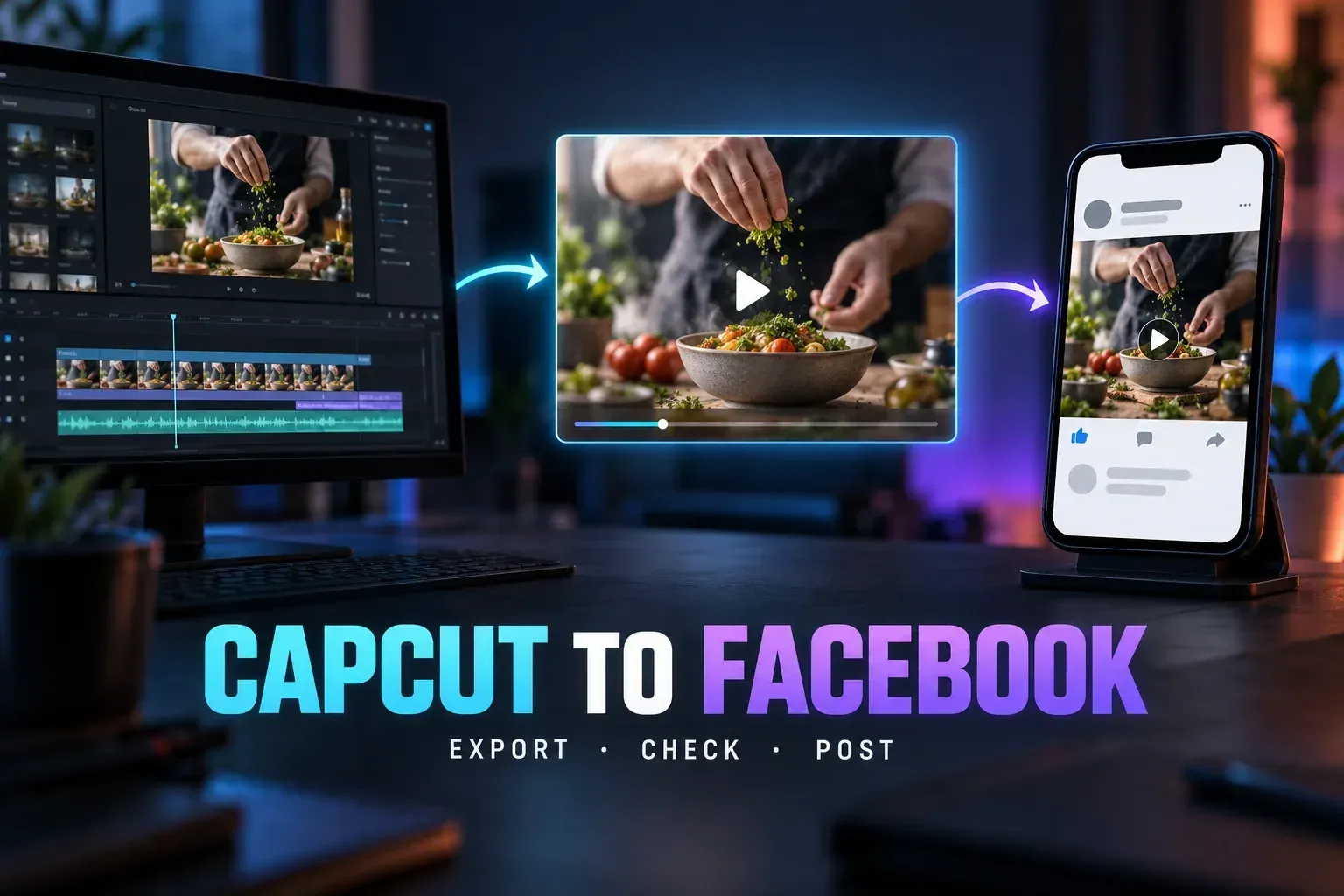
Checked September 24, 2026. Facebook's video composer and CapCut's sharing options can differ across devices and accounts. The file route below works even if a direct Facebook share option is absent.
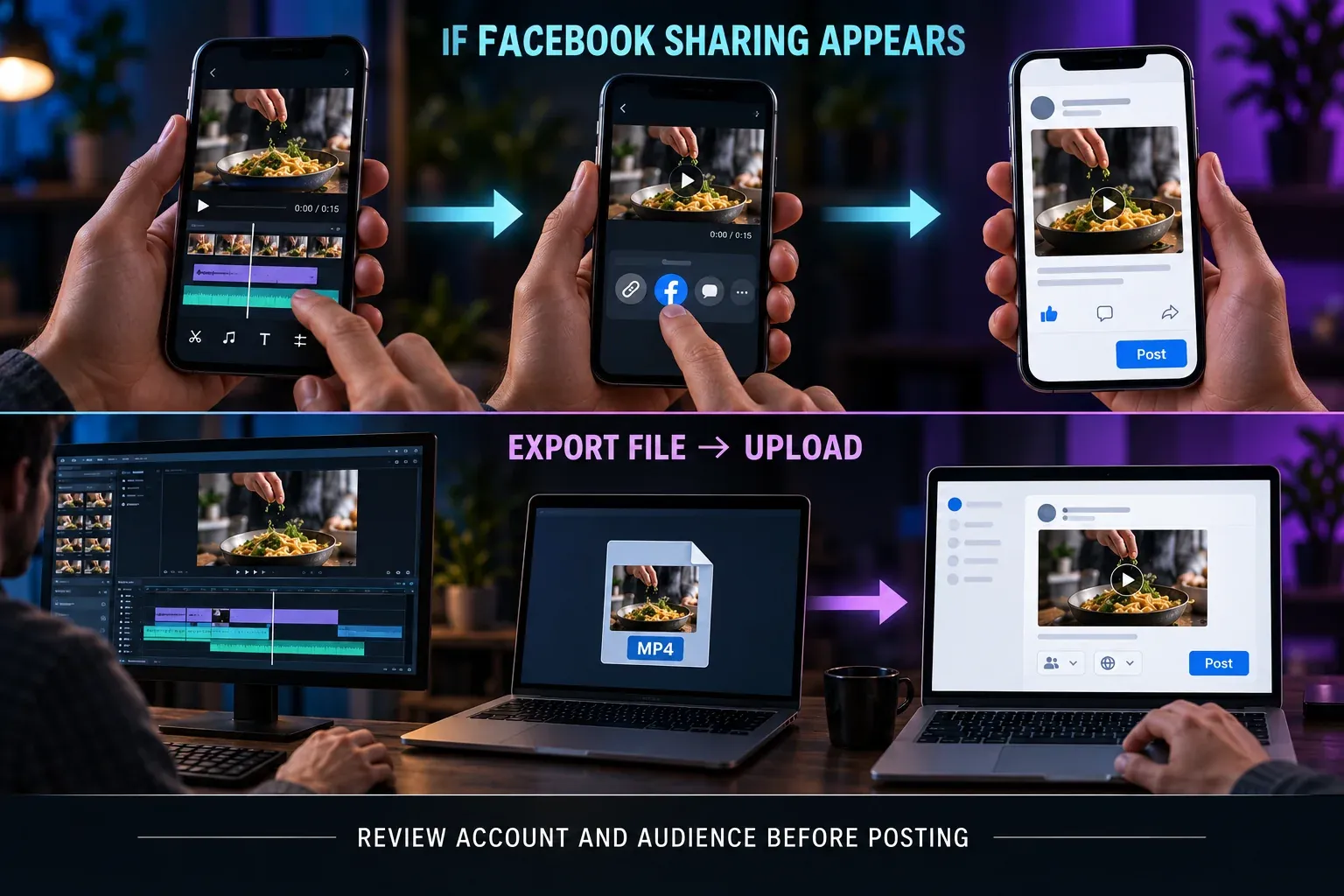
Finish the edit, export a video file from CapCut, then upload that file from the Facebook profile or Page where it belongs. If CapCut on your phone offers Facebook as a share destination, you can take that handoff instead—but check the destination and audience before publishing. A successful export is not a published post.
The label “video” versus “Reel” can be confusing. Meta's announcement of a unified video publishing flow says new Facebook videos will be shared as Reels, with a gradual rollout to profiles and Pages. Follow the composer your account actually shows rather than searching for a separate button that a tutorial happened to capture.
Pick the route that fits your edit
| Starting point | Next move | Why |
|---|---|---|
| Editing on CapCut mobile; Facebook is offered in Share | Try the direct handoff. | Faster for a phone edit if you can review the destination and audience. |
| No Facebook destination, an uncertain handoff, or a Page that must use its own composer | Export the file and open Facebook yourself. | You choose the account/Page before attaching the video. |
| Editing on CapCut desktop or web | Export a file, inspect it, then upload through Facebook. | The saved file gives you a clear handoff between apps. |
Export a video that suits the post
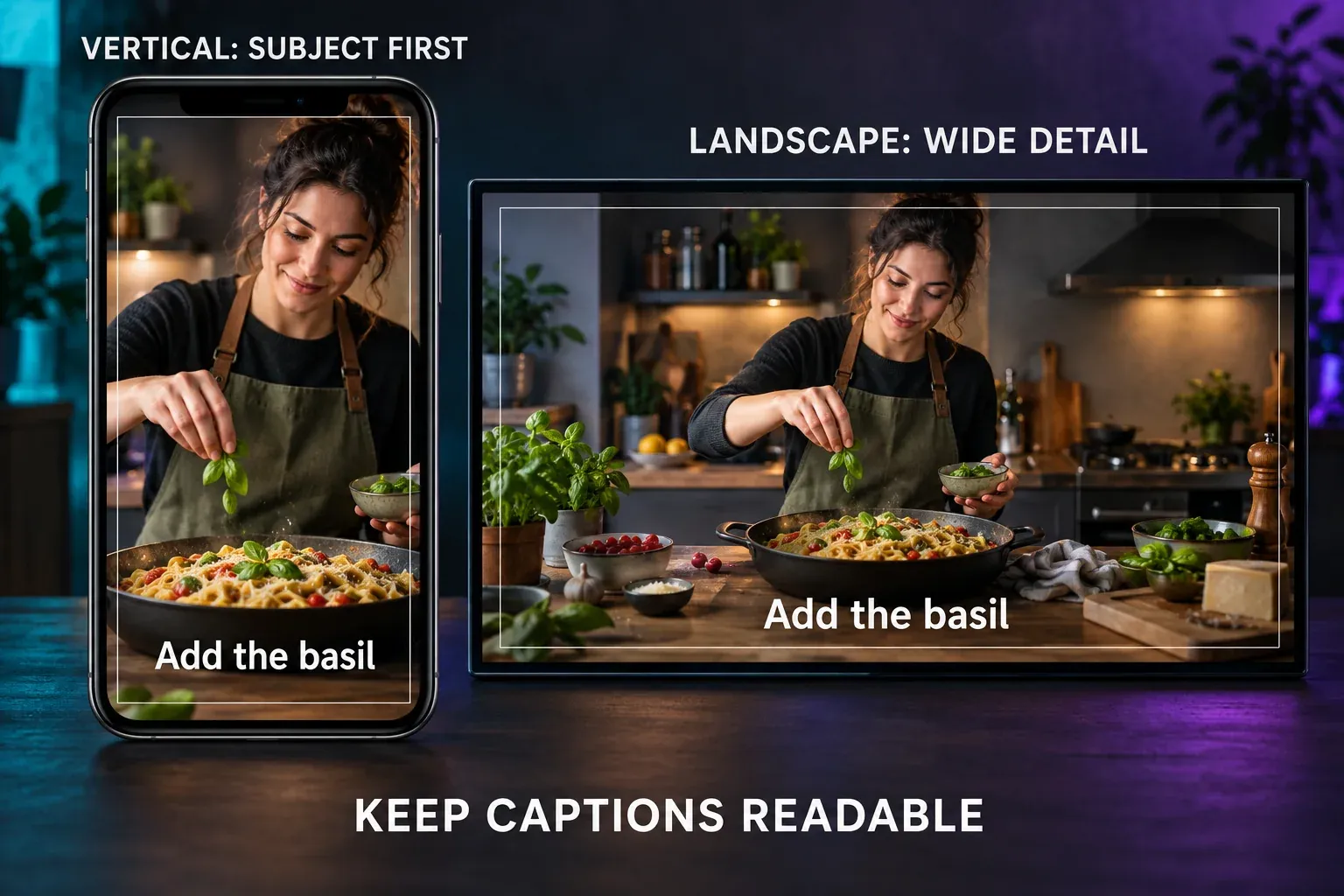
Start with the story, not a supposedly universal Facebook preset. A portrait talking-head clip usually reads best vertically; a screen demonstration or a wide scene may need landscape space. The important choice is whether the subject and on-screen words remain clear in the feed and playback view. Do not crop a wide demonstration into a narrow frame if the action disappears.
- In CapCut, finish the edit and check the first frame, text placement, captions and ending. Make sure important text has breathing room from the video edges.
- Choose Export, select a video format your version offers for a normal Facebook upload, and save it to your device. CapCut's official Facebook upload guide describes downloading the edited video and uploading it to Facebook from a computer or phone. Available export labels and options vary by CapCut product and build.
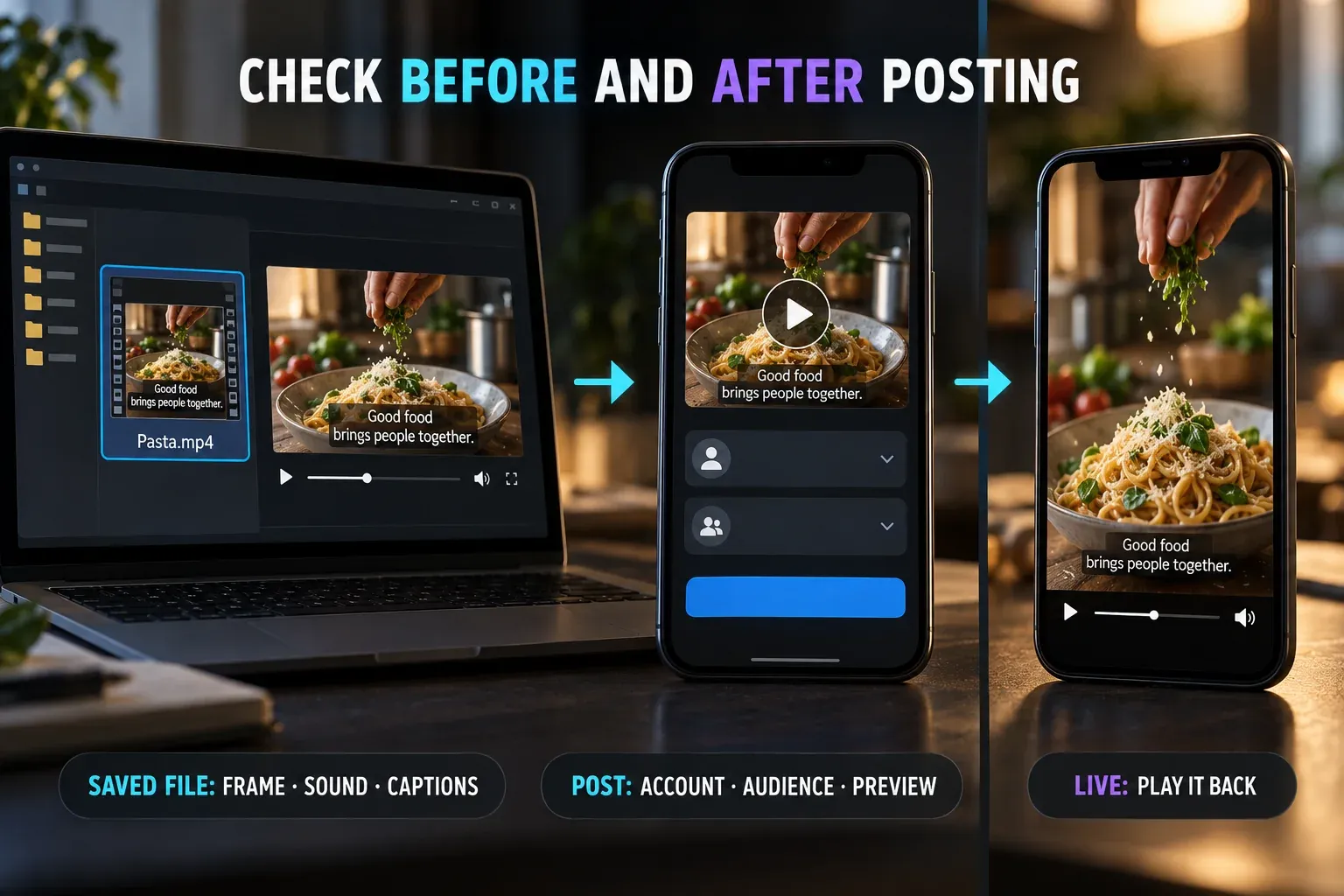
- Find the saved file in your phone's video library or your computer's export folder. Play it once outside the editor: check framing, sound, captions, the opening and the final seconds. If the actual file has a problem, fix the edit or export and replace the file before posting.
If the saved file looks soft before Facebook sees it, the CapCut export quality guide covers that earlier stage. Do not diagnose compression in Facebook before checking the file you supplied.
Post from a phone or computer
On a phone: open Facebook and switch to the intended profile or Page. Start a video or Reel post in the composer available to that account, choose the exported file from your device, and let Facebook prepare its preview. Add a description that gives the viewer a reason to watch. Review the destination, audience and video before choosing Publish or Share. If Facebook asks for permission to access your media, grant the access needed to select that file.
On a computer: open the intended Facebook profile or Page and start a post with video in its available composer. Select the file you exported from CapCut. Wait for upload/processing and inspect the preview, accompanying text and audience before posting. Names and order of the controls may differ for a profile, Page or an account in a different rollout stage.
In either case, check the audience explicitly. Meta says its unified Reels and Feed audience controls may prompt people to confirm or change their setting as the new publishing flow reaches them. Do not assume the privacy setting from an older Reel or Feed post carried over unchanged. For a Page, verify you are posting as that Page rather than to your personal profile.
After publication, open the post from the intended account and play the video. Look at the opening frame, captions, audio and written description. If the composer is still processing, wait and confirm that a post exists before trying another upload; otherwise a retry can leave duplicate posts.
If CapCut offers a direct Facebook share
On mobile, finish the edit and open CapCut's export or share flow. If Facebook is listed, select it and follow the handoff. Inspect whichever Facebook screen opens: is it the right profile or Page, is the video the correct export, and can you see or set the audience and accompanying text? Publish only after those checks. CapCut's Facebook sharing overview discusses sharing the finished edit but does not establish one permanent control path across every current app build.
If the option is missing, the handoff opens the wrong identity, or you cannot review the final post, save the file and use Facebook's own composer. There is no reason to hold up a finished video while hunting for a particular share icon.
Does Facebook turn this into a Reel?
Meta announced that new video posts would be shared as Reels and that the combined publishing flow would roll out gradually worldwide to profiles and Pages. It also said the prior Reel length and format restrictions would go away in that flow; that is not a promise that every arbitrary file will upload or process. The exact label your composer shows can still vary. The practical question is whether your chosen file, crop and audience are right for the post, not whether you found an older “video” menu from a screenshot.
Keep Facebook's changing platform guidance separate from CapCut export settings. A vertical video is useful for a phone-first subject; a horizontal composition can preserve wide detail. Neither orientation alone determines who sees the post.
Fix the problem at the right stage
The video isn't in Facebook's picker. Confirm you exported a video file, know where it saved, and gave Facebook access to the relevant photos/files. On desktop, browse to the export folder. A CapCut project or template link is not the same as the finished video file.
The upload stalls or the file is rejected. Check the connection and the actual saved file. Try reopening the composer and uploading a compatible export rather than repeating a failed handoff. Do not rely on an old fixed duration or size figure from an earlier tutorial; Facebook's processing and available publishing surfaces can change.
The preview is cropped or subtitles are obscured. Return to the CapCut project, adjust the composition or move captions inward, export again and upload that new file. Facebook's post text and captions burned into the video are different things; fix the one that is wrong.
The wrong account or privacy setting appears. Stop before publishing, switch to the correct profile or Page in Facebook, and inspect the audience control in that composer. If the direct handoff hides the decision, use a saved file instead.
For the broader platform routes, the CapCut social video hub links the TikTok, Instagram, Shorts and LinkedIn guides. Facebook needs its own last-mile check: the right file on the right profile or Page, shown to the right people.