

Checked September 24, 2026. Sharing controls can differ by app version, device and account; LinkedIn's current video requirements are the final check before an important upload.
You have two practical routes. If the LinkedIn option appears in CapCut on your phone, try the direct handoff and review whatever LinkedIn shows before publishing. If it does not show enough to check the post, use a saved file instead. If it does not appear—or you edited on a computer—export a video file and upload it through LinkedIn's ordinary post composer. The second route gives you a saved copy to inspect and reuse.
The distinction matters because LinkedIn's announcement of direct CapCut sharing describes a mobile workflow with the latest versions of both apps. It is not a promise that every CapCut build displays a LinkedIn button.
Which route should you take?
| Your situation | Best next move |
|---|---|
| Finished on a phone and LinkedIn appears in CapCut's share options | Try the direct route; use a saved file if the handoff does not let you check the account, video and text. |
| No LinkedIn option or authorization fails | Save the exported video, open LinkedIn and attach it to a normal post. |
| Finished in CapCut desktop or web | Export the file, inspect it, and upload from LinkedIn on desktop or mobile. |
| Posting for a Page or a team | Prefer the composer for the correct Page and check its permissions before publishing. |
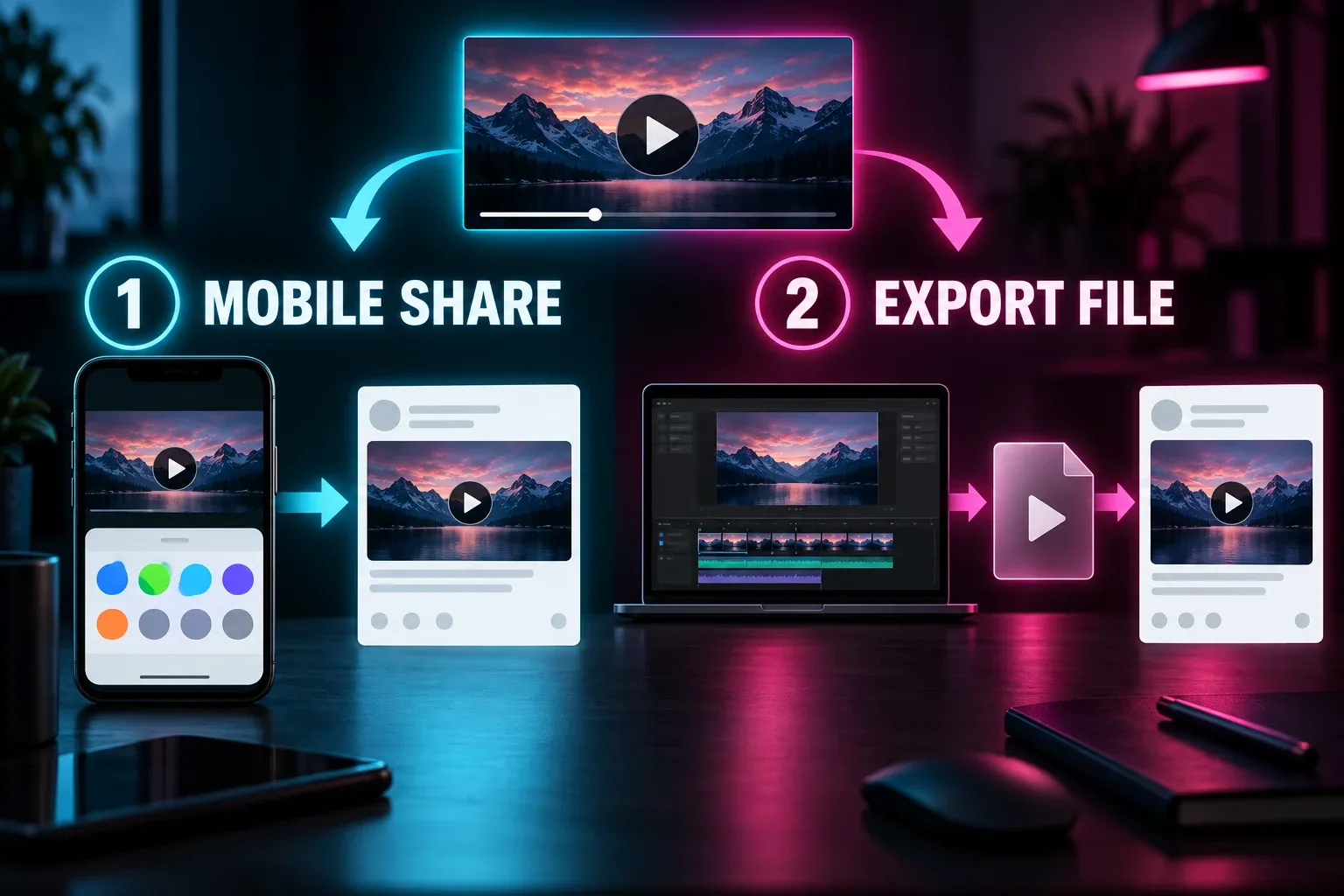
Route 1: Share directly from CapCut on mobile
LinkedIn's mobile integration announcement says to update LinkedIn and CapCut, create a video from a template or from scratch, and post from CapCut. Its illustrated entry point uses a “Made in CapCut” label on a LinkedIn video to start a template; you do not have to assume that this is the only way to create the edit.
- Finish the edit on your phone. Before sharing, scan the first frame and the final seconds, read the captions and leave important words clear of the frame edges.
- Open CapCut's export or share flow. If LinkedIn is offered as a destination, select it and follow the handoff to the LinkedIn account you intend to use. Labels and order can change between builds.
- Check the preview or composer LinkedIn actually opens. Verify the destination profile or Page, video, audience and accompanying text where those controls are available. Write a sentence that tells a professional viewer what they will learn or decide, rather than repeating the on-screen title. If the handoff does not let you check the identity, video and text, save the file and use Route 2.
- Publish only when you can review the post you intend to send. Return to the live post and check playback and text. A successful handoff from CapCut alone does not confirm the public result.
If you cannot see the destination, do not keep hunting for a hidden desktop control. Use Route 2. Updating the two mobile apps and checking that you are signed in are reasonable first checks, but the saved-file path does not depend on that integration appearing.
Route 2: Export a file and upload a LinkedIn video post
This is the dependable path for desktop edits, Page publishing and anyone who wants to check the file before handing it to LinkedIn. LinkedIn's video-sharing instructions describe video uploads from both the desktop share box and the phone's camera or gallery.
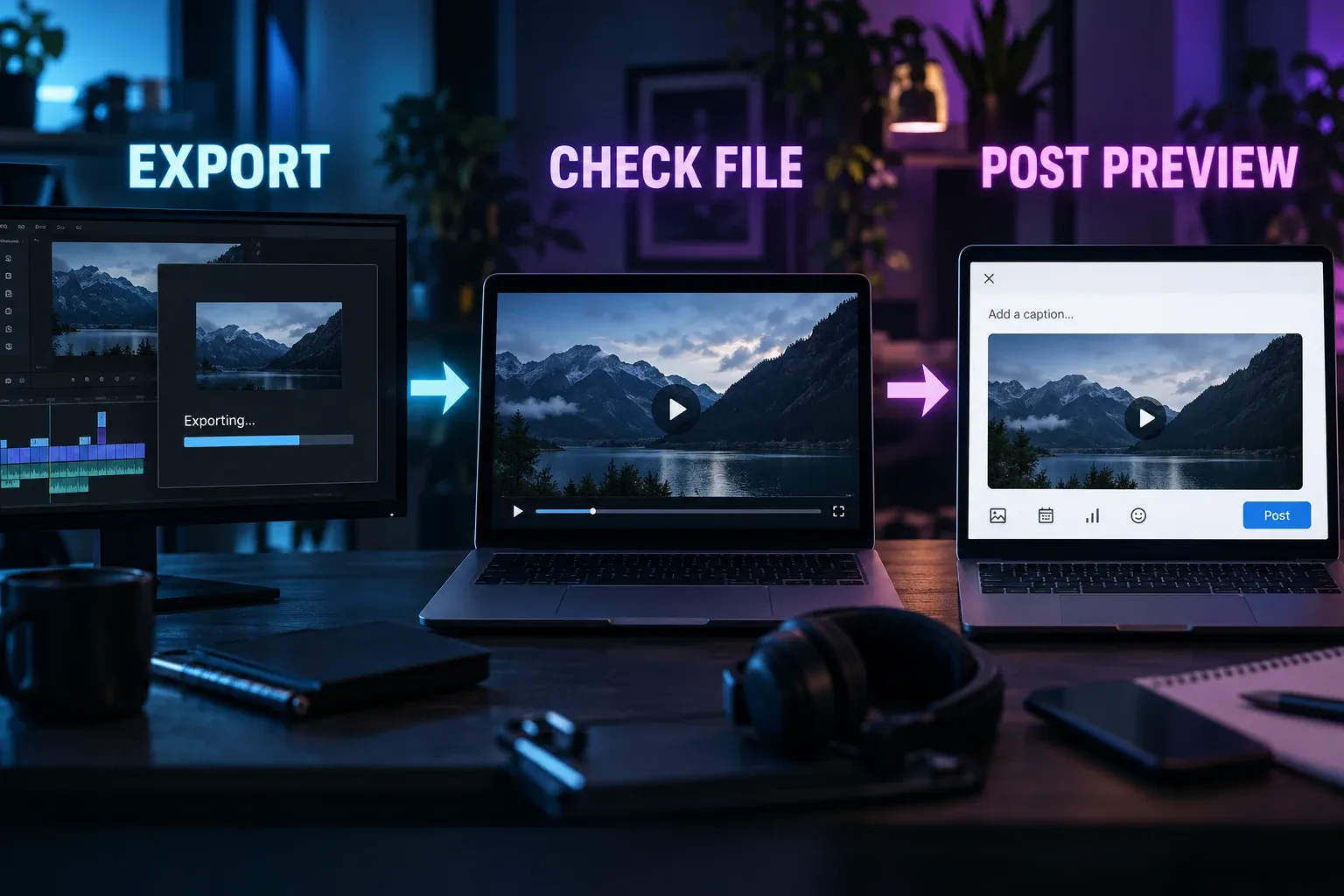
- In CapCut, choose a frame that preserves the subject and leaves room around captions. Open Export and choose an available video format that LinkedIn accepts. Do not force a 9:16 crop onto a wide screen recording merely because LinkedIn has a vertical feed.
- Save the file to a location you can find. Watch the saved video outside the editor: inspect the opening, transitions, captions, audio and end frame. This is a quality check on the file you will upload, not a claim that a preview in CapCut guarantees the result.
- Open LinkedIn's post composer on the intended profile or Page. Add the saved video using the video control, drag-and-drop where supported, or the gallery on mobile. Let the upload and processing finish.
- Check the thumbnail or opening frame, any LinkedIn caption controls, the written post and its audience. Publish, then open the post to confirm it displays and plays as intended.
For a file that looks soft after export, start with the site's CapCut export quality guide before changing your LinkedIn post. If your next destination is a shorter vertical format, the CapCut YouTube Shorts guide covers a separate framing task.
Check the file LinkedIn will receive
LinkedIn's current video file requirements set the following limits for ordinary uploads. They can change, so check the linked help page when preparing a large or unusually shaped file.
| Check | LinkedIn's stated range or limit | What to do in CapCut |
|---|---|---|
| File size | 75 KB minimum, 5 GB maximum | If too large, make a fresh export with a smaller file size while protecting readability. |
| Duration | 15 minutes maximum; 3 seconds minimum from desktop, 2 seconds from mobile | Check the actual exported duration, including any stray tail. |
| Resolution | 256×144 through 4096×2304 | Keep the intended subject and text legible; more pixels cannot rescue a bad crop. |
| Aspect ratio | 1:2.4 through 2.4:1 | A vertical or wide video can qualify; choose framing for the message. |
| Frame rate | 10–60 fps | Stay inside the range and avoid changing frame rate without a reason. |
The same help page lists supported video file types and warns that a file such as ProRes may upload but fail processing. When an export is rejected, compare the actual saved file with those rules and make a compatible export instead of retrying the same one repeatedly. CapCut's available export controls vary by product and build.
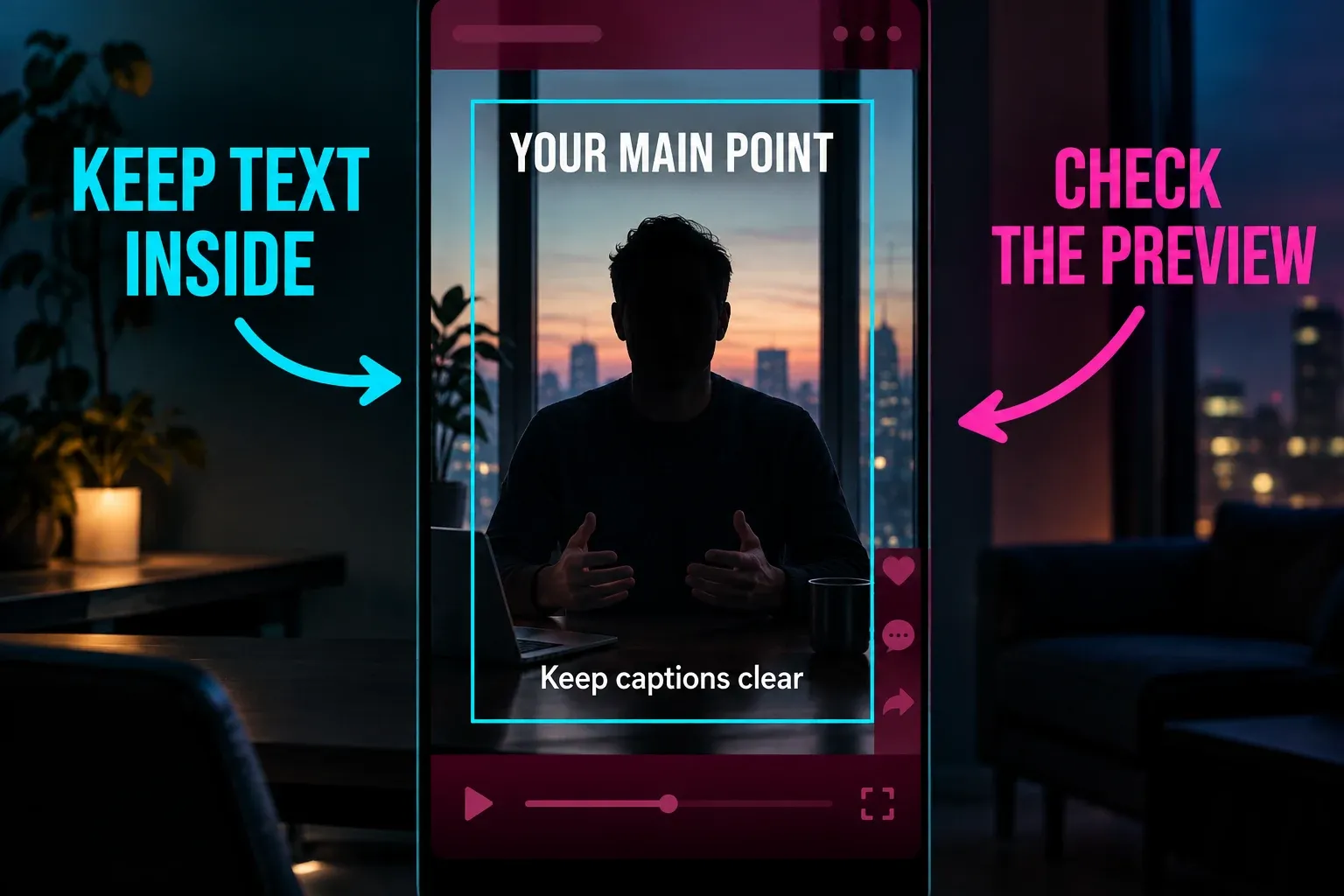
LinkedIn also advises keeping essential text and logos away from the video edges so its interface does not cover them. I would give subtitles breathing room before worrying about a magic “safe-zone percentage”: the visible player and post surface are what the reader will see.
Will the video appear in LinkedIn's vertical feed?
Publishing a normal video post and appearing in the vertical video experience are different things. LinkedIn's full-screen video guidance says there is no dedicated way to post directly into that feed. A video posted to LinkedIn may be eligible for the video feed, tab or carousel based on relevance and performance; placement is not guaranteed, and the experience may not be available to every member.
That is why the best decision is about the actual post, not an imagined separate “Reels” upload: choose a crop that explains the work, give the viewer context in the post text, and keep on-screen captions readable. Vertical can be useful for a speaker or phone demonstration; landscape can be better for a screen walkthrough whose important detail spans the width.
When the upload goes wrong
LinkedIn is missing from CapCut's share options. Confirm you are on mobile and both apps are current. If the option is still absent, export the file and use LinkedIn's post composer. Do not treat feature rollout or menu labels as universal.
The upload stalls on iPhone. LinkedIn's upload guidance says to remain in the LinkedIn mobile app during upload on iOS. Once processing begins, you can move to other apps. Android may continue the upload in the background. Before restarting, check whether the post is still processing so you do not publish a duplicate.
The file is rejected or never processes. Inspect type, size, duration, resolution, ratio and frame rate against the current file requirements. Export a new compatible file if one of those is outside range or if the chosen codec will not process.
The caption sits under player controls. Go back to the project, move the text inward and export again. A fresh upload is needed for text burned into the video. Also read the written post separately; moving video subtitles will not fix a weak explanation in the caption below it.
The wrong account or Page opens. Stop before publishing. Switch to the intended LinkedIn identity in its composer or upload the saved file there. Check Page permissions when posting on behalf of a company.
A good LinkedIn upload is one a stranger can understand with the sound muted, with the sound on, and from the written post alone. Those are editorial checks you can make on the saved file and final preview; they are not a claim that every audience will see the video in the same feed.