

Use CapCut's photo colorization tools to propose colors for a black-and-white image, then compare the result with the original. CapCut documents a Desktop AI Design colorization workflow that takes an uploaded photo and a text instruction. Keep the source: a convincing colored version can still alter a face, a wheel or a piece of lettering.
If an older tutorial sends you to Magic tools > Photo colorizer, check which workspace the tutorial describes. That dedicated Web route isn't the same entry as the AI Design procedure. A missing button isn't a reason to buy Pro or install an old build before you've checked the current choices.
I'd count the first result as a proposed edit. Keep that version only when the color helps the picture and the details you care about survive.
Choose colorization, correction or restoration
Colorization adds proposed hues to a grayscale image. Ordinary color correction adjusts colors that are already there. Damage repair is a third job: scratches, torn areas or missing detail. One attractive result doesn't prove all three jobs were done well.
| Your source | The useful job | What to watch |
|---|---|---|
| A black-and-white photo | Colorization | The model chooses plausible colors; those choices need review. |
| A color photo with a cast or weak contrast | Color correction | Preserve existing hues while adjusting light and balance. |
| A scratched, torn or severely blurred scan | A separate restoration decision | Repair may invent detail; keep an untouched copy for comparison. |
If your footage already has color, use the color-correction guide instead. Pushing up saturation on a truly grayscale image can't recover colors the file doesn't contain.
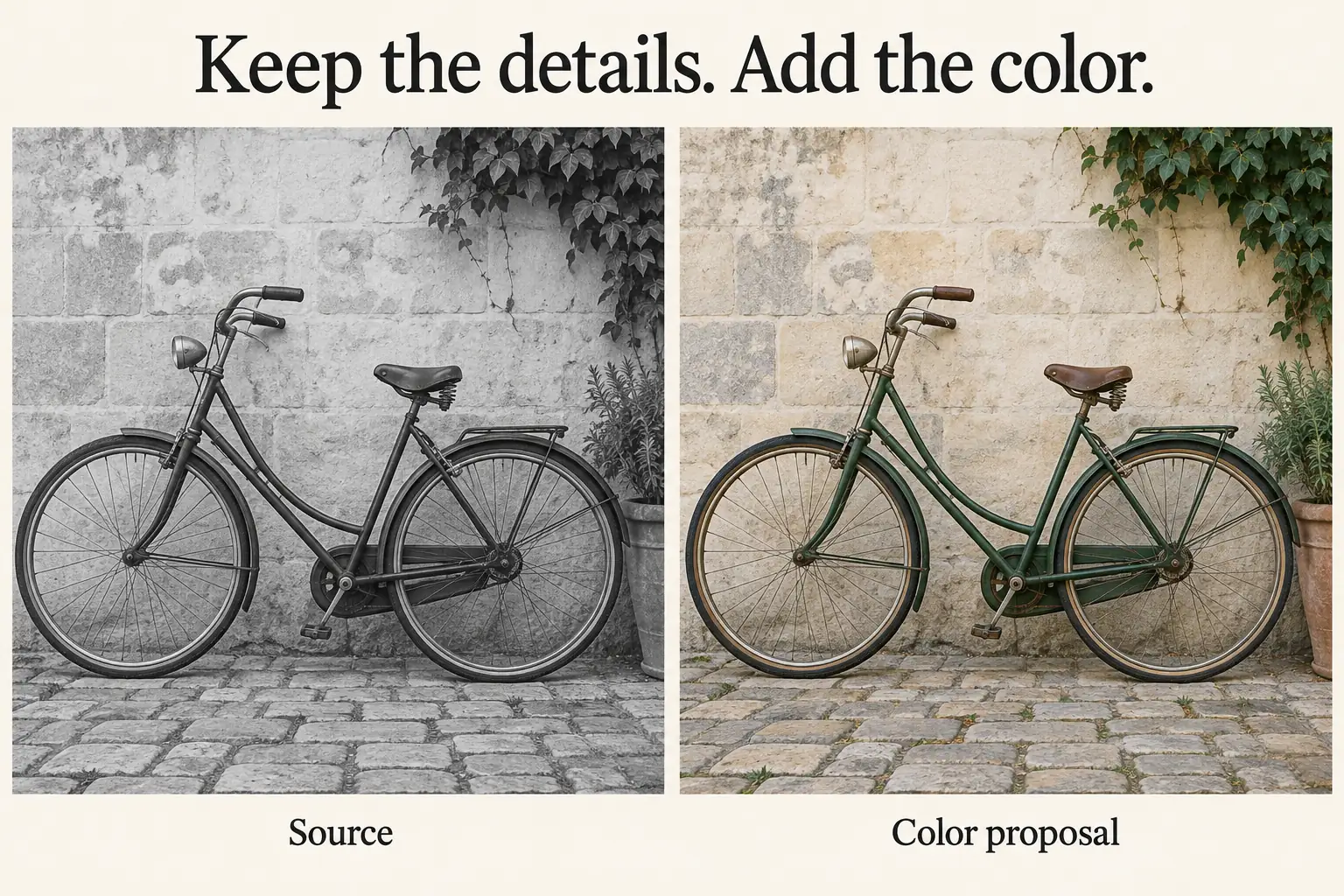
Start with the best scan you have instead of a compressed copy that's been forwarded through several messages. Straighten the picture on a working copy and crop away an unwanted scanner border. Hold off on heavy sharpening until you know whether the new version will keep the edges intact. The photo-editor guide covers those prep steps and the still-image export choices.
Colorize a photo with Desktop AI Design
If your current Desktop build offers AI Design, follow this documented sequence:
- Open AI Design and write a short instruction asking for colorization.
- Choose Upload image and add the black-and-white photo as the reference. Check that you selected the right file.
- Read any access or credit notice, then choose Send to request the edit.
- Compare the result with the source before refining it. Reject changes to important shapes, expressions, lettering or objects.
- For a version worth keeping, select the photo and open the adjustments panel shown with a sliders icon. Refine the offered warmth, saturation or vibrance controls in small amounts.
- Use the offered Download or Copy as PNG option. Save the colored version separately and inspect the downloaded image.
Here's an example instruction for a bicycle photograph: “Colorize this black-and-white photo with restrained, natural colors. Keep the bicycle's frame, spokes, wheels, wall texture and composition unchanged. Do not add objects or alter lettering.” It describes the edit you want, but it doesn't guarantee preservation.
Add a known color only when you have a reason to specify one. If another photograph establishes that this particular bicycle was green, put that fact in the instruction. With no reference, leave the result as a possible interpretation instead of calling it the original color.
Keep the request narrow. If you ask for color, scratch removal, a new background and a sharper face at once, it's harder to tell which change damaged the photo. Make the one change you need, compare the result, then decide whether another edit is justified. Our AI image guide covers broader reference and prompt choices when you need them.
If you are following the older Web colorizer route
CapCut's dedicated Photo Colorizer page describes Magic tools > Photo colorizer, followed by upload, Preview, optional Edit more and Download. Follow that sequence only if those controls show up in the workspace you land in.
That entry can redirect you instead of opening the tool the landing page describes. If you end up on Home, a different editor, a regional access notice or an unsupported-browser message and the Photo colorizer controls never appear, stop there. Go back to a photo workflow that's currently offered, or use the Desktop AI Design route above if that route is available to you.
Don't confuse a B&W to color video template with colorizing a grayscale source. A template like that may reveal the original colors of a photo that was already in color, after first showing the photo in black and white. That reveal effect doesn't establish what colors an old monochrome photograph should have.
On Mobile or Web, start with the image-editing tools available to your account. If you have a reference-image AI editor, you can ask the editor for a colorization edit and inspect the result. Don't assume the Desktop button names show up on those platforms, or that a video timeline's Export gives you a still photo. Keep the platform's own image-download route in mind.
Plausible color is not proof of the original color
CapCut's explanation of automatic colorization describes using learned image patterns to assign colors. That approach can give you a believable sky or coat without establishing the actual hue in the scene. Grayscale alone doesn't tell you whether a similarly dark painted object was blue, red or green.

With a family photo, check any known clothing, room furnishings or objects against another reliable image. In an archival or educational post, keep the original available and label the colored version a colorized interpretation when you present it. Don't swap an archival source for the edited file, and don't imply the camera recorded guessed colors.
A gentle palette can make uncertainty less distracting, but lower saturation doesn't make the guess historically correct. I'd keep the black-and-white original when the color adds confidence the evidence can't support.
Check details, edges and the saved file
Compare the source and the colored version at the same viewing size. Then look closely at the parts that define the image: facial features and expressions, fingers, wheel spokes, seams, signs, jewelry and repeated architectural details. A change to any of those features can matter more than whether the overall palette looks pleasant.
Watch for color that bleeds across an object's edge. Paint shouldn't spread from a bicycle tube onto the stone behind it, and a coat's hue shouldn't stain the surrounding skin. Check that shadows stay coherent, too, and that different parts of the same object don't switch to unrelated colors.
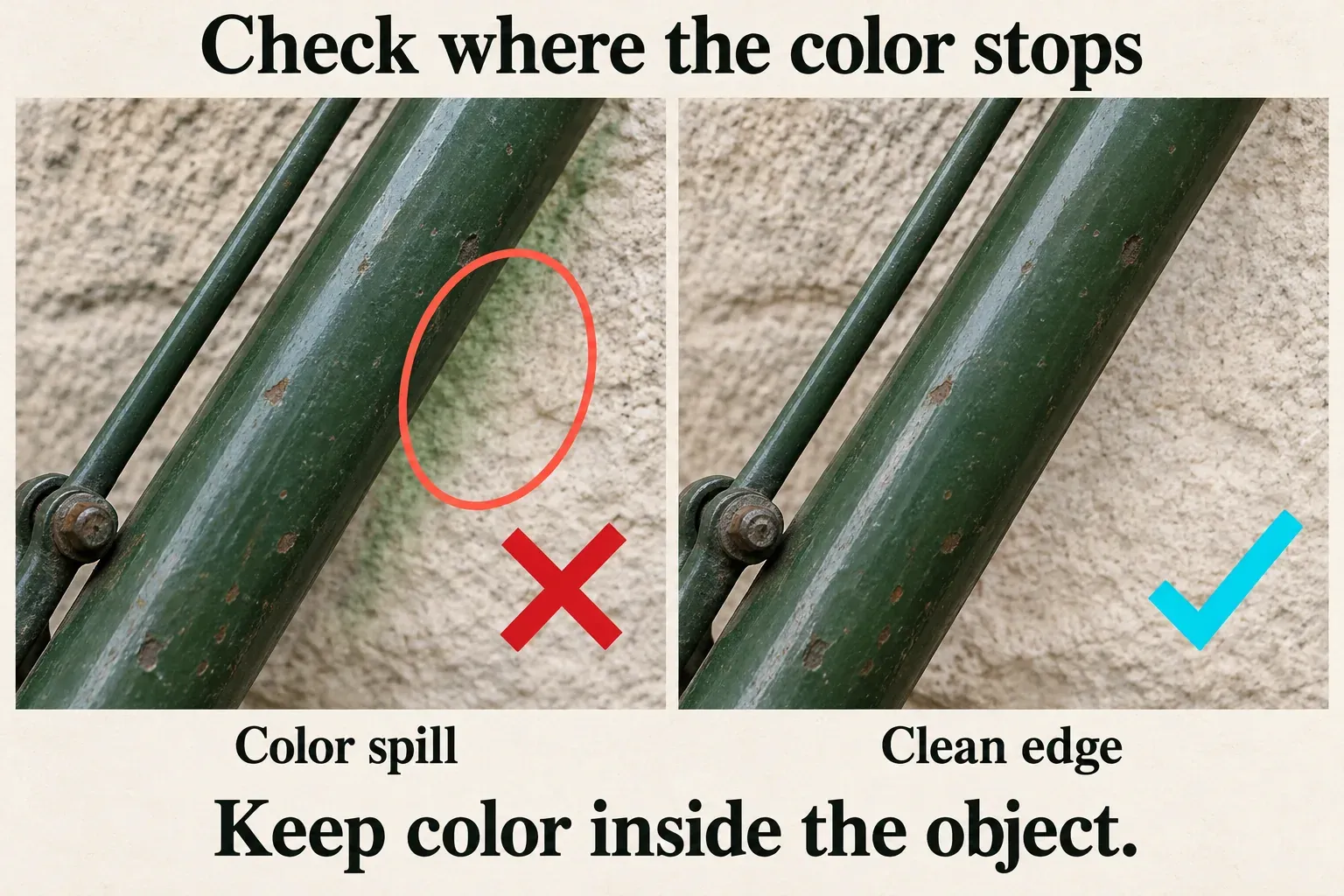
When the whole image is too warm or intense, make a small global adjustment and compare again. If one object is the wrong color, lowering saturation everywhere won't give that object the right hue. Revise the instruction for that area where the editor allows, switch to a more controlled editing method, or keep the original.
A “free” landing-page title doesn't promise unlimited edits for your account. CapCut's credit guidance explains how credits are deducted for AI actions that require them. Check the current notice for the operation you've selected before you confirm; no fixed colorization price follows from the general help page.
Finally, open the saved image outside the editor. Confirm you've got a still image, the intended dimensions, acceptable detail and the version you chose. Give the untouched scan and the colored copy distinct filenames. A good color edit gives you another way to use the picture without costing you the source.