

CapCut's Image Upscaler enlarges a still image and uses AI to estimate detail for the larger file. The Web upscaler instructions describe selecting a photo on the canvas, opening AI tools and choosing Upscale. After you download the result, check both its pixel dimensions and the details inside it.
A larger file helps when a photo needs more pixels for a layout. It isn't proof that a blurred sign became readable or that a product gained accurate texture. I'd keep an enlargement only when it improves the intended use without changing what the picture represents.
For a moving clip, use the CapCut Video Upscaler guide instead. The video upscaler's Desktop Enhance quality controls are a separate workflow from this still-image canvas.
Upscale a photo in CapCut Web
Keep the original photo, and decide which output you need: a thumbnail, a presentation image, a product listing or a print. Before you enlarge a compressed copy, find the highest-quality source available.
Where your Web workspace offers the documented controls:
- Open the Image area and choose New image.
- Upload your photo or drag it into the image editor.
- Select the photo on the canvas. Open AI tools in the editing toolbar and choose Upscale.
- Read any access or credit notice before confirming the operation. Use the enlargement choices offered in this workspace, then let it finish.
- Compare the enlarged result with the original. Check important detail before adding other effects or making another enlargement.
- Choose Download, set the offered file format, size and quality for your destination, then save the result separately.
If you only need to enlarge the existing photo, don't generate a new picture from a text prompt. A prompt-led rewrite can change the scene as well as its detail. CapCut's online photo-editor instructions describe AI Design and its further editing tools, including upscaling. Pick the operation that matches your task in the workspace you have.
The photo-editor guide helps you tell a still-image download apart from placing a photo on a video timeline. If Export only offers a video file, check your workspace before you turn the photo into an MP4 and try to retrieve the image again.
Choose dimensions before chasing a resolution label
Write down the source width and height in pixels. Then check what the destination requires. A small image placed in a small card may already be enough, while a full-width banner or print can need more pixels. Enlarging everything to the biggest advertised setting gives you larger files even when the layout doesn't benefit.
Here's a simple example, not a measured CapCut result: 800 × 600 contains 480,000 pixels. Enlarging that image to 1600 × 1200 doubles both width and height, giving 1,920,000 pixels. That's four times the pixel count. The enlargement doesn't give you four times the captured detail.
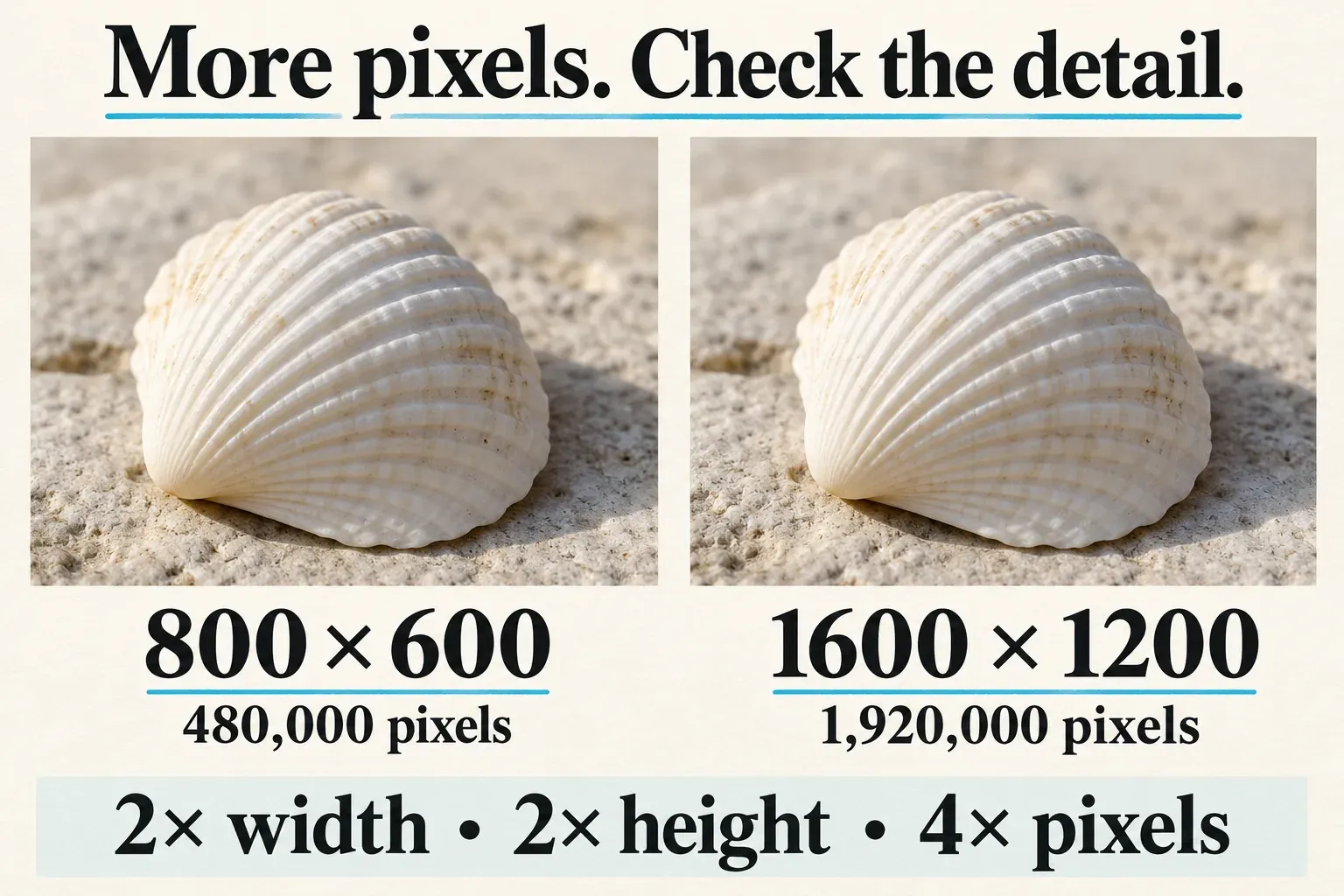
Check width and height separately instead of relying on “4K” or a percentage. An image can have a long edge near 4,000 pixels while the shorter edge follows a different aspect ratio. The output you pick in CapCut and the saved file's dimensions are more useful than assuming every resolution label describes the same rectangle.
Factor the crop into the decision too. If you enlarge a photo and then cut most of it away with a tight crop, the subject may still not have enough pixels left for the final layout. Crop deliberately, inspect the detail you keep and avoid repeated enlarge-and-export cycles when one pass from source to delivery will do.
Upscaling adds pixels within the image. Adding more scenery beyond the image's borders is a different operation. If the composition needs empty room for a title, reach for a canvas or background fix instead of expecting an upscaler to widen the scene. Our aspect-ratio guide covers framing decisions.
Inspect texture, boundaries and lettering
Look at the original and the enlarged file at a size that exposes detail, then judge the result at its intended display size. Those two checks answer different questions. Close inspection reveals changed edges, while the view at the destination size tells you whether the change is useful to a viewer.
Start with the subject's shape. Product corners, handles, seams, buttons and repeated patterns should stay consistent. In a portrait, compare features, expressions and hair boundaries instead of admiring newly sharp skin texture. If you need a faithful portrait, a polished face that no longer matches the source is a failed edit.
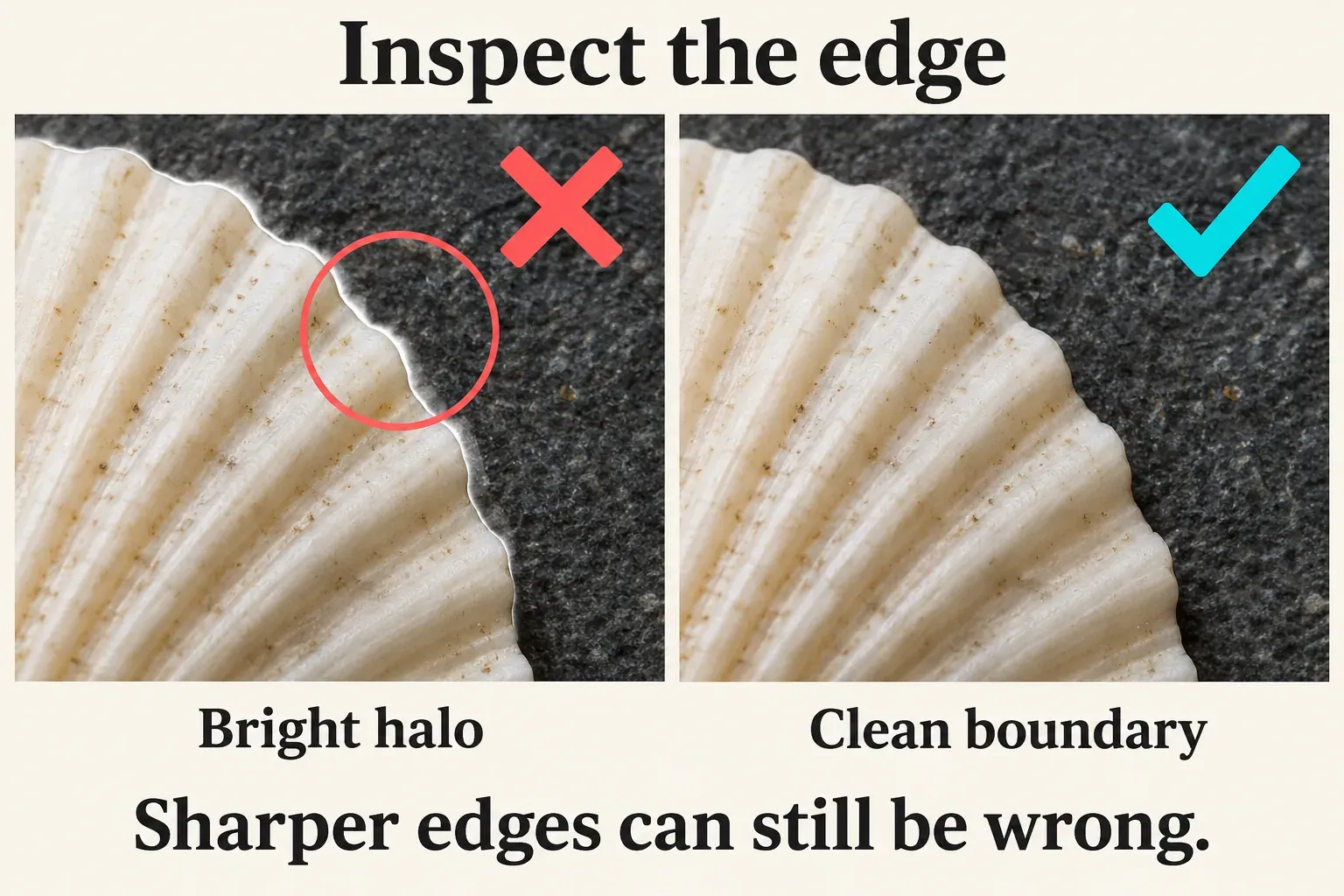
Next, trace the high-contrast edges. Watch for a bright rim around a dark object, doubled outlines or a border that looks unnaturally hard. Quiet textures need a look too. Fabric can pick up a repeating pattern, and smooth paint can gain grain that wasn't visible in the source.
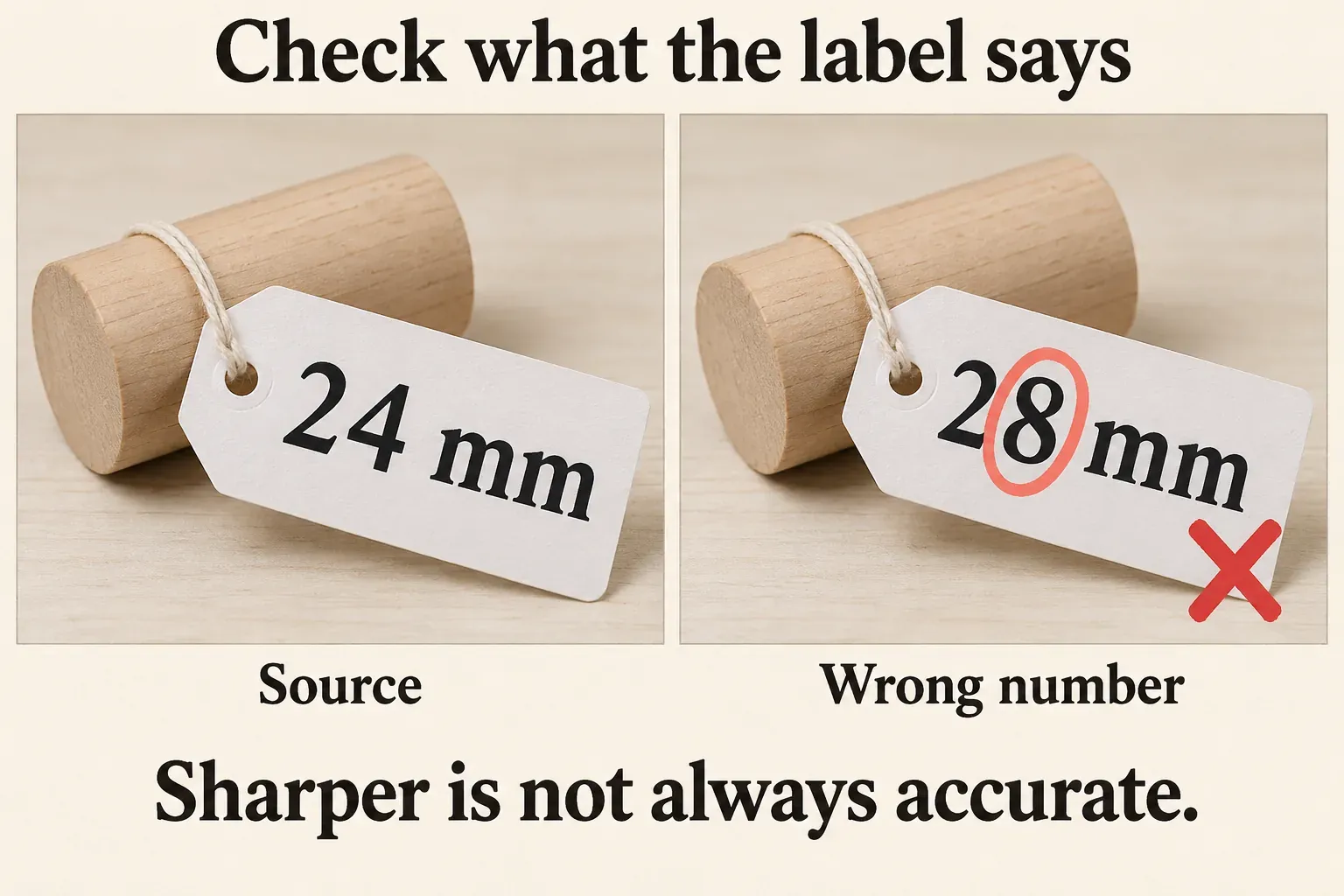
Small text is information, not decoration. For example, a product tag reading “24 mm” must not become a convincing “28 mm.” Compare the letters and numbers with the original or a reliable product reference. If the source is unreadable, the enlarged version alone can't prove the wording.
If a smaller enlargement option is offered, compare that version before you add more sharpening. You can also use the source at a smaller display size, pick a better original or change the layout. Sharpening an artifact won't make it accurate. For a product listing, keep the product's real shape, color and wording even if a smoother-looking result seems more attractive.
Handle missing tools, access and the final download
Before you look for AI tools > Upscale, make sure you've selected a photo in an image workspace. A video clip's toolbar and a template gallery are different places. A template called “4K quality” doesn't mean the template enlarged your source photo to a particular pixel size.
If New image or Upscale is missing, use the current image editor or AI Design options available to your account. Read the panel in front of you instead of assuming the same button exists on Mobile, Web and Desktop. If CapCut doesn't provide the enlargement you need, keep the source and use another suitable editor.
A page that advertises free upscaling doesn't settle every access condition. CapCut's credit instructions describe confirmation and deduction for AI operations that require credits. Check the quote or access notice for the operation you've selected, and don't assume a particular Pro subscription includes unlimited enlargements.
Before you publish the image, open the downloaded file outside the editor. Confirm its width and height, file type, crop and the version you chose. Then look at the subject and any text once more at the destination's size. Reject a larger file that shows the wrong lettering, even if it fills the layout cleanly.
Save the original and the accepted enlargement as separate files. If you need a different size later, go back to the source or the high-quality version you kept instead of enlarging compressed delivery copies again and again. What you're after is a photo that fits its destination and still represents the source accurately.