

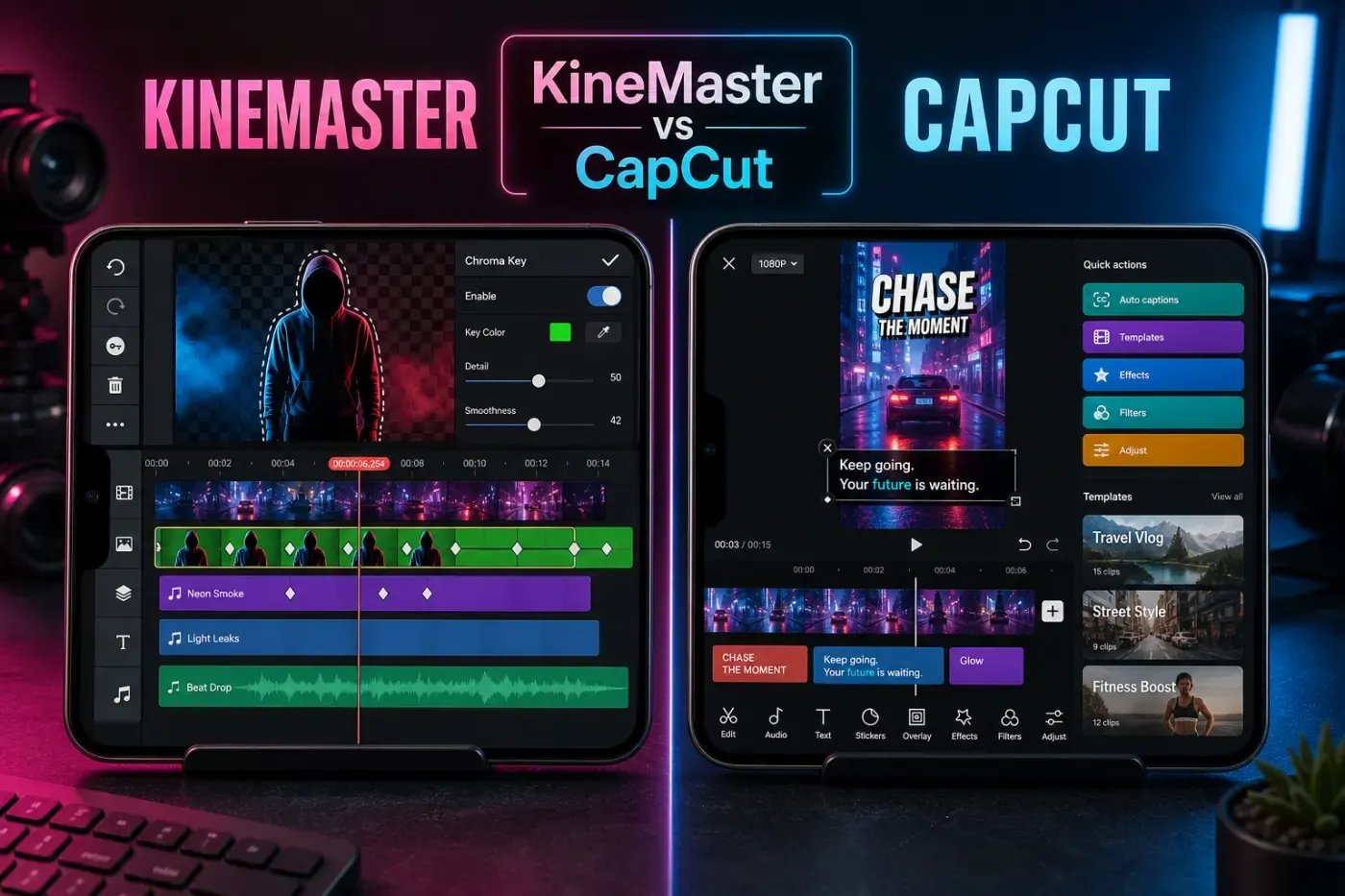
KineMaster is one of the most capable mobile-first alternatives to CapCut when you want to build an edit by hand. Its timeline exposes layers, keyframes, chroma key, blend modes and a real audio mixer instead of steering every decision toward a template. That control comes with a clear price line: the Free tier keeps the core editor and lists 4K/60fps export, but it adds a watermark and ads. Premium removes those two annoyances, unlocks Premium assets and adds KineCloud.
This KineMaster review was rechecked on August 27, 2026 against KineMaster's current feature, payment and support pages, the live Google Play listing and the US App Store listing. Older comparisons often use stale prices, put 4K behind Premium or describe KineMaster as a Windows editor. Those shortcuts can send a reader to the wrong plan or platform.
KineMaster Review Facts at a Glance
| Review fact | Current answer |
|---|---|
| Core product | A mobile-first video editor for Android, iPhone and iPad, with the iOS/iPadOS app also available on Apple Silicon Macs. |
| Free tier | Core editing tools, AI features such as Auto Captions and 4K/60fps export are listed as available, but Free exports carry a watermark and the app shows ads. |
| Premium | Removes the watermark and ads, unlocks Premium assets and includes KineCloud features. The current US web checkout displays $7.99 monthly or a promotional $51.99 annual price. |
| Timeline | Unlimited layers on one timeline, frame-level keyframes, chroma key, corner pin, 16 blend modes, speed from 0.1x to 16x and a dedicated audio mixer. |
| Export | 720p, 1080p, 2K/QHD and 4K up to 60fps, with bitrate control and H.264/H.265 options when the device supports the workload. |
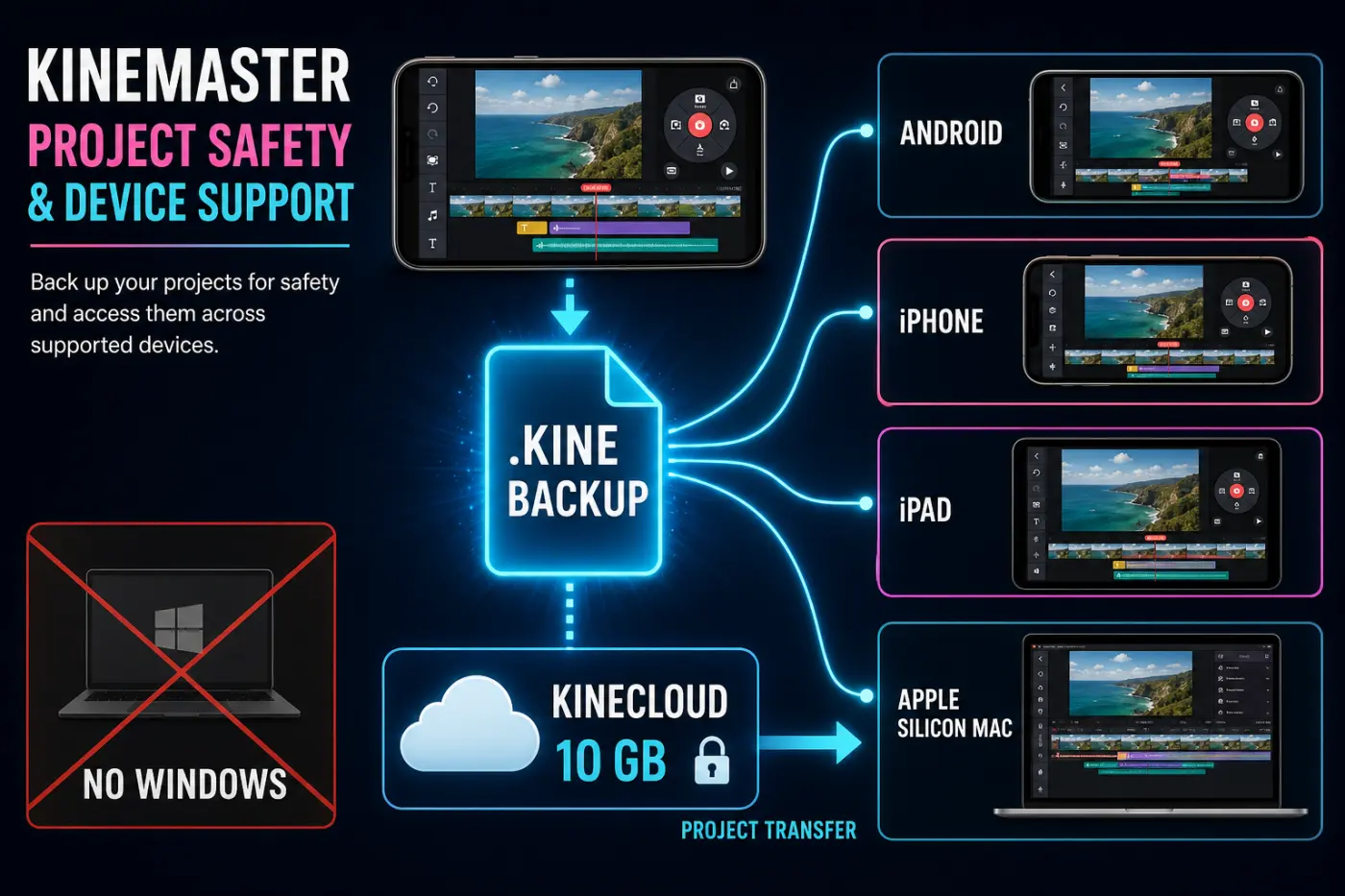
| Desktop reality | No Windows, Intel Mac or Linux version. Apple Silicon Macs can run the iPhone/iPad app; it is not a normal desktop NLE. |
| Biggest risk | Uninstalling or reinstalling can delete local projects. Export a .kine backup outside the app folder before changing devices or resetting the phone. |
Quick Verdict: KineMaster Is a Mobile NLE With a Paid Export Line
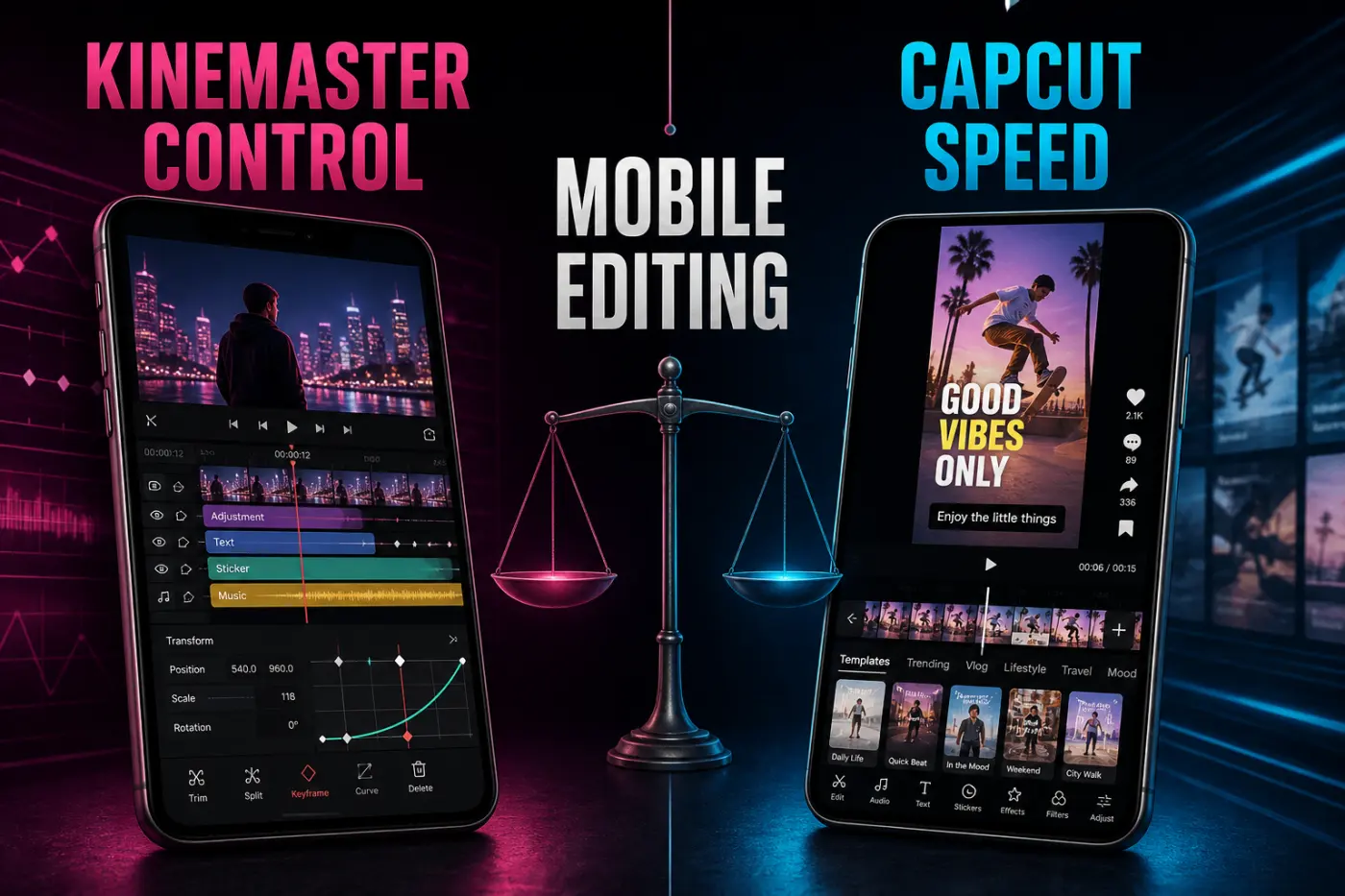
Choose KineMaster if your phone or tablet is your editing desk and you want to place clips, overlays, titles and audio exactly where you want them. It is particularly good for green-screen work, keyframed moves, voiceover, manual sound balancing and projects that don't fit a single template. The app feels closer to a compact non-linear editor than to a feed of preset recipes.
Choose CapCut if the job is a daily vertical post: pull in clips, find a trending template, generate captions, add stickers and publish quickly. Our comparison of CapCut alternatives covers the wider choice. This review stays with the harder KineMaster questions: what remains free, what Premium changes, which devices are supported and how safely a project moves between them.
Free versus paid is not the whole decision. KineMaster says the free app includes its editing toolkit and 4K export, but free exports carry a watermark and the app shows ads. Premium mainly buys clean output, Premium assets, Spring Premium and KineCloud; it doesn't replace the editor with a different toolset.
What KineMaster 8.x Is in 2026
KineMaster's current feature page describes a phone-and-tablet editor with multi-layer editing, AI tools, a large asset store and export up to 4K/60fps. The product is built around touch: the preview, radial add menu, layer stack and timeline all remain reachable without a desktop keyboard and mouse.
The release lines are moving separately. On August 27, Apple's version history listed KineMaster 8.1.18 from August 12 with a text-interface overhaul and word-by-word animation. Google Play showed its latest update on July 7. The earlier version 8.0 note explains the optional portrait interface and project orientation controls, so tutorials that show only the old landscape workflow are now incomplete.
KineMaster says it has more than 75,000 assets across more than 10,000 packs and over 750 million downloads. Those are first-party marketing figures, not independent performance measurements. The library matters only when it saves you time: stock clips, music, stickers, fonts, transitions and templates are convenient, but many of the more polished assets require Premium.
Free vs Premium: Watermark, Ads, Assets and Cloud
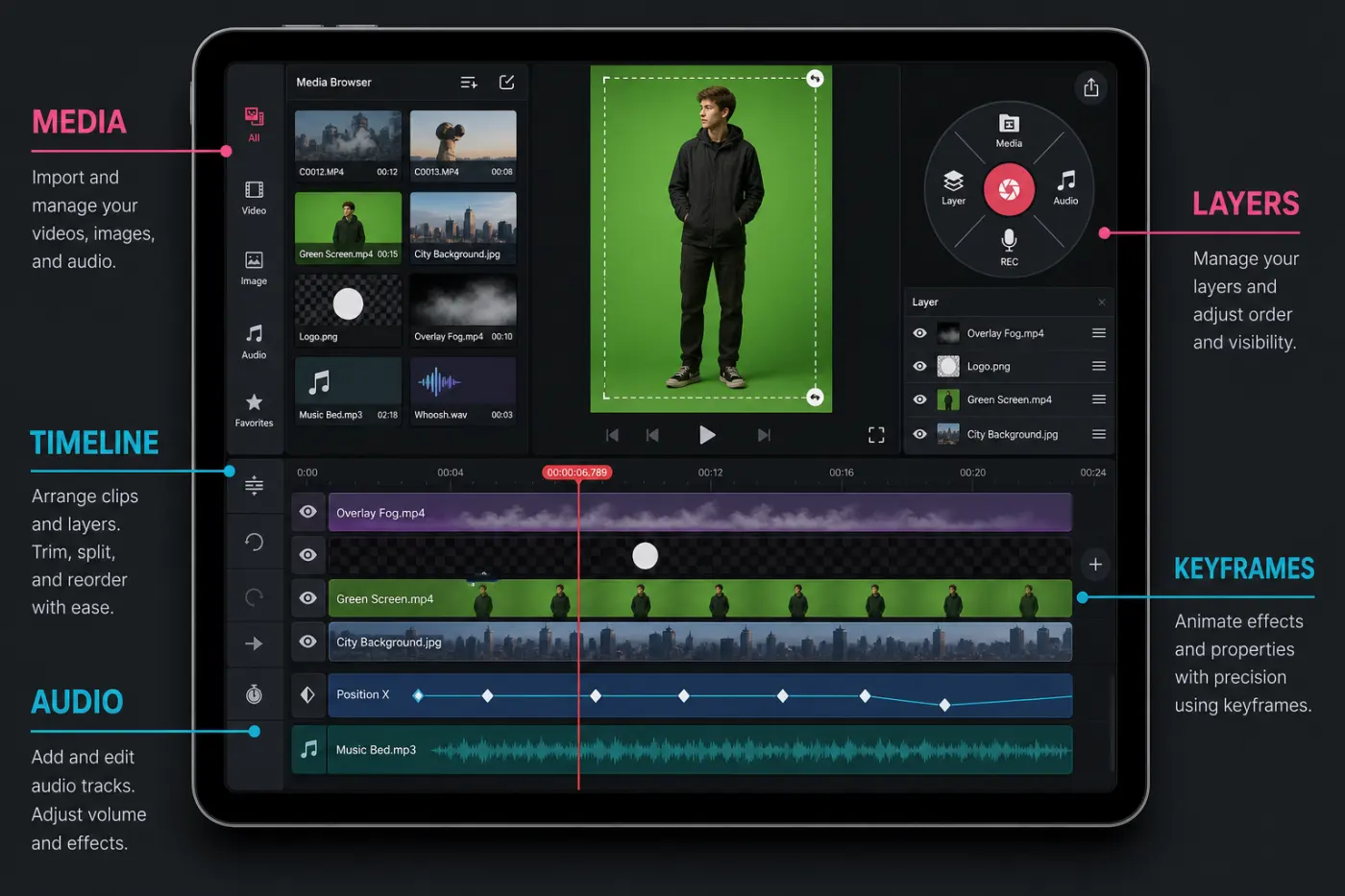
KineMaster's Free tier is useful enough to test the editor properly. The official comparison page lists Auto Captions, Background Remover, Text-to-Speech, Motion Tracking and 4K Export without a subscription. KineMaster's own Premium article also says that Free and Premium share the core editing tools, stickers, music, templates, auto captions, 4K/60fps and VFX.
The catch is visible in the finished file. Free exports include a KineMaster watermark, and the app shows ads. Premium removes both, unlocks Premium assets and includes private cloud features. If you only need to learn the timeline or make a personal test, Free is enough. If the file will sit on a client channel, a paid course or a brand account, test a full export before promising a clean result.
The KineMaster web checkout displayed US$7.99 for one month and a 46%-off annual offer of US$51.99 on August 27, 2026. Apple's US listing simultaneously showed several monthly and annual in-app purchase entries at different prices; that list doesn't identify which offer your account will receive. Treat the web total as a dated checkout snapshot and the live purchase screen on your device as the final price for region, tax and account history.
Premium includes 10 GB of KineCloud storage, but that doesn't mean every local project is automatically safe. KineCloud is an optional backup and sharing path; a project that exists only in the app's local storage still needs a separate export. Think of Premium as removing workflow friction, not as replacing a backup habit.
Devices and the Desktop Reality
KineMaster is mobile-first. Its official FAQ says Android 8.0 or newer is supported, while the US App Store listing requires iOS 18.0 and iPadOS 18.0 or later. The app works on iPhone and iPad, with the iPad layout giving the timeline more room for layers and audio. A modern device is not automatically a fast device; storage, memory, thermals and the source codec still decide how pleasant long edits feel.
There is one desktop nuance worth spelling out. KineMaster can run the iOS/iPadOS app on an Apple Silicon Mac. The current App Store compatibility note requires macOS 13 or later and an Apple M1 chip or later. That is useful for a MacBook owner who wants the same touch-era application on a larger screen, but it is not a native Mac NLE with a desktop timeline designed around keyboard shortcuts.
KineMaster's own FAQ says it is not available for Windows, Intel macOS or Linux. Be careful with search results that use “PC” to mean an Android emulator or a mirror-download page. An emulator can add another failure point, can't turn KineMaster into a supported Windows product and may create account, codec or project-transfer headaches.
If you need a browser or Windows handoff, CapCut's web editor guide covers a more natural desktop path. KineMaster makes more sense when the main editing device is a supported phone, tablet or Apple Silicon Mac.
Timeline, Layers and Keyframes
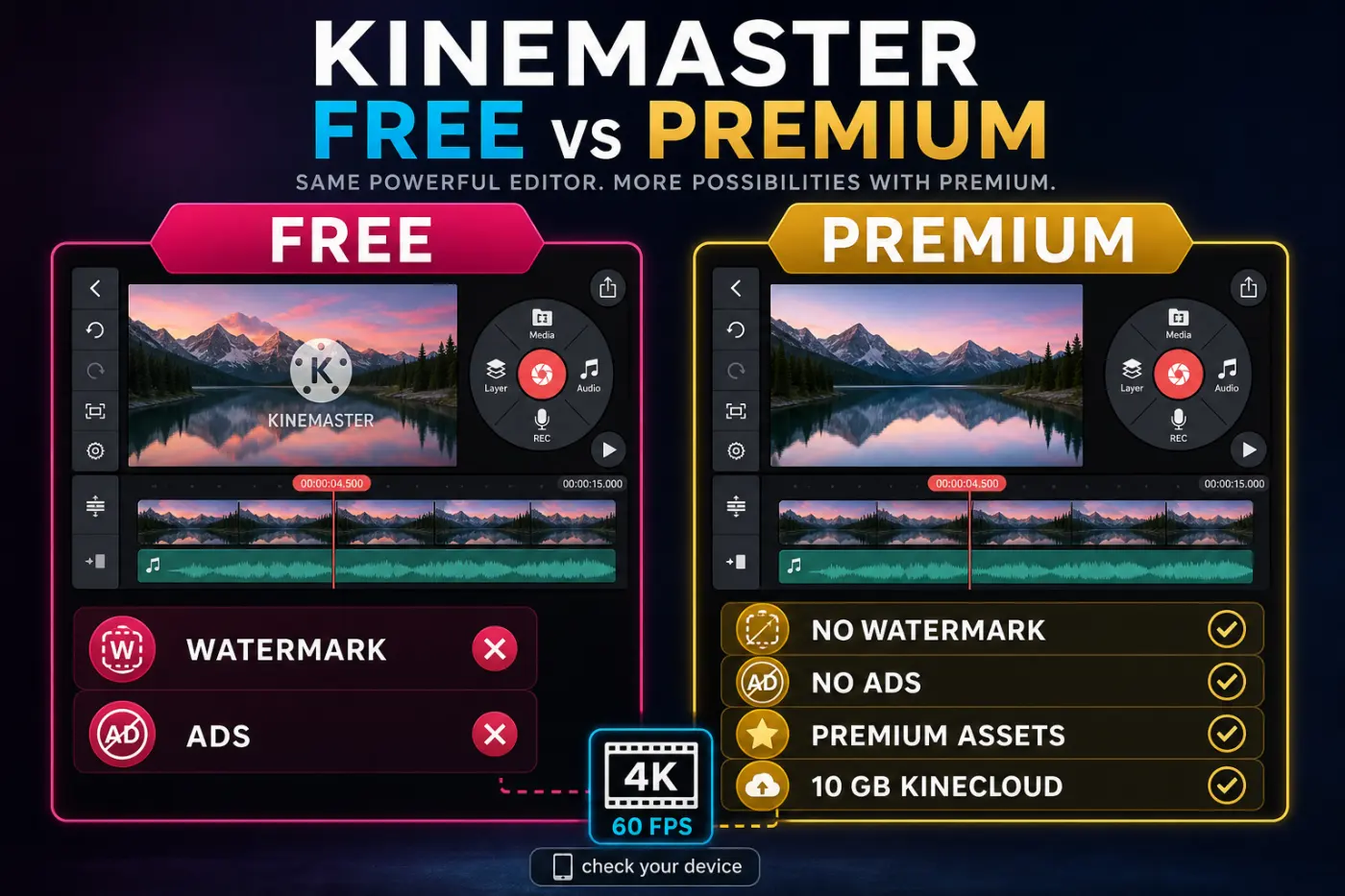
The mobile timeline is KineMaster's strongest reason to exist beside CapCut. The feature page lists unlimited layers on one timeline, frame-level keyframes and multiple undo. You can put a background, main clip, cutout, title, sticker, adjustment layer and music bed in a visible stack rather than flattening the thought into a template.
Keyframes are exposed as a real animation system: position, scale, rotation, opacity and other properties can change at specific frames. A manual push-in, a tracked title entrance or a sticker that follows a subject takes more taps than a preset, but the result is easier to explain and repeat. Our walkthrough on how to use keyframes in CapCut shows the same idea; KineMaster's interface makes the layer relationship more prominent.
There is a learning cost. A new user has to understand which layer is selected, whether a transform affects the clip or the whole project, where the playhead sits and how a long-press changes the editing menu. Start with one video layer, one overlay and one audio track. Add a second layer only after the first export matches the preview.
KineMaster also lets you choose portrait or landscape behavior per project in current versions. Decide the canvas before building a title system. Community workflow discussions report that changing an aspect ratio later can be awkward; treat that as a reason to duplicate or back up a project, not as an official promise that the ratio can never change.
Chroma Key, Corner Pin, Blending and Effects
Chroma key is practical rather than decorative. Select the key color, tune detail and smoothness, then inspect hair, transparent edges and motion against the replacement background. The layer stack lets you put a keyed subject over a background, a texture under the subject and a title above both. A good light and a clean green screen still matter more than the number of sliders.
KineMaster also lists corner pin, 16 blend modes and speed control from 0.1x to 16x. Corner pin helps with a screen replacement or a poster placed into a perspective shot; blend modes are useful for light leaks, grain, gradients and texture overlays. Keep opacity changes modest. Many mobile edits look muddy because every layer is set to a bright effect at once.
The effects store is broad, but “available in the app” doesn't mean “included in Free.” Premium asset markers are part of the buying decision. If a template is central to a project, check its license and export behavior before you spend an hour replacing clips inside it.
KineMaster says Asset Store items may be used in personal and commercial videos, including monetized YouTube uploads. There are two important limits. Asset Store items cannot be moved into or modified with another app, and YouTube use of KineMaster music requires registering the channel in KineMaster. The channel-registration instructions in KineMaster’s FAQ require version 8.0.7 or later on Android or 8.0.9 or later on iOS. In the app, open Me, sign in, then choose the three-line menu → My YouTube Channel. Enter the channel’s @handle, tap Check now, verify the channel and confirm Register. Only one channel can be registered per account, and it cannot later be changed or deleted. Registration can take 1–7 days to be reflected on YouTube; YouTube Studio can show whether a resulting music claim has been released.
Captions, Text and Templates
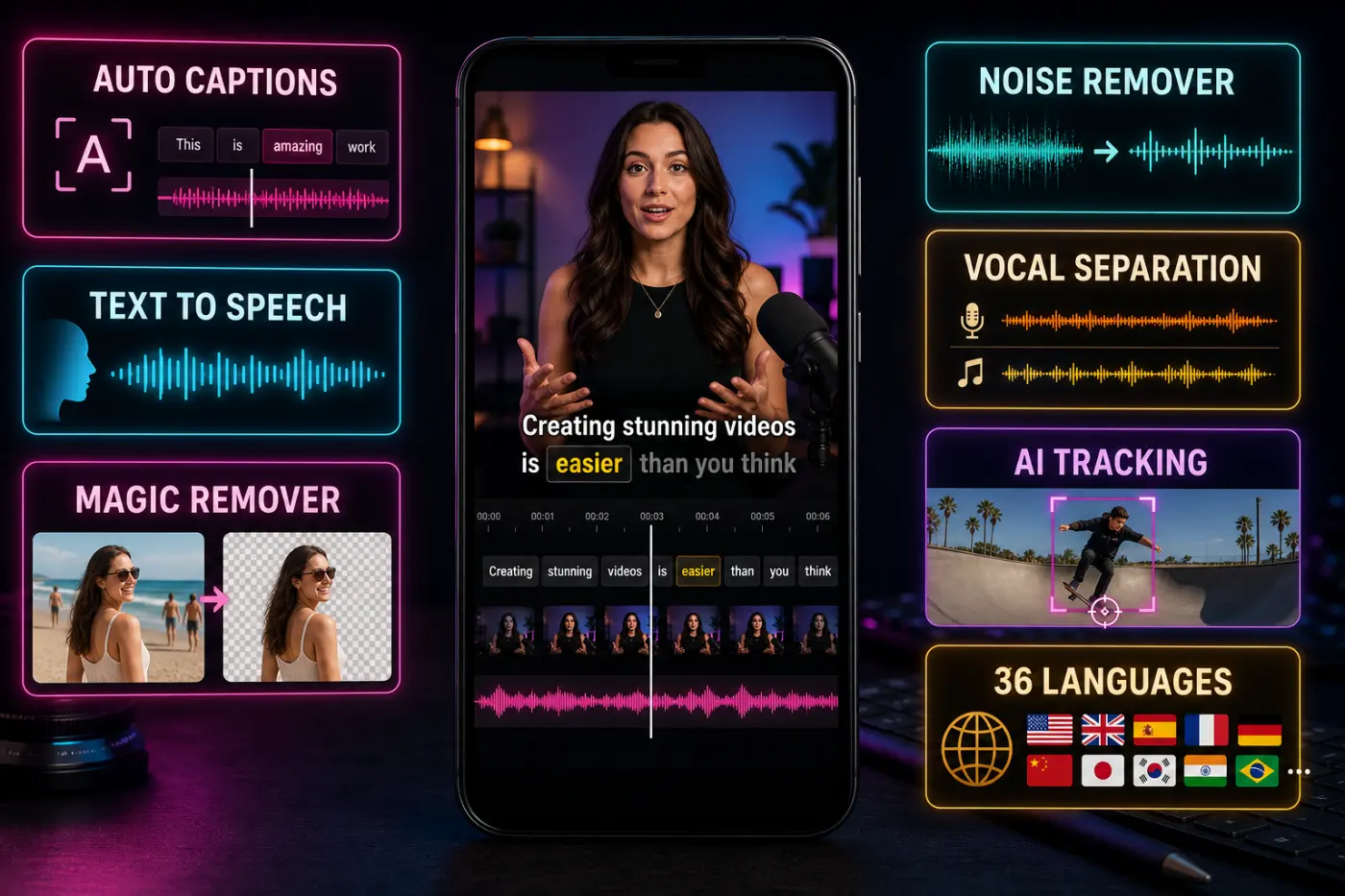
KineMaster's current feature list includes Auto Captions in 36 languages, text styling and word-level text treatment. The Google Play listing also calls out word-by-word text animation. This is enough for a readable social caption workflow, especially when you want to edit the words and timing instead of accepting an automatic transcript unchanged.
CapCut is still faster for the style layer. It has a deeper culture of animated caption presets, viral fonts, stickers and template-driven rhythm. KineMaster's text tools reward a creator who wants to choose the font, color, line breaks, position and entrance effect. For a calm tutorial, product demo or talking-head edit, that control can look more intentional than a preset.
Our guide to CapCut auto captions covers the quickest social path, and our page on CapCut templates helps when the template itself is the idea. KineMaster is better when the text should be part of your own layer system rather than the final identity of the edit.
Proofread every generated caption. Automatic transcription can miss names, accents, music lyrics and punctuation. KineMaster's word-level animation can make a wrong word more noticeable, not less.
AI Tools: Captions, Removal, Voice and Tracking
KineMaster currently lists nine AI tools: Magic Remover, Super Resolution, Auto Captions, AI Voice/Text-to-Speech, AI Tracking, AI Style, Noise Remover, Vocal Separation and Music Match. The official page describes the tools, while the June 2026 price comparison marks several of them as available without a subscription. KineMaster's support page also sets a hard device floor: the phone or tablet needs at least 4 GB of RAM, and some AI tools may be hidden below that threshold. For a different AI-first editing workflow, compare our overview of CapCut AI tools. Treat every feature list as a map, not a guarantee that every language, device and duration behaves the same way.
Magic Remover and Super Resolution are useful for short clips and social assets, but they are not a reason to stop checking edges and detail. A removal tool can smear hair or a fast-moving hand. Upscaling can make a soft source look sharper without recovering missing information. Export a short proof and compare it with the original before you process a long sequence.
Noise Remover and Vocal Separation are practical for a phone recording with a fan, room tone or music underneath speech. They can also introduce watery artifacts. Adjust the strength and listen on headphones and a phone speaker. Text-to-Speech is useful for a placeholder or a faceless explainer, but a synthetic voice still needs a human edit for pronunciation, pacing and claims.
Audio Mixer and Voiceover
Audio is another area where KineMaster feels more deliberate than a template feed. The official feature list includes a mixer, voiceover, volume envelope and effects such as echo, reverb, pitch, EQ and voice changer. You can lower music under speech, automate a fade, record a narration and keep separate tracks visible while you edit.
For a short Reel, CapCut's quick music alignment is convenient. For a tutorial, interview or product demonstration, KineMaster's mixer lets you make the voice intelligible rather than simply louder. Cut breaths where they distract, reduce music before a key sentence and listen for clipping after every strong effect.
Keep a clean voice track before applying a voice changer or heavy noise removal. If an AI pass sounds wrong, you want the source available instead of a flattened mix. A 4K export with muddy dialogue is still a failed delivery, so audio deserves its own short proof file.
4K/60fps Export, Bitrate and Aspect Ratios
KineMaster lists SD/HD 720p, FHD 1080p, 2K/QHD and 4K export up to 60fps, with H.264 and H.265/HEVC options, user bitrate control, MP4/GIF output and aspect ratios including 16:9, 9:16, 1:1, 4:5, 3:4, 4:3 and 2.35:1. That is a strong list for a mobile editor, but the list is not a promise that every device can use every combination.
The official FAQ makes the essential caveat: a phone that can record 4K may still be unable to edit or export 4K smoothly. KineMaster can analyze device performance and lower the maximum resolution or number of layers; it may re-encode at 1440p or 1080p. Heat, free storage, RAM and a demanding H.265 source can change the result after ten minutes of editing.
Use the highest practical bitrate for a master, then create a destination copy if a platform recompresses aggressively. Check frame rate, crop, audio sync and the first and last two seconds. Our walkthrough of CapCut export settings covers the same final-file checks. The app brand matters less than whether the file survives the destination's upload and playback path.
One useful Free/Premium nuance is easy to miss: KineMaster's own pages list 4K/60fps among the shared core tools. Premium removes the watermark and ads; it is not correct to tell readers that 4K/60fps is locked behind the subscription. Device capability and the selected asset can still change what the export screen allows.
Project Backup, .kine Files and KineCloud
Project safety should be part of any KineMaster review. KineMaster's official FAQ warns that uninstalling or reinstalling the app deletes all KineMaster projects. Before a phone reset, app migration or major storage cleanup, use Export as .kine and save the file outside the KineMaster folder. The file can include project information and media, and KineMaster 5.0 or newer can import it.
Cross-platform transfer is not perfectly identical. KineMaster notes that Android-to-iOS text and system fonts can differ. Check line breaks, font substitution, stickers, audio paths and the final crop after importing. A backup that opens is safer than a backup that has never been tested.
Premium's KineCloud adds private cloud storage for templates and related sharing features, with 10 GB total storage and a 3.6 GB maximum template size according to the current FAQ. It is useful for a linked account and a small handoff, but it is not unlimited project history. Keep a local .kine copy and an exported master as well.
Pricing and Whether Premium Is Worth It
On August 27, the US web checkout displayed Premium at $7.99 per month or a promotional $51.99 per year, shown there as $4.33 per month. KineMaster's June comparison article still prints $8.99 monthly and $59.99 annually, while Apple's US listing contains several other in-app purchase entries. That is why this article doesn't turn one sale into a permanent price badge. KineMaster's support page documents monthly and annual subscriptions in local currency and says access continues until the paid period ends after cancellation.
There are two sensible ways to decide. First, edit a representative project in Free and export the exact file you need. If the watermark makes the result unusable, Premium solves that. Second, count the assets and cloud features you would use every month. If you never touch Premium packs, don't buy an annual plan just to unlock a tool you have not tested. Our CapCut Pro features guide gives a useful contrast for readers comparing subscription-led tools.
KineMaster says one subscription can be linked to one KineMaster account and used on up to five Android/iOS devices; exceeding the limit triggers a 30-day reset period before a new device can be added. App-store reviews mention confusion around subscription verification, ads, pricing and project visibility. Those reports are reasons to keep the receipt and a backup, not proof that every Premium account fails.
Check the in-app purchase screen before paying. Web checkout, Google Play, Apple's App Store, taxes, introductory offers and account history can produce different totals. Never copy a temporary US sale into a permanent price badge.
Performance and Current Reliability
KineMaster can feel quick on a recent phone with short 1080p clips and sluggish on the same phone after several 4K layers, AI effects and a long H.265 source. Use the device-performance analysis before committing to a large project. Keep free storage available, close heavy background apps and render a short section when you add a demanding effect.
Current Reddit and app-store discussions mention lag, crashes, ads, Premium asset frustration, server or subscription verification and a project temporarily not appearing after exit. They are useful signals because they point to the failure modes a backup and support path should cover. They are not a measured defect rate, and they don't outweigh a clean test on your own device.
For reliability, save versions deliberately: project-v01.kine, project-v02.kine and a named master export. Don't keep the only copy inside a folder an operating-system cleanup tool might remove. If a project disappears, stop editing new work until you have checked storage, account state, device performance and the app's support instructions.
KineMaster vs CapCut: Feature Comparison
Both apps can cut clips, add captions, place music and produce a vertical video. Their default decisions differ. KineMaster makes layers and manual controls visible; CapCut makes templates, social captions and quick AI actions visible. That is why the better choice changes with the job.
| Decision factor | KineMaster | CapCut |
|---|---|---|
| Primary workflow | Touch-first manual editing with visible layers, keyframes, chroma and audio controls | Fast mobile, web and desktop social editing with templates and guided AI actions |
| Free export | Core tools and 4K/60fps are listed, but Free adds a watermark and ads | Current clean-export rules vary by platform, asset, feature and account; check the export screen |
| Paid line | Premium removes watermark/ads, unlocks Premium assets and adds KineCloud features | Plans, region and feature/credit rules vary; CapCut Pro details change over time |
| Timeline | Unlimited layers, frame-level keyframes, corner pin, chroma key and 16 blend modes | Strong social timeline with keyframes, masks, effects and preset-led shortcuts |
| Captions | Auto Captions in 36 languages and word-level text treatment; styling is more manual | Fast animated captions, translations, stickers and social templates |
| AI | Magic Remover, Super Resolution, TTS, tracking, noise/vocal tools and Music Match | Broad creator-focused AI tools; exact availability depends on app version, region and plan |
| Audio | Mixer, voiceover, volume envelope, EQ, reverb, echo and voice effects | Fast music, voice and social sound workflow with less visible routing |
| Export | 720p to 4K, up to 60fps, bitrate control, H.264/H.265 and many aspect ratios | Platform and device settings vary; test the final file for the destination |
| Devices | Android 8+, iOS 18.0+/iPadOS 18.0+, Apple Silicon Mac; no Windows, Intel Mac or Linux | Mobile, web and desktop paths give broader platform reach |
| Project safety | Export .kine before reinstalling; optional 10 GB KineCloud; font differences after transfer | Account/cloud convenience varies; keep source media and a master export |
| Best fit | Creators who want mobile control, layers, keyframes, chroma and manual audio | Creators who prioritise templates, trend response, captions and quick social publishing |
Choose KineMaster If You...
- edit mainly on an Android phone, iPhone, iPad or Apple Silicon Mac;
- want multiple visible video, overlay, title and audio layers;
- need keyframes, chroma key, corner pin or blend modes without opening a desktop NLE;
- care about voiceover, volume envelopes and a more deliberate sound mix;
- are happy to build a style yourself instead of starting from a trend template;
- will export
.kinebackups and keep project media safe outside the app folder; - need Free for testing, then Premium for a clean, ad-free export.
Stay With CapCut If You...
- need a quick path from phone or browser to a published vertical post;
- use templates, animated captions, stickers and trend formats every day;
- want a wider web/desktop footprint than KineMaster's mobile-first support;
- prefer guided AI actions to manual layer and keyframe decisions;
- rarely need chroma key, detailed audio balancing or a long multi-layer timeline;
- don't want to manage a
.kinebackup and device-transfer routine for every project.
A Practical KineMaster and CapCut Hybrid Workflow
A two-app workflow can be efficient when each app owns a clear stage. Build the layered edit in KineMaster: organize clips, keyframe the motion, remove a background, clean the voice and make a high-quality master export. If the final post needs a specific social caption style, sticker or trending template, use CapCut for one controlled finishing pass.
Run it the other way round for a quick social idea. Assemble and caption in CapCut, export a high-quality intermediate, then use KineMaster only when you need manual chroma, keyframes, voiceover or a more deliberate audio pass. Avoid repeated lossy MP4 exports; keep the source clips or the cleanest master available.
Write down the canvas, frame rate, export name and project owner. Keep the .kine file outside the KineMaster folder and keep the CapCut source or account path separate. A hybrid workflow stays manageable when the handoff is an explicit file, not a memory of which app held the last version.
Frequently Asked Questions
Is KineMaster free?
Yes, the Free tier includes the core editor and many listed tools, including Auto Captions, Motion Tracking and 4K/60fps export when the device can handle them. Free exports carry a KineMaster watermark and the app shows ads. Premium removes the watermark and ads and unlocks Premium assets and cloud features.
Is KineMaster better than CapCut?
KineMaster is better for a mobile editor who wants visible layers, manual keyframes, chroma key, blend modes and audio control. CapCut is faster for templates, animated social captions, stickers and trend-led publishing. There's no useful universal winner. Choose the workflow that removes more of your actual editing friction.
Does KineMaster export 4K at 60fps for free?
KineMaster's current official pages list 4K/60fps among the shared Free and Premium editing capabilities. The device still has to support editing and export at that resolution and frame rate, and Free exports carry a watermark. Test a short project on your phone before starting a large 4K timeline.
Does KineMaster have a Windows app?
No. KineMaster's current FAQ says it is not available for Windows, Intel macOS or Linux. The supported desktop-like path is the iOS/iPadOS app running on a Mac with Apple silicon, which requires the current macOS and App Store compatibility baseline.
How do I keep a KineMaster project after reinstalling?
Before uninstalling or resetting the device, use KineMaster's Export as .kine option and save the file outside the KineMaster folder. Re-import it on KineMaster 5.0 or newer, then check fonts, line breaks, media paths and the final export. Premium KineCloud can add cloud storage, but it should not be your only copy.
Is KineMaster Premium worth paying for?
Premium is worth testing when a watermark or ads make Free unusable, or when you regularly need Premium assets and KineCloud. The current US web page displays $7.99 monthly and a promotional $51.99 annual option, but local app-store pricing can differ. Edit and export a representative project first, then buy based on a real workflow need.
Verdict
KineMaster is a strong CapCut alternative for creators who want a real layer-based mobile timeline without moving every project to a desktop workstation. It gives you keyframes, chroma key, blend modes, audio controls, AI cleanup and 4K/60fps export in a compact app. The Free tier is capable enough to learn and test, but the watermark and ads make Premium the practical choice for clean publishing.
CapCut remains the faster answer for template-led social work, animated captions and broad web/desktop access. KineMaster is the better fit when exact layer, keyframe and audio placement matters more than the shortest route from a trend to a post. Keep a tested .kine backup, check your device's real export ceiling and choose the editor that removes your current bottleneck.