

Checked September 21, 2026. CapCut color controls can vary by platform, account, device and app build. This guide separates stable color-management principles from version-specific panel names.
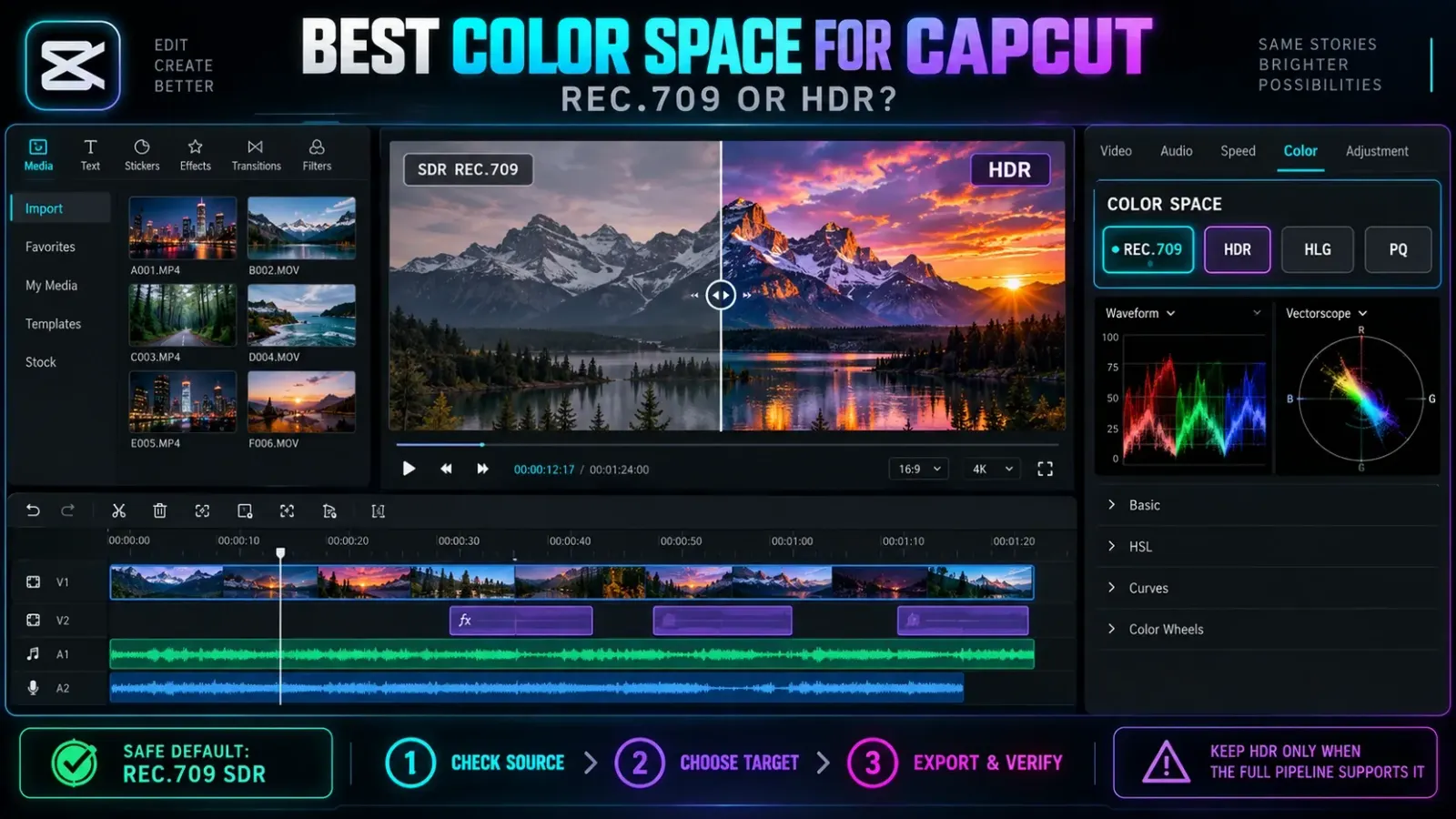
For most CapCut videos, Rec.709 is the best color space. Choose it for ordinary SDR footage, tutorials, talking-head videos, screen recordings and social posts when broad compatibility matters. Keep HDR only when the source was recorded in HDR, the entire editing and export chain preserves HDR metadata, and the destination supports HDR playback.
The worst choice is mixing the two accidentally: importing HDR phone footage, editing it as if it were SDR, then exporting without a deliberate conversion. That mismatch is a common reason a video looks washed out, too bright or less saturated after upload.
Practical default: if you are unsure whether the project is truly HDR, deliver an SDR Rec.709 version. A controlled SDR export is more dependable than an HDR label attached to a broken color pipeline.
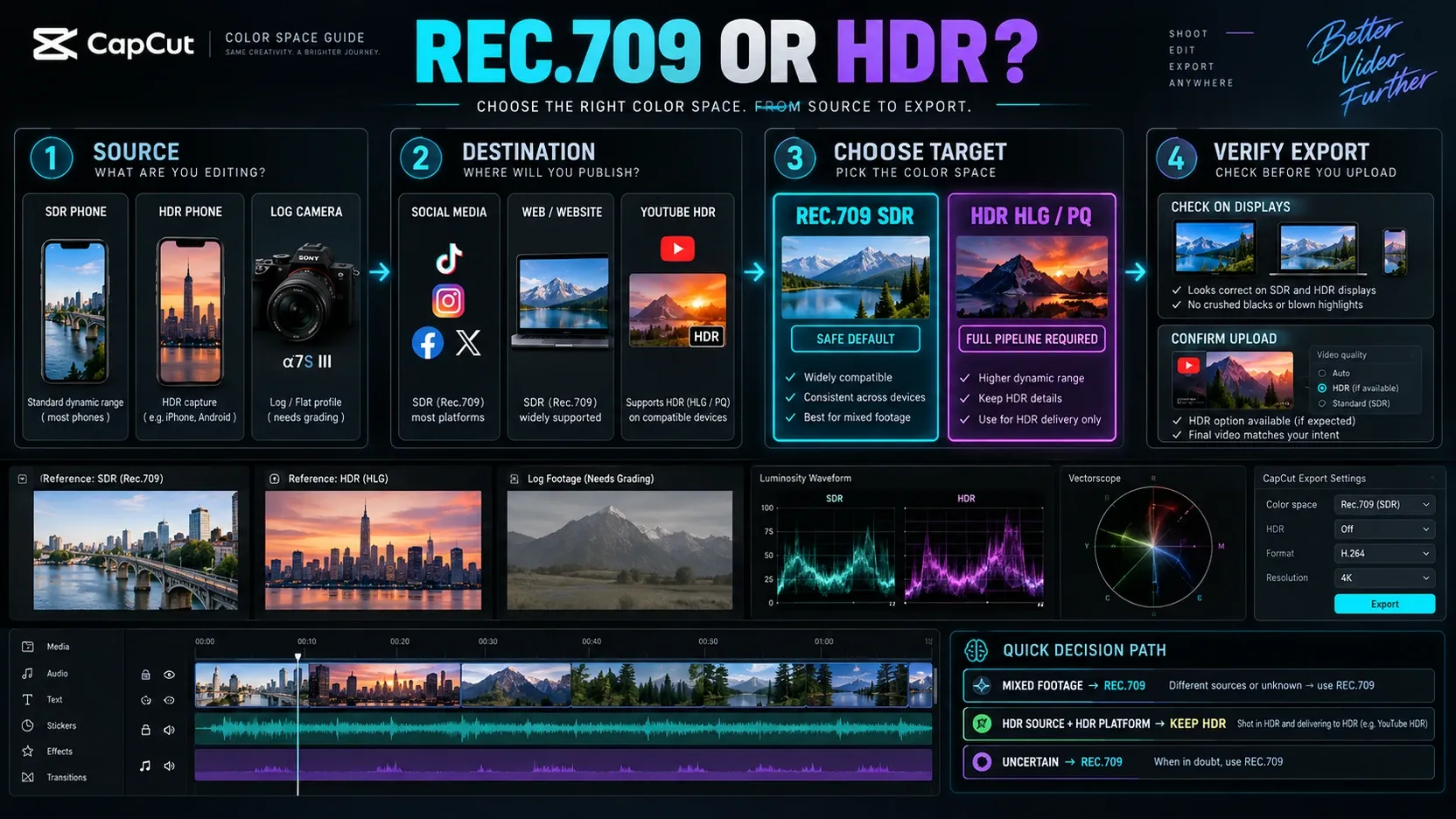
Rec.709 vs HDR: choose from the destination backward
The word HDR describes more than a brighter picture. It involves a wider brightness range, a compatible transfer function such as HLG or PQ, suitable color primaries, correct metadata and a display or platform that can interpret the result. Rec.709 is the standard working and delivery space for ordinary SDR video.
| Situation | Recommended delivery | Why |
|---|---|---|
| Normal phone or camera footage that already looks correct | Rec.709 SDR | Broad compatibility and predictable web playback |
| Tutorial, course, screen recording or talking-head video | Rec.709 SDR | UI colors, text and skin are easier to keep consistent across common displays |
| TikTok, Instagram or general social post with uncertain HDR support | Rec.709 SDR | Reduces the chance of an HDR-to-SDR mismatch after platform processing |
| HDR footage intended for a confirmed HDR YouTube workflow | Matching HDR delivery, usually HLG or PQ in a wide-gamut container | Preserves the intended range when the source, export and platform agree |
| Mixed SDR and HDR clips | Usually Rec.709 SDR after deliberate tone mapping | One controlled target is easier to match than two incompatible display assumptions |
| Client asks for both | Export separate SDR and HDR masters | One file should not be expected to serve every display pipeline perfectly |
YouTube's current HDR guidance accepts HDR uploads with Rec.2020 primaries and an HLG or PQ transfer function, while its standard upload guidance uses BT.709 for SDR. That distinction is useful even if YouTube is not your destination: HDR is a complete delivery format, not a saturation switch.
Understand the three color-space decisions
A stable workflow keeps three questions separate.
1. What color space is the source?
Identify how the clip was recorded. Ordinary SDR phone video normally arrives ready for a Rec.709-style workflow. Recent phones can also record HDR, often using HLG or Dolby Vision-related metadata depending on the device and settings. Camera LOG footage is another case: it may look flat because it expects a documented transform before normal viewing.
Do not diagnose the source by appearance alone. A low-contrast creative profile can resemble LOG, and a player that ignores HDR metadata can make valid HDR footage look wrong. Check the camera or phone recording setting, file metadata and the documentation for the capture mode.
2. What is the project interpreting?
The editor must interpret the clip consistently. If an HDR source is treated as ordinary SDR without tone mapping, bright areas and saturation can shift. If SDR footage is forced through an unnecessary HDR or LOG transform, contrast and color can become equally unreliable.
CapCut's panels and labels change between platforms and releases, while its official color-correction guide documents the broader adjustment workflow. If your build exposes project color-space, HDR, color-management or clip interpretation controls, use them to match the known source and intended output. If those controls are absent or unclear, avoid promising yourself an HDR master. Convert the project deliberately to SDR or use a desktop workflow that exposes the controls you need.
3. What is the export delivering?
The export should match the destination. Resolution, frame rate and bitrate do not fix a color-space mismatch. A technically sharp 4K file can still look pale if its transfer function or metadata is interpreted incorrectly.
For a normal SDR result, aim for Rec.709 throughout the final part of the workflow. For HDR, preserve the correct wide-gamut primaries, transfer function, bit depth, codec support and metadata expected by the destination. Avoid changing only the export label while leaving the timeline and source interpretation unresolved.
Why Rec.709 is the safest CapCut default
Rec.709 is the practical choice when the reader's real goal is “make this video look normal everywhere.” It fits ordinary web video, common displays and standard editing decisions. It also gives you a clearer troubleshooting baseline: if the project is SDR from input to output, unexpected washout is less likely to come from competing HDR assumptions.
Use Rec.709 when:
- the source was recorded in SDR;
- the project combines phone video, screen recordings, stock clips or graphics from different sources;
- accurate UI colors and readable text matter;
- the viewer may watch on an SDR phone, laptop or browser;
- the destination does not give you a clear HDR specification;
- you cannot verify that the exported file retains the intended HDR metadata.
This does not make Rec.709 “better color” than HDR. It makes it the correct contract for an SDR delivery. A smaller, correctly interpreted range looks better than a wider range that the platform or display reads incorrectly.
The CapCut export settings guide covers resolution, frame rate, codec and bitrate after the color-space decision. If the final upload looks soft rather than pale, use the blurry export diagnosis instead; sharpness and color management are different problems.
When an HDR workflow is worth keeping
Preserve HDR when all of these conditions are true:
- The important source footage was captured in a known HDR format.
- The editing device and display let you judge HDR reliably.
- CapCut exposes a suitable HDR or color-management path in the version you are using.
- The export codec, bit depth and metadata preserve that path.
- The target platform documents HDR ingestion and playback.
- You can check the uploaded result on an HDR-capable display.
YouTube documents an HDR route and can create SDR conversions for viewers without HDR displays. That does not remove the need for a correct master. A mislabeled or poorly interpreted upload gives the platform the wrong starting point.
For short social posts, HDR support can vary by app, operating system, account and upload path. When the HDR chain cannot be verified, export a controlled SDR version rather than relying on a platform to repair the mismatch.
If both versions matter, create separate masters with explicit names:
ProjectName_SDR_Rec709_4K.mp4
ProjectName_HDR_HLG_4K.mp4
Do not overwrite one with the other. Separate files make review and delivery less ambiguous.
Fix washed-out iPhone HDR footage in CapCut
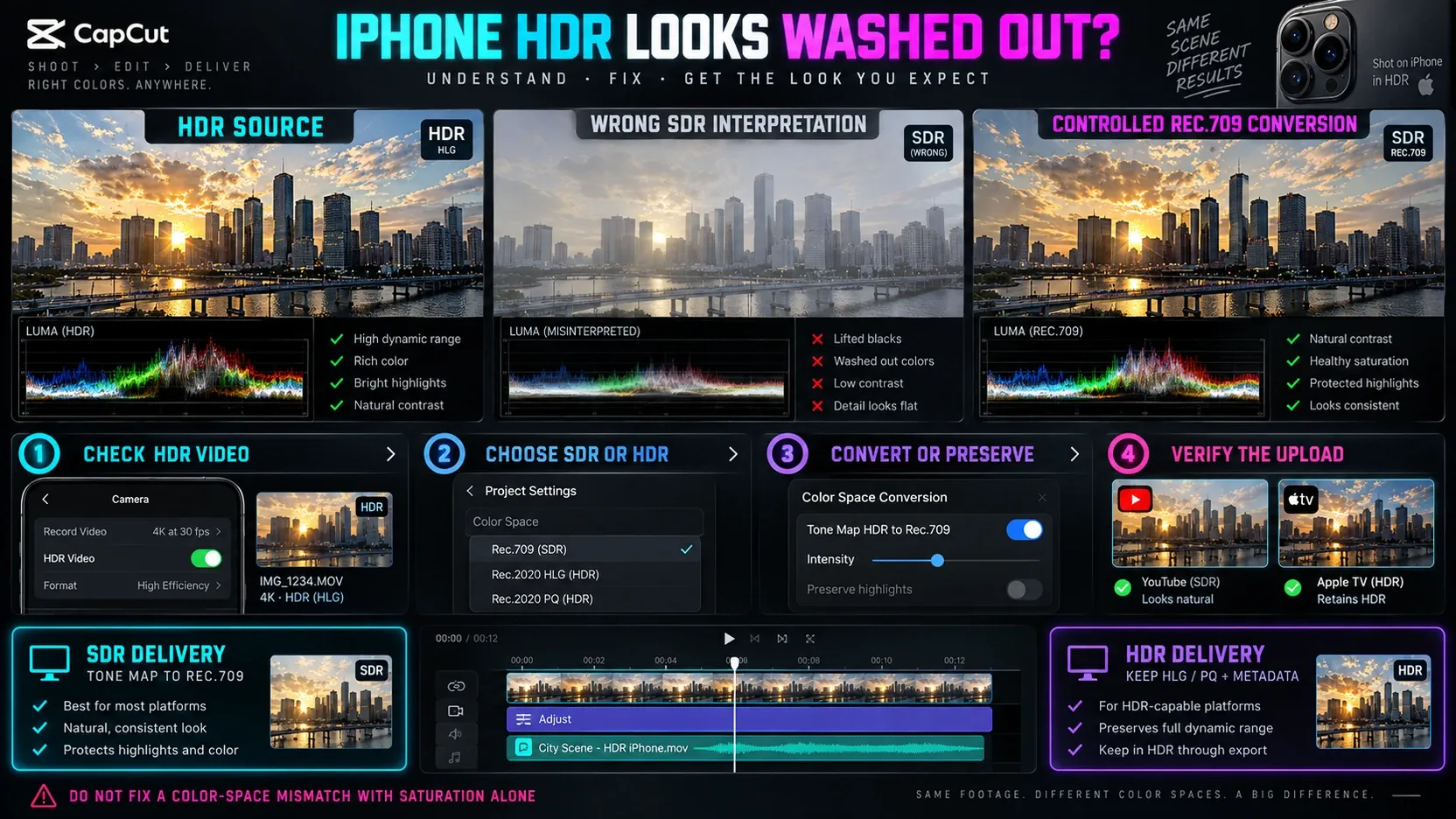
Washed-out iPhone footage usually points to interpretation or conversion, not a need for stronger saturation. The clip may have been recorded in HDR while the project, preview, export or destination expects SDR.
Use this diagnosis order:
- Confirm whether HDR Video was enabled when the clip was recorded; Apple documents this control in the iPhone camera settings.
- Check the same source file in a player that understands its HDR metadata.
- Decide whether the final delivery should remain HDR or become SDR.
- If delivering SDR, use a deliberate HDR-to-Rec.709 conversion or tone-mapping route available in your CapCut build.
- If preserving HDR, keep the source, project and export settings aligned and use a supported HDR codec and destination.
- Export a short sample and inspect the uploaded result, not only the local preview.
Do not begin by pushing saturation and contrast. Those controls can hide the symptom in one frame while clipping highlights or distorting skin. Fix the color-space relationship first, then grade the converted image.
If the source looks correct but the export looks pale
The project preview may be color-managed differently from the player or platform showing the export. Compare the file in more than one current player, then inspect the upload. If only one player looks wrong, the file may be valid while that player mishandles its metadata.
If every destination looks pale, revisit the export color space and transfer function. Do not compensate with a second aggressive grade until the metadata and conversion are correct.
If the source itself looks pale inside CapCut
The editor may be interpreting HDR or LOG footage as standard SDR. Confirm the capture profile. Then look for a matching input, HDR, LOG conversion or color-management option in the version you have. Use the official transform for the recorded profile when one is required.
A technical conversion and a creative look serve different jobs. A creative LUT is not a dependable substitute for a documented HDR-to-SDR transform.
If highlights are blown after converting to SDR
Tone mapping has to compress HDR brightness into the smaller SDR range. Reduce highlight pressure in the conversion or grade after the transform. Avoid lowering the entire image until faces and midtones become dull. The goal is to preserve a natural hierarchy, not to reproduce HDR peak brightness on an SDR display.
Color-space settings by content type
Tutorials and screen recordings
Use Rec.709 SDR unless the tutorial specifically teaches an HDR workflow. Screen text, interface colors and cursor visibility matter more than expanded highlight range. Mixing an SDR screen recording with HDR camera footage creates extra matching work with little benefit for most instructional videos.
Talking-head and interview videos
Rec.709 is the dependable default. It supports predictable skin and background color across common devices. If the camera recorded LOG, apply the correct technical transform before the creative grade. If it recorded HDR, decide on HDR or SDR before matching the shots.
Travel and outdoor video
HDR can preserve bright skies, reflections and night lighting when the whole pipeline supports it. Rec.709 remains a strong choice when clips come from several cameras or the destination is uncertain. Protect highlight detail during conversion instead of simply darkening the frame.
Product and brand content
Favor the delivery space the client and platform can review consistently. Brand colors can shift when HDR is displayed through an unmanaged path. A calibrated Rec.709 master is often easier to approve, archive and repurpose.
Vertical social video
Do not assume a vertical format requires HDR. Aspect ratio and color space are independent. Use Rec.709 for the broadest compatibility, then preserve HDR only for a documented platform workflow you can verify after upload.
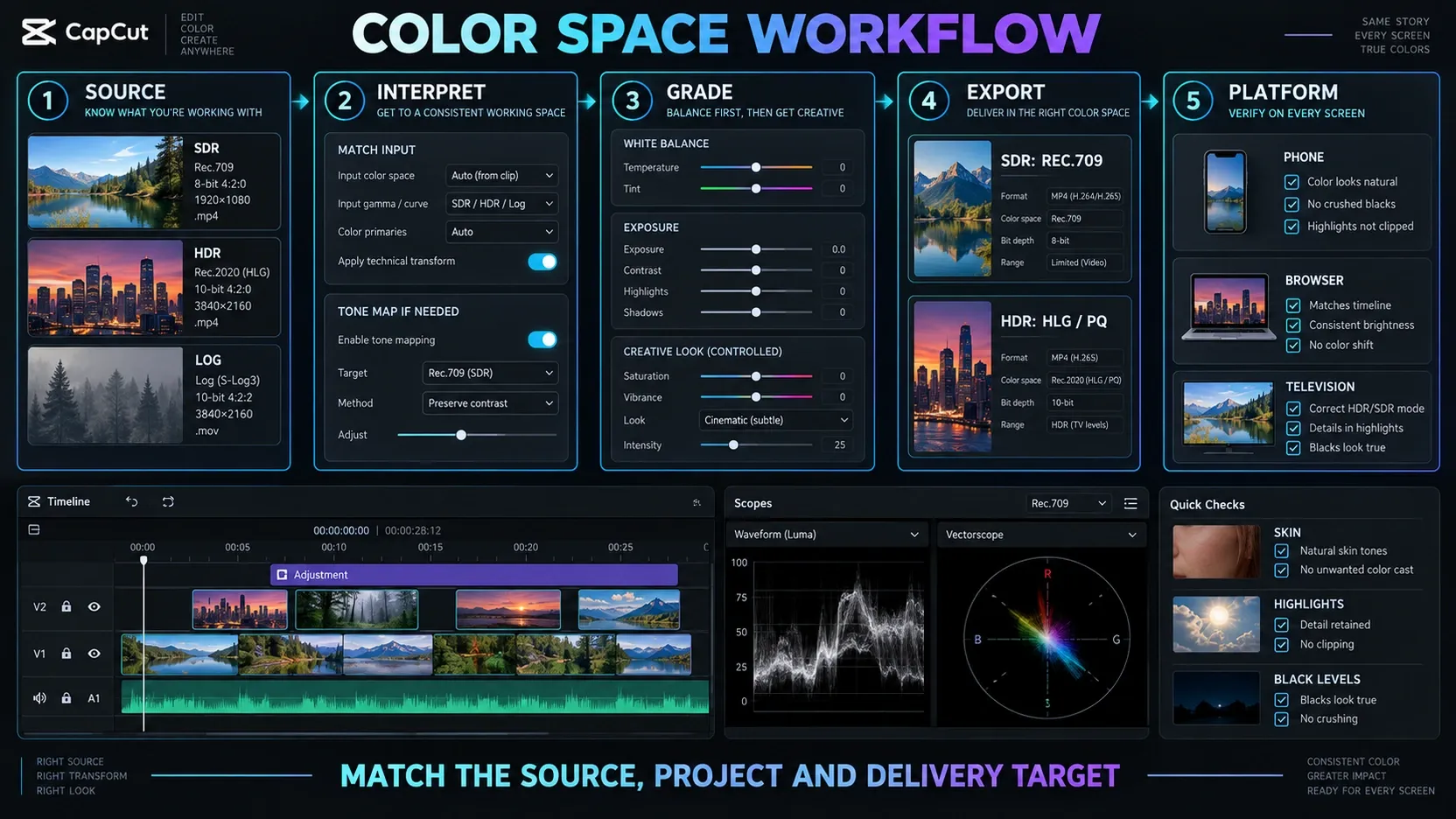
A reliable CapCut color-space workflow
- Identify the source format before grading.
- Pick the final destination and decide SDR or HDR.
- Set or verify the project interpretation where your CapCut version exposes it.
- Convert LOG or HDR sources with the correct technical transform when the chosen output requires it.
- Match exposure and white balance across clips.
- Add a creative look only after the technical color path is stable.
- Export a short sample using the intended final settings.
- Inspect that sample in a current player and on the target platform.
- Check skin, highlights, black levels, gradients and graphics.
- Export the full master only after the sample survives those checks.
For new editors, the CapCut tutorial hub explains the workspace and timeline. Color management is easier when the project is already organized and each clip's role is clear.
Common color-space mistakes
Choosing Rec.2020 because the number is larger
A wider gamut is useful only when the source and delivery support it. Assigning wide-gamut labels to ordinary SDR footage does not create missing color information and can make playback less predictable.
Treating HDR as a filter
HDR requires capture, interpretation, export and display support. Raising highlights, contrast or saturation does not convert an SDR clip into a trustworthy HDR master.
Grading before fixing the transform
If the clip is being interpreted in the wrong space, creative corrections are built on a moving foundation. Fix the source-to-project transform first, then make aesthetic choices.
Using one export for every destination
A platform, client archive and messaging app may process the same file differently. Keep a high-quality master, then make delivery versions for the actual destinations. When HDR matters, keep a separate SDR fallback.
Trusting only the editing preview
The editor preview is one part of the chain. Inspect the exported file and the uploaded result. A correct-looking timeline cannot prove that a platform preserved the intended metadata.
CapCut color space FAQ
Is Rec.709 better than sRGB for CapCut video?
For standard video delivery, Rec.709 is the clearer target. sRGB is primarily associated with computer graphics and still-image display. Their primaries are closely related, but their transfer behavior and video conventions are not identical. Keep graphics visually checked inside the Rec.709 video workflow rather than switching the whole project to sRGB by name.
Should I export CapCut videos in HDR?
Only when the source is HDR and the editing, export and destination all support the same HDR workflow. Otherwise export SDR Rec.709 for more predictable playback.
Why does my CapCut export look washed out?
The source, project, export or player may disagree about HDR, SDR, transfer function or metadata. Confirm the recording format, choose one delivery target and correct the technical transform before increasing saturation or contrast.
What color space should I use for YouTube?
Use BT.709/Rec.709 for ordinary SDR uploads. For HDR, follow YouTube's documented HDR specification, including Rec.2020 primaries and a supported HLG or PQ transfer function. Do not label an SDR grade as HDR just to select a wider option.
What color space should I use for TikTok or Instagram?
Rec.709 SDR is the safer default when you need consistent playback across devices and upload paths. Preserve HDR only when the platform workflow available to your account is documented and you can verify the posted result on an HDR display.
Can a LUT fix the wrong color space?
A matching technical LUT can perform a documented transform, such as a camera LOG profile toward Rec.709. A creative LUT cannot diagnose an unknown source or repair missing HDR metadata. Confirm the input and target before choosing the transform.
Final recommendation
Use Rec.709 SDR for most CapCut projects. It is the dependable choice for tutorials, screen recordings, talking heads, mixed footage and general social publishing. Preserve HDR when you can name the source format, maintain that format through CapCut and export, meet the destination's specification and inspect the uploaded result on suitable hardware.
The setting itself is only one part of the answer. Good color depends on agreement between the source, project, export, player and platform. When those pieces disagree, a stronger grade makes the problem harder to diagnose. When they agree, even a simple correction stays consistent.