

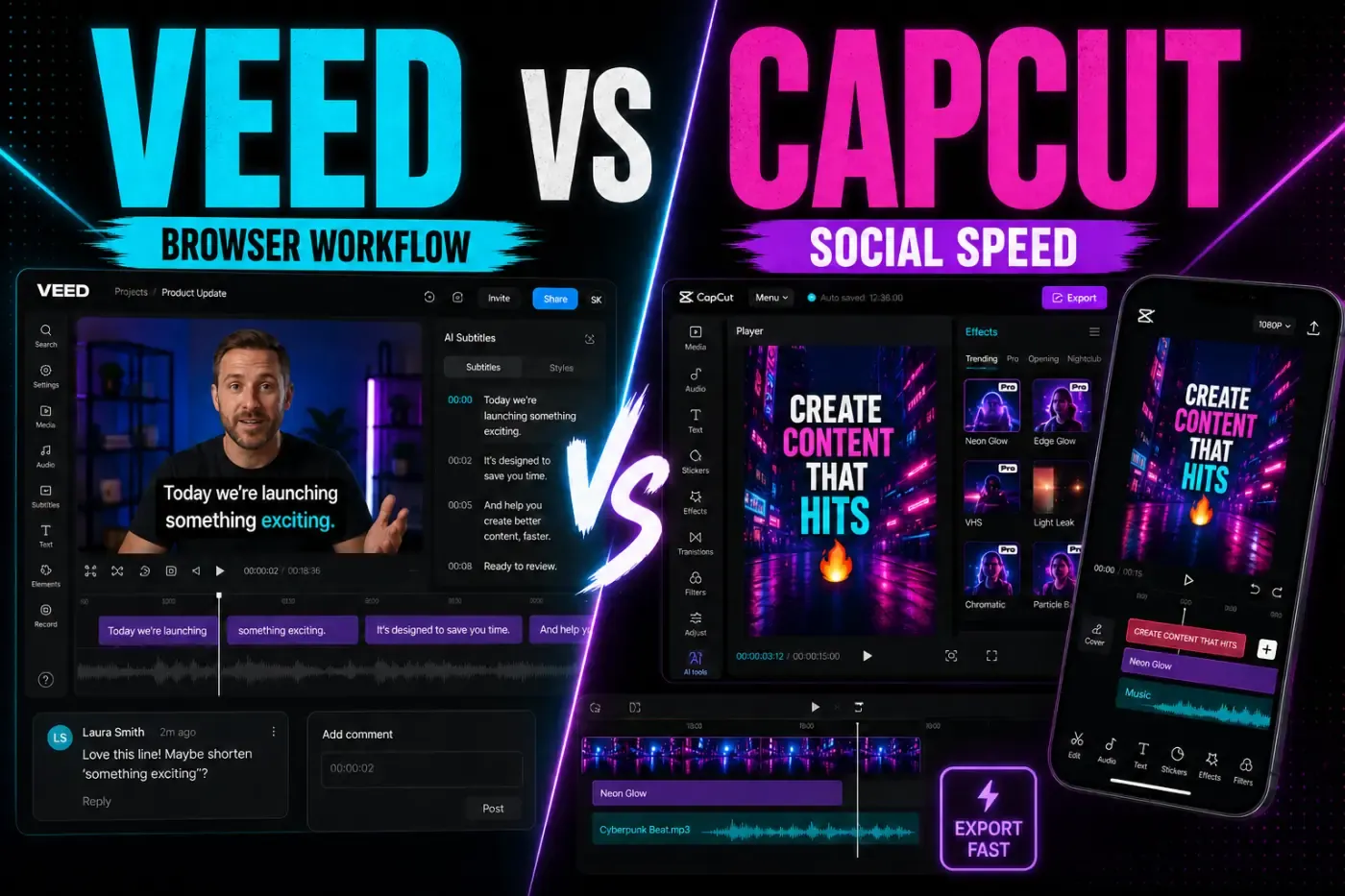
VEED is the CapCut alternative to consider when the browser, the transcript and the handoff matter as much as the timeline. It lets you upload footage, trim it online, style captions, clean a talking-head recording, generate clips and share a review link without installing a desktop editor. That convenience has a real price line: the Free plan exports only 720p with a watermark, paid plans are per user, and AI tools draw from plan allowances and credits.
We rechecked this VEED review on September 4, 2026 against VEED's live pricing screen, current export, upload, subscription, mobile-app, collaboration, version-control, privacy and account documentation, the observable search results, and current community signals. Older reviews still mix retired Basic and Business tiers with the present Creator, Pro and Studio plans, or treat VEED Lite as the main mobile editor. Those shortcuts now lead to the wrong buying and workflow decisions.
VEED Review Facts at a Glance
| Review fact | Current answer |
|---|---|
| Core product | A browser-first video editor and AI video platform for creators, marketers, educators and teams. |
| Free plan | Basic editing is free to try, but exports are limited to 720p and carry a VEED watermark. |
| Paid export line | Creator exports up to 1080p; Pro, Studio and Enterprise export up to 4K according to VEED's help page. |
| Current plan names | Creator, Pro, Studio and Enterprise. The old Basic/Business labels found in many reviews are stale. |
| AI model | Captions, text editing, filler/silence removal, audio cleanup, B-roll, eye contact, voice and generation tools use plan allowances or AI credits. |
| Browser reality | No desktop installer is required. Hardware acceleration, browser version and connection quality affect the editing experience. |
| Upload caveat | Free users are limited to 1 GB per file; paid users have no stated hard file-size limit, with a practical recommendation to keep projects under 5 GB. |
| Best fit | Talking-head videos, tutorials, marketing teams, captions, review links and browser-based handoffs. |
Quick Verdict: VEED Is a Browser-first Production Tool
Choose VEED when your work starts with a recording, a script or a client review rather than a trending template. The strongest loop is: upload a talking-head clip, edit by transcript, remove silences, clean the audio, style subtitles, resize for a platform and send a link for comments. The editor puts that loop in one workspace.
Choose CapCut when the goal is a fast vertical post with a large preset library, animated social captions, stickers and trend-led timing. CapCut's alternatives guide is useful for the wider shortlist, but VEED earns a standalone review because its value is less about the number of effects and more about browser access, transcript editing, review links and team workflow.
VEED is not a free replacement for every CapCut project. Free exports have a watermark, the free resolution ceiling is 720p, and the most attractive AI actions can be one-time trials or credit-limited. A solo creator making daily Shorts may find the paid plan expensive; a small marketing team may save time by having one shared project instead of passing large files between editors.
What VEED Is in 2026
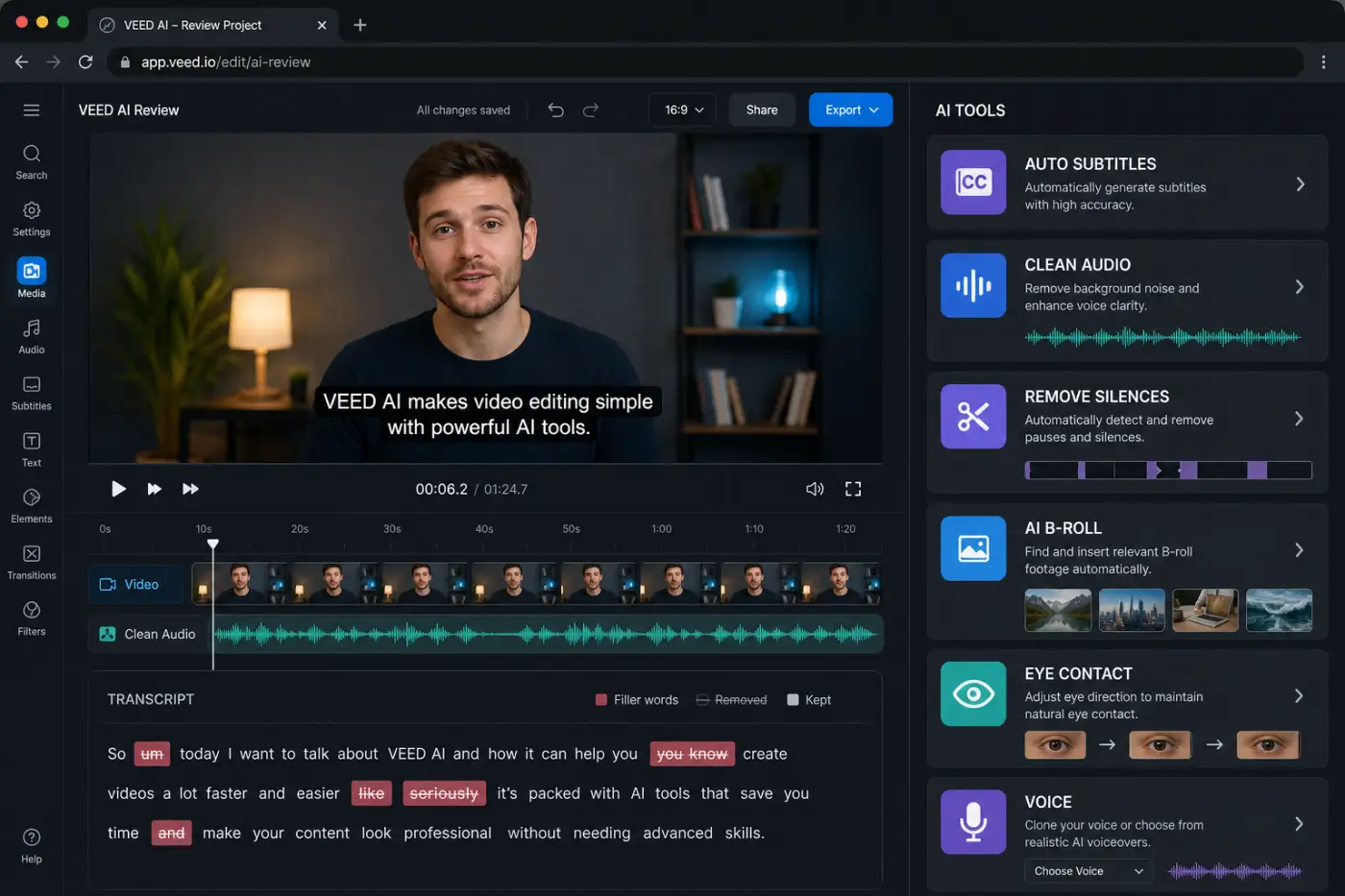
VEED has grown from a simple online cutter into a cloud video workspace. Its current editor page groups conventional editing with text-based editing, Auto Edits, subtitles, background removal, clean audio, eye contact correction, voice tools, AI B-roll and social repurposing. You can start with your own footage, paste a link or begin with an AI tool, then return to the same project for a manual pass.
That breadth changes the learning curve. The first trim is easy: upload, place the media on the timeline and drag the edges. The harder decisions are about which tool consumes credits, whether an AI result is editable, which plan exports the desired resolution and who can view the project link. VEED rewards a creator who treats production as a repeatable process rather than a one-off effect hunt. If you want a direct CapCut browser reference, our CapCut web editor guide covers the competing desktop path.
The platform is also more business-facing than CapCut. Brand Kits, shared workspaces, project viewers, timestamped comments, review links and analytics matter when a video has an owner, an approver and a publishing deadline. Those features are less valuable if you edit alone on a phone and post immediately.
Free vs Paid: Watermark, Export and AI Credits
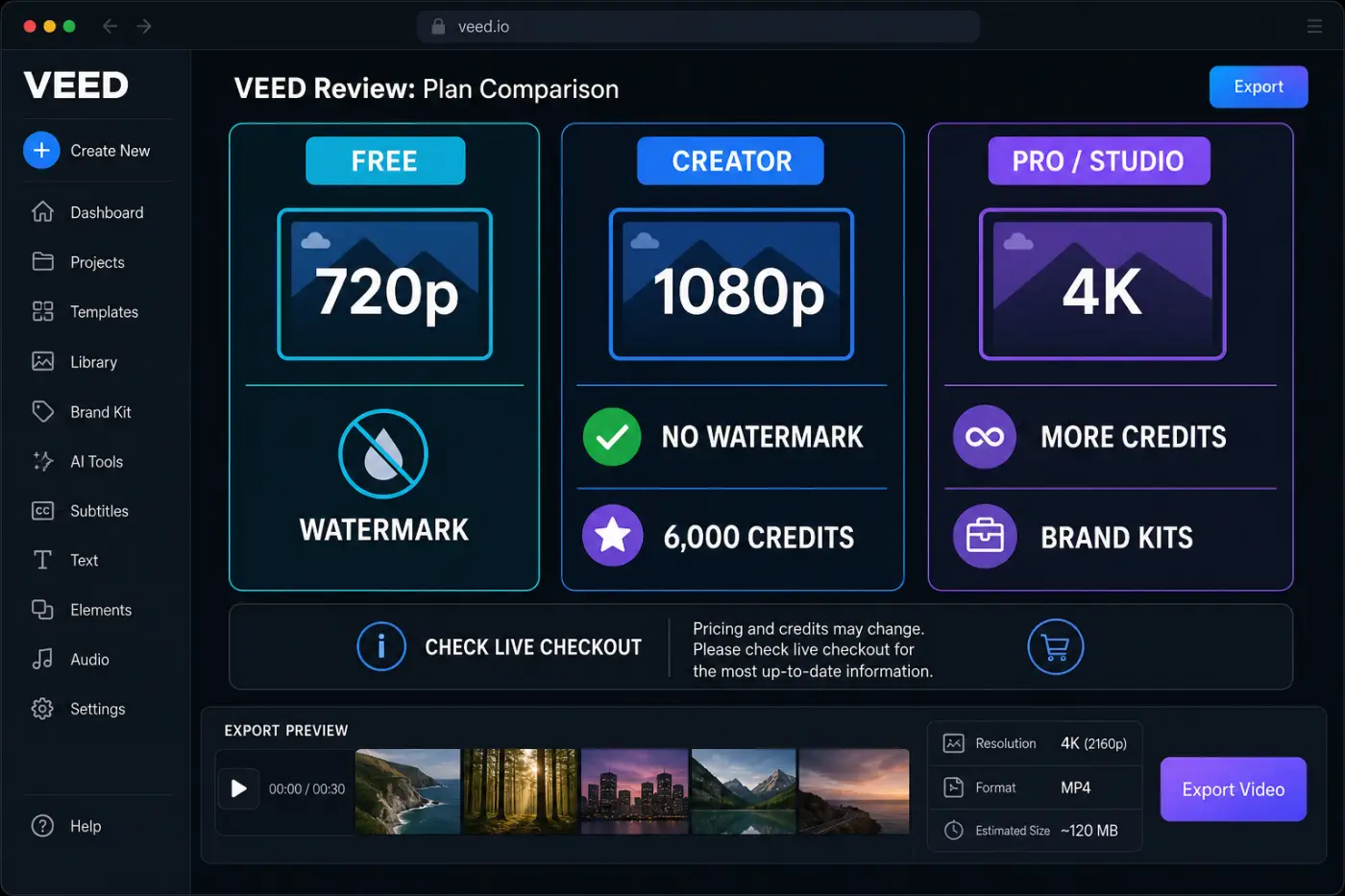
The Free plan is a useful trial, not a complete client-delivery plan. VEED's export help currently lists 720p for Free, and Free exports include a watermark. You can learn the timeline, try basic text and music, inspect subtitles and test selected AI tools, but the final file still advertises the tool and has a lower resolution ceiling.
The current paid ladder is Creator, Pro and Studio, with Enterprise for custom requirements. On the live VEED pricing screen rendered on September 4, 2026, annual billing displayed Creator at $10 per user/month billed as $116, Pro at $21 billed as $257, and Studio at $35 billed as $414. The same page has a monthly/yearly toggle. These are a dated US-dollar browser snapshot, not a universal quote: currency, tax, billing cycle, seat count, credit selection and promotions can change the checkout.
Creator's card lists 6,000 credits, no watermark, unlimited auto subtitles, the full audio/video catalog and 15+ AI tools. Pro lists 30,000 credits, multiple Brand Kits, translation to 50+ languages and up to 144 hours of AI voice per year. Studio lists 180,000 credits, custom templates, translation to 50+ languages and up to 960 hours of AI voice per year. Resolution is only one difference; the plans also bundle different amounts of production and team capacity.
AI credits are not the same thing as unlimited video exports. A normal edit can still be limited by resolution and plan, while AI generation, voice, dubbing, avatars, image generation or clips draw from the allowance shown in your dashboard. Before buying annual access, run one representative project and note which actions you use. If captions and 1080p are enough, Creator may be the sensible floor; if multiple editors and brand systems matter, Pro or Studio can make more sense.
Export Quality and Watermark Rules
VEED's official export guide gives a clear ladder: Free up to 720p, Creator up to 1080p, and Pro, Studio and Enterprise up to 4K. If the source is soft, choosing a higher output doesn't restore detail. If the source frame rate is lower than the export setting, VEED keeps the original frame rate; the frame-rate limitation is relevant when uploaded footage is above 60 fps.
Watermark timing matters. A file rendered while the account is on Free keeps its watermark even if you upgrade later. VEED says you must reopen and export the original project after upgrading. Importing the already-watermarked MP4 into a new project can't remove the hardcoded mark. Keep the project intact until the clean export has been downloaded and checked.
Don't treat a 4K label as a guarantee that every browser, source codec or long timeline will render comfortably. The export page can offer a resolution that the source can't improve, and a large project still depends on upload, processing and download time. Check the first and last seconds, subtitles, aspect ratio, audio sync and the final file size before sending a client link.
For a CapCut workflow comparison, our breakdown of CapCut export settings goes through the same final-file discipline. The editor name is less important than matching the destination's frame size, codec and audio expectations.
Browser Editor, Hardware and Setup
VEED's hardware-acceleration guidance is worth checking before you blame the plan for a choppy preview.
VEED doesn't ask you to install a normal Windows or macOS editor. Open the web app in a current browser, sign in and upload. That is excellent for a borrowed laptop, a distributed team or a client who needs to view an edit without installing your software. It also means the browser, connection, storage and hardware acceleration become part of the editing stack.
VEED's current support note for an “unsupported device” error points to hardware acceleration and an up-to-date browser and operating system. If playback stutters, first check acceleration, close heavy tabs, use a wired or stable connection and test a shorter section. A more expensive plan doesn't fix a laptop that can't decode the source smoothly.
Upload time changes how the editor feels. A short 1080p talking-head clip can be ready quickly; a multi-gigabyte 4K interview depends on the connection and server processing before the timeline becomes comfortable. Keep a local copy of the source, name project versions clearly and avoid treating the cloud project as the only copy.
Timeline, Text-based Editing and Layers
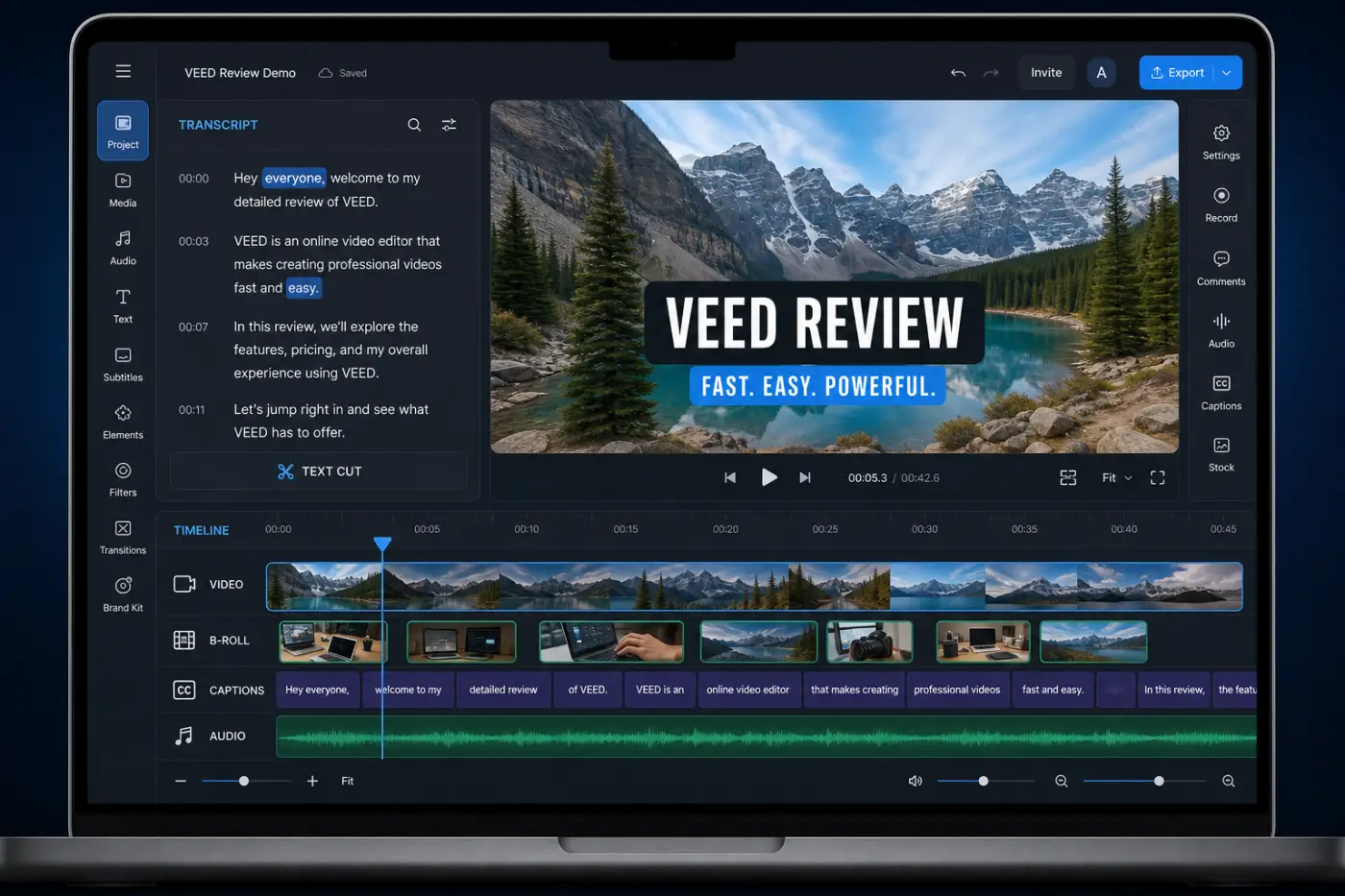
VEED's timeline is approachable for a beginner: clips and elements appear as separate blocks, the playhead shows the current frame, and dragging a clip changes its order or duration. The official timeline guide describes stacked media tracks for overlays, picture-in-picture and background music. You can still make a conventional cut, but the timeline is designed to sit beside higher-level text and AI controls.
Text-based editing is the major difference from a template-first mobile workflow. VEED's current Edit by Script guidance says the tool is available on all plans for videos with spoken audio. Delete or restore transcript words and the matching footage follows; silences and filler words can be removed from the same panel. It does not let you reorder footage by dragging transcript sections, and support is limited to languages that separate words with spaces. Switch to the timeline when the structure has to change as well as the wording.
Use the transcript as a rough cut, then return to the timeline for rhythm. Automatic deletion can remove a phrase that sounded repetitive in text but was useful for the speaker's cadence. Watch the cut at normal speed, inspect the start and end of every removed section and keep the original project so you can restore a version if the edit becomes too tight.
CapCut gives phone-first creators a faster path to masks, stickers and animated presets. VEED gives a browser user a clearer path from spoken words to a shorter edit. The better tool depends on whether the raw material is a transcript or a visual trend.
Captions, Subtitles and Translation
When the paid question is about captions, credits and cloud features, our CapCut Pro features guide gives a useful comparison point.
VEED's subtitle workflow covers generation, manual correction, styling, timing, file upload and translation. The subtitle editor accepts SRT and VTT files, lets you edit words and timestamps, and supports styled and dynamic captions. The current pricing cards advertise translation to 50+ languages on Pro and Studio, while VEED's translation help says Free and Creator receive a one-time trial. Check the language list and allowance in the workspace before promising a multilingual delivery.
That makes VEED a strong fit for tutorials and marketing clips where captions serve accessibility as well as visual style. Correct a name, drag a subtitle block into sync, choose a readable size and preview on a small screen. VEED can export a burned-in caption video or subtitle files, but file downloads and translation allowances may be plan-specific.
CapCut is quicker when the target is a familiar animated caption preset. VEED is better when you need to edit the words, timestamps and language versions as a production asset. Our CapCut auto-captions guide is the faster social route; VEED's transcript and subtitle controls are the more deliberate route.
Never publish a raw transcript without proofreading. Names, jargon, accents, code, lyrics and punctuation are common failure points. Dynamic highlighting can make a wrong word more visible, so review the caption track in context rather than trusting the accuracy percentage on a marketing page.
AI Editing: Cleanup, B-roll and Auto Edits
VEED's AI layer is practical when it removes repetitive work. Its current editor pages highlight clean audio, filler-word and silence removal, AI B-roll, background removal, eye-contact correction, voice tools and automatic social clips. The Auto Edits workflow lets you apply a group of enhancements and then return to manual editing. Compare the positioning with our overview of CapCut's AI features before you assume the same tool name means the same workflow.
Clean Audio can rescue a room recording with steady background noise; it can't turn a clipped microphone into a studio take. Filler removal can tighten a tutorial; it can also make a speaker sound rushed if the threshold is aggressive. AI B-roll can cover a jump cut, but the visual still needs a relevance and licensing check. Treat every generated section as a draft that needs a human pass.
Background removal is useful for a product demo or a presenter over a branded color. Look closely at hair, glasses and fast hand movement. If the edge breaks, a simple crop or a real background may look more credible than an over-processed cutout.
Talking-head Tools: Eye Contact, Teleprompter and Voice
VEED is unusually well matched to talking-head production. Eye Contact can subtly redirect a presenter's gaze toward the camera; the official help page says Free users can try it once and paid plans have full access. It works best when the subject is close, well lit and not looking far away. If the source is soft or the head turns sharply, the tool may skip correction to avoid an unnatural result.
A teleprompter, webcam recorder, text-to-speech and voice tools keep the recording-to-publish loop in one browser workspace. That is useful for course lessons, product explainers and LinkedIn videos. It is less useful if you already have a camera, a dedicated audio workflow and a desktop NLE that you trust.
Voice cloning and text-to-speech need an editorial boundary. Confirm that you have consent for a cloned voice, proofread the script and listen for pronunciation of names and technical terms. A synthetic voice can make a factual mistake sound confident; the human review is still the quality gate.
For a phone-first creator, CapCut's voice and caption presets may be faster. For a presenter who records several versions of the same lesson, VEED's transcript, cleanup and review link can remove more handoff friction.
Templates, Brand Kits and Resize for Social
For a preset-led comparison, our guide to CapCut templates covers the trend-first path; VEED's advantage is repeatable brand output.
VEED includes templates and a social publishing mindset, but its strongest template value is consistency rather than trend speed. Creator includes the full audio and video catalog; Pro adds multiple Brand Kits; Studio adds custom templates. Save fonts, colors, logos and lower-third rules once, then reuse them across a team. If a template itself is the idea, CapCut's preset-led path is faster.
Resize for Social is useful when one long recording needs a 16:9 YouTube cut, a 9:16 Short and a square or 4:5 feed version. Check every crop after resizing. A face can move out of the safe area, a subtitle can sit under a platform control and a B-roll insert can lose its point when the frame changes.
CapCut's templates are better when the template is the content: a trend, a beat map or a recognizable effect. VEED is better when the brand system is the content. Keep a clean master without platform-specific captions, then make each social version from that project rather than exporting and recompressing the same file repeatedly.
Uploads, Formats and Cloud Project Footprint
The upload guide is the authoritative place to recheck a codec or file-size limit before a large import.
VEED's upload help lists MP4, M4V, MOV, WebM, MKV, AVI, OGV, FLV and TS video, common audio formats such as MP3, AAC, WAV and FLAC, and JPG/PNG/WebP/AVIF images. HDR sources may be converted to SDR. The range is broad enough for normal phone and camera media, but an unusual codec can still trigger a slow transcode or a playback mismatch.
Free users have a 1 GB maximum per file. Paid users have no stated hard file-size limit in the help article, although VEED recommends keeping the total project below 5 GB. There's no folder upload; select the files inside the folder. For a long interview, split the source into logical reels or keep a local proxy so the browser is not carrying every camera original at once.
Cloud convenience is not the same as archival safety. Download the final MP4, preserve the source media and keep a project naming convention. A link that plays in VEED is useful for review, but a client handoff should also have a local master and a written note about the resolution, frame rate and audio version.
Collaboration, Sharing and Review Links
VEED's collaborator rules and viewer flow should be checked before you promise a client a permission level the workspace doesn't provide.
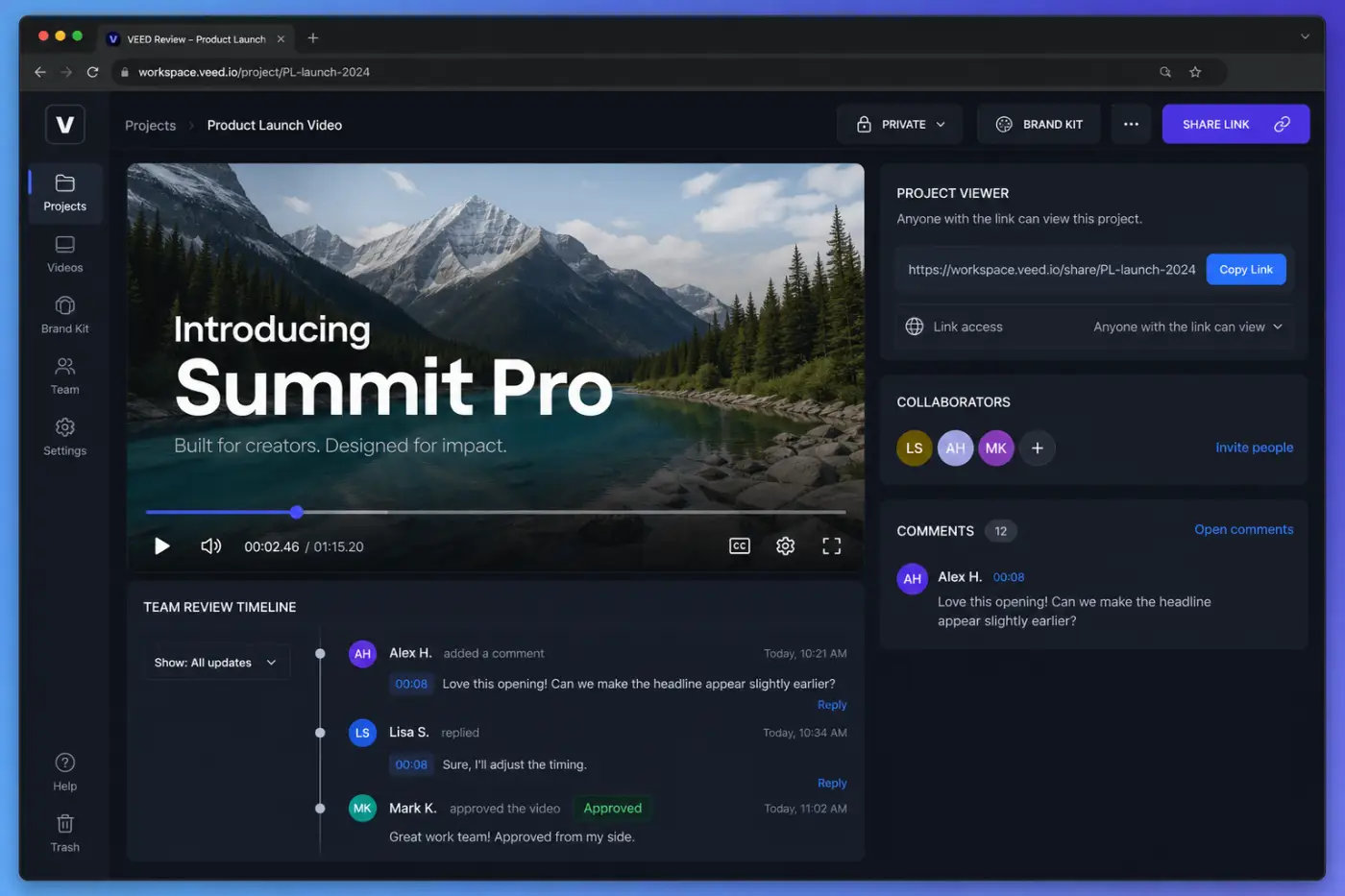
Team workflow is one of VEED's strongest CapCut differences. You can share an exported project by link, embed it, invite a viewer or add a collaborator. The viewer path is deliberately narrower: a Project Viewer can watch one exported project without entering the workspace or editing it.
Workspace editors are more powerful and more expensive. VEED's help page says Free, Creator and Pro allow up to three editors, while Studio allows up to five. Collaborators receive the same editing capabilities, and the cited workflow doesn't provide granular project permissions. Each additional collaborator is an additional paid seat on a paid workspace, so remove old editors before the renewal date.
Use comments and timestamps for an approval loop, then keep the source project private until the review is finished. Don't paste an “anyone with the link” URL into a public brief if the footage contains unreleased product information. A shared link is convenient, but the person who receives it can watch the video.
Privacy, Version Control and Deleted Projects
Before sending a link, read the export and project-privacy guidance; the privacy setting controls whether a recipient can view an exported project.
VEED lets you set projects to private, public or anyone with the link. The export help page says link-access videos are not searchable by search engines, but anyone who receives the link can view them. That is a sharing setting, not a confidentiality guarantee. Use an invited Project Viewer for client material, personal data or unreleased campaigns, and revoke access when the review ends.
There is also a plan-level data distinction worth checking before upload. VEED's Terms of Use, last updated April 22, 2024, grant additional product-improvement and AI-training rights for content uploaded under a Free subscription; the same clause says it does not apply to paid or Enterprise content. VEED says a Free user can object by deleting the account or upgrading, although de-identified or aggregated information already derived may remain in use. Keep confidential footage out of a Free workspace unless that license is acceptable.
Version Control is available on all plans and can restore an earlier project without deleting the current one. There is a catch that many cloud-editor summaries skip: VEED's help page says versions are stored locally on the computer/browser where the edits were made. Clearing the site's data can remove those versions. Keep a downloaded master and don't use browser history as your only backup.
Deleted projects move to Trash for 30 days and can be restored during that window. After permanent deletion, VEED says neither the user nor support can recover the project. Before cleaning a workspace, download the final file and any source or subtitle assets you may need later.
Mobile Reality: Main VEED Apps Versus VEED Lite
The main product and VEED Lite now need to be treated separately. VEED's current subscription guidance says the main VEED product uses the same account, projects and subscription across the browser, the VEED iOS app and the VEED Android app. VEED Lite is a separate iOS quick-editing app with its own projects and App Store subscription.
The irreversible handoff warning applies specifically to VEED Lite projects moved into the web editor. After a Lite project is edited on the web, it cannot be edited again in Lite; elements and images are hardcoded, subtitle styling does not transfer, and only subtitle text remains editable. Web projects exposed inside Lite can be renamed, deleted, exported or shared, but not edited there. Do not present those Lite limits as limits of VEED's main iOS and Android apps.
Billing follows the same product split. A subscription bought on the web or Android uses VEED checkout and Workspace Billing; a main-app iOS purchase is managed by Apple. A VEED Lite subscription unlocks only Lite. VEED’s subscription overview says main paid subscriptions also grant Lite access, but its Lite app guide says a paid VEED plan does not. Its Lite purchase guide makes access dependent on the web plan. Check the plan comparison and your account entitlement with VEED before buying a plan for both apps. Teams should record which product and store owns the subscription before assuming a phone purchase covers the browser workspace.
For a CapCut user, the useful comparison is now main VEED versus VEED Lite, not desktop versus “the Captions app.” The main VEED apps now make phone access far more credible, but CapCut still offers the more established effects-and-template path for fast creator edits. Test the same project on the exact VEED app you intend to use; do not infer full feature parity merely because the account and projects are shared.
Reliability and Current Limitations
VEED's most common failure modes are ordinary cloud-editor problems: upload waits, browser playback stutter, a project opening with a different privacy setting, an AI action consuming more allowance than expected, or a clean export requiring a second render after an upgrade. None of those makes the editor unusable, but each should be part of the production checklist.
Use a modern browser with hardware acceleration, keep the source locally, export a short proof before a long render and name versions. If an AI tool changes a face, voice or edge, compare the before/after rather than trusting the progress bar. If the review link is sensitive, invite a viewer instead of setting it to anyone with the link.
Current review evidence points to the same trade-off without proving a universal failure rate. A verified March 2026 G2 review praised subtitle editing, eye contact and visual/audio layers, while describing an occasional recording-save failure. Capterra's August 27, 2026 snapshot showed more mixed overall, ease-of-use and support ratings. A recent creator discussion called VEED strong on captions. Treat these as issues and strengths to check in a representative project, not as measured defect rates.
VEED vs CapCut: Feature Comparison
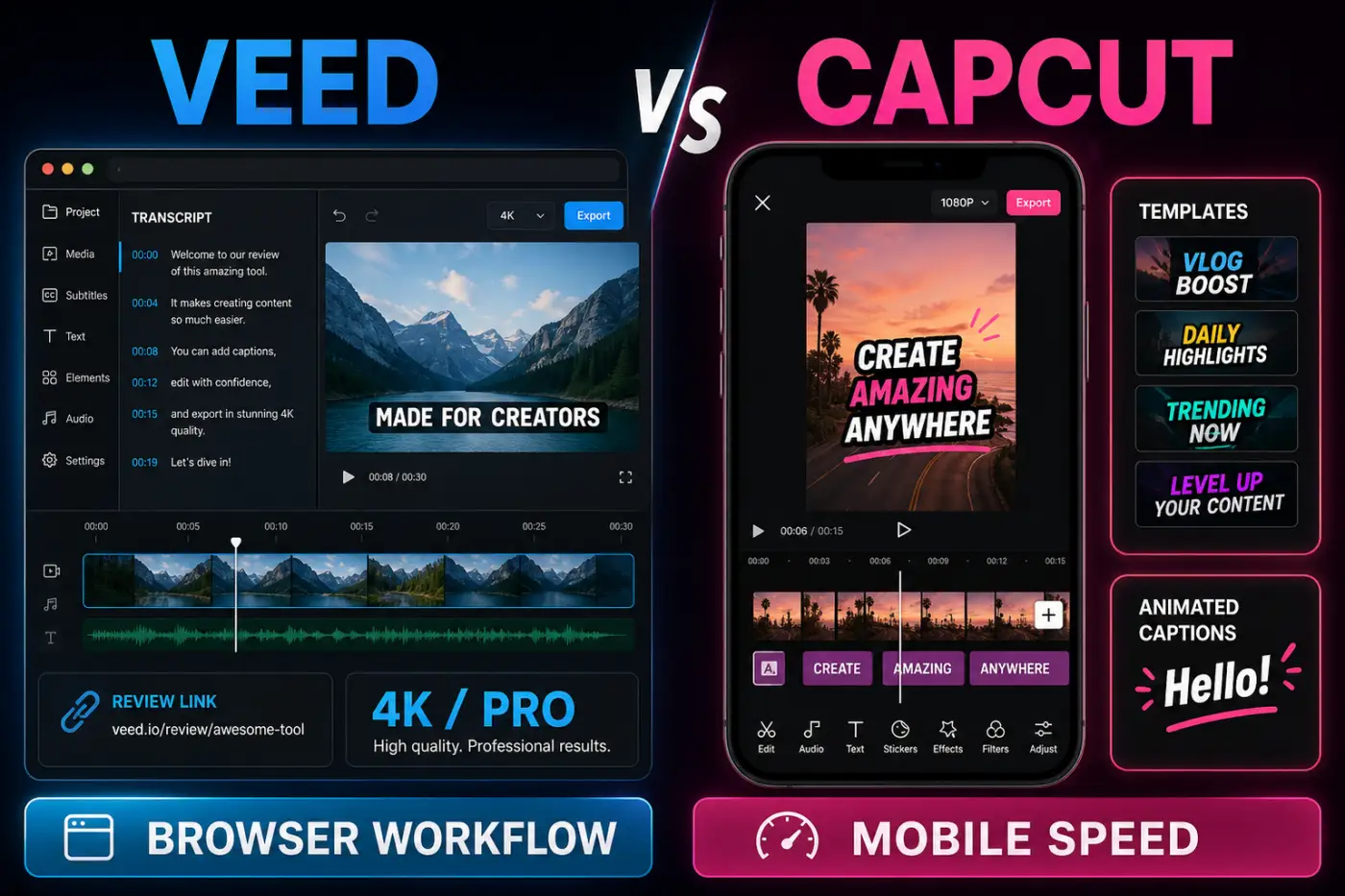
Both editors can trim clips, add text, generate captions and produce a short social video. The defaults are different: VEED starts with the browser, transcript and review link; CapCut starts with the phone, template and social effect. Use the table as a workflow decision, not a claim that one app wins every row.
| Decision factor | VEED | CapCut |
|---|---|---|
| Primary workflow | Browser-first editing, transcript cuts, captions, AI cleanup and review links | Fast mobile, web and desktop social editing with templates, effects and guided shortcuts |
| Free export | 720p maximum and watermark | Current clean-export rules vary by platform, asset, feature and account; check the export screen |
| Paid export | Creator up to 1080p; Pro/Studio/Enterprise up to 4K | Resolution and plan rules vary; test the destination file |
| AI model | Credits/allowances for captions, cleanup, B-roll, eye contact, voice, translation and generation | Broad AI toolkit for creators; availability varies by version, region and plan |
| Captions | Transcript editing, manual timing, dynamic styles, SRT/VTT and translation workflows | Fast animated captions, translations, stickers and social presets |
| Timeline | Stacked browser tracks with text-based editing and drag/reorder controls | Quick social timeline with keyframes, masks, effects and preset-led shortcuts |
| Talking head | Eye Contact, clean audio, filler/silence removal, teleprompter and voice tools | Fast voice, captions and effects; fewer team/review controls in the core social path |
| Brand workflow | Brand Kits, custom templates and shared workspace seats | Template and creator ecosystem optimized for individual social publishing |
| Collaboration | Project viewers, link sharing, comments, workspaces and per-seat editors | Account/cloud workflow varies; handoffs depend on the project and platform |
| Devices | Browser, iOS and Android for the main VEED product; separate iOS VEED Lite with its own project and billing boundary | Mobile, web and desktop paths make single-creator switching easier |
| Best fit | Teams, tutorials, interviews, marketing videos and review-heavy work | Daily Shorts/Reels, trend formats, templates and phone-first publishing |
Choose VEED If You...
- edit tutorials, interviews, courses, demos or marketing videos in a browser;
- want to cut a talking-head recording by reading the transcript;
- need captions that can be corrected, restyled, translated and delivered as files;
- share review links or invite a viewer without giving them the whole workspace;
- need Brand Kits, reusable templates or several editors working under one account;
- are comfortable paying per seat and tracking AI credits;
- will keep local source media and a downloaded master beside the cloud project.
Stay With CapCut If You...
- make daily vertical posts from a phone and want the shortest route to publish;
- depend on trend templates, animated captions, stickers and beat-led effects;
- need to move between mobile, web and desktop without a separate mobile-app handoff rule;
- rarely need client review links, Brand Kits or multiple editor seats;
- don't want a watermark on a free test export or a per-seat subscription for routine social work;
- prefer manual visual timing over transcript-driven cuts;
- need to work offline or keep the main edit outside a browser workspace.
A Practical VEED and CapCut Hybrid Workflow
A two-app workflow is sensible when each tool owns a clear stage. Record and assemble the spoken structure in VEED, remove filler words, clean the audio, generate a transcript and send a review link. After approval, use CapCut for a final vertical version with a specific social caption style, sticker or trend transition.
For a quick social idea, work backwards. Cut the visual hook in CapCut, export a clean intermediate and use VEED to create a transcript, translate the captions, resize for a brand channel or collect timestamped approval. Avoid repeated lossy exports: keep the cleanest master and make platform versions from it.
Write down who owns the project, which plan produced the export, where the source media lives and when the link should expire or be made private. The hybrid workflow remains manageable when the handoff is an intentional file and review state, rather than a guess about which browser tab contains the newest version.
Frequently Asked Questions
Is VEED free?
VEED has a Free plan with basic browser editing, but it is a trial-level delivery option: exports are limited to 720p and carry a watermark. Paid Creator, Pro and Studio plans remove the watermark and raise the export ceiling; AI tools and credits still depend on the plan.
Does VEED export without a watermark?
Yes, on paid plans. A video exported while the account was Free keeps its watermark even after an upgrade. Reopen the original project and export it again after the paid plan is active; importing the watermarked MP4 can't clean it.
What is the current VEED pricing?
The live pricing page is region- and billing-sensitive. On the September 4, 2026 browser snapshot used for this review, annual-billing cards showed $10/user/month for Creator billed as $116, $21 for Pro billed as $257 and $35 for Studio billed as $414. Verify the current currency, tax, billing toggle, AI-credit selection, pending invitations and total seat count at checkout.
Can VEED export 4K?
Pro, Studio and Enterprise plans can export up to 4K according to VEED's export help page. Creator tops out at 1080p and Free at 720p. A higher output setting can't add detail that was missing from the source.
Can I use VEED on a phone?
Yes. The main VEED product now has iOS and Android apps that use the same account, projects and subscription as the browser product. VEED Lite is a separate iOS quick-editing app with its own projects and subscription. Its documented Lite-to-web conversion can hardcode elements and prevent later Lite editing, so confirm which app you are using before moving a project.
Is VEED better than CapCut?
VEED is better for browser-based talking-head work, transcript editing, captions, review links, Brand Kits and team handoffs. CapCut is better for a phone-first creator who wants templates, animated social captions and quick trend publishing. If you need both, use VEED for the spoken master and review, then CapCut for a controlled social finishing pass.
Final Verdict
VEED is a strong CapCut alternative when “make a video” includes editing speech, checking a draft with other people and delivering several branded versions. It is a weaker fit when the only goal is a fast, free, watermark-free vertical post. Start with one representative project, check the export and AI allowances on your account, and keep a local master before committing to a yearly seat.