

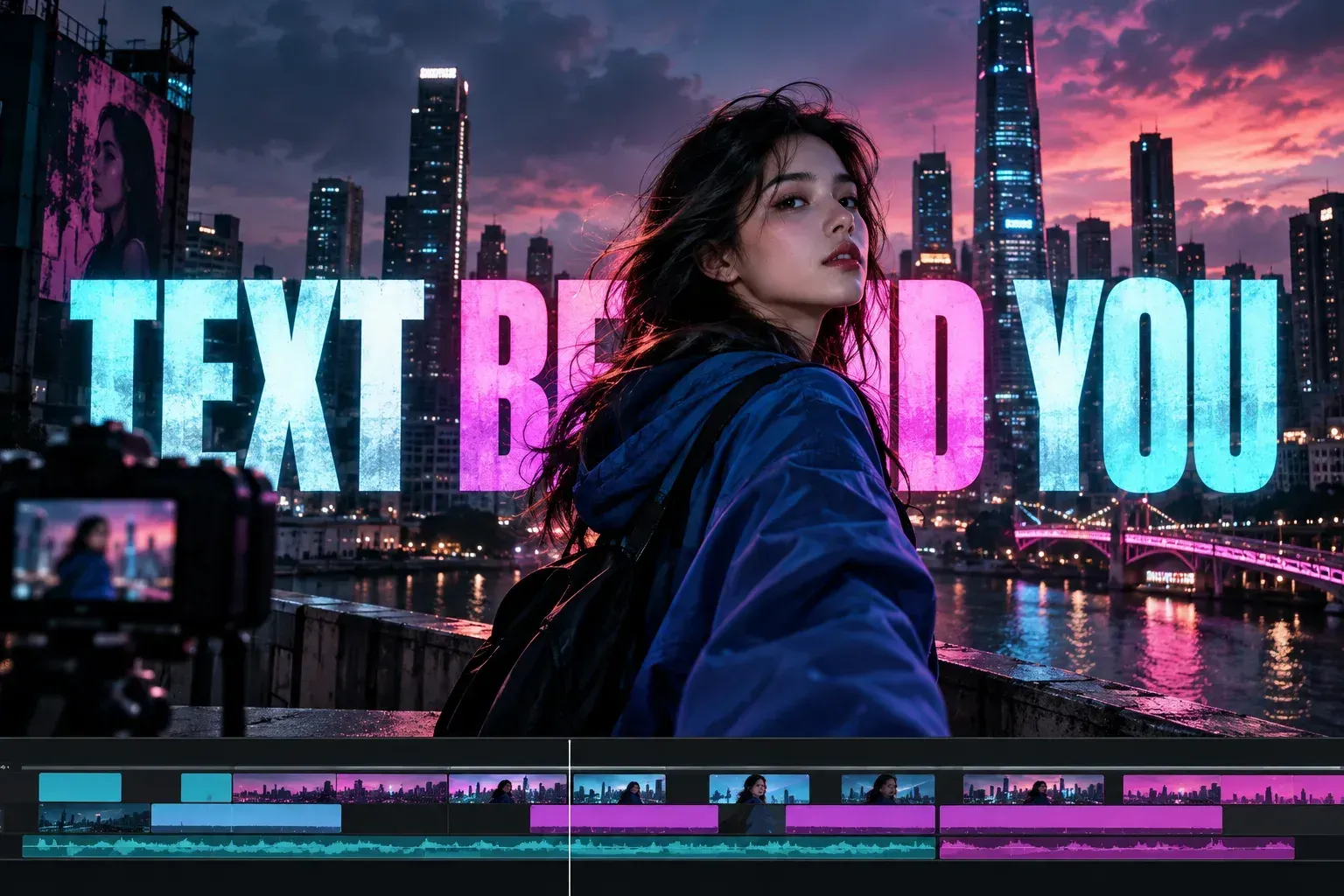
To put a title behind someone in CapCut, build the shot in this order: original video at the back, text in the middle, and a cutout of the same person in front. The cutout hides only the letters it crosses. CapCut's text-behind-person walkthrough uses this three-layer idea across Web, Desktop and Mobile, although the controls and track layout differ.
I would get the layers and timing right before styling the type. A beautiful title cannot fix a duplicate clip that starts a few frames late.
Build the three-layer shot
Start with one video that shows the person and the scene you want to keep. Add a short title over it, then place a second copy of the same footage above that title. Apply background removal only to the front copy. The original stays intact behind the words; the upper copy shows just the person. If the editor shows the whole upper scene, the title disappears because that full frame covers it.
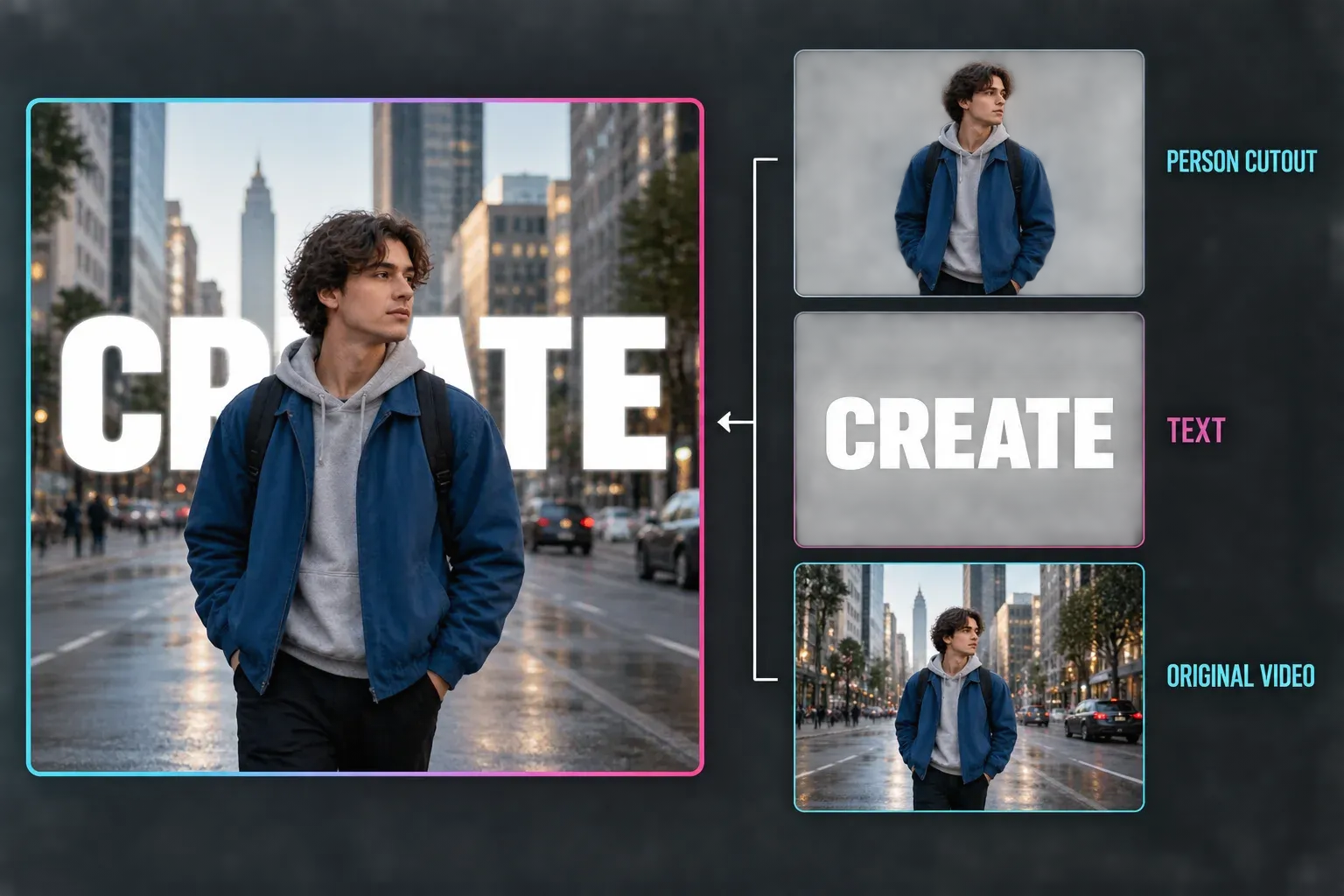
Keep the title inside the part of the frame the person actually crosses. A word placed entirely beside the subject will look like ordinary overlaid text. If you need help with the font, duration or placement itself, use the CapCut text guide; this guide is about the depth effect.
CapCut Web: place the cutout over the title
CapCut's documented Web route begins with the original clip on the timeline. Add a text layer and set its duration. Import the same clip again, put it above the text and align its start with the base clip. Select that upper copy, then open Smart tools > Remove background > Auto removal. The person should now cover the overlapping letters while the uncut original supplies the scene behind them.
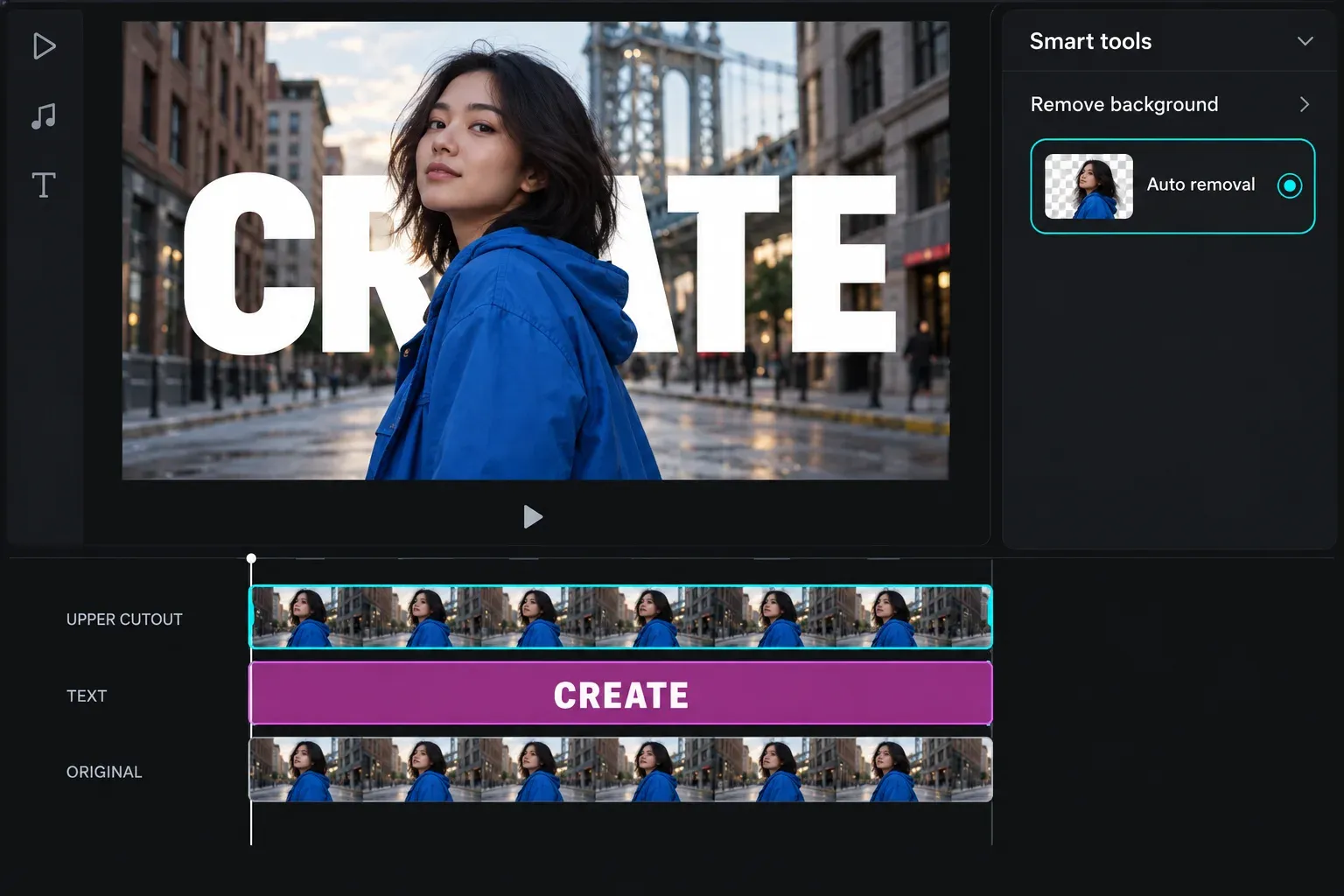
Play across the start and end of the title. If the upper copy is shorter or begins later, the words can jump in front of the person for a frame. If you hear doubled sound, mute one of the duplicated audio tracks. CapCut's Web background-remover instructions confirm Smart tools > Remove background on the selected clip; the precise panel layout can change.
Desktop and Mobile: make the preview prove the order
On Desktop, CapCut's current background-removal instructions put Auto removal under Video > Remove BG for the selected clip. Build the same visual order with the original shot, title and aligned front copy, then run Auto removal on that front copy. CapCut's Desktop example makes a compound clip from the base video and title before adding the cutout above it. That is a documented fallback when the timeline will not let you keep the title between two ordinary video layers. Keep an editable copy of the project before compounding if you expect to revise the words later.
On Mobile, CapCut documents Edit > Remove BG after selecting a video clip in its background-removal guide. Duplicate the footage, add the title and apply removal to the copy intended to sit in front. Then inspect the preview: the person must cover the letters, the letters must cover the original scene. If the full image hides the title, reselect the copy you cut out and check the layer order. Mobile controls vary by build; if your editor cannot place the cutout in front of the text, finish this layered effect in Desktop or Web instead of guessing at an old menu label.
Keep the effect clean when the person moves
A stationary title does not need to track the person. The cutout changes from frame to frame as the person moves across the fixed letters. If you want the title itself to follow the person, animate the text layer's position with keyframes where your editor exposes them. Position keyframes are manual movement, not automatic subject tracking; our CapCut text guide covers text timing and keyframes.
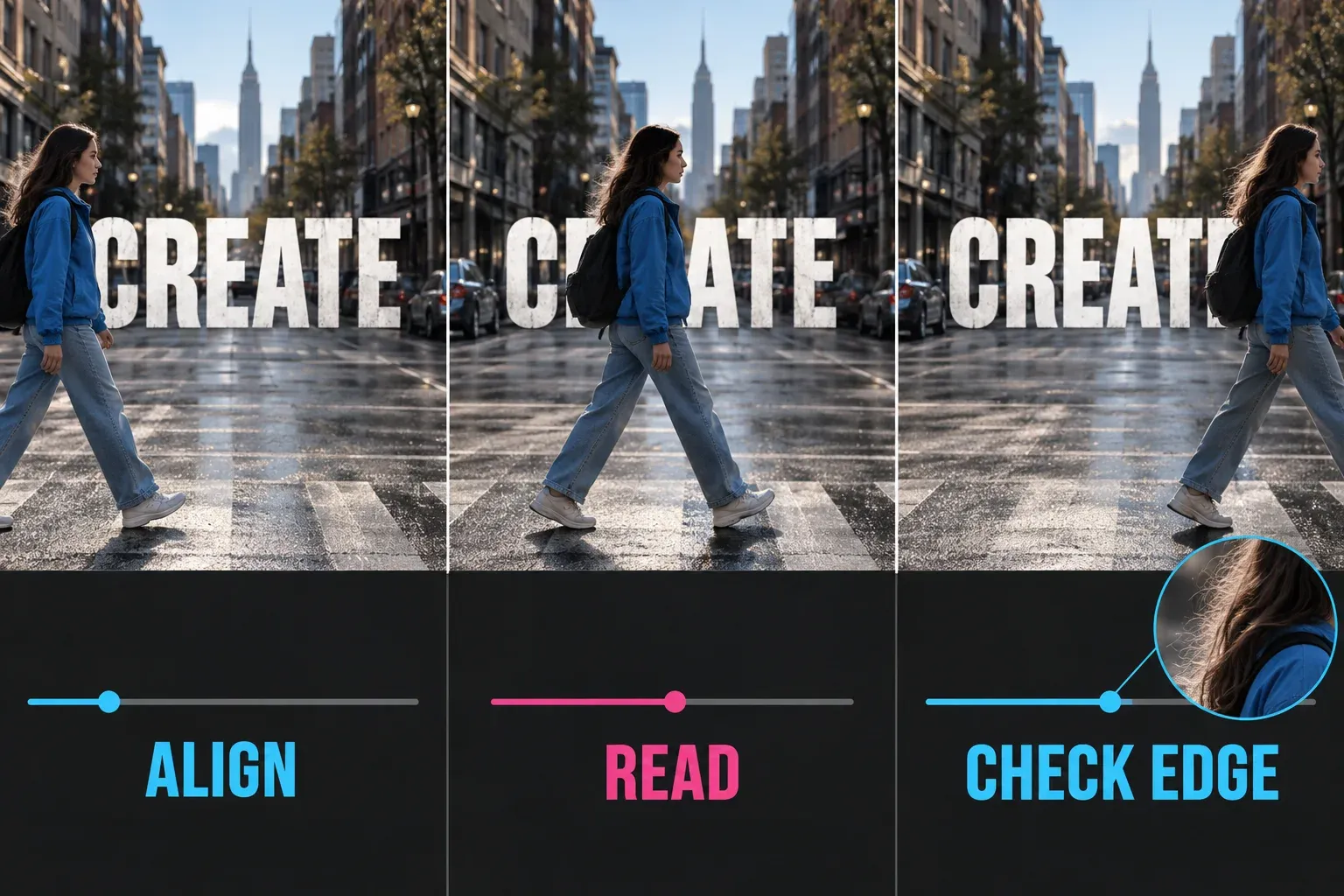
If hair or hands lose pieces, inspect the upper copy on both a light and a dark background. CapCut's removal controls include Custom removal where available. A simple rectangular mask is a poor substitute for a changing human outline; the masking guide explains when a controlled shape and mask keyframes make sense. A solid green or blue source is a different case: use Chroma Key rather than expecting Auto removal to interpret that background the same way.
Before the final render, play the whole effect once without pausing. Look for a title that starts too early, a cutout that lags behind the base shot, letters hidden completely by the subject, and edge halos that appear only against certain colors. Check the exported file too: a correct editing preview is not proof that the final frame is clean. For file settings and playback checks, use the CapCut export guide.